
How to Check Which Signal Version You Have Installed
Published: October 7, 2026 Updated: October 8, 2026
To check your Signal version, open Signal, tap your profile icon, go to Settings, tap Help, and read the version number at the top. That one number tells you whether you are current, behind, or stuck on an old build. The latest website build right now is 8.29.3. If your number is lower, an update is waiting for you.
Find your version in 20 seconds
- Open Signal on your phone.
- Tap your profile icon (top-left of the chat list).
- Tap Settings.
- Scroll down and tap Help.
- Read the version number shown there, for example 8.29.3.
This path (Settings Help Version) is the one Signal's own support pages point to, and it works the same on the Play Store build and the website build. There is a second way to check: open Android Settings Apps Signal App info and look at the version listed at the bottom. Both show the same number; the in-app path is just faster.
While you are in the Help screen, note which build you have. The website build (downloaded from Signal's site) updates itself; the Play Store build updates through the Play Store. If you ever mix them up, the two builds are signed with different keys and cannot install over each other. Our install-conflict guide explains that trap.
What the version number means
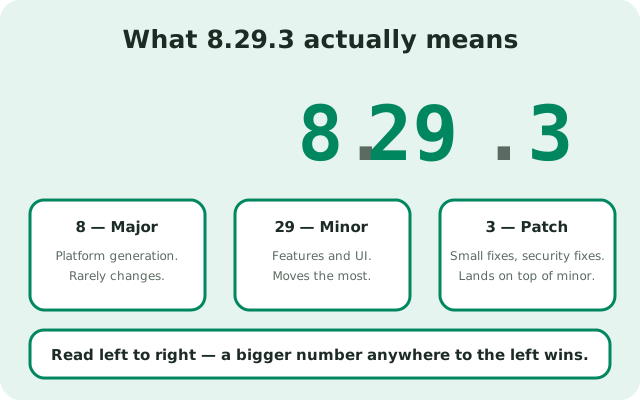
A Signal version like 8.29.3 has three parts:
| Part | What it means |
|---|---|
| 8 (major) | Big platform generation. Changes rarely; you will not see this move often. |
| 29 (minor) | Feature releases. This is the number that moves most. New features, UI changes, and improvements land here. |
| 3 (patch) | Small fixes on top of a minor release: crash fixes, small bugs, security fixes. |
So 8.29.3 is the third patch on the 8.29 feature release. When you compare versions, read left to right: 8.29.3 is newer than 8.29.1, and 8.29.anything is newer than 8.28.anything. You do not need to memorize this. Just know that a bigger number anywhere to the left wins.
One more thing the number tells you: whether you are on the website build at all. If you installed from Signal's site, you have the website build and it handles its own updates. If you installed from the Play Store, Google handles updates. The version screen itself does not label this, but you know which one you installed. Our latest-version page tracks the current website build number.
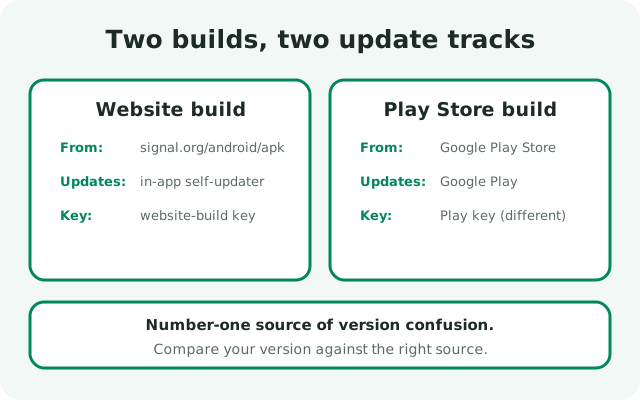
Two version tracks: website build vs Play Store build
There are two separate Signal Android builds, and they have separate version tracks. This is the number-one source of version confusion, so it deserves its own section:
| Website build | |
| Installed from | Signal's own download page (signal.org/android/apk/) |
| Updates via | In-app self-updater: Signal checks its own server and prompts you |
| Version example | 8.29.3 |
| Signing key | Signal's website-build key |
| Play Store build | |
| Installed from | Google Play Store |
| Updates via | Google Play, like any other Play app |
| Version example | Its own track: usually close to the website build, but not guaranteed identical |
| Signing key | Signal's Play-build key (different from the website key) |
Practical consequences:
- Compare against the right source. If you have the website build, the current version is on Signal's download page. If you have the Play build, the current version is whatever the Play Store listing shows. Cross-comparing the two tracks tells you nothing.
- The numbers can legitimately differ. The two builds are released on slightly different schedules. Your friend on the Play build having a different version number than your website build is not a bug.
- You cannot switch tracks by updating. Installing a Play build over a website build fails because the signing keys differ. Android treats it as a different app trying to impersonate yours. Switching means uninstalling and reinstalling, which wipes chats unless you back up first. If you are considering it, read the install-conflict guide and the migration guide before touching anything.
- Auto-update advice only applies to the website build. Everything in our auto-update guide (the in-app prompt, staged rollouts, the manual fallback) is about the website build. Play builds update silently through Google Play and need none of it.
How to tell which you have: think back to how you installed it. Downloaded an APK from Signal's site? Website build. Installed from the Play Store app? Play build. When in doubt, the website build is the one that occasionally shows you an in-app update prompt. The Play build never does that.
Compare yours against the latest
Knowing your number is only half the job. Here is how to tell if it is current:
- Check your installed version with the steps above. Write it down or remember it.
- Open signal.org/android/apk/ in your browser. Signal's own download page shows the current website-build version and the file name, which includes the version (for example,
Signal-Android-website-prod-universal-release-8.29.3.apk). - Compare. Same number: you are current. Lower number: an update exists.
A small gap (one or two patch versions) is usually nothing to worry about. Signal rolls new versions out in stages over several days, so your phone may simply not have been offered the update yet. A big gap (say you are on 8.25 while the site shows 8.29) means updates are not reaching you, and that is worth fixing. The auto-update guide explains how the website build's updater works and what to do when it goes quiet.
Do not trust any other site's claim about the "latest" version. Random APK sites and version blogs are often out of date or wrong. Signal's own download page is the single source of truth.
When you actually need to update
Not every new version demands your attention the same day. Here is an honest priority list:
- Update soon: the release notes mention a security fix. Security patches are the one reason to never sit on an old version.
- Update when convenient: a new feature you actually want, or a bug fix for something that annoys you.
- Update if something breaks: calls failing, messages stuck, crashes. An old version is a common cause, and updating is the cheapest fix to try. See what to do when an update itself fails.
- Fine to wait: you are one patch behind and everything works. The updater will get to you.
What you should not do is chase every release the hour it drops. Staged rollouts exist so problems get caught early; being a day or two behind the bleeding edge is a feature, not a failure. Check your version once a month or when something feels off. That is plenty.
If your version looks wrong
A few odd cases and what they mean:
- The version never changes after updates. You may be looking at the Play Store build while checking the website build's version page, or vice versa. Confirm which build you installed.
- The version number looks very old (8.20 or lower). Your updater is probably stuck or disabled. Download the current build from Signal's download page and install it over your existing app. Same package, same signing key, your chats stay.
- Two different numbers in two places. The in-app version and the Android app-info version should match. If they do not, something is off with the install; a clean reinstall (after backing up) is the fix. Our reinstall guide walks through it without losing chats.
- "Version" shows nothing at all. Rare, but it happens on heavily modified ROMs. The Android app-info path (Settings Apps Signal) is the fallback.
from Signal's official site file hosted by Signal, not by us
Frequently asked questions
Where do I find my Signal version?
Open Signal, tap your profile icon, go to Settings, then Help. The version number is shown at the top of the Help screen. You can also find it under Android Settings, Apps, Signal, App info.
What is the latest Signal Android version?
The current website build is 8.29.3. Always confirm on signal.org/android/apk/, Signal's own download page, because the number changes with each release and third-party sites go stale.
What does 8.29.3 mean?
It is major version 8, feature release 29, patch 3. Read left to right: a higher number further left means a newer version. Patch numbers are small fixes; minor numbers are feature releases.
How often should I check my Signal version?
Once a month is plenty, plus any time the app misbehaves. Being one patch behind is normal because Signal rolls updates out in stages over several days.
Why is my Signal version old even though I update?
You may be checking the wrong build (Play Store vs website build have separate version tracks), or the website build's updater is stuck. Compare against signal.org/android/apk/ and install the current file over your existing app if you are far behind.
Keep reading
- the install hub: every install route for the Signal APK in one place
- latest version tracker: the current website build number, kept updated
- how auto-updates work: the website build's self-updater explained
- fix a failed update: when the update itself goes wrong