
Turn on Install unknown apps on any Android phone
Published: October 7, 2026
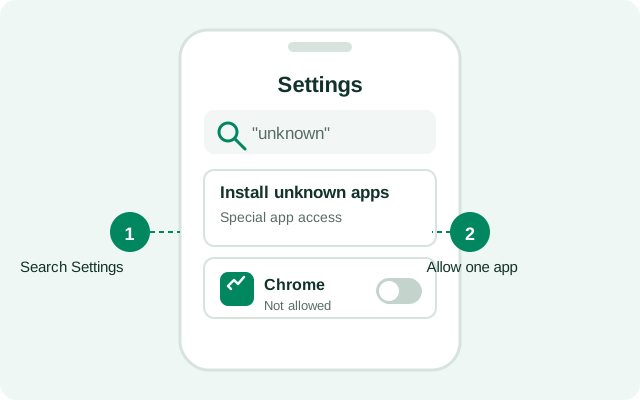
To install Signal's official APK outside the Play Store, Android asks you to allow "Install unknown apps", first for the app doing the installing (your browser or file manager). Then everything proceeds normally. It sounds scarier than it is: this page shows the exact path on every major brand, explains what the permission actually grants, and when to turn it back off.
What this permission actually does
"Install unknown apps" does not give an app free rein over your phone. It grants one narrow ability: the app may hand an APK file to Android's package installer. The installer still shows you the app's name, icon, and requested permissions, and you still tap Install yourself. Nothing installs silently in the background.
Think of it like giving a courier permission to deliver parcels to your door. You still decide which parcels to open. The permission applies per app: allowing it for Chrome does not allow it for your file manager, your email app, or anything else. Each source needs its own approval, which is exactly why this model is safer than what Android used to do.
The prompt you'll actually see is usually worded "Allow from this source" with the app's name: Chrome, Files, whatever holds your APK. That wording is deliberate: you're answering a question about this source, not about sideloading in general. If a random app you don't recognize ever shows you this prompt uninvited, the answer is no. Close it and uninstall whatever triggered it.
The old global toggle vs the per-app model
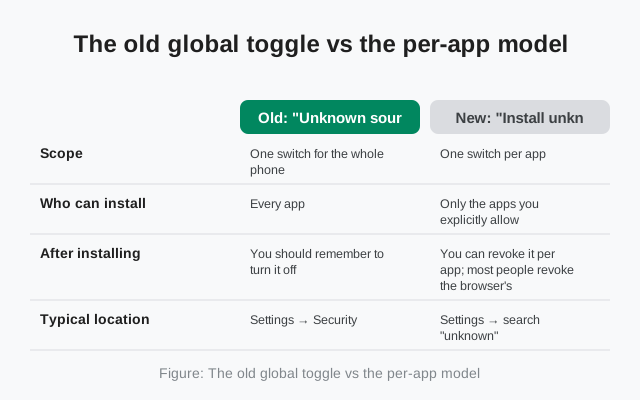
On Android 7 and older, there was a single global switch called "Unknown sources" in Settings → Security. Flip it once, and every app on the phone could install APKs. It was simple. Far too broad: one careless tap in any app could then install anything.
Android 8 replaced it with the per-app model we have today: Settings → Apps → Special app access → Install unknown apps, where each app gets its own toggle. So when a guide (or a phone from 2017) tells you to "enable Unknown sources," and your phone has no such switch, you're not missing anything. Your phone uses the newer, safer system. Just approve the specific app that holds your APK file.
Find it on any brand (the search method)
Brand skins rename and relocate settings constantly, so the most reliable method on any phone is the Settings search:
Open Settings and tap the search bar
It's usually a magnifier icon at the top of the Settings screen.
Type "install unknown apps"
The setting appears directly. Tap it to jump to the right screen regardless of where your brand hides it.
Pick the app that holds your APK
You'll see a list of apps, each with its own toggle. Turn it on only for the app you'll install from: typically your browser (Chrome, Samsung Internet, Firefox) or your file manager.
Go back and tap the APK
Open the downloaded file again. This time the installer proceeds instead of asking.
If Settings search finds nothing, try searching just "unknown" or "install". On a few heavily skinned phones the screen is called "Install apps from external sources" instead.
Brand-by-brand notes
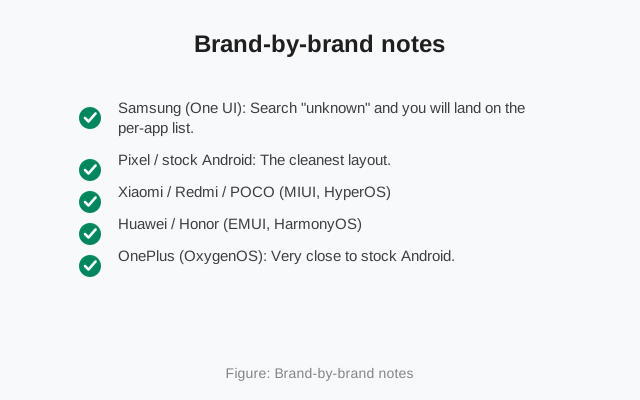
| Brand | Where to look |
|---|---|
| Samsung (One UI) | Settings → Apps → ⋮ menu → Special access → Install unknown apps |
| Xiaomi / Redmi / Poco (MIUI / HyperOS) | Settings → Privacy protection → Special app access → Install unknown apps. Note: MIUI may also show a second confirmation from its own security scanner. That's normal, so let it scan. |
| Google Pixel | Settings → Apps → Special app access → Install unknown apps (stock Android path) |
| OnePlus / Oppo / Realme (OxygenOS / ColorOS) | Settings → Apps → Special app access → Install unknown apps |
| Vivo / iQOO (Funtouch OS) | Settings → Apps → Special app access → Install unknown apps; Vivo may also ask for a password or fingerprint to confirm |
| Motorola | Near-stock path: Settings → Apps → Special app access → Install unknown apps |
| Huawei (EMUI / HarmonyOS) | Settings → Security → More settings → Install apps from external sources, per app |
| Nothing Phone | Near-stock path, same as Pixel |
Don't see your brand? The Settings-search method above works everywhere. Use that instead of memorizing paths.
Two brand quirks worth knowing: on Xiaomi phones, MIUI runs its own security scan on the APK after you tap install. Let it finish; it's checking the file against Xiaomi's malware definitions and changes nothing about the install. On Huawei phones the screen is called "Install apps from external sources" rather than "Install unknown apps". Same setting, different label, with per-app toggles underneath.
Install, then turn it off again
Here's the habit that keeps sideloading safe long-term: turn the toggle off when you're done. Once Signal is installed, the permission has no further use. The website build updates itself through its own mechanism, which doesn't need your browser to keep install rights.
Leaving "Install unknown apps" on for a browser permanently means any malicious download you ever tap in that browser gets one step closer to installing. The risk is small, but the cost of toggling it off is ten seconds. Go back to the same screen, flip the switch off, and you're back to a locked-down phone with Signal running happily.
One question people ask: "won't I need it again for updates?" No. The website build's self-updater doesn't go through your browser, so the browser's permission can stay off forever. If you ever sideload something else in the future, Android will simply ask you again at that moment. Off by default, on for the sixty seconds you need it: that's the whole philosophy.
When the toggle is blocked or missing
- Work or school phone (MDM): if your phone is managed by an employer, the administrator can disable sideloading entirely. The toggle will be greyed out. You can't override this on the device; see our guide to installing Signal on a work-managed phone.
- Second user profile / work profile: install permissions are per profile. If you downloaded the APK in your personal profile but are looking at the setting in the work profile, it won't match up.
- Parental controls: family-link-style restrictions can hide the setting. The family manager has to allow it.
- Android Go phones: some ultra-budget Android Go devices ship with sideloading restricted. There is usually no user-facing fix. The Play Store remains the route on those phones.
Is this safe to turn on?
For installing Signal's official APK from signal.org/android/apk: yes. You're approving a single trusted source for a single install, and Android still shows you exactly what you're installing. The permission itself doesn't make your phone vulnerable. It just moves the trust decision to you, for that one file.
What would be unsafe: leaving it on permanently for a browser, approving it for apps you don't recognize, or approving it for a file you didn't get from Signal's own page. Pair the toggle with the SHA-256 verification steps and you've covered both halves of the safety question: where the file came from, and what your phone is allowed to do with it.
There's also a second layer you don't have to configure: Google Play Protect scans sideloaded apps too, on phones that have Google services. It's not a substitute for downloading from the official source. No scanner catches everything. But it means a sideloaded Signal still gets the same on-device malware screening as a Play Store install. Between the official source, the fingerprint check, and Play Protect, you're covered three ways.
Frequently asked questions
Why doesnt my phone have an Unknown sources switch?
Phones on Android 8 and newer replaced the global Unknown sources switch with per-app 'Install unknown apps' permissions. Approve just the app holding your APK instead. It's the newer, safer system.
Do I need to keep it on for Signal updates?
No. The website build checks for and installs its own updates; your browser doesn't need permanent install rights. Turn the toggle off after installing.
Is it safe to allow for Chrome?
For a single install of Signal's official APK, yes. Android still shows you what you're installing and you confirm it. Turn it back off when done rather than leaving it on indefinitely.
The toggle is greyed out. What now?
That usually means a device administrator (work phone), parental controls, or a restricted Android Go build has disabled it. Those can't be overridden from the device side.
Can malware use this permission to install itself?
Only through an app you've already approved, and you'd still see the installer screen and have to tap Install. The real defense is approving only apps you trust, for files you got from official sources.
from Signal's official site — file hosted by Signal, not by us.