
How to install the Signal APK on Samsung Galaxy phones
Published: October 7, 2026 · Updated: October 8, 2026
Signal Foundationfrom Signal's official site — file hosted by Signal, not by us. signal.org/android/apk
Samsung Galaxy phones are the most common Android phones in the world, and installing Signal on one through the official APK is straightforward, but One UI adds a few Samsung-specific screens that can surprise you. This guide walks through the whole process: which build to pick, the exact install path on One UI, what Google's Play Protect warning means, and the battery settings that keep your message notifications reliable on Samsung phones.
The file itself never changes between brands. The APK you want is always the official one from signal.org/android/apk, the current website build is version 8.29.3, and the package name is org.thoughtcrime.securesms. If you already have the Play Store version of Signal installed, you cannot install the APK over it. The two builds are signed with different keys. Decide on one build and stick with it; our comparison of the two builds explains the trade-offs before you choose.
Which build should you install?
For a Samsung phone, the honest default answer is simple: if your Galaxy has a working Play Store, install Signal from the Play Store. It updates itself silently, notifications work out of the box, and Play Protect never raises an eyebrow. The APK path exists for the cases where the Play route fails or doesn't apply to you.
Reach for the APK when the Play Store is missing or unusable: a Galaxy in a region where Google services are flaky, a phone on a corporate MDM profile that blocks the Play Store, or a device where the Play Store app itself is broken. Some people also choose the APK because they run a de-Googled setup and don't want the Play version's dependence on Google Play Services. All of these are legitimate reasons; none of them require technical expertise beyond following the steps below.
What you should not do is download the APK from any third-party site. Samsung's Galaxy Store, APK mirror sites, and random "download Signal APK free" pages are not Signal's channel. Only signal.org/android/apk is. The details on why APK mirrors are dangerous explain what goes wrong when people stray.
Install steps on One UI
Download the APK from Signal's page
Tap the green Download button on this page, which takes you to signal.org/android/apk. Tap Signal's own download link and confirm when your browser asks whether to keep the file. The file name looks like
Signal-Android-website-prod-universal-release-8.29.3.apk.Open the file from your notification shade
When the download finishes, tap the notification. One UI will ask for permission to install apps from your browser. This is the "Install unknown apps" permission, and it is per-app. Grant it only for the browser you used (Chrome or Samsung Internet), not for everything.
If you need the setting manually
Open Settings, then Security and privacy, then Install unknown apps, then tap your browser and switch Allow from this source on. On older One UI versions the path is Settings > Apps > Special app access > Install unknown apps. Same permission, different hallway.
Tap Install on the Android installer screen
Confirm the permissions shown, tap Install, and wait. A Galaxy A or M series phone takes roughly half a minute. Tap Open when it finishes.
Register your number
Enter your phone number, wait for the SMS code, and type it in. If SMS doesn't arrive, the voice-call option usually works. Then set your Signal PIN and restore from a backup if you have one.
If the install fails with "App not installed," the cause is almost always a conflicting Signal install. See the permissions and conflict guide for the fix order.
What Play Protect will say
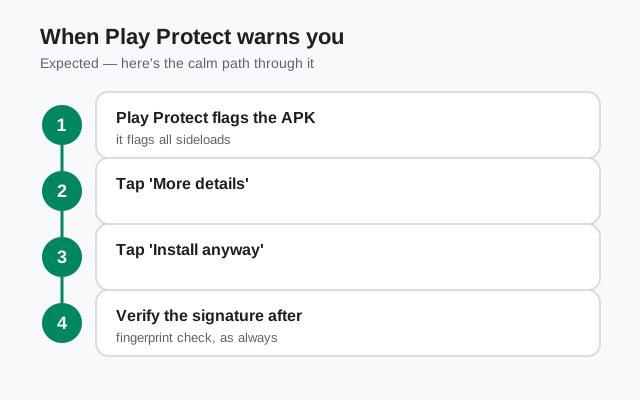
On most Galaxy phones, the moment you install the APK, Google Play Protect shows a warning along the lines of "Unknown app" or "Unsafe app blocked." This is expected and it does not mean the file is dangerous.
Play Protect flags every app installed outside the Play Store that it hasn't seen before, by policy. It cannot vouch for an app it didn't distribute, so it warns you. What matters is not the warning itself but what you verify before dismissing it: the file must come from signal.org/android/apk, and its signing-certificate SHA-256 fingerprint must match the one printed on Signal's own page. Our step-by-step verification guide shows exactly how to check this.
Play Protect offers a "Send to Google for verification" option and a "Don't install" default. Tap Install anyway (wording varies by version) only after you have verified the file's fingerprint. If anything about the file feels off (wrong file name, downloaded from anywhere but signal.org), stop and delete it. Play Protect is a backstop, not a substitute for verifying the source yourself.
Battery settings for reliable notifications
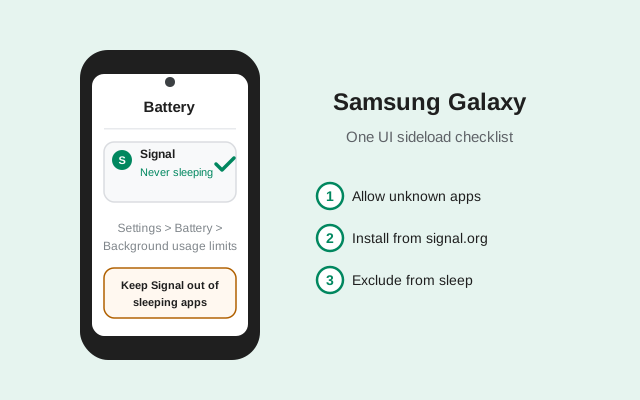
This is where Samsung phones cause the most grief for sideloaded apps. One UI's battery management is aggressive: it puts unused apps to sleep and can delay or kill their background connections. Signal's Play version gets push through Google's channel; the website build keeps its own connection alive. On a Galaxy, you want to exempt Signal from battery restrictions explicitly.
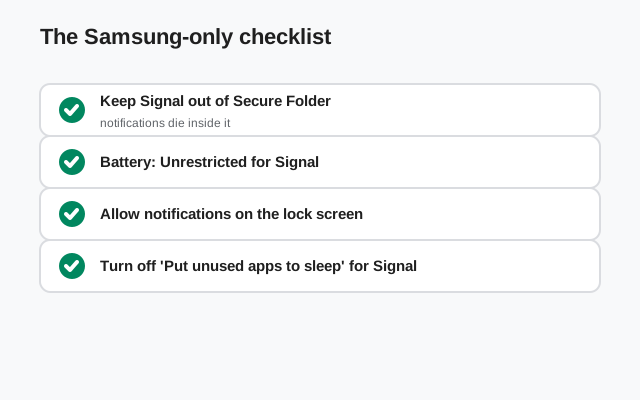
- Open Settings > Battery > Background usage limits.
- Open Never sleeping apps and tap the plus sign to add Signal.
- While you're there, check that Signal isn't listed under Deep sleeping apps or Sleeping apps. Remove it if it is.
- Also go to Settings > Apps > Signal > Battery and make sure it's set to Unrestricted.
One more Samsung quirk: Power saving mode and Adaptive battery can still throttle background data even with the exemption. If messages only arrive when you open the app, power saving is the first suspect. The delayed-notification pattern on Galaxy phones is almost never a Signal bug. It's the phone doing exactly what its battery software was told to do.
A note on Secure Folder
Samsung's Secure Folder runs a separate, isolated copy of apps. It is possible to install Signal inside Secure Folder as a second instance, but there are hard limits. Signal ties an account to one phone number, and one number can only be active on one primary device at a time. A second copy in Secure Folder would need a second phone number to register, and it would behave as a completely separate Signal account with its own chats.
For most people this is more complication than value. If your goal is keeping work chats separate from personal chats, it technically works, but you must maintain two numbers and two backups. If your goal was simply "install Signal," install it normally on the main profile and skip Secure Folder entirely. Note also that Secure Folder has its own copy of the "Install unknown apps" permission. The setting you granted in the main profile does not carry over.
What about the Galaxy Store?
The Galaxy Store is Samsung's own app store, and it does list a Signal app, but it is not one of Signal's official distribution channels. Signal officially ships through the Play Store and its own website APK page. Third-party store listings, including Samsung's, can lag behind on updates, and a listing in a store is not the same as a release from the developer.
The practical rule: never install Signal from the Galaxy Store when the official channels are available. If the Play Store works on your phone, use it. If it doesn't, use the APK from signal.org. There is no scenario where the Galaxy Store listing is the better choice, and there are several where it's worse. Delayed security updates are the main one. Store listings also have a history of being impersonated, which is one more reason to stick to the two channels Signal itself operates.
The Samsung-only checklist
| Item | State to check |
|---|---|
| APK source | Downloaded from signal.org/android/apk only; version 8.29.3 |
| Unknown-app permission | Granted for your browser only (Settings > Security and privacy > Install unknown apps) |
| Fingerprint | SHA-256 of the signing certificate matches Signal's page, character for character |
| Conflicting build | No Play Store version of Signal installed alongside (different signing keys clash) |
| Battery exemption | Signal in "Never sleeping apps"; battery use set to Unrestricted |
| Updates | The website build checks for updates itself. Don't disable its updater or its background permission |
| Registration | Phone number verified by SMS or voice call; Signal PIN set |
Run through this list once after installing and you sidestep every Samsung-specific problem we see reported. For the general no-Play-Store install that this page is built on, the master install-without-Play guide covers the same flow brand by brand.
Frequently asked questions
Can I install the Signal APK on a Samsung phone without the Play Store?
Yes. Download the APK from signal.org/android/apk, allow your browser to install unknown apps (Settings > Security and privacy > Install unknown apps), verify the SHA-256 fingerprint on Signal's page, and install. The website build updates itself afterward.
Is the Play Protect warning on Samsung a sign the APK is unsafe?
No. Play Protect warns about every sideloaded app it did not distribute. The warning is policy, not a diagnosis. Verify the file's fingerprint against signal.org/android/apk yourself; that is the real safety check.
Why do my Signal notifications arrive late on a Galaxy phone?
One UI's battery management is the usual cause. Add Signal to Never sleeping apps (Settings > Battery > Background usage limits) and set its battery use to Unrestricted in App info. Power saving mode can still delay messages.
Can I keep both the Play Store version and the APK version?
No. The two builds use different signing keys, so Android treats them as conflicting apps. Back up your chats, uninstall one, then install the other.
Does the Galaxy Store version of Signal count as official?
No. Signal's official channels are the Play Store and signal.org/android/apk. Never install Signal from the Galaxy Store when an official channel is available.
from Signal's official site — file hosted by Signal, not by us. signal.org/android/apk