
Run two Signal accounts on one phone
Published: October 7, 2026 · Updated: October 8, 2026
To run two Signal accounts on one phone, you need two separate app instances and two separate phone numbers. One number per account, no exceptions. Phones from Samsung, Xiaomi, OnePlus, and others ship a dual-app or app-clone feature that runs a second copy of Signal; alternatively, Android's work profile feature isolates a second copy in a separate profile. Either way, the second Signal registers with its own number and keeps its own chats, its own backup, and its own recovery key. What you cannot do is clone your existing account: registering the same number in the second instance moves the account and kills the first.
What you actually get: two accounts, not one twice
Start with the mental model, because getting it wrong wastes an afternoon. Dual apps do not give you one Signal account on one phone twice. They give you two separate Signal accounts on one phone, each with its own number, its own chats, its own contacts view, and its own backup. The clone is a second installation of the app running in a sandbox, and from Signal's servers' perspective it is simply a second phone that happens to share your hardware.
This is the right tool when you need genuinely separate identities: a work number and a personal number, a business line and a private line, a local number abroad alongside your home number. Each side of your life gets its own Signal, and neither side's chats leak into the other. If instead you want the same account on two phones, that is device linking, not dual apps. Read our two-phones guide for that. Mirror versus separate: pick the one that matches the job.
The practical consequence: everything is doubled. Two registrations, two verification codes, two backups to maintain, two recovery keys to store. People who set up dual apps casually and back up only the "main" one discover the gap the day the clone needs restoring. Treat the second instance as a full second phone that lives inside your first phone, because that is what it is.
The two-number requirement
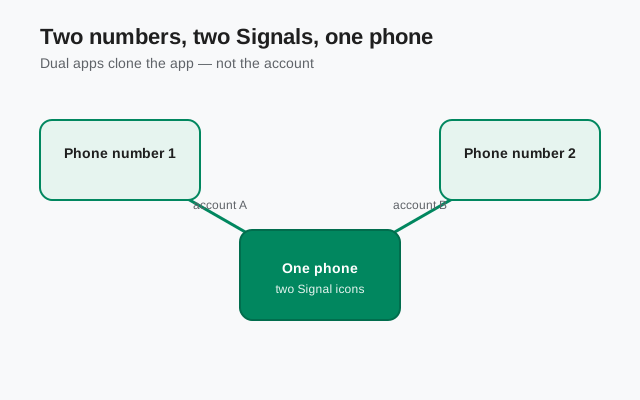
Every Signal account is anchored to a phone number, and the anchor is one-to-one: one number, one account. A second Signal instance therefore needs a second number that can receive the registration SMS or call. The usual sources: a second SIM in a dual-SIM phone, an eSIM, or any number you control that can receive texts. The number does not have to be in the same phone as the instance. You can register the clone with a number whose SIM lives in another device, as long as you can read the verification code when it arrives.
What does not work: registering the same number in both instances. The moment the second instance completes registration with your primary number, Signal's servers move the account to it and the first instance is deactivated. This is not a dual-app quirk; it is the same rule as registering your number on any new phone. One number, one primary device. If you catch yourself typing your main number into the clone's registration screen, stop. You are about to migrate your account, not duplicate it.
Also plan for the PIN. If you use registration lock, each account has its own Signal PIN, and you will enter each at registration. Keep them distinct and stored safely. And note the ongoing cost: some second numbers (a spare SIM, an eSIM line) carry their own subscription or upkeep. The dual-app setup is free; the second number might not be.
Method 1: your phone's dual-app clone feature
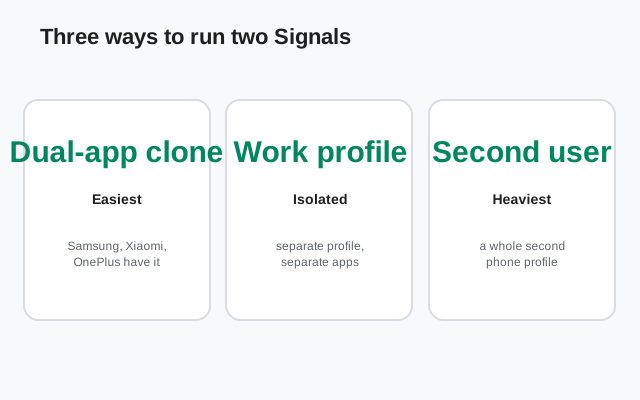
Many Android manufacturers ship an app-cloning feature under names like Dual Apps, Dual Messenger, Parallel Apps, or App Cloner. The idea is identical across brands: the system creates a sandboxed second copy of an installed app, with its own data directory, and puts a second icon on your home screen (often badged so you can tell them apart). Find it in Settings (usually under a heading like "Dual apps," "App clone," or "Parallel apps"), enable it for Signal, and a second Signal icon appears.
Open the cloned Signal and register it with your second number: enter the number, receive the code, enter the code, set up the profile. From here it behaves like a fresh Signal install on a fresh phone. Your original Signal is untouched. The two instances do not share chats, do not share settings, and do not share backups. Set a distinct profile name or photo on the clone so you always know which instance you are looking at; answering a work message from the personal instance is the classic dual-app embarrassment.
Caveats specific to clones: they are a manufacturer feature, not an Android standard, so behavior varies. Some clones handle notifications perfectly; others are unreliable until you exempt both the original and the clone from battery optimization. Some clones break across major Signal updates and need to be re-created. And cloned apps sometimes confuse backup-restore flows, because the clone's data lives in the manufacturer's sandbox rather than the standard location. None of this is fatal, but go in with eyes open: the clone is convenient and slightly fragile.
Method 2: a work profile
Android has a built-in work profile feature: a separate, isolated profile on the same phone with its own apps and data, originally designed for employer-managed devices but usable for personal separation too. Inside a work profile you can install a second copy of Signal from the Play Store (the work profile has its own Play Store instance) and register it with your second number. The work profile's apps are badged with a briefcase icon, and you can pause the entire profile (silencing work Signal completely) with one toggle.
The work profile is the cleaner separation of the two methods. The isolation is an OS-level guarantee, not a manufacturer hack, so it behaves consistently and survives updates better than clones. The pause toggle is genuinely useful: evenings and weekends, one tap, and the work identity goes dark while the personal one keeps working. Notifications from the work profile are visually distinct, which reduces the wrong-instance embarrassment.
The friction: setting up a work profile is more involved than tapping "dual app." Some phones offer it directly in Settings under work profile or work apps; on others you need a helper app to create one (tools like Shelter or Island exist for this. They are just profile managers, not Signal-related; the OS feature is what matters). If your phone is already managed by an employer with its own work profile, you cannot easily add a personal second profile on top; that slot is taken. And work-profile Signal still needs its own number and its own backup, like every second instance.
Method 3: a second user profile
Android also supports multiple user profiles on one device: the same feature families use to share a tablet. You can add a second user in Settings, switch to it, install Signal there from the Play Store, and register your second number. Each user profile is fully isolated: separate apps, separate data, separate notifications. Switching users takes a few seconds from the quick-settings menu.
This is the heaviest isolation of the three methods and the least convenient for daily two-account life. Switching user profiles is slower than switching apps, background notifications from the inactive profile may be delayed or absent depending on the phone, and some phones restrict user profiles to tablets. It fits a specific pattern: two identities that you use at genuinely different times, like a work shift versus personal time, where you do not need both live at once. For most people's "two numbers, one phone, all day" need, dual apps or a work profile is the better fit.
One more consideration: on some phones the secondary user cannot make calls or receive SMS normally, which complicates registration if your second number's SIM is in this phone. Register with the code-receiving device handy, or use a number that receives the code elsewhere. Test the full loop (register, send, receive) before depending on the setup.
Notifications and backups per instance
| Original Signal | Cloned / second Signal | |
|---|---|---|
| Account identity | Your primary number | Your second number (separate account) |
| Chats and groups | Your existing history | Starts empty; its own new history |
| Backup | Your existing backup schedule and key | Needs its own backup enabled, with its own 64-char recovery key |
| Notifications | Normal | Needs its own notification permission; exempt both from battery optimization |
| Updates | Normal (self-update or Play) | Updates with the original on clones; separately in work profiles |
The backup row is the one people neglect. The second instance is a separate account with a separate backup system. Open the clone, go to its Settings, then Chats, then Chat backups, enable backups, and save its recovery key: a different 64-character key from your main one. Label the two keys so you know which is which. A year from now, "recovery key" and "recovery key (2)" is the difference between a smooth restore and a guessing game.
Notifications need attention on both instances. Android grants notification permission per app instance, so approve it for the clone too. Then exempt both Signal instances from battery optimization: the classic dual-app failure is the clone going silent because the phone's battery saver kills the instance you open less often. Test by sending a message to the second number from another device with the phone idle and the screen off. If it arrives promptly, the plumbing is right.
The honest limits
Dual apps are a workaround, not a feature Signal designed for, so know the edges. Storage doubles: two instances means two chat databases and two media stores; on a phone already tight on space, this matters. Battery cost rises: two Signal instances maintain two connections (or two push registrations), and the phone works a little harder. It is not dramatic, but it is real.
Clones can break on updates. Because dual-app cloning is a manufacturer feature layered over the app, a major Signal or system update occasionally breaks the clone: it crashes, or refuses to open, or loses its data. The fix is usually to delete and re-create the clone and restore from its backup, which is exactly why the clone's backup must exist. Work profiles are more robust here; clones are more convenient. Pick your tradeoff.
Some things never work across instances. You cannot merge the two accounts' chats. You cannot forward a message from one instance to the other except by sharing it like any other message. Calls to your primary number ring the original instance only; calls to the second number ring the clone only. And safety-number verifications are per account: your contacts will see two separate identities for you, which is correct. They are two separate identities. Tell your regular contacts which number is which, once, and the confusion ends.
from Signal's official site — file hosted by Signal, not by us
Frequently asked questions
Can I have two Signal accounts on one phone?
Yes, with two app instances and two phone numbers. Use your phone's dual-app or app-clone feature, or an Android work profile, to run a second copy of Signal, then register it with a second number. Each instance is a separate account with its own chats, backup, and recovery key.
Can I clone my existing Signal account with dual apps?
No. Registering your existing number in the cloned app moves the account to the clone and deactivates the original. Dual apps are for two separate accounts on two separate numbers, not for duplicating one account.
Do I need a second SIM for dual Signal?
You need a second phone number that can receive the registration code. A second SIM or eSIM is the usual answer, but any number you control works, even if its SIM lives in another device, as long as you can read the code when it arrives.
Does the second Signal need its own backup?
Yes. Each instance backs up separately with its own 64-character recovery key. Enable backups inside the cloned or work-profile Signal and store its key labeled separately from your main key.
Dual apps or work profile: which is better for a second Signal?
Dual-app clones are quicker to set up but are a manufacturer feature that can break on updates. Work profiles are an OS-level isolation that survives updates better and can be paused with one toggle, but take more effort to set up. Both need a second number.
- the install guides hub: every install path in one map
- one account on two phones: device linking instead of two accounts
- Android backup and restore: set up backups for both instances
- notification troubleshooting: when the second instance goes silent
- reinstalling Signal cleanly: when a clone breaks and needs rebuilding