
How to set up Signal the first time after installing the APK
Published: October 7, 2026 Updated: October 8, 2026
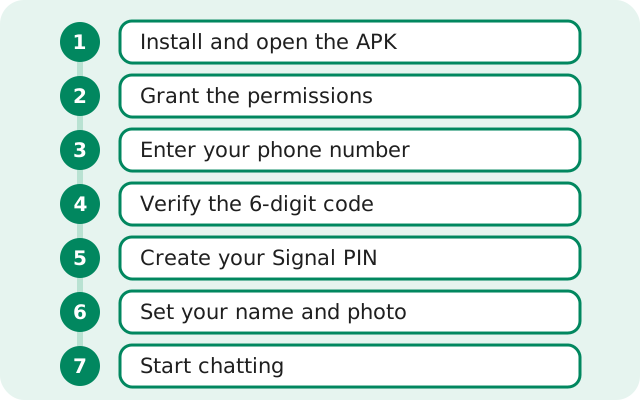
After you install the Signal APK, first-run setup takes about five minutes. Open the app, grant the notification and contacts permissions, enter your phone number, type in the 6-digit code Signal texts you, create a Signal PIN, set your name and photo, then either restore a Secure Backup with your 64-character recovery key or start fresh. Finish by checking that notifications are switched on.
This page walks through every screen in order, explains what each permission and prompt is for, and ends with a checklist you can run in one pass. The setup is identical whether you installed from Signal's official APK page or from the Play Store.
What happens the first time you open Signal?
Signal does not have a login screen in the usual sense. There is no username and password to type, and no account to "sign in to" before you verify a number. When you tap the Signal icon for the first time, the app starts a short guided setup and your account is created during it.
The screens come in a fixed order:
- Permissions. Signal asks for notifications, contacts, and usually camera and microphone access. You can allow or skip each one.
- Phone number. You pick your country and type your mobile number, then confirm it.
- Verification code. Signal texts you a 6-digit code. Type it in (or let the app read it automatically).
- Signal PIN. You create or re-enter a PIN that protects your account's recovery data.
- Profile. You set a display name and an optional photo.
- Backup offer. If a Secure Backup is available for your number, Signal offers to restore it.
That is the whole thing. Nothing here touches your files or your existing apps, and none of it costs anything.
What permissions does Signal ask for, and which should I allow?
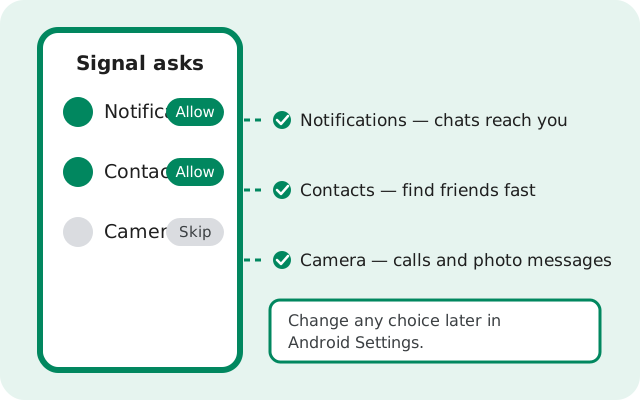
Right after the welcome screen, Android shows Signal's permission prompts. Each one maps to a feature, and you can change every choice later in Android's Settings, so there is no wrong answer that you cannot undo.
Notifications: allow this one. Without it, new messages arrive silently and you will not know anyone wrote to you. On most phones this prompt appears first.
Contacts: optional but useful. If you allow it, Signal checks which of your contacts already use Signal so you can start chatting without typing numbers by hand. Your contacts are matched privately; Signal does not publish your address book. If you skip it, you can still message anyone by entering their number manually.
Camera and microphone: needed for voice calls, video calls, and sending photos or voice notes inside chats. If you never plan to call, you can skip these and enable them later the first time you tap the call button.
One practical tip: on some older Android versions Signal also asks for phone/SMS permission to read the verification code for you automatically. On current versions the code usually fills in on its own without any extra permission.
If you are unsure about any permission, read what each Signal APK permission does before you decide.
How do I enter and verify my phone number?
Signal uses your phone number as your account identifier. This step works exactly the same on the website APK build and the Play Store build.
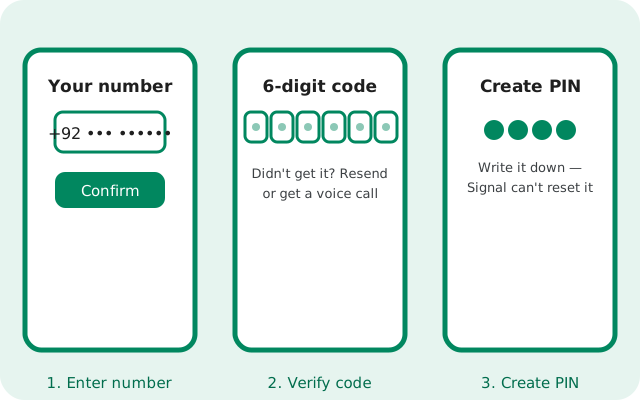
- Pick your country from the list so the country code fills in correctly, then type your mobile number.
- Double-check the number and tap to confirm. A typo here sends the code to a stranger's phone, so read it back once.
- Wait for the SMS. It usually arrives within a minute and contains a 6-digit verification code.
- Type the code into the boxes on screen. On many phones it fills in automatically.
Code not arriving? Wait at least a minute, then tap "resend". If SMS still does not come, choose the voice-call option and Signal will call you and read the code aloud. Make sure the phone has signal coverage and that no SMS-blocking app is filtering unknown senders.
This number becomes how other people find you on Signal. It is separate from your Signal username, which you can set later to chat without sharing your number.
Why is Signal asking me to create a PIN?
After verification, Signal asks for a Signal PIN. This is not your phone's lock-screen PIN and not your SIM PIN. It is a code you create that locks your account's recovery data (your profile, settings, and contacts), which Signal keeps encrypted on its servers.
The PIN has two jobs. First, when you reinstall Signal or move to a new phone and register the same number again, entering the PIN lets Signal hand your profile, settings, and contacts back to you. Second, it protects that server-side data so nobody else can claim it.
Three rules for the PIN:
- Signal cannot reset it for you. If you forget it, support has no way to recover it. Write it down somewhere safe.
- Make it memorable but not guessable. Avoid birthdays and repeating digits.
- Do not confuse it with the 64-character recovery key. The PIN and the recovery key protect different things, as the table below shows.
If you already had a Signal PIN from an earlier install, enter the same one here so your saved profile data comes back.
How do I set up my profile?
Next comes your profile: a display name and an optional photo. The name is required; the photo is not.
Your profile name is what other Signal users see. It can be your real name, a nickname, or just initials: whatever you are comfortable showing to people you chat with. Profile information on Signal is end-to-end encrypted, so it is shared only with the people you message, not with Signal itself.
You can change both the name and the photo at any time from Signal's settings, so do not overthink this screen. Pick something, move on, and adjust later if you want.
Should I restore from a backup or start fresh?
If this is your very first time using Signal, skip this step and start fresh. If you are reinstalling or moving from another phone, Signal may offer to restore a Secure Backup, but only if one exists for your number.
Restoring needs two things: the same phone number you used before, and your 64-character recovery key. Signal shows this key when you first enable Secure Backups, in Settings Chats Backups. No key, no restore. Signal cannot look it up for you.
A common point of confusion: Signal has two backup options and one key. Both Secure Backups and current on-device backups (a folder you can copy yourself, with a message archive plus a media folder) are unlocked by the same 64-character recovery key. The 30-digit passphrase belongs to the legacy era: older Signal versions saved on-device backups as a single .backup file, and only those old files still need it. The two keys are not interchangeable. The table below keeps the three keys straight.
| Key | What it protects | Format | Status |
|---|---|---|---|
| Signal PIN | Account recovery data: profile, settings, contacts | A code you choose | Current |
| Secure Backups recovery key | Your chat history backup | 64 characters | Current |
| On-device backup passphrase | Legacy .backup files from older Signal versions | 30 digits | Legacy: opens only old .backup files (the 64-character key opens current backups) |
If you have the key, enter it and let the restore finish before you start chatting. Interrupting it can leave messages half-restored. If you do not have it, start fresh; your old chats stay on the old device and you lose nothing else. The full walkthrough is in our restore a backup on Android guide.
How do I make sure notifications actually arrive?
This is the step most people skip and then complain about later. If you allowed the notification permission during setup, you are halfway there. The other half is your phone's battery management.
Many Android skins (especially Xiaomi, Huawei, OPPO, vivo, and Samsung) aggressively kill background apps to save battery, and Signal is a frequent victim. If that happens, messages only appear when you open the app.
Fix it in two places:
- In Android Settings, find battery or power management and set Signal to unrestricted (the exact wording varies: "no restrictions", "don't optimize", "allow background activity").
- On phones with an autostart manager (Xiaomi, OPPO, vivo), add Signal to the autostart list.
Then test it: ask a friend to send you a message, or message yourself from Signal on another device, while your phone sits locked for five minutes. If the notification pops up, you are done. If not, revisit the battery settings. This solves the problem in the large majority of cases.
The 5-minute first-run checklist
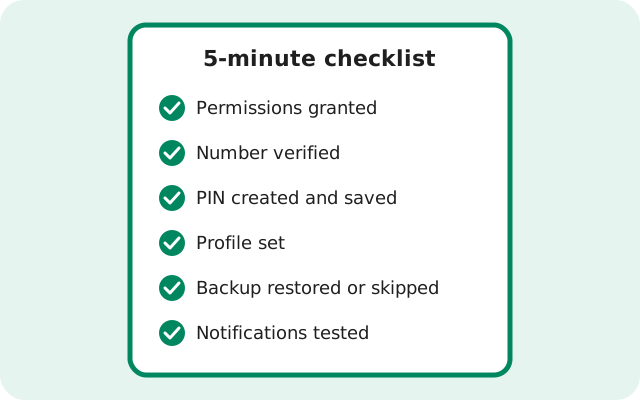
Run through this list once, in order, and your setup is complete. If you get interrupted, just pick up where you left off. Signal saves your progress between screens.
- Install verified. The APK came from Signal's official APK page, and you checked the version (currently 8.29.3) before installing.
- Permissions granted. Notifications allowed; contacts, camera, and microphone allowed or deliberately skipped.
- Number verified. You received the 6-digit code and entered it. Voice-call fallback used if SMS failed.
- PIN created and written down. You chose a PIN you will remember and stored it somewhere safe. Signal cannot reset it.
- Profile set. Display name entered, photo added or skipped.
- Backup handled. Restored from a Secure Backup with your 64-character recovery key, or consciously started fresh.
- Notifications tested. Battery optimization disabled for Signal where needed, and a test message arrived while the phone was locked.
Done. You can now message anyone in your contacts who uses Signal, set a username if you want to chat without sharing your number, and link Signal Desktop later from Settings Linked devices.
from Signal's official site file hosted by Signal, not by us
Frequently asked questions
Do I need to create an account or log in first?
No. Signal has no username-and-password login for new users. Your account is created during setup when you verify your phone number.
Is first-run setup different on the website APK build?
No. Once installed, the website build (package org.thoughtcrime.securesms, currently version 8.29.3) runs the exact same setup screens as the Play Store build. The only difference is how updates arrive.
What happens if I forget my Signal PIN?
Signal cannot reset or recover your PIN. If you forget it and re-register, you may lose the profile, settings, and contacts it protected. Write it down during setup.
Can I skip permissions during setup?
Yes. Notifications matter most for day-to-day use; contacts, camera, and microphone can be granted later from Android Settings whenever you need them.
The verification code never arrived. What now?
Wait a minute, tap resend, check that the number is correct and the phone has coverage, then try the voice-call option. SMS filters on some phones block unknown senders.
Can I use Signal without a phone number?
The stable release still needs a number for first registration. A beta feature called Signal Login is testing numberless accounts; see our Signal Login beta guide for the current status.
Keep reading
- what each Signal APK permission does: a permission-by-permission breakdown
- the Secure Backups guide: how the 64-character recovery key works
- restore a backup on Android: step-by-step restore walkthrough
- installing Signal without the Play Store: the install guide that comes before this one