
Fake Signal Apps on the Play Store: Spot the Real One
Published: October 7, 2026 · Updated: October 8, 2026
org.thoughtcrime.securesms. Impostor apps use copycat names ("Signal Messenger Pro," "Signal Chat Plus"), lookalike icons, and unfamiliar developer names. Check the developer name and the listing URL before you tap install. That thirty-second check defeats nearly every impostor.Many people assume that anything in the Play Store is vetted and therefore safe. The Play Store does review apps, and that review catches a lot. But it is not perfect, and copycat apps slip through regularly. For a high-profile app like Signal, impostors appear in waves: apps with near-identical names and icons that exist to harvest data, show ads, or sell "premium" unlocks for features that do not exist.
This guide shows you exactly how to identify the genuine Signal Foundation listing and what to do if you have already installed an impostor. The checks are simple, and they work for spotting copycats of any app, not just Signal.
from Signal's official site — file hosted by Signal, not by us
What the real Signal listing looks like
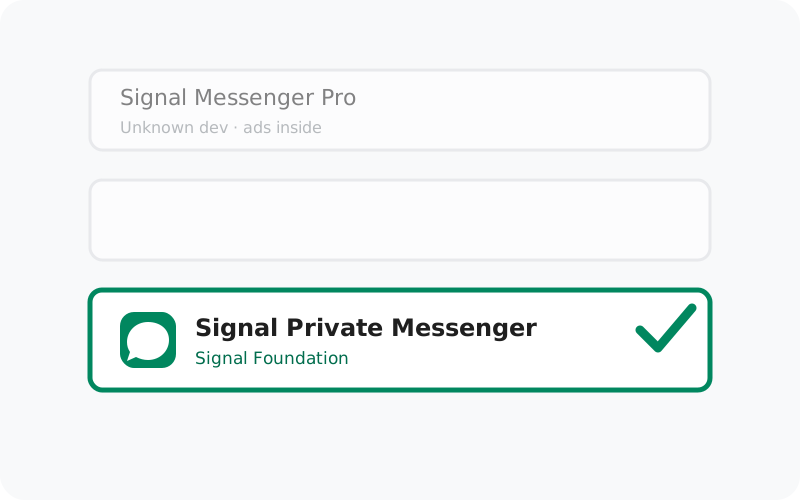
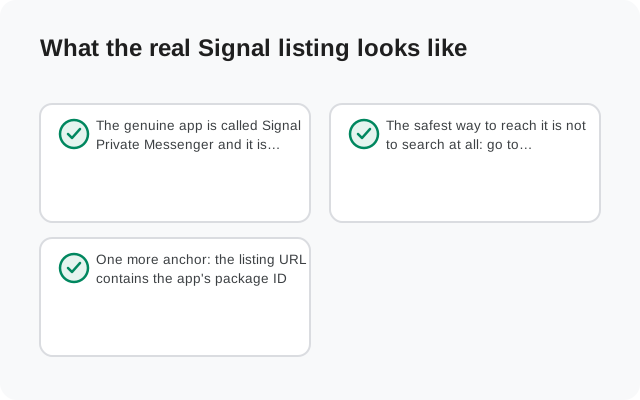
The genuine app is called Signal Private Messenger and it is published by Signal Foundation. That developer name is the single most important thing on the listing page: it is assigned by Google, tied to the developer's verified account, and much harder to fake convincingly than an icon or a title.
The safest way to reach it is not to search at all: go to signal.org and follow the official Play Store link from there. Signal's own site links directly to its own listing, which removes search-result confusion entirely. If you do search inside the Play Store app, type "Signal Private Messenger" and look for the Signal Foundation developer name before tapping anything.
One more anchor: the listing URL contains the app's package ID. The real listing's web address includes id=org.thoughtcrime.securesms. If you open a listing in a browser and the package ID is anything else, it is not Signal. Close the tab.
The three identifiers that matter
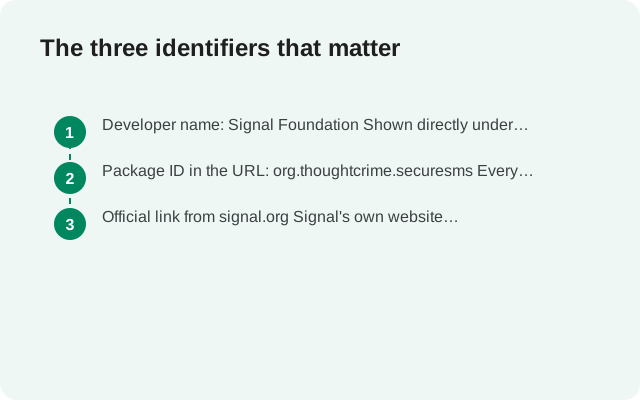
Impostors can copy icons, titles, and screenshots. These three things are far harder to fake:
Developer name: Signal Foundation
Shown directly under the app title on every listing. Google ties this to a verified developer account. Copycats use names like "Signal Messenger Team," "Secure Chat Labs," or generic studio names: close enough to fool a quick glance, wrong on a careful read.
Package ID in the URL: org.thoughtcrime.securesms
Every Play Store listing URL contains the app's unique package ID. The real Signal's is
org.thoughtcrime.securesms. Two listings can share a similar name, but they cannot share a package ID.Official link from signal.org
Signal's own website links to its own Play listing. Following that link instead of searching bypasses the entire impostor problem. When in doubt, start from the source.
Notice what is not on this list: the icon, the screenshots, the description text, and the review stars. All of those can be copied or gamed. Treat them as decoration, not evidence.
Common impostor patterns
Copycat Signal apps tend to follow a handful of recognizable templates:
| Impostor pattern | How to recognize it |
|---|---|
| Name variants: "Signal Messenger Pro," "Signal Plus," "Signal Private Chat" | The real app is called "Signal Private Messenger": no Pro, no Plus, no extra words. Extra words in the title are always a copycat or a scam. |
| Lookalike icons | A speech bubble in a slightly wrong shade of blue, a flipped or stretched version of the real icon, or a generic padlock-and-chat graphic. Compare with the icon on signal.org if unsure. |
| Unfamiliar developer names | Any developer that is not exactly "Signal Foundation." Scammers pick names designed to survive a half-second glance. Read it fully. |
| "Guide," "tips," or "wallpapers" apps using Signal's name | Some copycats do not even pretend to be the messenger: they are "Signal guide" or "Signal stickers" apps trading on the name to serve ads or harvest data. |
| In-app purchases for "premium" features | Signal is free with no premium tier. Any "Signal" app selling premium unlocks is by definition not Signal. |
| Requests for accessibility or device-admin rights | The real Signal never asks for these. An impostor that does is almost certainly spyware. See our fake APK guide for why this permission is the biggest red flag in Android. |
Why impostors get into the store at all
It helps to understand what Play Store review actually is: an automated and human screening process that checks for malware signatures, policy violations, and obvious fraud, applied to millions of submissions. It is genuinely useful and it catches an enormous amount of bad software. But it is a screening process, not a guarantee, and determined scammers play a long game:
- Clean at review, dirty later. Some apps pass review as harmless utilities, then download their malicious payload from a server after install: a trick called "update-driven" malware.
- Name games. "Signal Private Messenger Guide" can pass review as a fan guide while trading on the brand to collect installs and ad impressions.
- Volume. When one copycat is removed, three more are submitted. Takedowns work, but they lag behind submissions.
- Regional targeting. Some impostors only show malicious behavior in certain countries or on certain devices, making them harder for reviewers to catch.
None of this means the Play Store is unsafe. It means "it was in the Play Store" is one positive signal among several, not a verdict. The developer name and package ID checks still apply to store listings, and they take seconds.
The 30-second check before installing
Make this a habit for Signal and for every high-profile app you install:
Read the developer name fully
Under the app title: does it say exactly "Signal Foundation"? Not "Signal Foundation Inc," not "Signal Messenger Team," not anything else. Exactly that.
Check the listing URL's package ID (browser)
If you opened the listing in a browser, confirm the URL contains
id=org.thoughtcrime.securesms. In the Play Store app, tap the developer name to see their other apps: Signal Foundation's catalog is the Signal family, not a grab-bag of unrelated utilities.Prefer the link from signal.org
The most foolproof route: open signal.org, find the Android download option, and follow its Play Store link. No searching, no impostor roulette.
Glance at the permissions
On the listing, check what the app requests. A messenger needs contacts, microphone, camera, and notifications. Accessibility services, device admin, or SMS-control permissions on a "Signal" listing are disqualifying.
After installing, one final confirmation: open Settings → Apps → Signal and check that the package name is org.thoughtcrime.securesms. If the store listing was genuine, it will be.
What to do if you installed an impostor
Uninstall it now
Do not open it again. If it resists uninstalling, check Settings → Security → Device admin apps, revoke its rights, then uninstall.
Install the real app
Get Signal from signal.org/android/apk (the official APK) or via the official Play Store link from signal.org, and re-register your number there.
Review what it could see
Check which permissions the impostor held (Settings → Apps → select it → Permissions, before uninstalling if possible). If it had SMS, contacts, or accessibility access, assume that data was exposed and change passwords for important accounts: email and banking first.
Report the listing
On the Play Store listing page, use the "Flag as inappropriate" option and choose the right category. Reports from users are one of the main ways copycats get removed.
Check your bills
Some impostors sign you up for premium SMS services. Scan your carrier bill for unfamiliar charges from around the install date.
Frequently asked questions
Is the Play Store version of Signal safe?
Yes. The genuine listing published by Signal Foundation is safe. The caution in this guide is about impostor listings that imitate it, not about the real one.
How do I know the developer name is really Signal Foundation?
Read it character by character under the app title, and cross-check by following the Play Store link from signal.org. That link goes to the genuine listing by definition.
Can an impostor app fake the developer name?
It can pick a confusingly similar name, but it cannot use the exact verified "Signal Foundation" name tied to Signal's developer account. That is why reading the full name matters.
Are high install numbers proof an app is genuine?
No. Install counts can be inflated, and a popular impostor is still an impostor. Developer name and package ID are the checks that matter.
Should I use the Play Store or the official APK?
Both are legitimate routes to the genuine app. They are just different builds with different signing keys and update mechanisms. Our comparison of the website APK vs the Play Store build explains the trade-offs. If your phone has no Play Store, the APK from signal.org is the way.
I found a "Signal guide" app full of ads. Is that a scam?
It is at best adware trading on Signal's name and at worst a data harvester. Signal needs no guide app. Uninstall it and get information from signal.org or support.signal.org instead.
Related guides
- Signal APK safety hub: all verification and scam guides in one place
- Real vs fake Signal APK: the four checks that catch any fake file
- The "Signal Pro" APK scam: why Pro/Plus editions are always fake
- Website APK vs Play Store build: the two genuine builds compared
- Is the Signal APK safe?: the honest full safety assessment