
Verify APK integrity after a USB or Bluetooth transfer
Published: October 7, 2026 · Updated: October 8, 2026
Copied the Signal APK from one device to another over USB or Bluetooth? Verify the copy before installing: check the file size (about 109 MiB for version 8.29.3), and confirm the SHA-256 signing fingerprint matches the one published on Signal's own download page. Transfers corrupt files more often than people expect: an interrupted Bluetooth send, a flaky USB cable, or a bad copy can leave you with a file that looks complete but installs wrong or fails outright. This page explains why transfers corrupt, the three checks that prove a copy is good, and when to skip the detective work and just re-download.
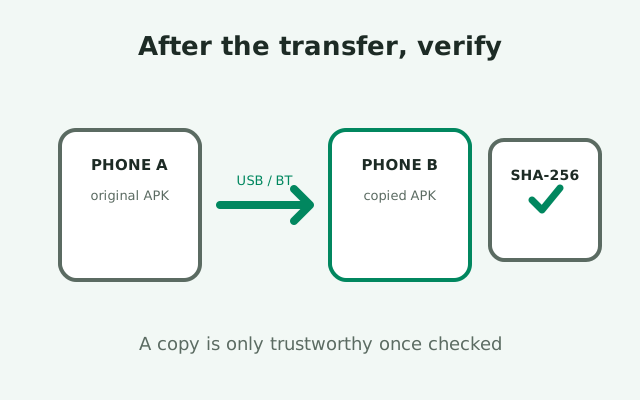
Why transfers corrupt files
A file copy feels like it should either work or fail loudly. In practice there is a quiet middle ground: a file that arrives with the right name and roughly the right size, but with damaged contents. Android's package installer is strict about APK structure, so a corrupted copy usually fails with a parse error or an "app not installed" message. But "usually" is doing heavy lifting in that sentence, and a partially damaged file can occasionally install and then misbehave in confusing ways. Verification exists to close that gap.
Bluetooth is the most common culprit
Bluetooth is the most common culprit. Bluetooth file transfer is slow and sensitive to distance, interference, and either device sleeping mid-transfer. A transfer that "completes" after the screen locked or the devices drifted apart may have silently dropped or duplicated chunks. The receiving app often reports success based on the transfer session ending, not on the file being byte-identical. Our phone-to-phone sharing guide covers the transfer methods; this page covers trusting the result.
USB transfers fail differently
USB transfers fail differently. A loose cable, a dirty port, or unplugging a moment too early can truncate the file. Copying through a computer adds another hop: PC-to-phone copies via MTP can stall or silently fail on large files, and some file managers report the copy as done when the progress bar finishes rather than when the bytes are verified. SD cards and USB drives add their own failure modes, from counterfeit cards with fake capacity to filesystem errors that corrupt exactly the large files you care about.
Failures do not announce themselves
The uncomfortable truth: none of these failures announce themselves reliably. The file sits there looking normal. The only way to know a copy is good is to check it against something authoritative, which is what the next sections do. Three checks, in order of effort, each strictly stronger than the last.
The three checks, in order
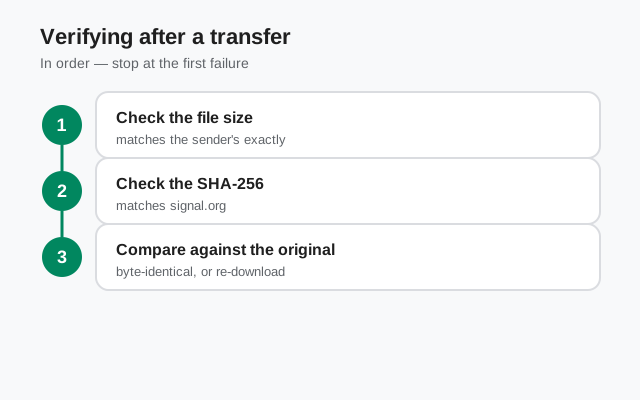
The information-gain element for this page: the decision table. Run the checks in order and stop at the first failure.
| Check | What it proves | Effort | If it fails |
|---|---|---|---|
| 1. File size (~109 MiB) | The copy is complete, not truncated | Seconds, in any file manager | Re-transfer or re-download; do not install |
| 2. SHA-256 fingerprint | The copy is byte-identical and signed by Signal | A few minutes with a hash app or a computer | Delete the copy; get a fresh file from Signal's page |
| 3. Compare with the original | The transfer itself is the problem, not the source file | Needs access to the sending device | Re-transfer with a different method (USB instead of Bluetooth) |
The logic of the order: size is the cheap screen that catches the most common failure (truncation). The fingerprint is the definitive test that catches everything, including tampering. The comparison tells you where the fault lies when the first two disagree with your expectations. Most of the time, check 1 passes and check 2 confirms, and you install with confidence in under five minutes.
One principle before the details: never install a file that fails any check "just to see." A corrupted APK is at best a wasted install and at worst a tampered one you have now granted permissions to. The checks are fast. Running them is always cheaper than recovering from a bad install.
Check 1: file size
Open the transferred file in any file manager on the receiving phone and look at its size. For Signal version 8.29.3, the official APK is about 109 MiB. "About" matters here: file managers round differently, and MiB versus MB confusion can shift the displayed number by a few percent, so treat this as a coarse screen, not a precise measurement. What you are looking for is a gross mismatch: a file showing 40 MiB, 0 bytes, or "unknown size" is truncated or empty, and no further checking is needed. Delete it and re-transfer.
If the size looks roughly right, that rules out the most common failure but proves little else. Two files can share a size while differing in content, which is why size is check 1 and not the only check. Think of it as the bouncer at the door: it keeps the obvious failures out, and everything else proceeds to real verification.
A practical tip: check the size on the sending device too, before transferring. If the source file itself is the wrong size, perhaps from an interrupted download, then every copy you make of it will be bad, and no amount of careful transferring fixes a broken original. The source of truth is always Signal's own download page; when in doubt about the original, re-download it there rather than propagating a suspect file across your devices.
Check 2: the SHA-256 fingerprint
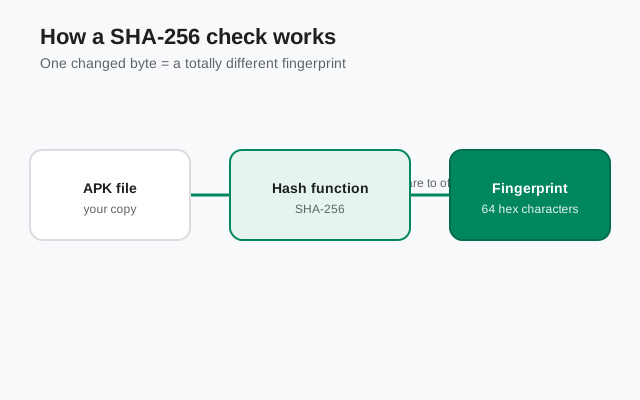
This is the definitive check. Signal publishes the SHA-256 fingerprint of its signing certificate on its official APK page, and we re-verified it live on October 7, 2026 while writing this guide:
4B:E4:F6:CD:5B:E8:44:08:3E:90:02:79:DC:82:2A:F6
5A:54:7F:EC:C2:6A:BA:7F:F1:F5:20:3A:45:51:8C:D8
If the transferred APK's signing certificate produces this fingerprint, the file is byte-identical to what Signal published: not corrupted, not tampered with, not swapped. No transfer gremlin and no middleman can survive this check. If the fingerprint differs, the file is not Signal's build, and the reason no longer matters. Delete it.
How to run the check
How to run the check depends on what you have handy. On a computer, the standard method uses Android's apksigner tool: apksigner verify --print-certs on the APK file prints the certificate fingerprints, which you compare character by character against the published value. Our apksigner verification guide walks through the full command. On the phone itself, several file-hash apps can compute a file's SHA-256. Comparing the APK's own hash against a published file hash is a different (also valid) check from the certificate fingerprint. Either way, you are comparing the transferred file against Signal's published values, and any mismatch is disqualifying.
Compare carefully and completely
Compare carefully and completely. Attackers and corruption both hide in the characters you skip: check the entire fingerprint, start to finish, not just the first few pairs. A fingerprint that matches for the first half and diverges in the second half is a failure, full stop. This takes thirty seconds of attention and is the single highest-value security habit in this guide.
Check 3: compare against the original
Sometimes the first two checks leave you puzzled: the size looks right, the fingerprint verifies, but the app still will not install, or it installs and crashes immediately. At that point the question changes from "is the copy good" to "is the source good," and the answer requires going back to the sending device.
If the original fails too
Re-run the checks on the original file where it lives. If the original fails the fingerprint check, the transfer was never the problem: the source file was already bad, perhaps from its own interrupted download, and every copy inherited the flaw. The fix is to re-download the original from Signal's page on the sending device, verify it there, and then transfer the known-good file again.
If the original verifies but the copy does not
If the original verifies fine but the copy does not, the transfer method is at fault. Switch methods: if Bluetooth produced the bad copy, use USB, and vice versa. Keep the devices awake and close together during the transfer, do not let either screen lock mid-copy, and if you are routing through a computer, copy to the computer first, verify there, then copy to the phone. Each hop is a chance for corruption, so fewer hops and a verification at each stage is the reliable pattern.
If the copy verifies but the install still fails
There is one more scenario worth naming: the copy verifies perfectly and the install still fails. That is not corruption; that is a different problem, usually an Android version or architecture mismatch, or a signature conflict with an existing install. Our parse-error troubleshooting guide picks up where verification leaves off.
When to just re-download instead
Verification is worth doing, but it is not always worth doing twice. Re-download the original from Signal's page instead of investigating when any of these are true.
- The fingerprint mismatches and you cannot explain why. A mismatch means the file is not Signal's build. Whether the cause is corruption or tampering, the remedy is identical: delete it and get a fresh file from the source. Forensics on a bad file is a hobby, not a security practice.
- You have re-transferred twice and the copy still fails. Two failed transfers point to a broken method or a broken source, and a third attempt with the same method is superstition. Re-download the original, verify it at the source, then transfer once, carefully.
- The sending device is no longer available. Without the original to compare against, you cannot distinguish "transfer corrupted it" from "it was always bad." A fresh download from signal.org/android/apk removes the ambiguity entirely.
- Anything about the file feels off. Wrong icon in the file manager, a filename you do not recognize, a size that is close but not quite right, a transfer that "finished" suspiciously fast. Trust the unease. Downloads are free; incident response is not.
The website build of Signal is about 109 MiB, which downloads in a minute or two on any decent connection. Weigh that against the time you have already spent transferring, checking, and re-checking a suspect file. The fastest way to a trustworthy APK is very often the most direct one: download it yourself, from the official page, verify the fingerprint once, and be done. Transfers are a convenience for offline situations, not a virtue in themselves.
And one final habit to take away: whenever you download the APK for sharing, verify it at download time, before it becomes the "original" that others copy. A verified source makes every downstream transfer a simple size check instead of a forensic exercise. Trust propagates forward from the first verified copy, and so does corruption. Choose which one you propagate.
from Signal's official site — file hosted by Signal, not by us
Frequently asked questions
How do I know my transferred APK isn't corrupted?
Check the file size first (about 109 MiB for v8.29.3), then verify the SHA-256 signing fingerprint against the one published on Signal's official APK page. If both match, the copy is intact.
What is Signal's official SHA-256 fingerprint?
Signal publishes it on signal.org/android/apk. At the time of writing it begins 4B:E4:F6:CD and ends 45:51:8C:D8 (4096-bit certificate). Always compare against the live page, since keys can change with new signing setups.
My transferred APK won't install. Is it corrupted?
Possibly, but a failed install with a verified fingerprint points elsewhere: Android version too old, architecture mismatch, or a signature conflict with an existing install. See our parse-error troubleshooting guide.
Is Bluetooth or USB better for transferring an APK?
USB is generally more reliable for large files. Bluetooth works but is slower and more prone to silent corruption from interference or sleeping devices. Verify the copy either way.
Should I just re-download instead of transferring?
If you have internet access on the target device, yes: downloading directly from Signal's official page is faster and removes all transfer doubt. Transfers are for offline situations.
Keep reading
- verifying the APK's SHA-256 signature: the full fingerprint-check walkthrough
- sharing the APK phone to phone: transfer methods done right
- fixing APK parse errors: when the file verifies but won't install