
Disappearing messages not working? The usual causes and fixes
Published: October 7, 2026 · Updated: October 8, 2026
If your Signal disappearing messages are not working with the timer set, the cause is almost always a settings mix-up, not a broken feature. The most common mistake is confusing the default timer (which only applies to new chats) with the per-chat timer (which controls the chat you are in). Check the timer inside the specific conversation first.
The number-one cause: default timer vs per-chat timer
Signal has two separate timer settings and they do different jobs. Mixing them up is the single most common reason people think disappearing messages are "not working."
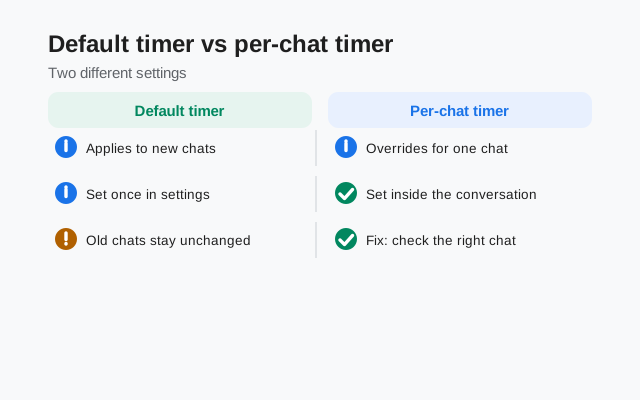
- Default timer = only new chats. The setting at Settings → Privacy → Default timer for new chats applies the timer to conversations you start after turning it on. It does nothing to chats that already exist.
- Per-chat timer = the chat you are in. Each conversation has its own timer, set from that conversation's settings. This is the timer that actually deletes messages in that chat.
- The classic mistake. Someone turns on the default timer, then opens an old chat and wonders why nothing disappears. The old chat never got a timer. Set it inside that conversation.
- Turning the default off does not clear existing timers. If you disable the default timer, chats that already have their own timer keep it. You have to turn the timer off per chat.
Check the timer in the right conversation
-
Open the conversation's settings
Open the chat where messages are not disappearing and tap the contact or group name at the top to open the conversation settings.
-
Confirm a timer is actually set
Look for the disappearing messages timer control. If it shows Off, that is your answer. Set it to the duration you want (from 30 seconds up to 4 weeks, with a custom option as short as 1 second).
-
Check whether the timer starts on view
The countdown starts when the recipient views the message, not when you send it. A message sitting unopened for three days with a 1-day timer is behaving correctly. The day starts when it is read.
-
Give it one full cycle
Send a test message after setting the timer and wait out one full timer period. If it disappears on schedule, the feature works and the earlier messages simply predate the timer.
Outdated app versions
- Update Signal on your phone first. Timer handling improves with app updates. If your app is months behind, update to the latest version (the current website build is v8.29.3) and test again.
- The other person's version matters too. Disappearing messages are a conversation between two apps. If the recipient is on a very old version of Signal, their app may not process timer instructions correctly, and messages can linger on their side. Ask them to update.
- Update everywhere you use Signal. If you use Signal on a phone plus a linked tablet or desktop, update all of them. A stale install on one device can hold onto messages the others already deleted.
from Signal's official site — file hosted by Signal, not by us
Timer not syncing across your devices
Changing the timer on your phone should apply to the conversation everywhere, but linked devices sometimes lag or disagree:
- Check the timer on each device. Open the same conversation on your other devices and confirm the timer shows the same value. If one device shows Off while the phone shows 1 day, change it on the phone and give the devices a few minutes on a stable connection to agree.
- Keep every device updated. Timer sync between devices depends on all of them speaking the same protocol version. One outdated device is the usual culprit when timers "work on my phone but not my tablet."
- Relink a stubborn device. If a linked device consistently ignores timer changes, unlinking and relinking it usually clears the disagreement. Your chats stay on your phone; the linked device just re-syncs.
Disappearing messages and backups
- Short timers are excluded from backups. Messages with disappearing timers of 24 hours or less are not included in Signal's Secure Backups. That is by design. There is no point backing up a message that will be gone tomorrow.
- Restoring does not resurrect disappeared messages. If a message already disappeared before you made a backup, restoring that backup will not bring it back. Disappearing means gone on every device once the timer runs out.
- "Messages came back after restore" is a timer gap. If messages reappear after you restore a backup, they are messages whose timer had not yet expired: longer-timer messages that were still alive at backup time. Check the timer: anything still within its window is supposed to be there.
If backups themselves are giving you trouble, see our backup troubleshooting guide.
The honest truth about screenshots
This is not a bug, but it surprises people: disappearing messages do not stop screenshots. Anyone in the chat can screenshot, photograph, or copy a message before it disappears, and Signal will not warn you. Treat disappearing messages as tidy-up for your chat history, not as protection against a recipient who wants to keep something. If a conversation needs real protection from copying, the answer is trusting the person. No timer can fix that.
Disappearing timers in group chats
Group conversations follow the same rules, with two twists worth knowing:
- The timer is still per conversation. Setting a timer in a group affects that group only. Your one-to-one chats keep whatever timers they already had.
- Anyone in the group can change it. The timer is not admin-only. If messages in a group suddenly start vanishing, check whether another member turned the timer on. The chat shows a notice when someone changes it, so scroll up and look.
- One outdated member affects everyone. If a single group member runs a very old app version, their device may not honor the timer. In a group, that is one weak link for every message.
Symptom table: match it, fix it
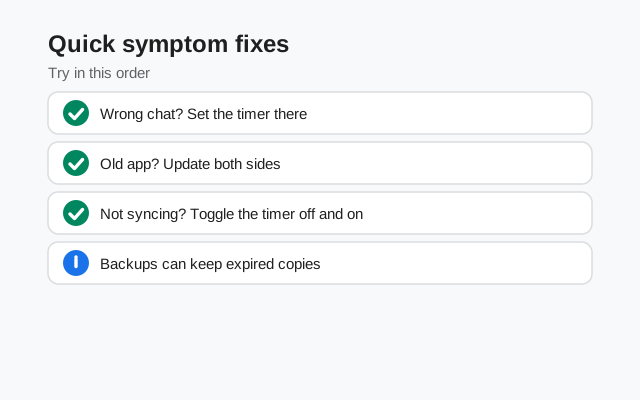
| Symptom | Most likely cause | Fix |
|---|---|---|
| Timer set, old chat still keeps messages | Default timer only applies to new chats | Set the timer inside that specific conversation |
| New chats have no timer despite default being on | Default timer got turned off, or was set after the chat started | Re-check Settings → Privacy → Default timer for new chats |
| Timer shows Off in the conversation | Never set per chat | Set it from the conversation's settings |
| Messages linger past the timer | Countdown starts on view, not on send | Wait one full timer period after the message is read |
| Timer works on phone, not on tablet/desktop | Linked device outdated or out of sync | Update all devices; relink the stubborn one |
| Messages persist on the other person's phone | Recipient on a very old app version | Ask them to update Signal |
| Disappeared messages "came back" after restore | Longer-timer messages still within their window at backup time | Normal behavior: check the timer value |
| Someone screenshotted a disappearing message | Not a malfunction: timers never blocked screenshots | Nothing to fix; treat timers as tidy-up, not copy protection |
Frequently asked questions
Why are my disappearing messages not deleting?
Usually the timer was set as the default, which only applies to new chats, instead of inside the conversation itself. Open the chat, tap the name at the top, and confirm the per-chat timer is actually on.
Does the default timer apply to existing chats?
No. The default timer at Settings → Privacy → Default timer for new chats only affects conversations started after you enable it. Existing chats need their own timer set individually.
When does the disappearing timer start counting?
When the recipient views the message, not when you send it. An unopened message with a 1-day timer will still be there days later until it is read, and that is correct behavior.
Can disappearing messages be recovered from a backup?
No. Messages that already disappeared are gone for good, and messages with timers of 24 hours or less are not included in Secure Backups at all. A backup cannot resurrect an expired message.
Why do disappearing messages work on my phone but not my linked device?
The linked device is likely outdated or out of sync. Update Signal on every device, confirm the timer shows the same value in the conversation on each one, and relink the device if it keeps disagreeing.
Do disappearing messages prevent screenshots?
No. Anyone in the chat can screenshot or photograph a message before it disappears, and Signal does not warn you. Disappearing messages tidy up chat history; they do not stop a determined recipient from keeping a copy.
Related guides: how disappearing timers work, backup troubleshooting, message stuck sending, or the full troubleshooting hub.