
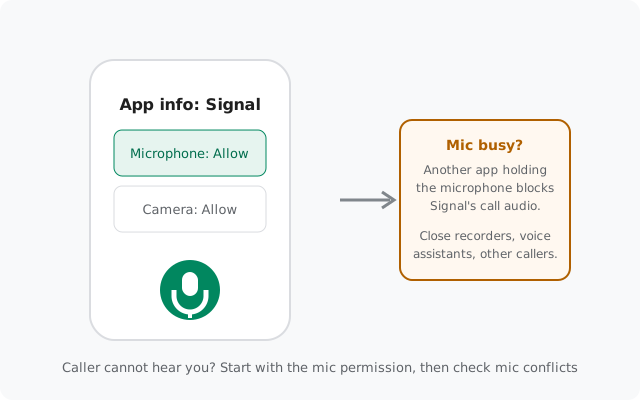
Signal mic not working on calls? The other person can't hear you, fix it
Published: October 7, 2026 Updated: October 8, 2026
If the other person can't hear you on Signal calls, the cause is one of three things: the microphone permission is denied, another app is holding the mic, or the phone is routing audio to the wrong device. Start with the permission check below, it fixes the majority of cases in under a minute. This guide covers voice and video calls on any Android phone running the official Signal build (Play Store or the website APK, current version 8.29.3).
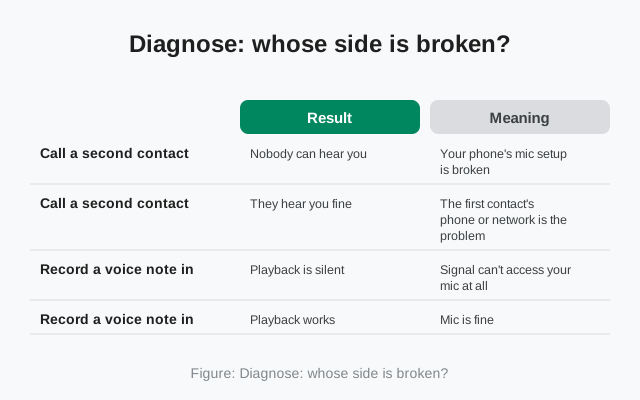
Diagnose: whose side is broken?
Before touching settings, figure out which phone has the problem. It takes 30 seconds and prevents fixing the wrong device:
| Test | Result | Meaning |
|---|---|---|
| Call a second contact | Nobody can hear you | Your phone's mic setup is broken, keep reading |
| Call a second contact | They hear you fine | The first contact's phone or network is the problem, send them this guide |
| Record a voice note in Signal | Playback is silent | Signal can't access your mic at all, permission or conflict issue |
| Record a voice note in Signal | Playback works, but calls don't | Mic is fine, it's a call audio-routing issue (Fix 3) |
| Record with the phone's built-in recorder app | Silent there too | System-level or hardware mic problem (Fix 4) |
The voice-note test is the fastest diagnostic you have. If Signal can record a voice message, the mic hardware and permission both work, and your problem is call routing, not the microphone.
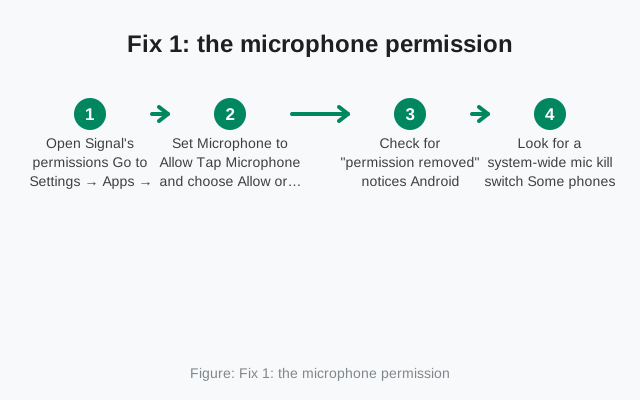
Fix 1: the microphone permission
This is the most common cause. Android revokes or never grants the mic permission more often than people expect, after updates, after reinstalls, or because it was denied once during setup and forgotten.
-
Open Signal's permissions
Go to Settings → Apps → Signal → Permissions.
-
Set Microphone to Allow
Tap Microphone and choose Allow or Allow only while using the app. If it says "Don't allow", that's your problem, change it and test a call immediately.
-
Check for "permission removed" notices
Android auto-resets permissions for apps you haven't opened in a while. Check Settings → Apps → Signal → Permissions for any banner saying permissions were reset, and re-grant them. To stop this happening to Signal, turn off Remove permissions if app is unused on the same screen.
-
Look for a system-wide mic kill switch
Some phones (Pixels, some Samsung and Xiaomi models) have a quick-settings tile or a Privacy → Microphone access toggle that disables the mic for all apps. If the whole phone's mic is off at the system level, no app-level permission can fix it, turn system mic access back on.
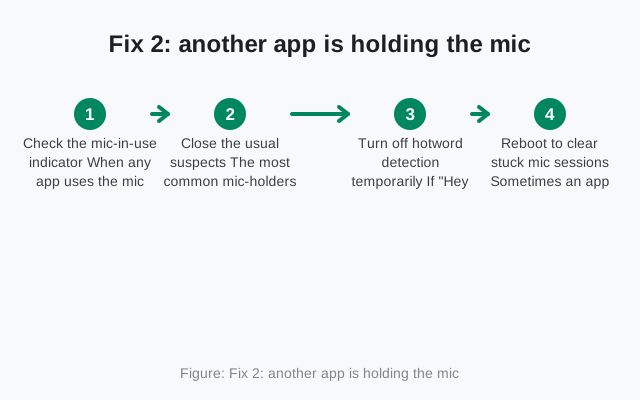
Fix 2: another app is holding the mic
Android gives the microphone to one app at a time for recording. If another app is actively using it, Signal's call gets silence. The tricky part: the offending app is often running invisibly in the background.
-
Check the mic-in-use indicator
When any app uses the mic, Android shows a green dot / mic icon in the status bar (Android 12+). If that indicator is on while you're not in a Signal call, some other app is holding the mic. Tap the indicator to see which app it is.
-
Close the usual suspects
The most common mic-holders: voice recorder apps left recording, voice assistants with hotword detection ("Hey Google" / "Hi Bixby" listening), other calling apps (WhatsApp, Teams, Zoom) with an active or stuck call, and camera apps recording video. Force-stop or close them, then retry the Signal call.
-
Turn off hotword detection temporarily
If "Hey Google" or Bixby voice wake-up is always listening, it can conflict with call audio on some phones. Test with hotword detection off, if calls work, you've found a genuine conflict and can decide which one matters more to you.
-
Reboot to clear stuck mic sessions
Sometimes an app crashes while holding the mic and never releases it. A reboot clears every mic session on the phone. If mic problems appear randomly and a reboot fixes them, a stuck background app is the pattern.
Fix 3: audio routing (speaker, Bluetooth, headset)
Sometimes the mic works fine but audio goes to the wrong place, you can't hear them, or they hear you faintly because the phone is using the wrong microphone (handset mic vs. speakerphone mic vs. headset mic).
-
Check the in-call audio button
During a Signal call, tap the speaker/audio button and cycle through the options (earpiece, speaker, Bluetooth). If one output works and another doesn't, the problem is routing, not the mic.
-
Disconnect Bluetooth for the test
Turn Bluetooth off entirely and make a test call. Bluetooth headsets are a top cause of "can't hear you" reports: the phone routes your voice to a headset mic that's in a pocket, out of battery, or paired but not worn. If the call works with Bluetooth off, the headset was the problem, re-pair it or replace its mic.
-
Allow the Nearby devices permission
On Android 12+, Signal may need Nearby devices permission to route audio to Bluetooth headsets properly. Check Settings → Apps → Signal → Permissions → Nearby devices and allow it if you use Bluetooth audio.
-
Unplug wired headsets and adapters
A damaged wired headset or USB-C adapter can hijack the mic line. Test with everything unplugged, if the built-in mic works, the accessory is faulty.
Fix 4: hardware check
If the mic is silent in every app (Signal voice notes, the built-in recorder, other calling apps), it's the phone, not Signal:
-
Test the mic in the built-in recorder
Open your phone's voice recorder app and record 10 seconds. Silent playback across all apps means a system or hardware issue.
-
Clean the microphone hole
Phones have tiny mic holes (usually bottom edge, sometimes top). Lint and pocket dust clog them. Gently clear the hole with a soft brush or a wooden toothpick, never a metal pin, which can damage the mic.
-
Remove the case and test
Some cases cover the mic hole partially. Test a call with the case off.
-
Try safe mode
Boot into Android safe mode (hold power, then long-press "Power off" until the safe-mode prompt appears). Safe mode disables all third-party apps. If the mic works in safe mode, a third-party app is interfering, uninstall recently added apps one by one.
If the mic fails in safe mode too, with the case off and the hole clean, it's likely a hardware fault, a repair shop is the next step, not more settings.
Video calls: mic plus camera
Video calls add the camera permission to the checklist. If video calls connect but the other person sees a black screen, grant Camera at Settings → Apps → Signal → Permissions. Then check the system camera kill switch the same way as the mic one (some phones have a camera access toggle next to the mic toggle). Our master call guide covers the full video-call diagnosis order.
from Signal's official site, file hosted by Signal, not by us
Frequently asked questions
Why can I hear them but they can't hear me?
Your speaker works but your mic path is broken: denied mic permission, another app holding the mic, or Bluetooth routing your voice to an unworn headset. Work through Fix 1 to Fix 3 in order.
Why does my mic work in voice notes but not on calls?
Then the mic and permission are fine, it's call audio routing. Disconnect Bluetooth, cycle the in-call speaker button, and check the Nearby devices permission. The voice-note test is what proves the mic itself works.
Does Signal need the mic permission "all the time"?
No. "Allow only while using the app" is enough, Signal only needs the mic during an active call. Never grant mic access "all the time" to any app that doesn't genuinely need background recording.
Why does the green mic dot stay on after my call ends?
Usually a stuck audio session, an app didn't release the mic cleanly. A reboot clears it. If it happens repeatedly with the same app, that app is the culprit, not Signal.
My Bluetooth headset mic worked yesterday and stopped today. What changed?
Most often: the headset connected as "media audio" but not "call audio", check the Bluetooth device settings and make sure call/phone audio is enabled for that device. Or the Nearby devices permission got auto-revoked; re-grant it.
Could a phone update break the Signal mic?
Yes, OS updates sometimes reset app permissions or change audio routing behavior. After any system update where calls break, re-check Settings → Apps → Signal → Permissions first. It's the fastest fix and the most common cause.
Related: master call-failure diagnosis, fixing choppy call quality, incoming calls not ringing, voice messages won't record or play, and the troubleshooting hub.