
Signal message requests: why messages land there and what to do
Published: October 7, 2026 · Updated: October 8, 2026
Message requests are Signal's holding area for messages from people it does not recognize. If a message lands there instead of your main chat list, Signal is telling you the sender is not in your contacts. It is not a bug, and the message is not lost. You can open the request, read it, then accept it into your chats, or block, delete, or report it. This guide explains who ends up in message requests, what each option does, and the privacy settings that control who can reach you in the first place.
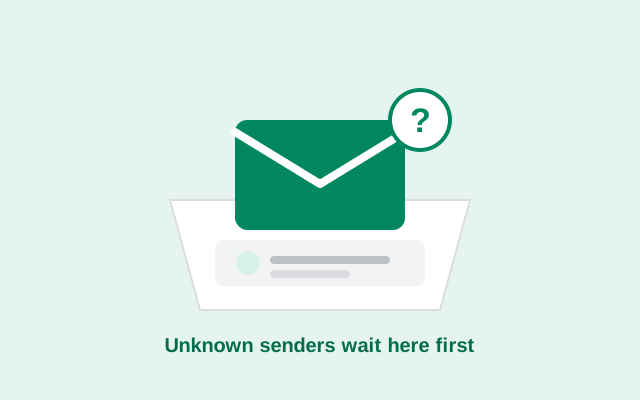
What message requests actually are
Think of message requests as a lobby. People you know walk straight into your chat list. Everyone else waits in the lobby until you decide to let them in or turn them away. Nothing in the lobby can see your main chats, and nothing forces you to answer.
- Not a bug, not lost mail. A message in requests was delivered fine. Signal deliberately kept it out of your main list because it could not verify the sender is someone you know.
- Read before you decide. You can open a request and read the message without accepting it. Reading does not add the person to your contacts or notify them in any special way.
- Requests do not ring like normal chats. They sit quietly in their own section, so a stranger's message does not interrupt you the way a known contact's does.
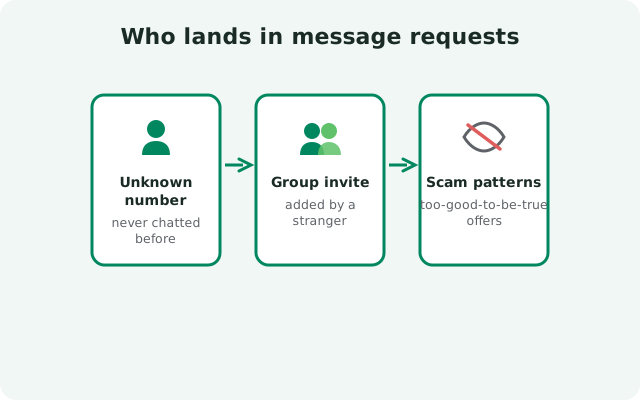
Who lands in message requests
- People not in your contacts. The big one. A number you never saved messages you: maybe a delivery driver, a new colleague, or someone who got your number from a friend.
- People who found your username. Signal usernames let anyone start a chat with you without knowing your phone number. Those chats start as message requests, since a username alone does not make someone a contact. Our usernames guide explains how that discovery works.
- Someone who changed their number. If a contact changed numbers and you have not updated your address book, their messages can arrive as requests because Signal no longer matches them to a saved contact.
- Group invites from strangers. Being added to a group by someone you do not know can surface as a request-style prompt rather than a normal chat.
- Spam and scams. Unsolicited "investment opportunity" or prize messages from unknown numbers are the reason the lobby exists. Treat any request asking for money, codes, or personal details with suspicion.
Your options: accept, block, delete, report
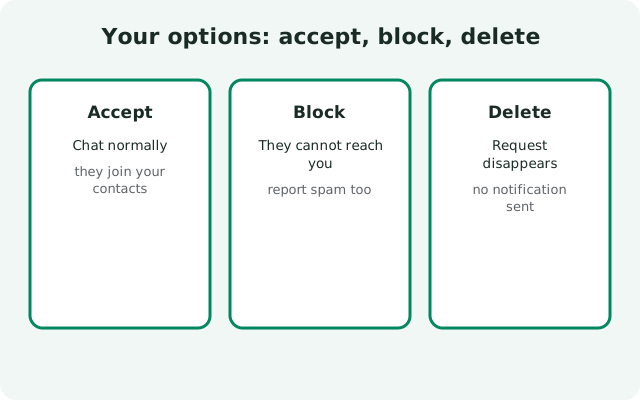
Open the request and you will see a few choices. Each does something different. Pick the one that matches the situation.
-
Accept: for people you actually want to talk to
Accepting moves the conversation into your main chat list. It behaves like a normal chat from then on. Accept when you recognize the sender: the delivery driver, the new colleague, the friend messaging from a new number.
-
Block: for people you never want to hear from
Blocking stops them from messaging or calling you. The request disappears and they cannot start new conversations with you. Use this for harassment, persistent spam, or anyone you want cut off completely. See our blocking guide for exactly what happens on their side.
-
Delete: for one-off messages you want gone
Deleting removes the request without blocking. The person could message you again later, which would create a new request. Use this for harmless wrong-number messages.
-
Report spam: for scams and bulk junk
Reporting flags the sender to Signal as spam. Use it for obvious scams, phishing links, and bulk unsolicited messages. It helps Signal protect other users from the same sender.
from Signal's official site — file hosted by Signal, not by us
Privacy implications worth knowing
- The lobby protects your attention, not just your data. Because requests stay out of your main list, a stranger cannot flood your everyday chats. You review them on your own time.
- Accepting is the point of no return. Before you accept, the sender is just a name or number in a holding area. After you accept, they have a normal chat with you. Only accept people you are comfortable talking to.
- Your number stays hidden from username contacts. If someone reached you through your username, accepting the request does not reveal your phone number to them. Number sharing is controlled separately in your privacy settings.
- Do not share codes or personal details in requests. Signal staff will never message you asking for verification codes. Any request doing that is a scam. Report it.
- Requests are also where impersonation starts. Scammers often pose as a friend "with a new number" or as support staff. If a request claims to be someone you know, verify through a channel you trust. Call their old number, or ask a question only they would answer, before accepting or sharing anything sensitive.
- Group invites deserve the same caution. A group invite from a stranger can pull you into a room full of people you do not know. Check the member list and the inviter before joining; declining a strange invite costs you nothing.
Reduce strangers reaching you
There is no switch that turns message requests off entirely. They are a core part of how Signal handles unknown senders. But you can shrink the number of strangers who find you:
- Limit who can find you by number. Under Settings → Privacy → Phone number, you can control who sees your number and who can find you by it. Tightening this means fewer strangers discovering you from a number alone. Our phone number privacy guide walks through the options.
- Be careful where you share your username. Every place your username appears is a place strangers can start a request from. Share it in trusted spaces, not on public profiles you do not control.
- Keep your contacts current. Many "stranger" requests are actually known people messaging from numbers you have not saved. Saving the right numbers with country codes keeps real contacts out of the lobby. See the contact sync guide if names are not matching.
Common misunderstandings about message requests
- "The message was deleted." No. It is waiting. Messages in requests were delivered successfully. Signal just held them outside your main list. Nothing is lost and nothing needs re-sending.
- "Accepting adds them to my contacts." No. Accepting only moves the conversation into your main chat list. The person is not saved to your phone's address book unless you save them yourself.
- "Blocking from requests notifies them." No. Blocking is silent everywhere in Signal, including from the requests screen. They simply stop reaching you.
- "Requests mean my number leaked." Not necessarily. Most requests come from ordinary sources: someone who found your username, a contact on a new number, or a one-off service message. A sudden flood of obvious spam is the only pattern worth worrying about, and reporting handles that.
- "I should accept everything to be polite." No. The requests screen exists precisely so you do not have to. Delete or block without guilt. That is what it is for.
Sender table: who it is and what to do
| Who the sender is | Why they are in requests | What to do |
|---|---|---|
| Someone you know, new number | Number not saved in your contacts | Accept, then save the number with its country code |
| Delivery driver / service person | One-off contact, not in your address book | Accept if expecting them; delete after |
| Someone who found your username | Username chats start as requests | Accept if legitimate; block if unwanted |
| Wrong number | Mistyped number, harmless | Delete; optionally reply that they have the wrong person |
| "Investment" or prize message | Spam / scam blast | Report spam, then block. Never send money or codes |
| Harassing messages | Someone targeting you | Block immediately; report if threatening |
| Group invite from a stranger | Added by someone you do not know | Decline unless you recognize the group |
Frequently asked questions
Why do some Signal messages go to message requests?
Because the sender is not in your contacts. Signal keeps messages from unknown senders in a separate requests area instead of your main chat list, so strangers cannot interrupt your normal conversations.
Can I turn off message requests in Signal?
There is no setting that disables message requests completely. You can reduce how many strangers find you by limiting number discovery under Settings → Privacy → Phone number and by sharing your username carefully.
What happens when I accept a message request?
The conversation moves into your main chat list and behaves like a normal chat. The sender is still not in your contacts unless you save them. Accepting only moves the conversation; it does not add them to your address book.
Does the sender know I read their message request?
Read receipts work the same as in normal chats: if you have them on, the sender can see the message was read. Opening a request does not send any special notification beyond normal read receipts.
Should I report spam or just block?
Do both for scams: report flags the sender to Signal so others are protected, and blocking stops them from contacting you again. For a one-off wrong number, just delete.
A friend's messages keep going to requests. Why?
They are messaging from a number you have not saved. Save their number with the country code in your phone's contacts, and future messages will land in your main chat list.
Related guides: how blocking works, fix contact sync problems, phone number privacy options, or the full troubleshooting hub.