
Signal notification sound not working? Here's how to get it back
Published: October 7, 2026 · Updated: October 8, 2026
If Signal shows message banners but plays no sound, the sound is muted at one of four layers: your phone's volume, Android's per-app notification channels, Signal's in-app sound setting, or a per-chat override. The banner proves Signal is receiving messages fine; this is purely a sound-routing problem. Work through the four layers below in order and you'll find the mute.
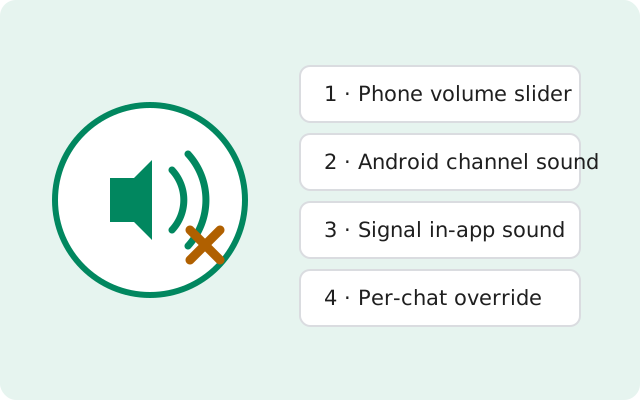
The four sound layers (check in order)
A Signal notification sound has to pass four gates before you hear it. If any gate is closed, you get silence:
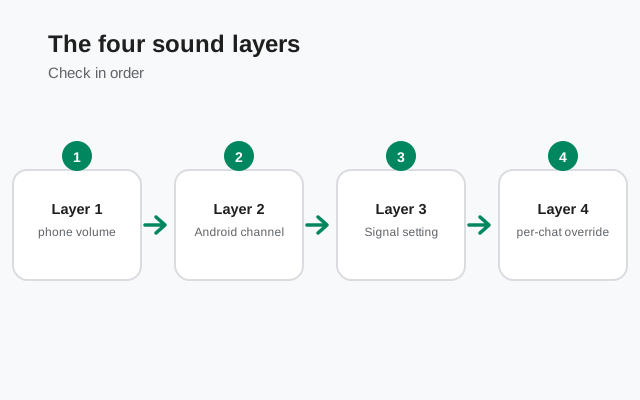
| Layer | Where it lives | What "muted" looks like |
|---|---|---|
| 1. Phone volume | Volume rocker → notification slider | Notification volume at zero; phone on vibrate/silent |
| 2. Android channel sound | Settings → Apps → Signal → Notifications → Messages → Sound | Sound set to "Silent" or "None" |
| 3. Signal in-app sound | Signal → profile → Settings → Notifications → Sound | Sound set to Silent/None |
| 4. Per-chat override | Open chat → contact/group name → Notifications | Chat muted, or custom sound set to Silent |
Most people find the culprit at layer 2: the channel sound silently switched to "None" after an update or during a notification-cleanup spree.
Layer 1: Phone volume
Start embarrassingly simple:
-
Open the full volume panel
Press the volume rocker, then tap the three dots (or gear) to expand all sliders. Android has separate sliders for media, calls, notifications, and alarms. The notification (sometimes called "ring") slider is the one that matters. Media volume does nothing for notifications.
-
Raise the notification slider and test
Drag it up, then have someone send you a message. If you hear it now, the slider was the whole problem.
-
Check silent/vibrate mode
A hardware silent switch (OnePlus alert slider, iPhone-style toggles on some phones) or a quick-settings "Sound → Vibrate → Mute" cycle can mute everything. Cycle it back to Sound.
Layer 2: Android notification channel sound
Since Android 8, each notification category ("channel") carries its own sound setting, independent of Signal's in-app choice. This is the layer that most often goes wrong silently.
-
Open the Messages channel
Go to Settings → Apps → Signal → Notifications, then tap the Messages category (tap the row itself, not just the toggle).
-
Check the Sound row
It should show a tone name. If it says Silent, None, or is empty, tap it and pick a tone. Use the Default option if you want the system notification sound.
-
Repeat for Calls
Do the same for the Calls category. It has its own independent sound. If message sounds work but calls are silent (or vice versa), the two channels simply disagree.
-
Confirm vibration here too
Each channel also has its own vibration toggle. If you want buzz-with-sound, enable it per channel.
Layer 3: Signal's in-app sound setting
Open Signal, tap your profile picture → Settings → Notifications:
- Sound: choose a tone for message notifications. If this is set to Silent, Signal itself suppresses the sound even when Android would play one.
- In-chat sounds: this only controls the little blips while you're inside a chat. It doesn't affect incoming-message alerts, so don't confuse the two.
- Repeat alerts: if you want the sound to repeat for unread messages, enable it here. Off by default; not a fix for missing sounds, but useful once sound works.
Which wins if the channel and the app disagree? In practice, Android's channel setting is the final gate. Keep both set to a real tone and you'll never have to think about precedence.
Layer 4: Per-chat overrides
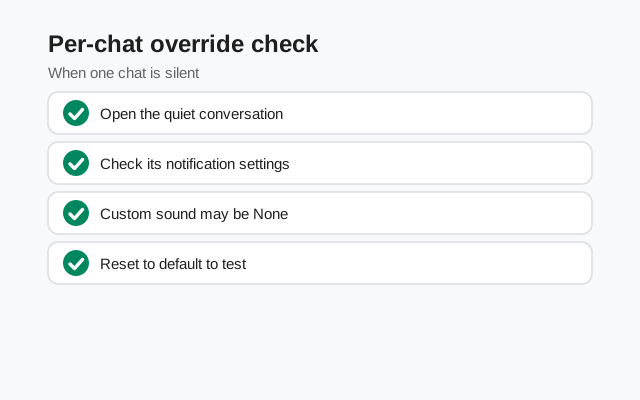
Signal lets individual chats override the global sound. If one specific person or group is silent while everyone else rings, this is why:
-
Open the quiet chat
Tap the contact or group name at the top to open chat settings.
-
Check Notifications
Look at Notifications: the chat may be muted (for an hour, a day, or indefinitely), or it may have a custom sound set to Silent. Unmute it or pick a tone.
-
Check the mute icon in the chat list
Muted chats show a small muted-bell icon next to the name. A quick visual scan of your chat list reveals any others.
Bluetooth, headphones, and routing quirks
If sound works sometimes but not others, the audio may be going somewhere you can't hear:
- Bluetooth devices: if your phone is connected to earbuds, a car, or a speaker (even in another room), notification sounds route there. Disconnect Bluetooth and test.
- Do Not Disturb: DND silences sounds while still showing banners: the exact symptom of this page. Check the quick-settings tile and any schedules (bedtime mode is the usual suspect).
- App-specific volume limits: some brands (notably Samsung) let you cap per-app volume. Check Settings → Sounds and vibration → Volume → Use volume keys for media isn't hiding a separate per-app control, and look for any "separate app sound" feature routing Signal elsewhere.
- Work profiles: a work-profile Signal copy follows the work profile's sound policies, which your employer may control.
- Custom ringtones that went missing: if you set a custom tone from a file that was later deleted or moved (SD card removed, file cleaned by a "booster" app), Android falls back to silence. Re-pick the tone.
Last resort: reset notification preferences
If all four layers look correct and there's still no sound, the setting may be stuck rather than wrong. Two resets fix that:
-
Switch to a different tone, then back
In the Messages channel sound picker, choose a completely different tone, test it, then re-select your preferred one. This clears corrupted custom-tone references, especially tones from files that were later deleted or moved off an SD card.
-
Reset app preferences
Go to Settings → System → Reset options → Reset app preferences and confirm. This restores default notification, permission, and battery settings (for every app on the phone, not just Signal), so you'll need to re-allow a few things afterward. It does not delete any data or chats. Only use this if the layer-by-layer check genuinely found nothing.
-
Reinstall as the final step
Back up chats first (Signal → Settings → Chats → Chat backups), uninstall, and reinstall from the official source: signal.org/android/apk (website build 8.29.3) or the Play Store. Never "fix" this with a modded APK.
from Signal's official site — file hosted by Signal, not by us
Frequently asked questions
Why do I see the message banner but hear no sound?
The banner proves Signal is receiving messages. The sound is muted at one of the four layers above. Start at Layer 2 (the Android channel sound), which is the most common culprit, then check the volume slider, Signal's in-app sound, and per-chat mute.
Signal sounds work for messages but not calls (or the reverse). Why?
Messages and calls use separate Android notification channels with independent sound settings. Open App info → Notifications and check the sound on each category individually.
Only one chat is silent. How do I unmute it?
Open that chat, tap the name at the top, go to Notifications, and unmute it or change its custom sound. Muted chats show a muted-bell icon in the chat list.
Can I set different sounds for different contacts?
Yes. Open the chat, tap the name, go to Notifications, and choose a custom sound. That's the per-chat override from Layer 4, and it's also how accidental silences happen, so check it when one chat goes quiet.
The sound stopped after an Android update. What happened?
Updates occasionally reset notification-channel sounds to Silent or re-apply battery restrictions that delay the sound. Re-check Layer 2 and re-run the battery steps on our delayed-notifications page.
The notification sound plays but it's very quiet. Why?
That's the notification volume slider sitting low, separate from media volume. Raise it via the volume rocker → three dots → notification slider. Also check the speaker grille for lint or a case blocking it, and turn off any "adaptive sound" or equalizer preset that's ducking notification audio.
Notifications buzz my smartwatch but my phone stays silent. Is that normal?
Yes, if your watch mirrors notifications. The phone may route the alert to the watch and stay quiet itself. Check your watch app's notification settings (usually "mute phone while wearing watch" or similar) if you want both to sound.
More notification fixes: master diagnosis guide (messages never arrive), delayed notifications (battery fixes per brand), lock-screen visibility, and the full troubleshooting hub.