
What 'Always relay calls' does in Signal, and when to use it
Published: October 7, 2026 · Updated: October 8, 2026
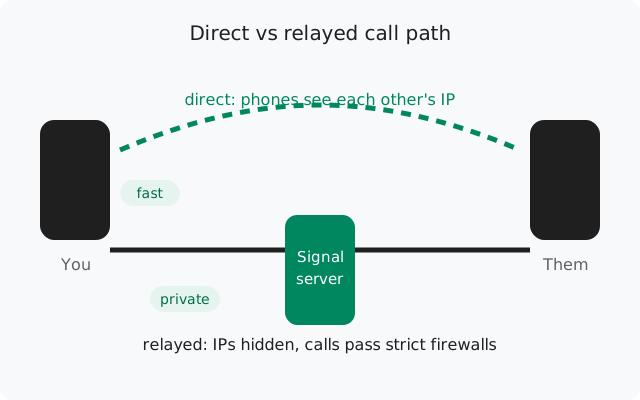
Signal relay calls happen when the "Always relay calls" setting routes your calls through Signal's servers instead of connecting your phone directly to the other person's phone. That single change does two things: it hides your IP address from the person you call, and it lets calls connect through strict networks that block direct phone-to-phone connections. The cost is slightly higher latency and a little less bandwidth headroom. If your calls work fine already, leave it off. If calls fail on specific networks, turn it on.
What "always relay calls" actually does
By default, Signal tries to connect your phone directly to the other person's phone for a one-to-one call. The two phones exchange network addresses and punch a path through the internet to each other (technically: ICE negotiation, falling back to a relay only when direct connection fails). "Always relay calls" skips the direct attempt entirely: both phones connect to Signal's server, and the server forwards the encrypted audio between them.
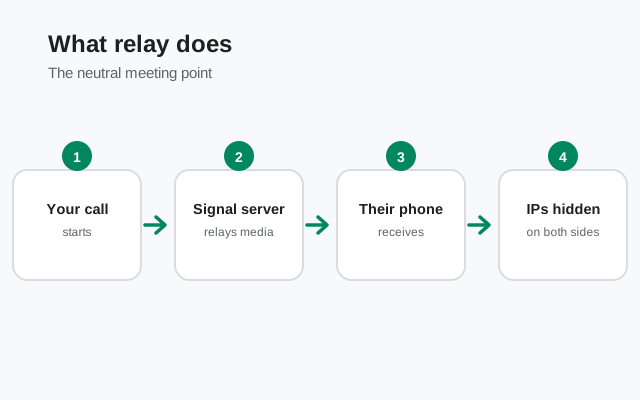
Think of it like two people who normally meet directly, but with relay mode on they always meet at a neutral café instead. The conversation is still private (end-to-end encrypted, the server can't hear it), but neither person learns the other's home address, and they can meet even if the road between their houses is closed.
The privacy side: who sees your IP
On a normal direct call, your IP address is visible to the person you are calling (and theirs to you), because the two devices connect to each other. For most people calling friends, this is a non-issue. It matters if:
- You are calling someone you don't fully trust and don't want them to learn your approximate location (IPs reveal city-level location).
- You are a journalist, activist, or anyone for whom leaking a home or office IP is a real risk.
- You simply prefer that your network address not be shared peer-to-peer as a matter of principle.
With relay mode on, the other person sees only Signal's server IP. Signal's server sees both IPs (it has to, to route the call), but the call content stays end-to-end encrypted. Relaying changes the network path, not the encryption.
When relay mode helps
Some networks make direct phone-to-phone connections impossible. The classic signs you need relay mode:
- Calls work on home Wi-Fi but fail on office, school, or hotel Wi-Fi. Corporate and campus firewalls commonly block the direct connection ports.
- Calls fail on mobile data from a specific carrier. Some carriers use symmetric NAT or block peer-to-peer traffic; relaying sidesteps both.
- Calls connect but drop after a few seconds. A flaky NAT mapping can tear down a direct connection mid-call; the relayed path is more stable.
- You are behind a VPN that breaks direct calls. Some VPNs block the ports direct calls need. Try relay mode before blaming the VPN entirely.
- Group calls already work but one-to-one calls don't. Group calls always go through Signal's servers, so if groups work and 1:1 doesn't, the direct path is the broken piece. Relay mode fixes exactly that.
If calls fail everywhere, on every network, relay mode won't help. That points to permissions, battery killing, or a broken install. See the calls-not-working guide instead.
The costs and trade-offs
Relay mode is not free. The trade-offs are real but modest:
- Slightly higher latency. Your audio takes an extra hop through Signal's server. On a good connection you won't notice; on a slow connection the delay can become audible.
- Lower quality ceiling. The relayed path has less bandwidth headroom than a clean direct connection, so video calls may look slightly softer.
- Server dependency. A direct call keeps working as long as both phones have internet; a relayed call also needs Signal's relay servers to be healthy.
- No effect on encryption. This is not a cost, but worth repeating: relayed calls are still end-to-end encrypted. Signal's servers forward packets they cannot decrypt.
Bottom line: on a normal home network, leave it off for the best quality. On a network where direct calls fail, turn it on. A slightly softer call beats no call.
Decision table: on or off
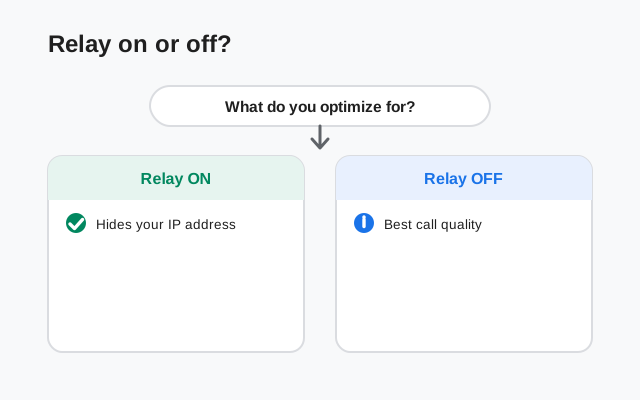
| Your situation | Relay setting | Why |
|---|---|---|
| Calls work fine everywhere | Off | Direct calls give the best quality and latency |
| Calls fail only on office/school/hotel Wi-Fi | On | The firewall blocks direct connections |
| One carrier's mobile data breaks calls | On | Carrier NAT blocks peer-to-peer |
| You don't want call partners to see your IP | On | Only Signal's server IP is visible |
| Calls fail on every network | Off (fix the real cause) | Relay won't fix a broken install or dead permissions |
| On a slow connection, calls feel laggy with relay on | Off, if direct works | The extra hop adds latency you can feel |
How to toggle it
Open Signal's settings
In Signal, tap your profile icon and go to Settings.
Find the call setting
Go to Privacy → Advanced (the exact location can move between versions; look under Privacy settings for anything call-related).
Turn on "Always relay calls"
Toggle it on. The change takes effect immediately. No restart needed. Make a test call to confirm.
Re-check quality
Make a normal-length test call on your usual network. If quality is noticeably worse and you don't need the relay, turn it back off.
Myths and facts
- Myth: "Relay mode lets Signal listen to my calls." No. One-to-one calls stay end-to-end encrypted whether relayed or direct. The server forwards ciphertext it cannot read.
- Myth: "Relay mode makes calls anonymous." No. It hides your IP from the other caller, but Signal's servers still see both endpoints' IPs, and your account is still your account.
- Myth: "I should always leave it on for privacy." If your threat model doesn't include hiding your IP from call partners, you're paying latency for nothing. Privacy settings should match real risks, not vibes.
- Myth: "Group calls need this setting too." No. Group calls always route through Signal's servers. There is no direct peer-to-peer group call to relay. The toggle only affects one-to-one calls.
from Signal's official site, file hosted by Signal, not by us
Frequently asked questions
What does 'always relay calls' do in Signal?
It routes your one-to-one calls through Signal's servers instead of connecting your phone directly to the other person's phone. This hides your IP address from them and lets calls work through firewalls and strict NAT that block direct connections.
Does relaying calls let Signal hear my conversations?
No. Signal calls are end-to-end encrypted either way. The relay server forwards encrypted packets it cannot decrypt; it only changes the network path, not the encryption.
Why do my Signal calls fail on office Wi-Fi but work at home?
Corporate and campus firewalls often block direct peer-to-peer connections. Turn on 'Always relay calls' so the call goes through Signal's servers, which the firewall allows.
Will 'always relay calls' make my calls slower?
Slightly. The extra hop through Signal's servers adds latency and a bit less bandwidth headroom. On a good connection you won't notice; on a slow connection you might.
Do I need relay mode for group calls?
No. Group calls always go through Signal's servers by design. The toggle only affects one-to-one calls.
Where is the 'always relay calls' setting?
In Signal, go to Settings → Privacy → Advanced. The exact location can shift between versions, so look under the Privacy settings for call options.
Related: fixing calls that won't connect, fixing calls that never ring, improving choppy call quality, and the troubleshooting hub. For the official build, see downloading the Signal APK.