
How to unlink a lost or stolen Signal device, remotely, in under a minute
Published: October 7, 2026 · Updated: October 8, 2026
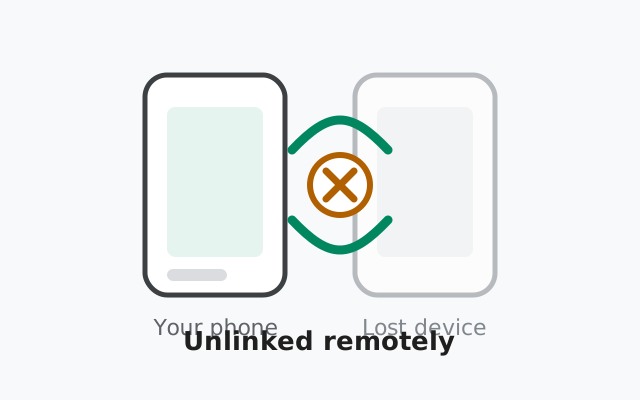
You don’t need the lost device to cut it off. Open Signal on a phone you still control, go to Settings → Linked devices, tap the lost device, and choose Unlink. From that second, no new message reaches it: no calls, no chats, nothing. The honest catch: anything already downloaded to it stays on it, so speed matters. Here’s the full playbook: unlink now, then lock down your SIM and re-verify your contacts.
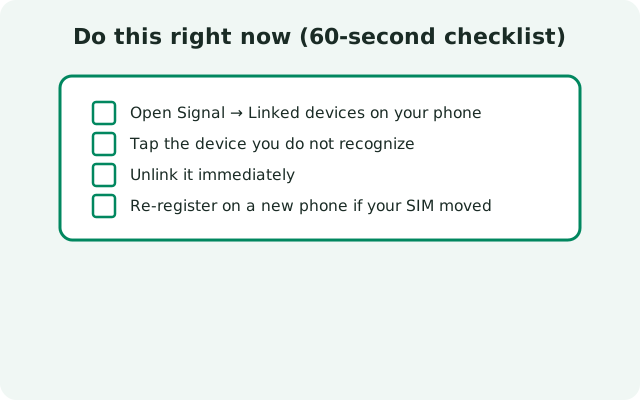
Do this right now (60-second checklist)
Don’t read the whole guide first. Do these, in order:
Unlink the device from Signal
On your phone: Settings → Linked devices. Tap the lost or stolen device and choose Unlink. New messages stop reaching it immediately.
Lock or wipe the phone itself
If the lost device is a phone, use your Google account’s Find My Device (or Apple’s Find My for an iPhone) to lock it, or wipe it remotely if recovery looks hopeless. This is what actually protects what’s already on it.
Call your carrier about the SIM
Ask them to suspend the line and issue a replacement SIM. A thief with your active SIM can receive your calls and SMS, including Signal registration codes. See the SIM section below.
Change passwords for anything logged in on it
Email, banking, and social accounts that were signed in on the lost device should get fresh passwords from another device. Start with your email. It’s the key to everything else.
What changes the moment you unlink
| Before unlinking | After unlinking | |
|---|---|---|
| New Signal messages | Arrive on the lost device | Never reach it again |
| Signal calls to you | Ring on the lost device | Don’t reach it |
| Messages already downloaded | Visible on it | Still visible (unlinking doesn’t wipe it) |
| Your contacts list | Visible on it | Still visible |
| Your phone number / account | Linked to it | Cut off: it can’t rejoin without your phone |
What the holder of the device can and can’t do
Honest answers, because this is where people either panic too much or too little:
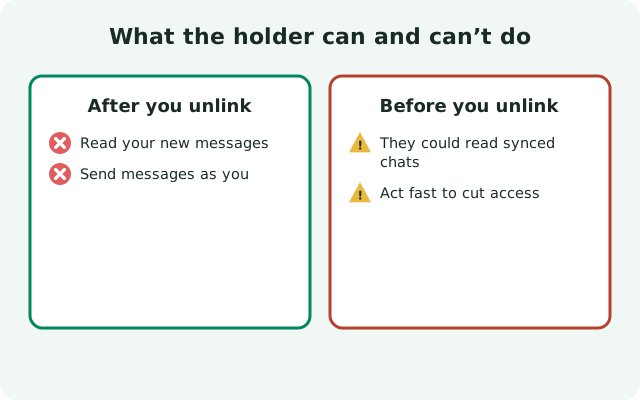
- They can read what’s already on it. Messages downloaded before the unlink are stored on the device. If the phone has no screen lock, they’re readable. Unlinking does not delete anything remotely. That’s what the phone’s remote wipe is for.
- They cannot receive anything new. From the moment you unlink, that device is cut out of your account’s message flow entirely.
- They cannot pretend to be you on Signal. Sending as you requires an active session, which the unlink kills.
- They cannot re-link it themselves. Linking always requires scanning from your primary phone, which they don’t have.
- They could still use your SIM if it’s active. That’s the real remaining risk, and it has nothing to do with Signal. It’s about SMS and calls. Handle it in the next section.
Spotting a device you don’t recognize
You don’t need to lose a phone to need this page. Open Settings → Linked devices right now and actually read the list. Each entry shows a name and roughly when it was last active. Ask yourself about each one: do I know what this is, and have I used it recently?
- Unknown name, recent activity: unlink it immediately, then change your phone’s screen lock. Someone with brief physical access to your unlocked phone can link a device in under a minute. The linking flow needs no password beyond your device unlock.
- Old laptop you sold: unlink it. You meant to, you forgot, everyone does.
- Duplicates (“My Phone”, “My Phone (2)”): leftovers from reinstalls. Harmless, but tidy them up. They count toward your 5-device limit.
The rule of thumb: if you can’t name the device and the room it’s sitting in, unlink it. You can always link a real device again in a minute; you can’t un-read messages someone already saw.
A warning about ‘Signal Web’
There is no official Signal web client. Any website claiming to be “Signal Web”, “Signal Online”, or asking you to scan a QR code to “read your messages in the browser” is a scam or a phishing page. Real linking only ever happens inside the genuine Signal Desktop app or the Signal mobile apps. If you ever scanned a QR code on one of those sites, treat it exactly like a lost device: unlink anything you don’t recognize from Linked devices immediately.
Next: your SIM matters more than the app
If the lost device held your SIM, the Signal side is the smaller problem. An active SIM in a thief’s hands means they can receive your SMS codes, including a Signal registration code. So:
Suspend the line
Call your carrier now and suspend service on that SIM. Ask for a replacement SIM on the same number.
Move fast on re-registration
Once you have the replacement SIM in a new phone, re-register your number in Signal. Whoever holds your old SIM loses the ability to register as you the moment your registration goes through. One number, one active registration.
Re-registering your number on a new phone
Installing Signal on your new phone and registering your number makes it the primary device and invalidates the old sessions. Any remaining linked devices from the old setup get disconnected, and you re-link only the ones you trust.
Re-verify safety numbers with your contacts
After a re-register, your encryption keys are new, so your contacts will see your safety number changed. Tell your close contacts to expect it, and if anyone asks you to verify, compare the number over a trusted channel (a call works). This is routine, not a problem, but it’s polite to warn people so nobody panics.
Prevent this next time
- Screen lock, always. A locked phone buys you the hours you need to unlink and wipe. Biometrics + a strong fallback PIN is the baseline.
- Know where Linked devices lives. Settings → Linked devices on your phone shows everything connected to your account. Glance at it occasionally and remove devices you don’t recognize or no longer use.
- Keep your recovery key somewhere safe. Write the 64-character key on paper and store it separately from your phone. If your phone vanishes, that key is the difference between restoring your history and starting from zero.
- Remember the 45-day rule. Linked devices that sit unused for about 45 days get auto-unlinked by Signal. One less forgotten device to worry about if it goes missing later.
from Signal's official site — file hosted by Signal, not by us
Frequently asked questions
How do I unlink a lost phone from Signal remotely?
On a phone you still control, open Signal → Settings → Linked devices, tap the lost device, and choose Unlink. It takes seconds, and no new messages will reach that device afterward.
Does unlinking delete messages from the lost device?
No. Unlinking only stops new messages. Anything already downloaded to the device stays there. Use your phone’s remote wipe (Find My Device) to delete what’s on it.
Can a thief still use my Signal after I unlink the device?
No. Unlinking kills that device’s session entirely, and it can’t rejoin without scanning from your primary phone. But if they have your active SIM, suspend it with your carrier. That’s a separate risk.
What happens when I re-register my number on a new phone?
The new phone becomes your primary device and the old sessions are invalidated. Any linked devices from before get disconnected; re-link only the ones you trust.
Will my contacts see that my safety number changed?
Yes. Re-registering creates new encryption keys, so contacts see your safety number changed. Warn close contacts in advance so nobody worries.
I lost my phone and had no backup. Is my history gone?
Unfortunately yes. Signal stores messages only on your devices, not on its servers. Without a backup (64-character recovery key), a lost phone’s history can’t be recovered.
Keep reading
- Safety number changed: what contacts see after you re-register, and how to verify
- Backing up Signal chats: the 64-character recovery key, explained
- Re-register troubleshooting: fixing problems when registering the same number again
- Troubleshooting hub: every Signal fix guide in one place