
Restore Signal Chats Across Android, iPhone, and Desktop
Published: October 7, 2026 · Updated: October 8, 2026
One backup format now spans Android, iPhone, and Desktop. But Desktop plays by different rules. Here’s what crosses platforms, what doesn’t, and how linking differs from restoring.
from Signal's official site — file hosted by Signal, not by us
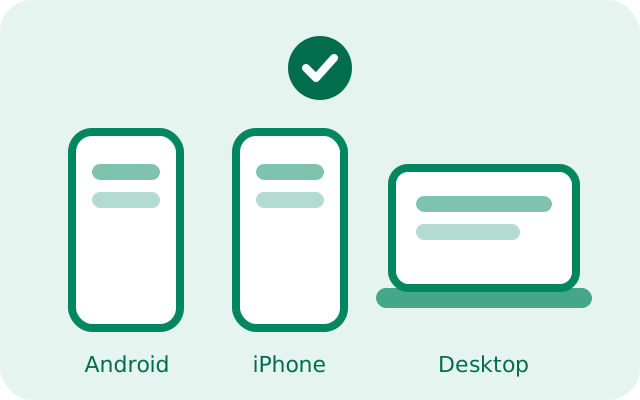
Switching between Android and iPhone used to mean starting Signal from zero. The old backup formats did not speak to each other. That changed with the unified backup format behind Secure Backups: one encrypted backup, one 64-character recovery key, restorable on Android and iPhone. Desktop stays a linked companion. It links to your phone rather than restoring a backup. This page explains what actually crosses platforms, where Desktop fits in, and the crucial difference between restoring a backup and linking a device.
The one rule for crossing platforms
Every cross-platform move follows the same three requirements:
- Same phone number. The backup belongs to the account registered with that number. Register a different number on the new device and there is nothing to restore.
- The 64-character recovery key. One key opens both current formats, hosted Secure Backups and current on-device backups, on every platform. The 30-digit passphrase opens only legacy single-file
.backuparchives, which stay Android-only, so it cannot be used for a cross-platform move. - Restore during first setup. The restore prompt appears only on a fresh install's first launch. Skip it and you will need to reinstall to see it again.
Your Signal PIN matters too: it verifies you during registration and restores your profile, contacts, and group memberships independently of the message backup. Know it before you start.
Android to iPhone, and iPhone to Android
Crossing between Android and iPhone always goes through a backup restore. The direct Wi-Fi device transfer is Android-to-Android only. The procedure is the same in both directions:
On the old phone: confirm a fresh backup exists
Open Signal's settings, find Backups, and check that a backup completed today. If backups were never enabled, enable them now and wait for the first one to finish.
Have the recovery key ready
The 64-character key from your backup setup. If you cannot find it, stop. Without it the archive cannot be decrypted on any platform.
On the new phone: install Signal fresh
Install from the App Store (iPhone) or the Play Store / official APK (Android). Do not restore the phone itself from an OS-level backup first and then install Signal into it. Start Signal clean.
Register the same number and choose restore
Enter the number, verify it, enter your PIN, then choose the restore-from-backup option during first setup and enter the recovery key exactly.
Verify thoroughly
Check long conversations, recent media, and groups. Media restores within your plan's window: all texts, plus the last 45 days of media on the free tier or full history up to 100 GB on the paid tier.
Plan the timing: a cross-platform move downloads and decrypts the whole archive, so do it on Wi-Fi with the phone plugged in. Our restore-without-old-phone guide covers the same flow in depth, including what to do when the old phone is already gone.
Where Desktop fits: linked, not restored
Signal Desktop is the exception to every restore rule on this page, because Desktop is a linked companion device, not a standalone account. It cannot register a phone number, cannot be a primary device, and cannot exist without a phone holding the account. You never "restore a backup onto Desktop". You link it.
Linking works like this: install Signal Desktop, open Signal on your phone, go to the linked-devices screen, and scan the QR code Desktop shows. The phone authorizes the new device, and your account syncs over: contacts, groups, and recent chat history. The phone remains the primary device; Desktop mirrors it.
Three consequences people trip over:
- Desktop cannot rescue a lost phone. If your phone is gone and unrecoverable, linking a fresh Desktop is impossible. There is no phone to scan the QR code. Recover the account on a phone first (see the no-old-phone guide), then link Desktop.
- Linking is not a backup. A linked Desktop holds a copy of recent conversations, but it is a companion to the phone, not an independent archive. If the phone dies, the Desktop copy is not a supported restore source. The backup archive is.
- Unlinking is safe. Removing a linked Desktop (from the phone's linked-devices screen) does not touch your chats or your backups. It just disconnects that device.
Linking vs restoring: the difference
These two operations sound similar and do completely different things:
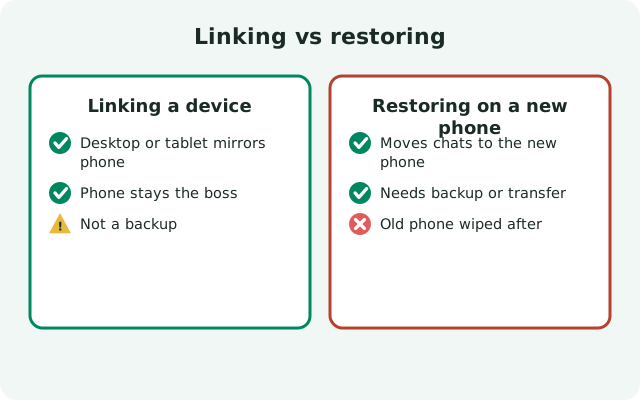
| What it is | Restoring: decrypting a backup archive onto a fresh primary device (a phone) during first setup, using the recovery key. | Linking: authorizing a companion device (Desktop, or a second device) by scanning a QR code from the primary phone. |
|---|---|---|
| Needs the recovery key? | Yes. The key decrypts the archive. | No. The phone authorizes the link directly. |
| Needs the phone number? | Yes. You register the same number on the new phone. | No new registration. The linked device borrows the phone's account. |
| Result | A new primary phone holding your account and history. | An additional device mirroring the phone's account. |
| When to use it | New phone, lost phone, reinstall, switching platforms. | Adding Signal Desktop or a companion device while your phone works. |
Cross-platform moves at a glance
| Android → Android | Direct Wi-Fi device transfer (fastest), or backup restore. See the Wi-Fi transfer guide. |
|---|---|
| Android → iPhone | Backup restore with the 64-character recovery key during first setup. Direct transfer does not cross platforms. |
| iPhone → Android | Backup restore with the recovery key during first setup. Same procedure, mirrored. |
| iPhone → iPhone | Backup restore with the recovery key (iPhone has no Android-style direct transfer). |
| Phone → Desktop | Link via QR code from the phone, not a restore. Phone must be working. |
| Desktop → anything | Not a recovery path. Restore onto a phone first, then link Desktop again. |
The mistakes that break cross-platform moves
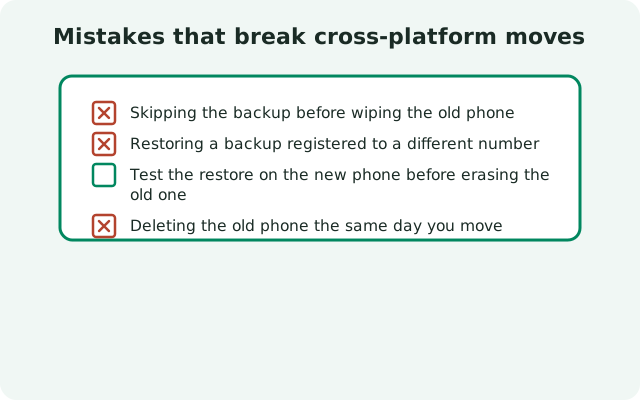
- Registering a different number "temporarily." There is no temporary. The backup is tied to the number. Restore with the original number or not at all.
- Using the 30-digit legacy passphrase. That passphrase opens only legacy single-file
.backuparchives. It unlocks neither Secure Backups nor current on-device backups. Cross-platform restores need the 64-character recovery key. - Expecting Desktop to hold the primary copy. It does not. The phone is the primary device; treat the backup archive as the source of truth.
- Skipping the restore prompt. It appears once, during first setup. There is no "restore later" button in settings. Skipping it means reinstalling.
- Forgetting the media window. Crossing platforms does not widen the free tier: texts all come across, but media older than 45 days only survives on the paid tier's archives.
Cross-platform moves feel intimidating the first time, but they are mechanically simple: same number, recovery key, fresh install, restore on first launch. Get those four right and the platform on either end barely matters.
Test the restore before you depend on it
The worst time to discover a missing recovery key is the night your old phone dies. Once a year, or any time before a planned phone switch, open Settings → Backups and confirm three things: a backup ran today, you know where your recovery key is, and you know your Signal PIN. Five boring minutes of verification now is what turns every guide on this page from theory into a plan that actually works when you need it.
Moving between two iPhones
iPhone-to-iPhone moves also go through the backup restore. There is no iPhone equivalent of Android’s direct Wi-Fi device transfer. The procedure is the same: fresh backup on the old iPhone, install Signal on the new one, register the same number, restore with the recovery key during first setup.
One iPhone-specific trap: restoring the new iPhone from an iCloud device backup does not bring Signal chats back. Signal excludes its message database from iCloud backups, so the app arrives empty and you still need the in-app restore with your recovery key. If you relied on iCloud alone, open Signal fresh on the new phone and run the restore flow. The key, not iCloud, is what recovers your history.
Relinking Desktop after any move
Registering a new primary phone, on any platform, unlinks all previously linked devices as a security measure. After every move described on this page, re-link Signal Desktop from the new phone: open the linked-devices screen on the phone, scan Desktop’s QR code, and your account syncs back over. Until you do, Desktop sits disconnected and silent, which is normal, not broken.
How long to keep the old phone
After a cross-platform move, keep the old phone, working, charged, and untouched, for at least a few days of normal use on the new phone. Cross-platform restores have more surface area for surprises (a media window you misjudged, a group that looks odd), and the old phone is the only time machine you have. Wipe it only when you are genuinely confident the new phone holds everything you care about, and keep your recovery key stored safely regardless: you will need it for the next move too.
FAQ
Can I move chats from Android to iPhone?
Yes, with a backup restore: fresh backup on Android, then install Signal on the iPhone, register the same number, and restore with the 64-character recovery key during first setup.
Can Signal Desktop replace my phone?
No. Desktop is a linked companion device. It can’t register a number or be a primary device, and it can’t exist without a phone holding the account.
Do I need the recovery key on iPhone too?
Yes. The unified backup format uses the same 64-character recovery key on every platform.
Does linking Desktop download my full history?
Linking syncs your account and recent conversations from the phone. It’s a companion mirror, not a backup restore. For full history on a new device, restore the backup on a phone.
What if my old phone is gone and I only have Desktop?
Desktop can’t authorize a new primary device on its own. Recover the account on a phone first using a Secure Backup, then link Desktop again.
Keep reading
- Restore without your old phone: recovery when the device is gone
- Direct Wi-Fi transfer between Androids: the fastest same-platform move
- Secure Backups explained: the hosted system behind restores
- The full new-phone walkthrough: both methods compared