
Move a Signal Backup to a New Phone by Hand
Published: October 7, 2026 · Updated: October 8, 2026
Signal/Backups/ for legacy .backup files, or the same folder name for unified backups. Install Signal last, and choose restore during first setup (the prompt appears only once), entering your passphrase or recovery key.The direct Wi-Fi transfer is the easy path between two Androids. But it doesn’t always cooperate. When pairing fails or the old phone’s Wi-Fi is broken, the manual method still works: copy the backup off the old phone, place it on the new one, and restore during first setup.
from Signal's official site — file hosted by Signal, not by us
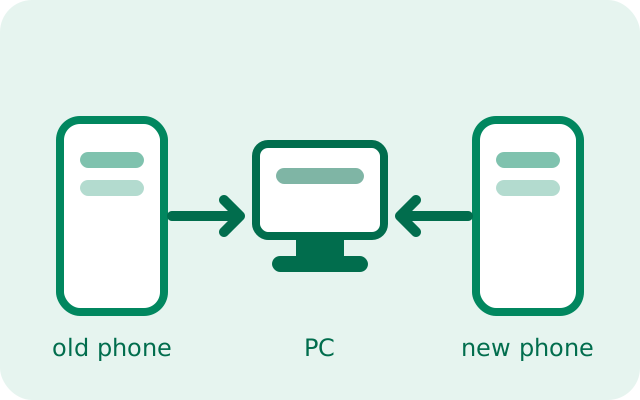
The Wi-Fi device transfer is the easy path, but it does not always cooperate. Broken Wi-Fi radios, pairing that refuses to finish, and corporate networks that block direct connections are all real. When that happens, the manual method still works: copy the backup file or folder off the old phone, put it on the new phone, install Signal, and restore during first setup. This page is the full sequence, including the order-of-operations mistakes that wipe chats.
The order of operations (read this first)
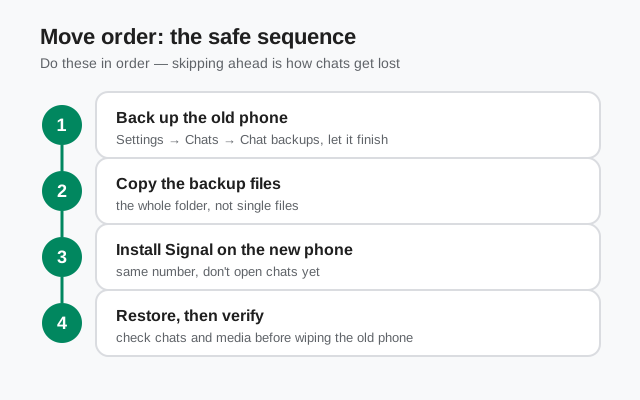
Manual moves fail for one reason more than any other: doing the steps in the wrong order. Memorize this sequence: copy first, install second, restore third:
| Step | Do this | Never do this |
|---|---|---|
| 1. Old phone | Run a fresh backup and confirm it finished. | Do not uninstall Signal or reset the phone yet. |
| 2. Copy | Copy the backup file or folder to a PC (or SD card / USB drive) and verify the copy. | Do not move or cut. Copy. A failed move leaves you with nothing. |
| 3. New phone | Copy the backup into the right folder on the new phone before setting up Signal. | Do not open Signal and register before the files are in place. |
| 4. Restore | Install Signal, and choose restore during first setup. The prompt appears only once. | Do not skip the restore prompt "to do it later." Later requires a reinstall. |
| 5. Verify | Check chats, media, and groups on the new phone before wiping the old one. | Do not wipe the old phone the same evening. Give it a day or two. |
The single most expensive mistake is step 3's "never": if you install Signal on the new phone, register your number, and start chatting before copying the backup over, the restore prompt is gone. The fix is a full reinstall. Annoying, but recoverable as long as the old phone and its backup still exist.
Before you move anything: the checklist
- Run a fresh backup on the old phone. Open Signal → Settings → Backups and confirm the last backup time is today. A backup from three weeks ago restores three-week-old chats.
- Know which key you need. Legacy
.backupfiles unlock with the retired 30-digit numeric passphrase; current unified on-device backups unlock with the 64-character recovery key. If you cannot find the key, stop here and read our backup key guide. A file without its key is a paperweight. - Check free space on the new phone. The new phone needs room for the backup files plus the restored data. If storage is nearly full, the restore can stall halfway.
- Find a data-capable USB cable. Charge-only cables will waste twenty minutes of your life. If the PC does not see the phone, switch cables.
- Leave the old phone alone. Do not uninstall Signal, do not factory reset, do not "clean up" the backup folder until the new phone is fully working.
Step by step: moving the backup by hand
Make a fresh backup on the old phone
Signal → Settings → Backups. Confirm a backup completes now, not yesterday. Note the folder path shown on that screen. You will need it in step 3.
Copy the backup off the old phone
Connect the old phone to a PC over USB (set the phone's USB mode to file transfer), then copy the entire backup folder to the PC. For legacy format that means the
Signal/Backups/folder with its.backupfiles; for the unified format it means the whole folder you chose during setup, every file in it.Verify the copy
Compare folder size and file count between phone and PC. They must match exactly. This thirty-second check is the difference between a backup and a hope.
Copy the backup onto the new phone
Connect the new phone to the PC and copy the folder over. For legacy
.backupfiles, place them inSignal/Backups/on the new phone's internal storage. Create the folder if it does not exist. For unified-format backups, recreate the same folder name you used on the old phone. Do not rename anything.Install Signal, then restore on first launch
Install Signal on the new phone (Play Store, or the official APK from Signal's own site if the phone has no Play Store). Open it and start setup: when Signal offers to restore, choose the local backup option and enter your passphrase or recovery key exactly. Then finish registering your number.
Verify before you wipe anything
Open several long conversations, check recent photos and files, and confirm your groups look right: chats, media, groups, and safety numbers in a few key chats are the four things that must check out. Only when the new phone is clearly complete should you sign out of or wipe the old phone. And keep the PC copy of the backup for a week or two afterward, just in case.
What to copy: legacy file vs unified folder
The two formats need slightly different handling at the copy step:
- Legacy
.backup: copy the individual.backupfile (or files, keep the newest). The new phone's Signal looks inSignal/Backups/on internal storage during setup. Unlock with the 30-digit passphrase. - Unified on-device format: copy the entire folder: every encrypted file and the media files inside it. The folder name should match what the old phone used. Unlock with the 64-character recovery key.
Unsure which format you have? Our backup file location guide shows how to identify each one from the file shapes alone.
No PC? Two workarounds
A computer is the most reliable middleman, but not the only one:
- SD card swap. If both phones take microSD cards, copy the backup folder to the card with a file manager, move the card to the new phone, and copy the folder into place. Verify the copy on the new phone before continuing.
- USB-OTG flash drive. A USB-C flash drive (or a normal drive with an OTG adapter) works the same way: copy from the old phone, plug into the new phone, copy into place.
One warning for both: the backup file is encrypted, so the copy itself is safe to handle. But never send the passphrase or recovery key through the same channel as the file. Keep the key on paper or in your password manager, separate from wherever the files travel. Anyone holding both the file and the key can read your entire history.
The mistakes that wipe chats
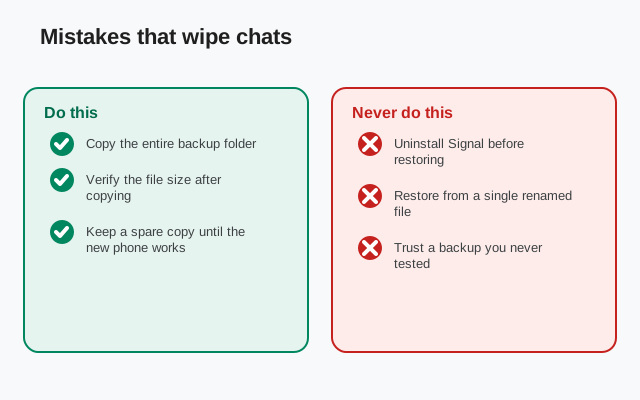
- Uninstalling Signal on the old phone first. Uninstalling deletes the app's data. If the backup was only on the phone's storage and you already wiped it, there is nothing left to copy.
- Factory-resetting either phone mid-process. A reset wipes internal storage, including backup folders. Resets happen at the very end, after verification. Never in the middle.
- Restoring into the wrong build. The Play Store build and the website APK build are signed differently and cannot share data directly. If you are also switching builds, read our full transfer walkthrough first. The backup-restore path handles it, but the sequence matters.
- Assuming the Wi-Fi transfer also ran. If you attempted the direct transfer and it "seemed to finish" but chats are missing, do not wipe the old phone. Fall back to this manual method while the old phone still has everything.
Done carefully, the manual move is the most predictable method there is: no network, no pairing, no cloud. Copy, verify, install, restore, verify again.
How long the manual move takes
Plan the move for a moment when you are not in a hurry. The copying itself depends on backup size and your USB speed. A few hundred megabytes moves in minutes, while a multi-gigabyte media library over an old USB 2.0 cable can take the better part of an hour. The restore step then decrypts everything on the new phone, which is CPU work: big archives keep going in the background, so plug the phone in and let it run rather than watching it.
A realistic plan: run the fresh backup on the old phone in the morning, copy everything to the PC over lunch, and do the new-phone restore in the evening. Keep the old phone untouched overnight and verify the new phone the next day. Nothing about this process rewards rushing, and every lost-chat story involves someone who wiped the old phone the same evening "because the restore said 100%."
What to do with the spare copy afterward
Keep the PC copy of the backup for one to two weeks after the move. If a conversation turns up missing or a file will not open on the new phone, that copy is your second chance. You can reinstall and restore again while the old phone is still around.
After those two weeks, delete it. The file is encrypted and useless without your key, but there is no reason to leave a copy of your entire chat history on a computer you might sell, lend, or lose. Delete the folder, empty the trash, and move on. From that point, your ongoing backups, on-device or hosted, are taq">FAQ
For this method, yes. You need to run a fresh backup and copy the files off it. If the old phone is dead or gone, use a hosted Secure Backup restore instead. You can copy the files any time, but the restore prompt only appears during first setup. If you already registered, reinstall Signal to get the prompt back. For legacy .backup files, yes. Put them in Signal/Backups/ on internal storage. For unified-format backups, recreate the same folder name you used on the old phone. Then the backup cannot be unlocked. There is no reset. Your contacts and groups can still come back through your Signal PIN, but message history is gone. The file is encrypted, so storing it on a PC is fine. Keep the passphrase or recovery key separate. Never in the same place as the file.Do I need the old phone to be working?
Can I copy the backup after installing Signal on the new phone?
Does the folder name have to match on the new phone?
What if I lost the passphrase or recovery key?
Is it safe to keep the backup on my PC?
Keep reading
- Where Signal stores backup files: find the right folder first
- Direct Wi-Fi transfer between Androids: when both phones cooperate
- Restore Signal from a backup: every restore path in one place
- The full new-phone walkthrough: both methods compared
- when to upgrade your phone: the honest signs it's time