
Link Signal Desktop to your phone, step by step
Published: October 7, 2026 · Updated: October 8, 2026
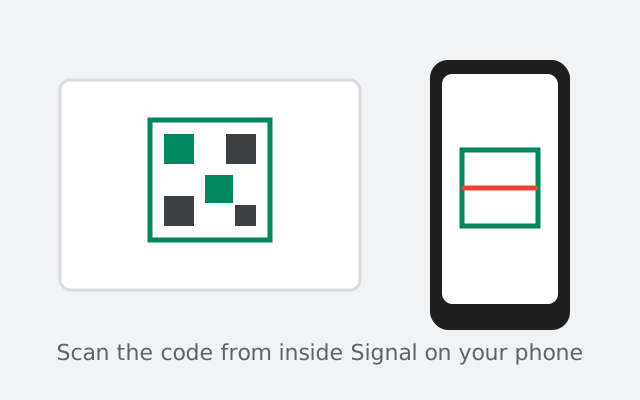
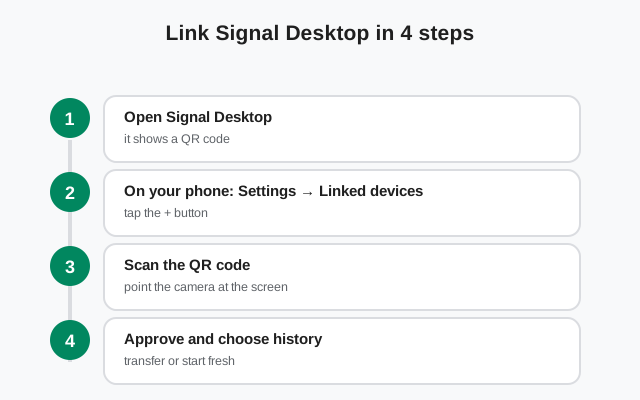
Linking connects the Signal Desktop app on your computer to the Signal account on your phone. Your computer shows a QR code, you scan it from inside Signal on your phone (Settings → Linked devices → Link a new device), approve on the phone, and within a minute your chats appear on the computer. Your phone stays the primary device. The computer becomes a linked device, one of up to 5 per account.
What linking actually does
Two facts clear up most confusion:
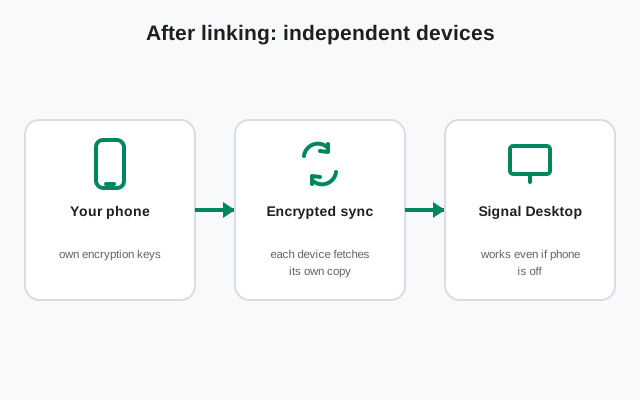
- Your phone is the primary device; the computer is a linked device. The account lives on the phone. The computer gets its own set of encryption keys tied to that account, which is why it can send and receive independently afterward, even with the phone off.
- Linking is not pairing like Bluetooth. The phone and computer do not need to be near each other or on the same network. They just both need internet access during the minute you link them.
You can link up to 5 devices to one account: desktops, laptops, and tablets in any mix.
Get both devices ready (checklist)
| Device | Ready means |
|---|---|
| Computer | Signal Desktop installed and open, showing the QR code. (Windows, Mac, or Linux install guides are in our desktop hub.) Keep the window visible. The code expires if you leave it sitting too long. |
| Phone | Signal installed, registered, and working. Camera permission granted to Signal. Enough battery for two minutes. |
| Both | Updated to recent versions. An old app on either side is a classic cause of linking failures. Working internet on both. |
The #1 mistake: scanning with the phone's camera app or a generic QR reader. Only the scanner inside Signal (Settings → Linked devices → Link a new device) understands the linking code.
from Signal's official download page — installers are hosted by Signal, not by us
The linking walkthrough
Show the QR code on your computer
Open Signal Desktop. A fresh install shows the code automatically. If you see chats instead of a code, this computer is already linked. No code needed.
On your phone, open Settings → Linked devices
You will see your currently linked devices (if any) and a "+" or "Link a new device" option.
Tap "Link a new device"
Signal may ask for your fingerprint, face, or device PIN first. That is a security check. It proves the person holding the phone is you.
Point the in-app scanner at the code
Hold the phone 15–30 cm from the screen, keep it steady, and let it focus. Brightness up on the computer helps; scan straight-on rather than at an angle.
Read the history-transfer question carefully
Your phone now asks whether to transfer chat history to the new device. This is the one moment it is offered. See the next section before you answer.
Approve the new device on your phone
Confirm the device name. Done. Chats start appearing on the computer within a minute.
What to answer when it asks about chat history
Signal Desktop does not automatically backfill your old messages. What it gets depends entirely on this one choice:
| Your choice | What lands on the computer |
|---|---|
| Transfer history | Your full chat history, plus media from roughly the last 45 days. Contacts, groups, and profile come along too. |
| Skip | An empty chat list. From this moment on, new messages arrive on both devices, but nothing from before the link ever appears on the computer. |
Skipped by accident? There is no "transfer later" button. Unlink the computer (phone: Settings → Linked devices → tap the device → Unlink), then link it again and accept the transfer this time.
After the link: what to expect
- New messages arrive on both devices within seconds, whichever one you are looking at.
- Read states sync: reading a chat on the computer marks it read on the phone too.
- The computer works with the phone off. Once linked, the PC is independent; the phone only needs to come online at least once every 30 days to keep the link alive. (Full explanation: Desktop without your phone.)
- Device list on your phone shows the new computer with the date it was linked. Check there any time you want to audit your devices.
Why the QR flow is safe
Scanning a code to grant account access sounds risky until you see the safeguards baked in:
- The code is single-use and short-lived. Each QR code authorizes exactly one link attempt and expires within minutes. A photographed code is useless an hour later.
- Nothing happens without the phone's approval. Scanning is only half the flow. You then explicitly confirm the new device on the phone itself, after a biometric or device-PIN check. Someone who merely sees your screen cannot link their own machine.
- The approval shows the device name. If the name does not match the computer in front of you, cancel. That is the system telling you something is off.
- Every link is logged on your phone. Settings → Linked devices lists each device and when it was linked, so a link you did not make is visible immediately.
The real-world attack this stops: a stranger cannot link their laptop to your account by glimpsing your screen, because the phone in your pocket still has to say yes.
Linking a second computer or tablet
The flow is identical for device number two, three, and so on, up to the 5-device limit. Each new device gets its own QR scan and its own history-transfer choice. A few things people learn the second time around:
- History transfer is per device. Accepting it on your laptop does not affect your desktop. Each computer asks separately during its own linking. You can transfer history to one machine and skip it on another.
- Give each device a recognizable name. When the phone asks you to confirm, the name you approve is what shows in your Linked devices list forever. "Home-PC" beats "DESKTOP-9F3K2" when you are auditing devices six months later.
- Tablets count as linked devices too. An Android tablet runs the same linking flow. It is a linked device, not a second primary. See our tablet-as-linked-device guide for the details.
- Hitting the 5-device limit? The phone tells you the account is full. Open Linked devices, unlink the machine you retired, then link the new one. Our two-desktops guide covers running multiple computers day to day.
And make the audit a habit: once or twice a year, open Settings → Linked devices on your phone and confirm every entry is a machine you still own. It takes twenty seconds and it is the single best hygiene step for a multi-device account.
If it fails
Linking failures have a short list of usual suspects: camera permission denied on the phone, an expired QR code, one side running an old version, or a network blocking the connection. Do not guess: our QR code troubleshooting guide walks through all seven causes in order, and linked device not syncing covers the case where linking succeeds but messages never arrive. In our experience, nine out of ten "impossible" linking failures turn out to be the camera permission or a stale code: the two-minute fixes at the top of that guide.
The four causes above are worth ruling out yourself before reading anything else, because each has a one-minute fix:
- Camera permission denied. If the in-app scanner opens to a black screen or never opens at all, Signal does not have camera access. On the phone, open Settings → Apps → Signal → Permissions → Camera and set it to Allow, then try the scan again.
- Expired QR code. The code on the computer only lives for a short while. If the scan keeps failing after a minute or two, quit Signal Desktop completely and reopen it for a fresh code, then scan promptly.
- An old version on either side. Update Signal on the phone and Signal Desktop on the computer, then start the link again from a fresh code. Version mismatch is a classic silent cause of scan failures.
- A network blocking the handshake. Both devices need plain internet access at the moment of linking. Some office and school networks block the connection. Switch one side to mobile data or a different network and retry.
After a failed attempt, clean up before you try again. A half-finished link can leave a stale device entry on your phone: go to Settings → Linked devices, tap the device that never completed, and choose Unlink. Also check you are not already at the five-device limit, because a full device list refuses new links silently. With the stale entry gone and a fresh QR code on the computer, the retry almost always goes through on the first scan.
from Signal's official site — file hosted by Signal, not by us
Frequently asked questions
Do my phone and computer need to be on the same Wi-Fi?
No. Both just need working internet access. They can be on different networks or in different countries during linking.
How long does the QR code stay valid?
Only a short time: roughly a minute or so per code, and a code left open for several minutes will fail. Scan promptly; if it fails, quit and reopen Signal Desktop for a fresh code.
Can I link Signal Desktop without a phone camera?
No. The scan is a required security step. It is how your phone verifies and approves the new device. A phone with a broken camera cannot complete linking.
How many devices can I link to one Signal account?
Up to 5 linked devices per account, in any mix of desktops, laptops, and tablets.
I skipped the history transfer. Can I get my old chats on the PC now?
Not directly. There is no transfer-later option. Unlink the computer from your phone's Linked devices screen and link it again, accepting the transfer this time.
Keep reading
- when the QR code won't scan: all seven causes and fixes
- install Signal Desktop on Windows: the PC setup guide
- install Signal Desktop on Mac: the macOS setup guide
- using Desktop with your phone off: how the independent link works