
How to run Signal on two computers at once, and keep them in sync
Published: October 7, 2026 · Updated: October 8, 2026
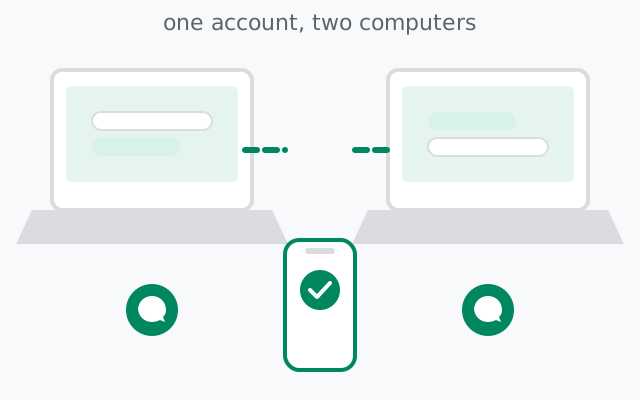
Yes, you can run Signal Desktop on two computers at the same time. Your phone stays the primary device, and each computer links to your account with the same QR-code flow: open Signal Desktop on the PC, scan the code from inside Signal on your phone (Settings → Linked devices → Link a new device), choose whether to transfer chat history to that PC, and approve the device name on the phone. One account holds your phone plus up to 5 linked devices. So a phone plus two PCs still leaves room for three more devices. New messages then arrive on both computers within seconds, and reading a chat on one marks it read on the other.
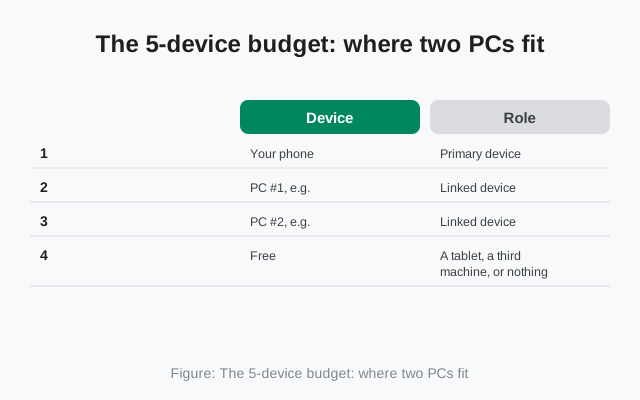
The 5-device budget: where two PCs fit
Signal's device model is simple once you see the arithmetic. Your phone is the primary device: the account lives there. Everything else (desktops, laptops, tablets) is a linked device, and the account holds up to 5 of those on top of your phone:
| Slot | Device | Role |
|---|---|---|
| n/a | Your phone | Primary device: the account lives here, never counted against the limit |
| 1 | PC #1, e.g. your home desktop | Linked device |
| 2 | PC #2, e.g. your work laptop | Linked device |
| 3–5 | Free | A tablet, a third machine, a spare: three linked-device slots left |
Two PCs use slots 1 and 2 of the five linked-device slots. A tablet counts as a linked device too. It is not a second primary, so it takes a slot just like a computer does. The most common two-PC setup (phone + home desktop + work laptop) uses 2 of the 5 linked slots, leaving three free.
Two rules keep the whole thing alive:
- The 30-day rule. Your phone, the primary, must come online at least once every 30 days. The linked devices check back against it. A phone that sits switched off in a drawer for two months will quietly break the links.
- The 45-day auto-unlink. A linked device that stays offline for roughly 45 days gets unlinked on its own. If you open a laptop you have not touched in two months and find an empty Signal asking for a QR code, that is what happened. Re-link it and carry on.
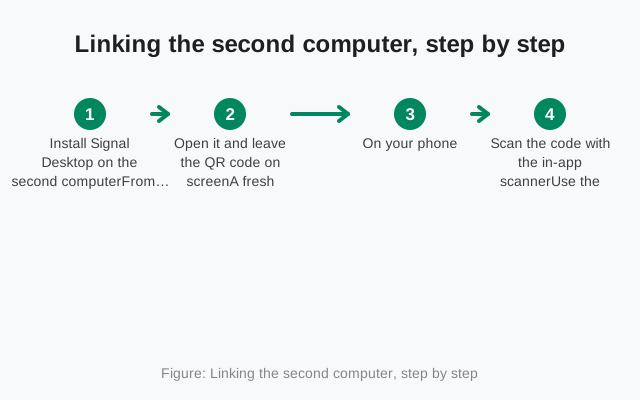
Linking the second computer, step by step
The flow for PC #2 is exactly the same as PC #1. There is no special "second device" mode. Full walkthrough with screenshots logic lives in our QR linking walkthrough; the short version:
Install Signal Desktop on the second computer
From signal.org/download only. Never download a desktop installer from a mirror, a forum, or a "portable" bundle. A second machine is not the place to get casual about installers.
Open it and leave the QR code on screen
A fresh install shows the linking code automatically. Keep the window visible. The code expires if it sits too long.
On your phone: Settings → Linked devices → Link a new device
You will see PC #1 already listed there. Tap to link another; the phone may ask for your fingerprint, face, or device PIN first.
Scan the code with the in-app scanner
Use the scanner inside Signal, not the phone's camera app. Hold the phone 15–30 cm from the screen and keep it steady.
Answer the history-transfer question for this PC
This choice is per device. See the history section below before you tap. You can transfer history to one PC and skip it on the other.
Approve the device name on the phone
Type a name you will recognize in six months (more on that next), confirm, and chats start appearing on PC #2 within a minute.
Do not unlink PC #1 to "make room." People do this when they assume one account means one computer. You have 5 slots. Unlinking the first machine just deletes its local copy of your chats for no reason.
Name each device like you will audit it later
The name you approve on the phone is permanent for that link. It is what shows in Settings → Linked devices forever, and it is the only label you get when you audit your account. Names like "DESKTOP-9F3K2" or "John's MacBook Pro" (when John has two) are useless at audit time.
A naming scheme that survives real life:
- Home-Desktop and Work-Laptop: place + machine type beats brand names.
- Home-Linux-PC: add the OS when two machines look alike.
- Beta-Test-Laptop: mark special-purpose machines, like the one running the desktop beta.
You cannot rename a linked device after the fact. If a machine is already linked with a bad name, the fix is to unlink it and link it again with the right name. A two-minute job, and the only cost is answering the history-transfer question once more. Get the name right at approval time and you will thank yourself at every future audit.
from Signal's official download page — installers are hosted by Signal, not by us
How sync behaves across both computers
Once both PCs are linked, they behave as two independent windows onto the same account. Concretely:
- New messages land on both PCs within seconds. Whichever screen you are looking at, the message is there. Sending from either PC works the same way.
- Read states sync. Open a chat on the home desktop and the unread badge clears on the work laptop and the phone too. This is the behavior people notice first, and the one that feels like magic.
- Each PC works with the phone off. Linking is a one-time handshake. Afterward, each computer holds its own encryption keys and talks to Signal's servers directly. The phone only needs to come online once every 30 days to keep the links valid. (The full mechanics: using Desktop with your phone off.)
- Notification settings are per device. Muting your work laptop's notifications does not mute the home desktop. Each machine has its own OS-level and in-app notification settings. See our desktop notifications guide if one PC stays silent.
- Contact and group changes propagate. Block someone or join a group on one PC and the change shows up on the other, because both follow the account state on the phone.
What does not sync: the local message database is per machine. Deleting a message on one PC does not delete it on the other. Each device keeps its own copy of the history it received.
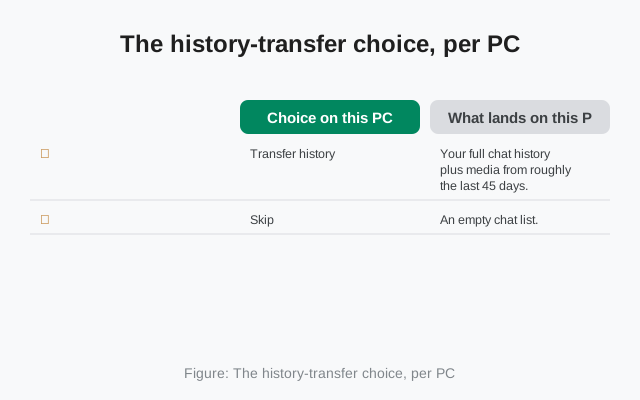
The history-transfer choice, per PC
During each PC's linking, the phone asks whether to transfer chat history to that device. This is a one-time, per-device offer:
| Choice on this PC | What lands on this PC |
|---|---|
| Transfer history | Your full chat history plus media from roughly the last 45 days. Contacts, groups, and profile come along. |
| Skip | An empty chat list. From this moment on, new messages arrive on both PCs, but nothing from before this link ever appears on this machine. |
Practical strategies for two PCs:
- Transfer on the main machine, skip on the secondary. Your home desktop keeps the archive; the work laptop stays light. New messages still arrive everywhere.
- Transfer on both if you want the full archive searchable on each machine. It costs disk space on both, nothing else.
- Skip on a machine you do not fully control: a shared or employer-owned laptop. Less history on a machine you might lose is a feature, not a bug.
Chose wrong on PC #2? There is no transfer-later button. Unlink PC #2 from the phone's Linked devices screen and link it again, answering differently this time. PC #1 is untouched by all of this.
When one computer stops syncing
Two linked PCs, and one of them goes quiet while the other keeps working. The causes are short-listed:
- The quiet PC lost its internet or Signal Desktop is not actually running. Check the obvious first.
- The phone has been offline too long (the 30-day rule). Bring the phone online; links usually recover on their own.
- The PC was auto-unlinked after ~45 days offline. Open it: if it shows a QR code instead of chats, that is your answer. Re-link it.
- Someone unlinked it deliberately: check the phone's Linked devices list. If the PC is missing from the list, re-link from scratch.
- A genuine sync stall where the link looks fine but messages never arrive. That has its own guide: linked device not syncing.
Do not "fix" a syncing problem by unlinking and re-linking PC #1 when PC #2 is the broken one. Fix the broken machine; leave the working one alone.
Unlinking one PC without touching the other
Retiring a machine (a sold laptop, a wiped work computer) takes twenty seconds and affects nothing else:
On your phone: Settings → Linked devices
You see every linked device with its name and link date. This is why the naming scheme matters.
Tap the retiring device → Unlink
Confirm. That PC's keys are revoked immediately. It stops receiving new messages at once.
Wipe the old machine if you still have it
Unlinking stops new messages. The old chats sitting in that PC's local database stay there until you uninstall Signal Desktop on it or wipe the drive. On a machine you are handing to someone else, do both.
The other PC keeps working without a hiccup. Unlinking is per device, never account-wide. If you lost the machine entirely (stolen laptop), step 1 alone is enough to cut it off; step 3 is just not possible. Our full unlinking guide covers the lost-device and remote cases in detail.
from Signal's official site — file hosted by Signal, not by us
Frequently asked questions
Can I use Signal Desktop on two computers at the same time?
Yes. One account supports your phone plus up to 5 linked devices, so two PCs work side by side and both receive new messages independently.
Do both computers need my phone to be on?
No. After linking, each PC works with the phone off. The phone only needs to come online at least once every 30 days to keep the links alive.
Will both PCs get my old chats?
Only if you accept the history transfer during each PC's own linking. The choice is per device: full history plus about 45 days of media, or an empty list that fills from that moment on.
Can I rename a linked computer later?
No. The device name is set at approval time. To fix a bad name, unlink that PC and link it again with the right name.
What happens if I reach the 5-device limit?
The phone tells you the account is full. Open Linked devices, unlink a machine you retired, and link the new one. The slot frees immediately.
Does reading a message on one PC mark it read on the other?
Yes. Read states sync across your phone and every linked device within seconds.
Keep reading
- the QR linking walkthrough: the full step-by-step for any new device
- unlinking a device the right way: retiring or wiping one machine
- using Desktop with your phone off: how the independent link works
- the Desktop guides hub: every Desktop guide in one place