
Signal Desktop beta: what it is, how to join, and whether you should
Published: October 7, 2026 · Updated: October 8, 2026
Yes, Signal publishes a beta channel for its desktop app through its own download page. The beta gives you upcoming features weeks before the public release, but it trades stability for early access: expect the occasional bug, unfinished interface text, and features that appear and then change shape. Joining is simple: install the beta build from Signal's download page and link it with the same QR-code flow as any desktop install. Leaving is just as simple. This guide covers what the beta actually is, the honest risks, the ground rules for running it on your main account, and how to go back to stable.
What the desktop beta actually is
The beta is an early-access build of the same Signal Desktop app: not a separate product, not a different account type, not a fork. It comes from Signal itself, it links to your phone with the identical QR-code flow, and it talks to the same servers. The only difference is where it sits on the release timeline: beta builds carry features that are still being tested, weeks ahead of the polished public release.
Three things the beta is not:
- It is not a "pro" or "premium" edition. There are no paid Signal editions at all. Anything marketed as "Signal Pro" or "Signal Premium" (beta or otherwise) is a scam.
- It is not a way to get features on your phone early. This page is about the desktop beta channel. The Android app has its own separate beta track through the Play Store.
- It is not risk-free early access. Features in beta can be buggy, incomplete, or pulled entirely before the public release. That is the entire point of a beta.
Why does Signal run a public beta at all? Because desktop users are the cheapest real-world test lab: a few thousand volunteers running pre-release builds on different operating systems surface crashes and edge cases that internal testing never finds. You get features early; Signal gets bug reports. Fair trade, as long as you know what you signed up for.
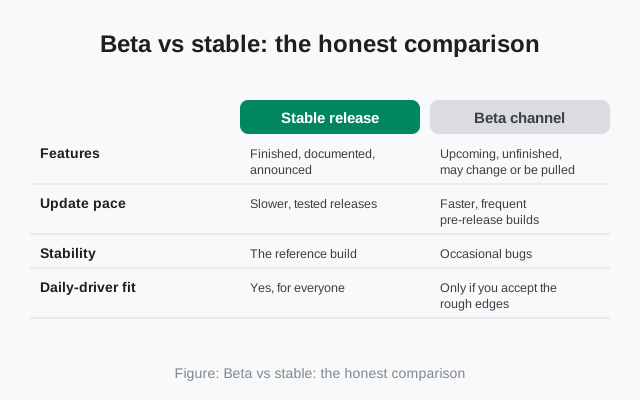
Beta vs stable: the honest comparison
| Stable release | Beta channel | |
|---|---|---|
| Features | Finished, documented, announced | Upcoming, unfinished, may change or be pulled |
| Update pace | Slower, tested releases | Faster, frequent pre-release builds |
| Stability | The reference build | Occasional bugs, glitches, rough UI text |
| Daily-driver fit | Yes, for everyone | Only if you accept the rough edges |
| Account model | Phone primary, up to 5 linked devices | Identical: same account, same linking |
| Support | Normal support channels | Report bugs; fixes land on the beta schedule, not yours |
The row that matters most is "daily-driver fit." Beta testers who have a stable machine to fall back on enjoy the beta. Beta testers whose only computer runs the beta learn to regret it the week a regression breaks message search the night before a deadline.
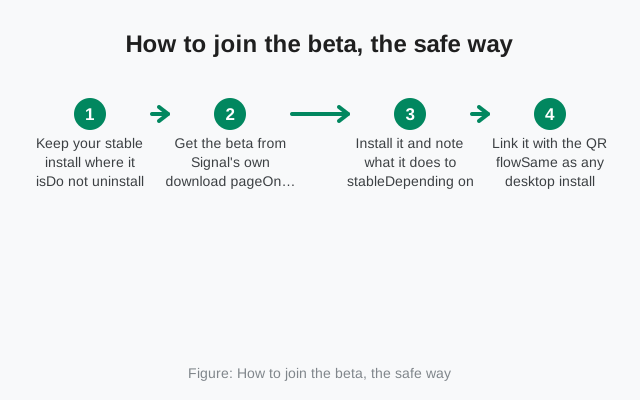
How to join the beta, the safe way
Joining means installing a different build of Signal Desktop from Signal's own pages. Nothing else. There is no signup form, no invite code, no waiting list.
Keep your stable install where it is
Do not uninstall the stable build first. Decide which machine gets the beta: ideally a secondary computer, not your only one.
Get the beta from Signal's own download page
On signal.org/download, look for the beta channel or beta build section for desktop. That page is the only legitimate source. A "Signal beta" offered on a download portal, a forum attachment, or a file host is not the beta. It is an unofficial build wearing the beta's name.
Install it and note what it does to stable
Depending on the operating system and the build, the beta may install alongside your stable copy or replace it. Know which happened before you continue. If it replaced stable, your stable fallback now lives on your other machine, not this one.
Link it with the QR flow
Same as any desktop install: open the beta, scan the code from inside Signal on your phone (Settings → Linked devices → Link a new device), answer the history-transfer question, approve. Our linking walkthrough covers the flow in full.
Name it "Beta" something
Approve a device name like Beta-Work-Laptop. Six months from now, in a Linked devices list with four entries, you want to know instantly which one runs pre-release code.
One beta device is enough. Running the beta on every machine multiplies your exposure to the same regression. Keep stable on the machines that matter and beta on the one where breakage is an annoyance, not a crisis.
What to expect week to week
Life on the beta channel has a texture. Knowing it in advance is the difference between "fun early access" and "why is everything broken":
- More frequent updates. Beta builds ship faster than stable releases. The updater will tap you on the shoulder more often.
- Occasional regressions. A button that worked on Tuesday breaks on Wednesday. A beta regression is not a scandal. It is the system working as designed, catching the bug before stable.
- Unfinished surfaces. New settings screens with placeholder text, features announced in the changelog that behave half-done, UI strings in English only. Cosmetic, mostly, but visible.
- Features that vanish. A beta feature can be pulled before the public release if testing goes badly. Do not build a workflow around a beta-only feature.
- Nothing changes about your account. Linking, the 5-device limit, the 30-day phone rule, history transfer at link time: the beta uses the same account machinery as stable. A beta bug affects the desktop client, not your account.
from Signal's official download page — installers are hosted by Signal, not by us
Ground rules for your main account
Running beta code against the account you actually depend on is fine (thousands of people do it), with four guardrails:
- Never let the beta be your only linked device for critical chats. Keep stable Signal somewhere you can reach: your phone at minimum (the phone is the primary device anyway), ideally a stable desktop too. If a beta regression eats your morning, you switch machines instead of missing messages.
- Do not share beta builds with other people. Forwarding the installer to a friend skips every warning on this page. Point them at the download page and let them decide.
- Report bugs instead of working around them silently. The beta exists for feedback. When something breaks, note the app version, your OS, what you did, and what happened. Then report it through the beta's feedback channel on Signal's community or support pages. A bug nobody reports is a bug that ships to stable.
- Do not run beta builds from unofficial sources, ever. The beta's whole trust model is "this exact build came from Signal." A repackaged "beta" from a third party keeps the early features and adds whatever the repackager wanted. If the download did not come from Signal's own download page, it is not the beta.
One more: beta builds update themselves like stable builds. If an update fails on the beta channel, the fix is the same as on stable. Our update-failure guide walks through it.
Leaving the beta and going back to stable
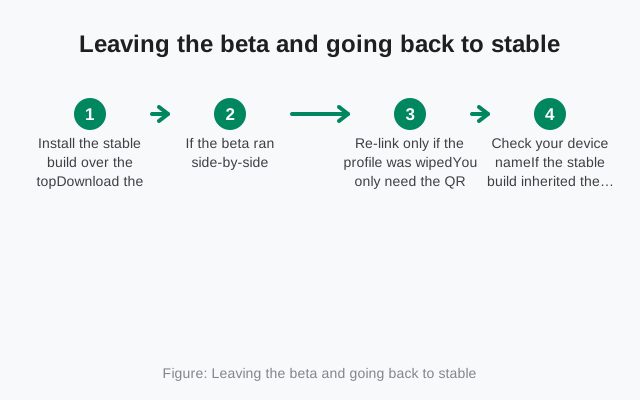
Leaving is the reverse of joining, and it is deliberately boring:
Install the stable build over the top
Download the current stable desktop build from signal.org/download and install it. On most systems this replaces the beta in place and keeps your linked account and local message database.
If the beta ran side-by-side, uninstall it instead
When the beta installed as a separate app, remove that app copy and keep (or reinstall) the stable one. Your phone's Linked devices list may show the beta entry. Unlink it there to keep the list honest.
Re-link only if the profile was wiped
You only need the QR flow again if the switch created a fresh profile (empty chat list, QR code on screen). Otherwise the stable build picks up right where the beta left off.
Check your device name
If the stable build inherited the "Beta-Work-Laptop" name, consider a re-link with a clean name so future audits stay readable.
Nothing on the phone side changes during any of this. Your phone is the primary device; it neither knows nor cares which desktop channel you run. You can join the beta, leave it, and rejoin it next month. The account machinery is identical throughout. If you are setting up a second machine anyway, our two-desktops guide covers running stable and beta side by side on different computers.
from Signal's official site — file hosted by Signal, not by us
Frequently asked questions
Is the Signal Desktop beta free?
Yes. Like the app itself, the beta costs nothing. There are no paid Signal editions at all.
Can the beta mess up my phone or my account?
No. Your phone is the primary device and the account machinery is identical. The worst a beta bug does is misbehave on that one desktop client.
Can I run the beta and stable on the same computer?
It depends on the OS and the build. Sometimes they install side by side, sometimes the beta replaces stable. The safer pattern is beta on one machine, stable on another.
Where do I download the Signal Desktop beta?
From the beta channel section of Signal's own download page. Anything calling itself a beta from a mirror, forum, or file host is not the real beta.
Is the beta safe for work chats?
Only if you can tolerate occasional breakage. If missing a message would cost you, keep the stable build as your daily driver and beta-test on a secondary machine.
How do I know when a beta feature reaches everyone?
It appears in a stable release. Beta features can also be changed or pulled before release, so don't build workflows around them.
- fixing stuck Desktop updates: when a beta update goes wrong
- running two desktops on one account: stable plus beta on different machines
- the QR linking walkthrough: linking any new desktop install
- the current Signal version: what stable is shipping right now