
How to unlink Signal Desktop from your phone (and what happens next)
Published: October 7, 2026 · Updated: October 8, 2026
You can unlink Signal Desktop without touching the computer. The whole thing happens on your phone in about ten seconds. Open Signal on your phone, go to Settings → Linked devices, tap the computer, and choose Unlink. From that moment the computer stops receiving new messages. What it does not do is wipe the computer: the local message database stays on that machine until someone deletes it there. That honest distinction (access cut instantly, data still on the disk) is the heart of this guide, especially if the laptop is lost or stolen.
Unlinking in 10 seconds
The unlink control lives on the primary device, your phone, because the phone owns the account. You don't need the computer, its password, or physical access to it.
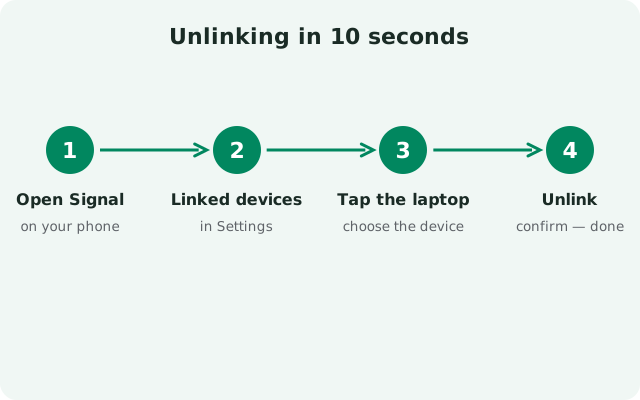
Open Signal on your phone
Any phone with your account works: Android or iPhone, whichever holds the primary registration.
Go to Settings → Linked devices
This is the master list of every device linked to your account: desktops, laptops, tablets, each with the date it was linked.
Tap the device you want to remove
Match it by the name you approved during linking ("Home-PC", "Work laptop"). If you never renamed devices, the dates help. The one linked the day you set up that machine is the one.
Choose Unlink and confirm
The phone may ask for your fingerprint, face, or device PIN. The same security check as linking. Confirm, and it's done. The computer is cut off immediately; no restart or confirmation on the computer's side is needed.
That's the entire procedure. It works whether the computer is online, offline, in another country, or at the bottom of a lake. The unlink is registered server-side and enforced the next time that device tries to connect.
What unlinking actually does (and doesn't do)
This is where most guides get vague, so here it is plainly:
| Question | Answer |
|---|---|
| Does the computer stop receiving new messages? | Yes, immediately. Its device keys are revoked, so new messages are never encrypted to it again. |
| Does it wipe the messages already on the computer? | No. The local database on that machine keeps everything it had. Unlinking cuts access going forward; it doesn't reach into the disk and delete history. |
| Does the computer know it's been unlinked? | It finds out the next time it connects. The app shows it's no longer linked. An offline machine shows nothing until it comes online. |
| Does anything change on my phone? | Nothing. Your chats, contacts, and other linked devices are untouched. Unlinking is per-device. |
| Can the unlinked computer re-link itself? | No. Re-linking requires a fresh QR scan approved on your phone. The old link can't resurrect itself. |
| Does unlinking delete the app from the computer? | No. The app and its data sit there until someone uninstalls them on that machine. |
The one-line version: unlinking is a revocation of future access, not a remote wipe. For a laptop you still own, that's exactly what you want. For a laptop someone else now holds, it's step one of two. See the checklist below.
from Signal's official download page — installers are hosted by Signal, not by us
Lost or stolen laptop: the response checklist
If the machine with Signal Desktop is out of your hands, work this list in order. Speed matters more than perfection. Step 1 takes ten seconds:
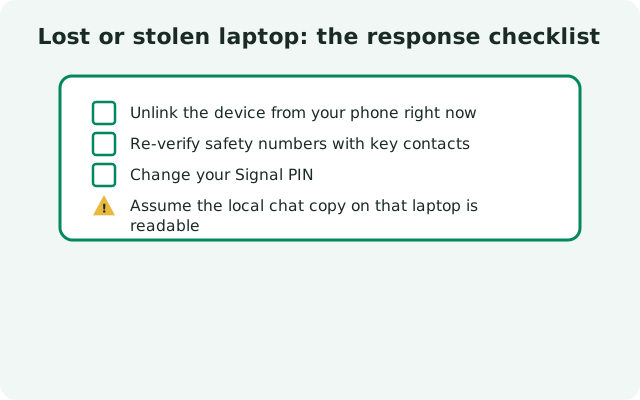
Unlink it from your phone right now
Settings → Linked devices → tap it → Unlink. This is the single highest-value action: from this second on, no new message is ever encrypted to that machine. Do this before you finish reading the rest of the list.
Check what else was on that machine
Be honest with yourself: was the disk encrypted? Was the OS account password-protected? Signal Desktop's local database is only as safe as the machine holding it. An unencrypted, unlocked laptop hands its chat history to whoever picks it up, unlink or no unlink.
Use your OS-level remote tools
Unlinking handles Signal; the rest of the laptop is the operating system's job. Use Find My Device / Find My Mac remote lock or wipe if you had it set up. This is the actual remote wipe. Signal doesn't have one, by design.
Change passwords for anything that laptop could reach
Email, cloud storage, password manager: anything with a saved login on that machine. Signal's unlink covers Signal; your other accounts need their own session revocations.
Review the Linked devices list once more
Confirm the lost machine shows as unlinked and that every remaining entry is a device you recognize. If anything looks unfamiliar, unlink it too. You can always re-link your own devices later.
A note on what you can't undo: messages that were already on the laptop before you unlinked it are on that laptop's disk. Nothing in Signal's design lets you delete another device's local copy remotely. That's the price of end-to-end encryption with no central message store. Disk encryption (BitLocker, FileVault, LUKS) is what protects that data, and it's worth enabling on every machine you link in the future.
Cleaning up the computer afterward
For a machine you still own (say you're retiring an old laptop or selling it), unlinking is step one, wiping is step two:
Unlink from your phone
As above. The machine stops receiving new messages immediately.
Uninstall Signal Desktop on the computer
A normal uninstall removes the app. On most systems it leaves the user data folder behind. Which is fine if the machine stays yours, and not fine if it doesn't.
Delete the local database if the machine is leaving your hands
The message database lives in Signal's config folder for your OS. Deleting that folder removes the local chat history. Then wipe or reset the whole machine per the OS's own instructions before sale or handover. That's the only way to be sure.
Verify on your phone
Open Linked devices one last time and confirm the machine is gone from the list. Done.
Re-linking later
Unlinking isn't permanent and isn't punished. If you unlink a machine by mistake (or you get the laptop back), just link it again:
- Open Signal Desktop on the computer; it'll show the QR code for a fresh link.
- On your phone: Settings → Linked devices → Link a new device, scan, approve.
- You'll be offered the history-transfer question again: full history plus roughly 45 days of media, the same one-time offer as a first-time link. Decline it and the computer starts empty: only messages from after the new link sync over, and anything it held before the unlink is gone from it unless the local database survived.
- The re-linked computer counts as one device toward your 5-device limit, same as before.
Full walkthrough: linking Signal Desktop to your phone.
Keeping your device list clean
The Linked devices screen is a security control most people never look at. Make it a twice-a-year habit:
- Open Settings → Linked devices and read every entry. Each shows a name and a link date.
- Unlink anything you don't recognize: an unfamiliar entry is either a forgotten old machine (harmless) or something worse (not harmless). Unlink first, investigate after; re-linking your own gear takes a minute.
- Name devices well at link time. "Home-PC" and "Work-MacBook" make future audits trivial; default machine names make them guesswork.
- Remember the 45-day rule: a linked device idle for 45 days is auto-unlinked anyway. If an entry is older than that and still listed, it's been active. Make sure that activity was yours.
Between audits, the Desktop-without-phone explainer covers how linked devices stay working day to day, and the tablet guide covers the same unlink flow for tablets.
from Signal's official site — file hosted by Signal, not by us
Frequently asked questions
Can I unlink Signal Desktop without the computer?
Yes. The entire unlink happens on your phone: Settings → Linked devices → tap the device → Unlink. It works even if the computer is offline or lost.
Does unlinking delete my chats from the computer?
No. Unlinking stops new messages immediately but leaves the existing local database on that machine. Only deleting data on the computer itself removes it.
Someone stole my laptop with Signal on it. What do I do?
Unlink it from your phone immediately. That stops all future messages. Then remote-lock or wipe the laptop with your OS tools, since Signal has no remote wipe.
Will unlinking affect my phone or other devices?
No. Unlinking is per-device; your phone's chats and your other linked devices are completely untouched.
Can I re-link a computer I unlinked?
Yes, anytime. Scan a fresh QR code from your phone and you will be offered the history transfer again: full history plus roughly 45 days of media. Skip the transfer and only messages from after the new link appear.
How do I know which entry is which computer?
The Linked devices list shows the name approved at link time plus the link date. Renaming devices descriptively when you link them makes this easy.
Keep reading
- the QR linking walkthrough: re-linking any device
- tablet as a linked device: unlinking works the same for tablets
- linked device not syncing: when a linked device misbehaves
- the Desktop guides hub: every Desktop guide in one place