
Where Signal Desktop stores data and how to manage it
Published: October 7, 2026 · Updated: October 8, 2026
Signal Desktop keeps its own copy of your conversations on your computer: a message database, attachments, and the encryption keys that protect them. It lives in the app-data folder your operating system reserves for it, and it grows with every photo and video you receive. This guide shows where that data sits on Windows, macOS, and Linux, what makes it grow, and how to slim it down without losing anything, including the backup-first rule you must follow before touching any of these folders.
Where the data lives, per OS
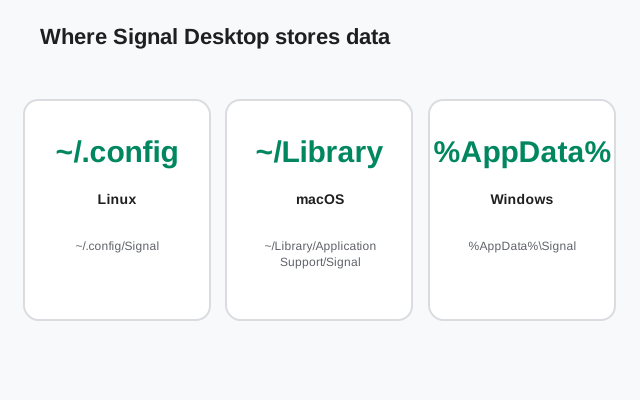
Signal Desktop stores everything in the standard app-data folder your OS keeps for it, not in your Documents or Downloads. The folders below are the typical locations; they are created automatically the first time you launch the app:
| OS | Typical app-data folder | Notes |
|---|---|---|
| Windows | %AppData%\Signal (usually C:\Users\<you>\AppData\Roaming\Signal) | AppData is hidden by default. Paste the path into the File Explorer address bar |
| macOS | ~/Library/Application Support/Signal | The Library folder is hidden. Use Finder's Go → Go to Folder |
| Linux | ~/.config/Signal | Follows the standard config-folder convention |
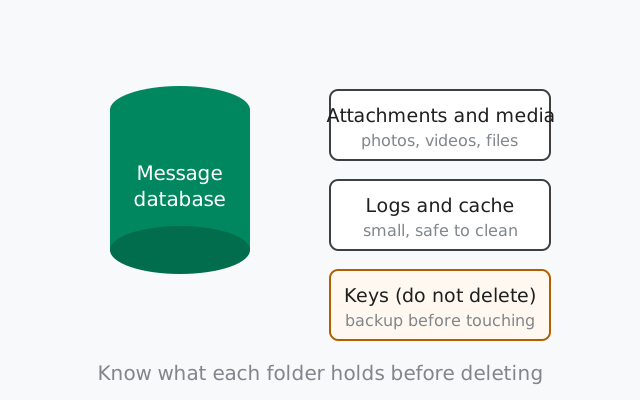
Inside you will find the message database, folders of attachments, logs, and the cryptographic keys that tie this device to your account. The app reads all of it on every launch.
What actually takes up space
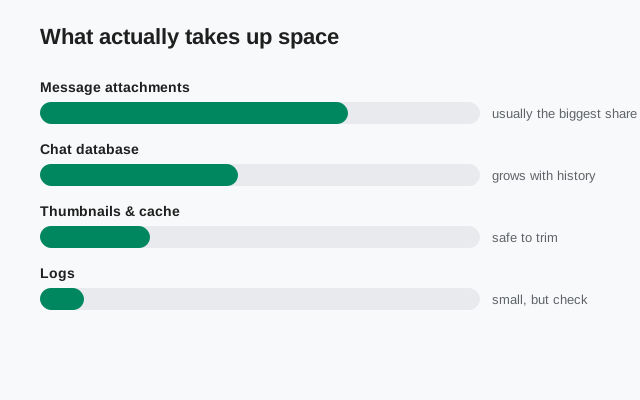
- The message database. Your conversations are stored in a local database file. Text is tiny; this file stays small for years of normal chatting.
- Attachments and media. Photos, videos, voice notes, and shared files: this is the heavyweight. A few active group chats with lots of video can push this into the gigabytes.
- Link-time transfer. When you first link a computer, Signal offers a one-time transfer of your history: full message history plus roughly 45 days of media. Accepting it starts your desktop footprint with everything from your phone.
- Avatars and thumbnails. Small individually, but hundreds of contacts and group icons add up slowly.
- Logs. Debug logs are small and rotate on their own; worth knowing about because they are the one thing that is always safe to clear.
Why the footprint grows over time
Two things drive growth: media, and the fact that desktop keeps its own complete copy. Each linked device stores its own messages locally. Desktop is not a window into your phone's storage; it is a second storage of the same data. That is why deleting a conversation on your phone does not shrink the desktop folder (and vice versa) unless the deletion syncs as an explicit delete.
Group chats with heavy media are the main growth engine. A family group sharing videos daily will grow the desktop database far faster than years of one-on-one texting. Disappearing messages help: messages that expire on a timer are removed from local storage too. But attachments you saved or forwarded stick around.
from Signal’s official download page — installers are hosted by Signal, not by us
Checking how big it is
Quit Signal Desktop fully
Close the window and make sure the app is not still running in the tray/background. You want a quiet, consistent folder to measure.
Open the app-data folder
Use the path from the table above for your OS.
Check the folder size
Right-click → Properties (Windows), Get Info (macOS), or du -sh ~/.config/Signal (Linux).
A few hundred megabytes is normal for an active user. Several gigabytes usually means a lot of media. See the next section.
Reducing the footprint safely
Signal Desktop has no built-in "storage manager" screen, so reduction is manual. Here are the levers, from safest to most drastic:
- Delete old conversations on the phone. Removing a chat on the phone removes it from the phone's storage. For desktop, the cleanest equivalent is the unlink/re-link fresh start below.
- Use disappearing messages going forward. They keep future growth bounded. They do not shrink what is already stored.
- Clear the logs. The logs folder inside the app-data directory is safe to empty while the app is closed. It is small, but it is free space with zero risk.
- Remove saved media you no longer need. Attachments live as files in the app-data folders. Deleting individual files by hand is fiddly and can leave the database referencing missing files. Do it only if you are comfortable with that, and back up first.
- The fresh start: unlink and re-link. Unlink the computer from your phone's Linked devices screen, quit the app, then link again and decline the history transfer (or accept it, knowing the footprint returns). The new link starts with an empty database and only new messages arrive. This is the reliable way to reclaim gigabytes.
Never delete the keys. The encryption keys in the app-data folder are what make this computer a trusted linked device. If you delete them while the app still thinks it is linked, you create an orphaned device entry. Always unlink from your phone first, then clean up the folders.
Storage spring-clean checklist
Work through this list in order. Each step is independent and safe on its own:
| Step | What to do | Risk |
|---|---|---|
| 1 | Quit Signal Desktop completely | None |
| 2 | Measure the app-data folder size (baseline) | None |
| 3 | Empty the logs folder while the app is closed | None |
| 4 | On your phone, delete chats you no longer need | Low. Deletions are permanent; back up anything that matters first |
| 5 | Turn on disappearing messages for high-traffic groups | Low. Future growth is bounded; existing data stays |
| 6 | If the footprint is still too big: unlink, clean, re-link with a skipped history transfer | Medium. Follow the backup-first rule below |
Unlink and re-link as a fresh start
Unlink from your phone
Signal on your phone → Settings → Linked devices → tap this computer → Unlink. The computer is now a stranger to your account.
Quit the desktop app fully
Make sure it is not running in the background.
Remove the app-data folder
Delete the folder from the OS table above. This wipes the local database, media, and keys for the (already unlinked) device.
Launch and link fresh
Open Signal Desktop. It shows the QR screen as if new. Link from your phone, and at the history-transfer prompt choose what suits you: skip it for a truly empty start, or accept it to restore history (and the old footprint).
Full detail on the removal side is in our guide to unlinking Desktop remotely, and on moving to a different machine in moving Desktop to a new computer.
The backup-first warning
Deleting anything in the app-data folder is permanent. There is no recycle bin for a wiped Signal database on desktop, and Signal's servers do not keep your messages to re-download later. End-to-end encryption means they cannot.
- Your phone is the backup. Before any destructive cleanup, confirm your phone has the conversations and media you care about, with its own backup enabled. The desktop copy is expendable; the phone copy is the source of truth.
- Unlink before you delete. Deleting folders while the device is still linked can leave a ghost device on your account. Phone-side unlink first, always.
- Do not move the folder to "another drive" as a hack. Signal Desktop does not officially support relocating its data folder with symlinks or junctions. It sometimes works. Sometimes it breaks updates or launches. Not worth it for the space saved. Use the unlink/re-link route instead.
Common storage problems
- "Disk full" errors on launch: the database needs free space to open and write. Clear the logs, then do the unlink/re-link fresh start to reclaim the big chunks.
- Attachments show as missing after manual cleanup: you deleted media files the database still references. Cosmetic; the messages remain. Avoid hand-deleting individual attachment files.
- App is slow with a huge database. Multi-gigabyte databases do get sluggish. The fresh start is the fix, not a faster disk.
- Reinstalling did not shrink anything: reinstalling the app does not touch the app-data folder. Storage lives in the folder from the OS table, not in the program files. That is why the folder survives reinstalls.
- Two computers, different sizes: that is normal. Each linked device keeps its own copy; a computer linked a year ago with full history transfer will be bigger than one linked last week with the transfer skipped.
from Signal’s official site — file hosted by Signal, not by us
Frequently asked questions
Where does Signal Desktop store its data on Windows?
In the app-data folder, typically C:\Users\
Where does Signal Desktop store its data on macOS and Linux?
macOS: ~/Library/Application Support/Signal (use Finder's Go to Folder). Linux: ~/.config/Signal. Both hold the message database, attachments, logs, and encryption keys.
What takes up the most space in Signal Desktop storage?
Media: photos, videos, voice notes, and shared files. Text messages stay tiny for years; a few media-heavy group chats can push the folder into the gigabytes.
Is it safe to delete the Signal Desktop data folder?
Only after unlinking the device from your phone's Linked devices screen, and only if your phone holds everything you care about. Deleting the folder wipes the local database permanently; Signal's servers cannot restore it.
How do I start fresh with an empty database?
Unlink the computer from your phone, quit the app, delete the app-data folder, then link again and decline the history transfer. Only new messages will arrive from that point.
Keep reading
- moving Desktop to a new computer: migrating your linked setup
- unlinking Desktop remotely: removing Desktop access from your phone
- using Desktop without your phone: the independent-device model
- the desktop guides hub: all 24 desktop guides in one place