
Signal Desktop on Linux Mint, Arch, and other distros
Published: October 7, 2026 Updated: October 8, 2026
Linux Mint users can install Signal Desktop straight from Signal's official apt repository. Mint is Ubuntu-based, so the documented Debian/Ubuntu steps work unchanged. Arch Linux users have no official package; the way in is the community-maintained package in the AUR (Arch User Repository), with honest caveats about unofficial builds and rolling-release breakage. Other derivatives mostly follow one of these two routes.
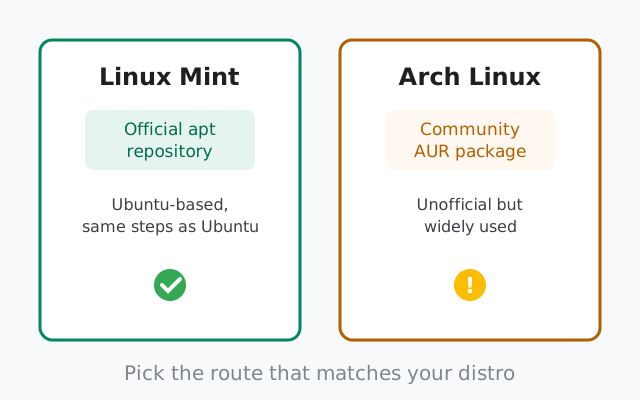
On Linux Mint: use the official repository
Mint is built on Ubuntu, which means Signal's official apt repository (the one documented on signal.org/download) works on Mint without any modification. This is the best route: verified packages, automatic updates with your normal system updates, and full support.
There is no separate "Mint version" of Signal Desktop. If a blog tells you to download a Mint-specific .deb from a mirror site, ignore it. The official repository is the Mint install method, full stop.
from Signals official download page installers are hosted by Signal, not by us
Mint install steps
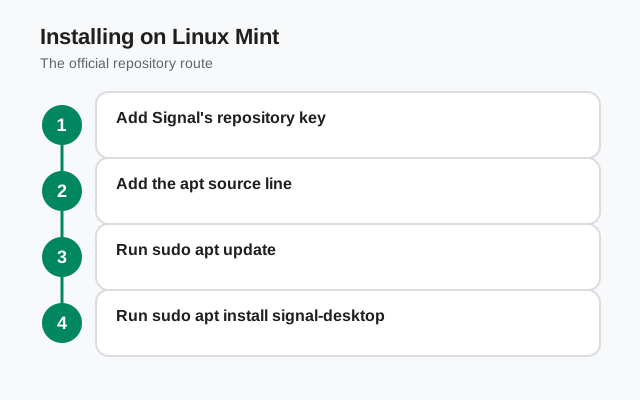
Add Signal's signing key
This lets apt verify that packages really come from Signal:
wget -O- https://updates.signal.org/desktop/apt/keys.asc | gpg --dearmor signal-desktop-keyring.gpg
cat signal-desktop-keyring.gpg | sudo tee /usr/share/keyrings/signal-desktop-keyring.gpg /dev/nullAdd the package source
The "xenial" name in the source line is the documented repository name. It works on modern releases, including current Mint versions:
echo 'deb [arch=amd64 signed-by=/usr/share/keyrings/signal-desktop-keyring.gpg] https://updates.signal.org/desktop/apt xenial main' | sudo tee /etc/apt/sources.list.d/signal-xenial.list
Refresh and install
sudo apt update sudo apt install signal-desktop
After this, updates arrive with your regular Update Manager runs. No separate updater to babysit. The full Debian/Ubuntu walkthrough, with verification details and troubleshooting, is in our official repo install guide.
Mint-specific notes
- Cinnamon tray icon. Mint's Cinnamon shows a system tray by default, so Signal's background icon behaves well here, much better than on stock GNOME, where tray icons are hidden.
- Software Sources alternative. If you prefer a GUI, Mint's Software Sources tool can add the repository (source line plus key) without the terminal. The commands above are quicker and less error-prone, in our experience.
- Mint's Update Manager. Signal updates come through the same channel as everything else. If you have Update Manager set to selective levels, check that the signal-desktop package is not being held back. It should update freely.
- Wayland on newer Mint. Mint's Cinnamon is still X11-based by default, so the rendering glitches some GNOME/Wayland users report rarely appear here. If you run an experimental Wayland session, the usual Electron workarounds apply.
On Arch: the community AUR route
Signal does not ship an official Arch package. The practical route is the Arch User Repository (AUR), where the community maintains a build of Signal Desktop. It is unofficial (Signal itself does not support it), but it is widely used and follows the same general shape: install, launch, link by QR.
The AUR package downloads Signal's official release and repackages it for Arch. That is the important distinction: the binary comes from Signal's servers, but the packaging, update timing, and any patches are community work. If the AUR package lags a few days behind a new release, that is normal. It is maintained by volunteers.
A word on AUR helpers. Arch users typically install AUR packages with an AUR helper, but we do not name or endorse any specific helper as safe. They run build scripts (PKGBUILDs) from community contributors, and the whole point of Arch is that you inspect what you run. Whatever helper you use, read the package's PKGBUILD and comments first. That is not paranoia; it is the Arch way, and the Arch wiki says the same.
Honest caveats before you install on Arch
- Rolling-release breakage happens. Arch updates system libraries aggressively, and Signal Desktop is an Electron app with bundled dependencies. After a big Arch update, it is not unusual for Signal to fail to launch until the AUR package catches up. If that happens, check the AUR page's comments before doing anything drastic. Someone usually reports it within hours.
- Hold-back strategy. If Signal Desktop is critical to your day, avoid updating Arch right before you need it. Update, verify Signal still launches, then continue. Rolling release means you trade stability for freshness; plan accordingly.
- No official support channel. If the AUR package breaks, Signal's support team will point you at the package maintainer. The AUR comments section and the package's issue tracker are your support channels.
- Notifications on minimal setups. Arch with a tiling window manager often lacks a notification daemon out of the box. If alerts never appear, you likely need one installed. This is a system setup issue, not a Signal bug.
- 64-bit only. Like every other platform, Signal Desktop on Arch is x86_64 only. There is no 32-bit build and no separate ARM build for Arch documented by Signal.
Other distros: which route applies
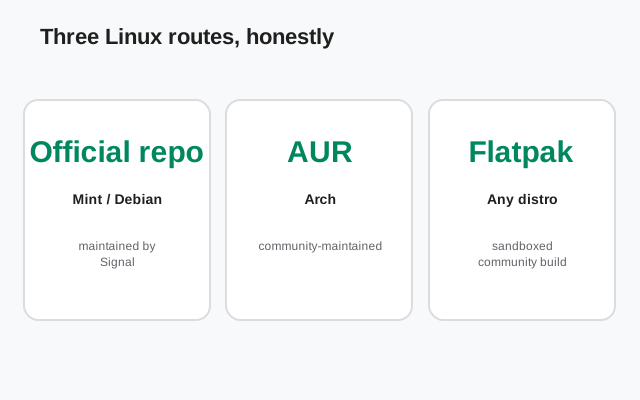
Almost every popular distro falls into one of the buckets below. This table is the whole decision in one place:
| Distro | Base | Best route | Notes |
|---|---|---|---|
| Linux Mint | Ubuntu | Official apt repository | Steps above; identical to Ubuntu |
| Pop!_OS | Ubuntu | Official apt repository | Same steps as Mint |
| elementary OS, Zorin, Kubuntu | Ubuntu/Debian | Official apt repository | Any Debian-based distro works |
| Arch Linux | Arch | Community AUR package | Unofficial; read the caveats above |
| Manjaro | Arch | AUR or Flatpak | AUR lags more on Manjaro's delayed repos; Flatpak is steadier |
| EndeavourOS | Arch | Community AUR package | Same as Arch |
| Fedora | RHEL-family | Flatpak | No official rpm; Flatpak is the sane choice |
| openSUSE | n/a | Flatpak | Same reasoning as Fedora |
The Flatpak fallback
If neither the official repo nor the AUR suits you (Fedora, openSUSE, Manjaro-with-delayed-repos), the Flatpak build is the pragmatic choice. It is also community-maintained, not official, but it sandboxes the app and updates through your Flatpak store like any other Flatpak.
- Trade-offs: Flatpak apps can have slightly weaker desktop integration (file dialogs, tray icons) than native packages. For Signal Desktop this is rarely a problem in practice.
- Permissions: the Flatpak build needs network access and notification permissions like any messaging app. Flatseal or your distro's permission UI can show what it has.
- Same linking: QR linking works identically. The Flatpak build is still Signal Desktop, and it still links to your phone.
Linking to your phone
The install route does not change the linking process at all. Launch the app, and the first-run screen shows a QR code:
Keep the QR code on screen
It is short-lived. Scan it promptly.
On your phone: Settings Linked devices Link a new device
Use Signal's built-in scanner, not your camera app.
Choose the history transfer
Accept the one-time transfer to bring existing chats to the computer (including recent media); skip it and the computer starts empty. There is no "transfer later". To redo it, unlink and link again.
Step-by-step with screenshots-level detail, including permissions and expired-code fixes, is in our QR linking walkthrough.
If something goes wrong
- Mint: "Unable to locate package signal-desktop": the source list step did not take. Re-check the file in /etc/apt/sources.list.d/ and run sudo apt update again. Our QR code fixes and update-failure guide cover the common follow-ons.
- Arch: launches then crashes after a system update. Check the AUR comments first; wait for the package update rather than reinstalling everything.
- Arch: blank window: try signal-desktop --disable-gpu once to rule out a graphics driver issue, same as on other distros.
- Flatpak: no tray icon. Some environments do not support the status-notifier protocol that the Flatpak build uses. The app still runs and notifies; only the tray icon is missing.
- QR will not scan: almost always the phone's camera permission or an expired code. Regenerate the code and try again.
from Signals official site file hosted by Signal, not by us
Frequently asked questions
Does Signal officially support Linux Mint?
Yes, in practice. Mint is Ubuntu-based, and Signal's official apt repository (the only install method Signal supports on Linux) works on Mint unchanged. The same Debian/Ubuntu steps apply.
Is there an official Signal package for Arch Linux?
No. Signal only ships an official package for Debian-based distros. Arch users rely on the community-maintained package in the AUR, which downloads Signal's official release but is packaged and updated by volunteers.
Is the AUR package safe to use?
It is widely used and repackages Signal's own official release, but it is unofficial and not supported by Signal. Read the PKGBUILD and comments before installing, as the Arch wiki recommends for all AUR packages.
Which distro route should I pick for Fedora or Manjaro?
For Fedora, Flatpak is the sanest choice since there is no official rpm. For Manjaro, Flatpak is steadier than the AUR because Manjaro's delayed package repos can make AUR builds lag.
Does linking work the same on Mint, Arch, and Flatpak?
Yes. The install route only changes how the app gets onto your system. QR linking to your phone, message sync, and calls work identically on every route.
Keep reading
- the Debian/Ubuntu repo guide: full apt-repository install walkthrough
- our QR linking walkthrough: connecting your phone step by step
- the update-failure guide: when Desktop won't update
- the desktop guides hub: all 24 desktop guides in one place