
Exporting Signal Chats: What You Can and Cannot Do
Published: October 7, 2026 Updated: October 8, 2026
You want your Signal conversations out of the app: a readable archive of a chat, a text file of your history, something you can search, print, or hand to someone. So you look through Signal's settings for an export button. Here is the honest truth before we go any further: on Android, there is no Export chat button, no download my messages as text, no CSV dump. That feature does not exist, and Signal has no plans to add one. This guide explains exactly what your real options are, which legitimate paths get your content out of Signal, and which popular export claims are myths, misunderstandings, or scams.
from Signal's official site file hosted by Signal, not by us
Why Signal has no export button
Messages belong on your devices, nowhere else
Start with the reason, because it shapes everything else. Signal is built around a simple idea: your messages belong on your devices, and nowhere else. An export feature (a neat little button that dumps your entire chat history into a readable file) would create exactly the kind of permanent, portable, unencrypted copy that Signal's design works hard to avoid.
What an export file really is
Think about what a chat export actually is: a complete, searchable, easily-shared record of private conversations, sitting in a plain file on your phone or computer. That file has no encryption, no timer, no access control beyond your device's lock screen. If your phone is lost, stolen, or searched, that export is the first thing that gets read. Signal's developers have consistently chosen not to build a tool that makes that outcome one tap away.
Backups are a transfer vehicle, not an archive
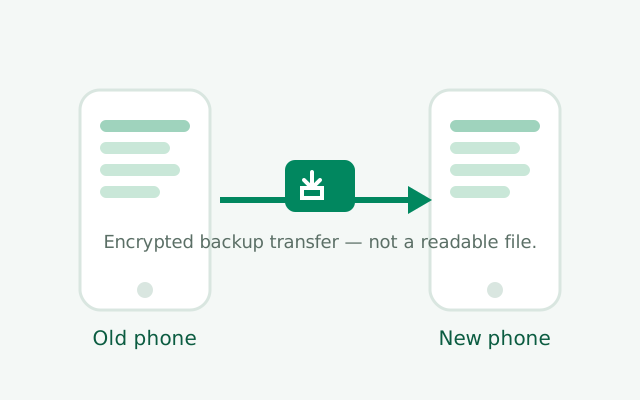
This is also why Signal's backups are encrypted with a passphrase and designed for one job: moving your data to a new device. The backup is a transfer vehicle, not an archive. You cannot open it and read it. You restore it into Signal, and only Signal can read it. That is deliberate.
A design decision, not a missing feature
So when this guide says "there is no export," it is not describing a missing feature that might appear in the next update. It is describing a design decision. If you need your chats in a readable file, you will be assembling that file yourself from the legitimate methods below. There is no shortcut, and anyone selling you one is lying (more on that later).
Secure Backups: the real transfer tool
The closest thing Signal has to an export is Secure Backups. It is important to understand exactly what it is and is not.
What it IS: an encrypted copy of your Signal data (messages, media, settings) protected by a passphrase you choose, stored on your device. Its job is to move everything to a new phone or restore after a reinstall. When you set up Signal on a new device and restore the backup, your chats reappear: every message, photo, and file. For the "I am switching phones and I need my chats to come with me" problem, Secure Backups is the complete, correct answer.
What it is NOT: a readable archive. You cannot open the backup file and read your messages. You cannot convert it to text or PDF. You cannot search it outside Signal. The backup is encrypted, and the only thing that can decrypt it is Signal itself, during a restore. There is no official tool to peek inside, and that is by design.
A few practical notes:
- Back up before you need it. Backups capture your data at backup time. If you are about to switch phones, wipe your device, or reinstall, make a fresh backup first and verify you know the passphrase. Our Android backup guide walks through the whole process.
- Disappearing messages have backup rules. Messages with timers of 24 hours or less are excluded from Secure Backups entirely. So if you are counting on a backup to preserve a disappearing chat, check the timer first. Short-timer messages were never saved. Our default timer guide explains the trade-off in detail.
- Moving between phones is a transfer, not an export. The data stays inside Signal's world. If your goal is "read my chats on my computer," a backup alone does not get you there. The next section shows what does.
Signal Desktop: copy-paste export
Here is the most practical legitimate path to readable chat content: link Signal Desktop, then copy and paste.
Signal Desktop shows your conversations on a big screen, where text is easy to select. Open a chat on Desktop, select the messages you want (click and drag, or select-all), copy, and paste into a document, an email draft, or a notes app. It is manual, but it is real text: searchable, printable, archivable.
The honest limits of this method:
- Desktop only shows messages from after you linked it. Your old history does not sync to a newly linked Desktop. So this method archives what happens from link time onward, not your full history. Link Desktop early if you think you will want this.
- It is manual by nature. There is no "export this chat" button on Desktop either. You are selecting and copying, chat by chat. For a handful of important conversations, that is fine. For a hundred chats, it is a project.
- Media needs separate handling. Copy-paste gets you text. Photos, videos, voice notes, and files still need to be saved individually (next section).
- Disappearing messages apply on Desktop too. A message that expired is gone from Desktop just like it is gone from your phone. Copy it before the timer runs out.
Despite the limits, this is the method we recommend for anyone who wants a readable record of current conversations. A linked Desktop plus a weekly copy-paste habit gives you a running archive with zero special tools. Our Desktop vs phone guide covers what Desktop can and cannot do in full.
Saving media and files manually
Text is only half of most chats. For photos, videos, voice notes, and documents, the export story is simpler but more manual:
- Save media to your device as it arrives. Open the photo or video in Signal and save it to your gallery or files. This is the single most important habit: a saved file is yours, with no timer and no app dependency. Do it when the message arrives, not when you "get around to it."
- Download documents to storage. Files sent in Signal can be saved to your phone's storage. Once downloaded, the file is a normal file. Back it up, move it to your computer, archive it however you like.
- Voice notes need deliberate saving. Voice messages are easy to forget about because they play inline. If a voice note matters, save or forward it (to Note to Self, for example) before it gets buried or expires.
- Organize as you go. A folder called "Signal saves" with subfolders per person or per topic beats a camera roll full of unsorted screenshots. Five seconds of organizing per save saves hours of hunting later.
The theme across all of these: Signal will not batch-export your media for you, so make saving a habit instead of a project. The people who lose photos are the ones who planned to save them "later." Later is where timers and phone wipes live.
Third-party export tools: the honest take
You will find apps, scripts, and desktop programs that claim to export Signal chats, usually by reading Signal's local database on a desktop computer or a rooted phone. Here is our honest take, without naming or endorsing any of them:
- Some are legitimate open-source tools. There exist community-built tools that read the Signal Desktop database (which lives on your own computer, unencrypted at rest in some setups) and produce readable exports. Used on your own data, on your own machine, these are not doing anything nefarious: they are reading files you already own.
- We do not endorse or recommend specific ones. This space changes fast: tools break with every Signal update, get abandoned, or get forked into sketchy versions. A recommendation we write today could point at malware tomorrow. We will not put our name on that.
- We do not provide instructions for bypassing encryption. Anything that involves extracting keys, decrypting databases, or circumventing Signal's protections is outside what this guide covers. Your data, your device, your research. We are not writing the manual.
- Most "export apps" on app stores are junk or worse. The Play Store is full of apps promising Signal exports. The pattern is familiar from the message-recovery scam: excessive permissions, no real functionality, and in the worst cases outright data theft. An app that wants accessibility access and notification access to "export your chats" is not building you an archive. It is building itself a copy of your life.
Our position: the legitimate paths are backups (for transfer), Desktop copy-paste (for text), and manual media saving (for files). Everything else is either a DIY project for technically comfortable users or a scam. If a tool asks for permissions that have nothing to do with exporting, delete it.
What does NOT exist
Let us be blunt about the wish list, because search results will tell you otherwise:
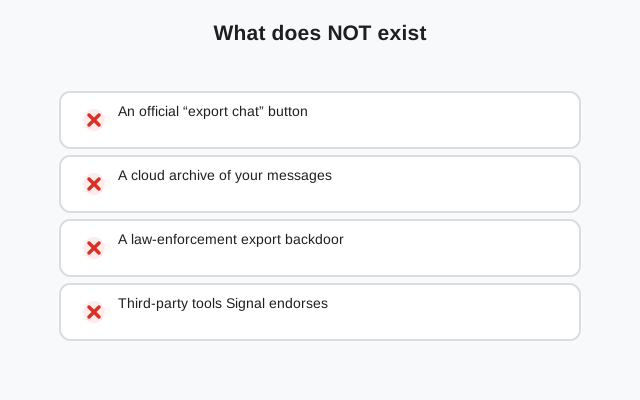
- No "Export chat" button on Android. It is not in Settings, not in the chat menu, not hidden behind a long-press. It does not exist.
- No email-chat-to-yourself feature. Some messengers let you email a chat's history to yourself. Signal does not.
- No CSV or text dump of full history. There is no official way to get your entire message history as a file.
- No cloud archive you can download. Signal has no web portal, no "download my data" page, no account dashboard with your messages. Your messages live on your devices, full stop.
- No backup-file reader. The encrypted backup cannot be opened outside Signal. There is no official viewer, converter, or reader.
If you arrived here hoping one of these existed, we are sorry to be the bearers of bad news. Better to know now than to spend a week hunting through settings for a button that was never built.
The law-enforcement myth
A quick word on something people ask about: "Can Signal export chats for police or courts?" This comes up in legal contexts. Someone needs chat records for a case and assumes Signal must have them somewhere.
The answer is no, and it follows from everything above. Signal's servers do not store your message content. They relay encrypted messages they cannot read, and they do not keep copies. There is no server-side archive to subpoena, no "law enforcement export" feature, no backdoor file. What exists on your devices is what exists, period.
For legal purposes, the practical reality is: whatever is on the phone is the evidence. Screenshots, saved media, and the chat itself as displayed in the app are what lawyers and courts actually work with. If you anticipate needing chat records for legal reasons, start saving them now using the methods in this guide. Do not assume anyone can produce them later.
A practical archiving workflow
Enough theory. Here is a concrete routine that gives you a real archive without any special tools:
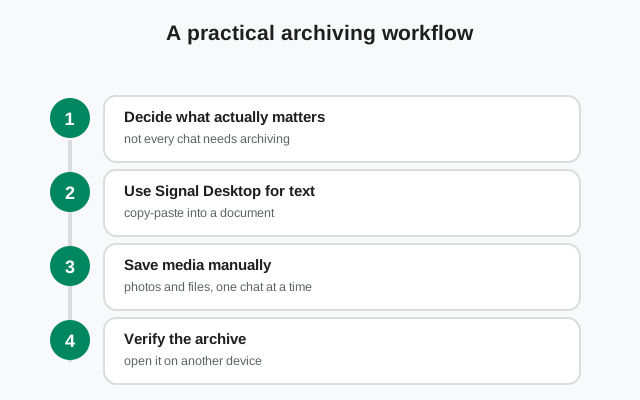
Link Signal Desktop now
Do it today, not when you need it. Desktop only captures messages from link time onward, so every day you wait is a day of history you cannot copy later. Get the app from signal.org/download/ and link it with your phone.
Save media on arrival
Make it a reflex: photo you want to keep save to gallery immediately. File you need download to storage. Two seconds now beats regret later.
Do a weekly text pass
Once a week, open your most important chats on Desktop, select the week's messages, and paste them into a running document: one document per person or topic. Ten minutes a week builds a searchable archive.
Keep Secure Backups current
Backups are your safety net for device loss, not your archive. A current backup still means you never lose the raw material. Verify your backup passphrase actually works before you need it. Our passphrase guide covers the details.
Forward keepers to Note to Self
For individual important messages, the two-tap forward to Note to Self (covered in our keeping-messages guide) is the fastest capture method on the phone.
This routine is not glamorous, but it is honest: it works with the tools Signal actually gives you, it needs no shady apps, and it produces a real, readable archive that survives phone changes.
Export options compared
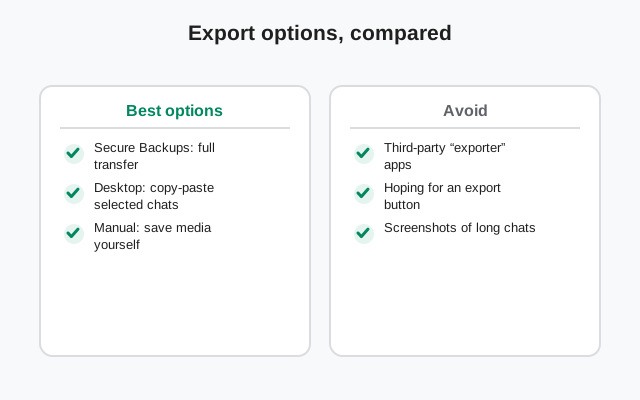
| Method | What you get | Readable file? | Effort |
|---|---|---|---|
| Secure Backups | Full encrypted copy for transfer/restore | No: only Signal can read it | Low (automatic) |
| Desktop copy-paste | Text of chats, from link time onward | Yes: you paste it where you want | Medium (manual, per chat) |
| Manual media saving | Photos, videos, files as normal files | Yes: standard files | Low per item, needs the habit |
| Forward to Note to Self | Individual messages kept permanently | Readable inside Signal | Very low (two taps) |
| Third-party tools | Varies; often broken or risky | Sometimes | High risk: not recommended |
| Native "Export chat" button | Does not exist | ||
Common mistakes
- Assuming a backup is an archive. It is encrypted and unreadable outside Signal. If you want readable records, you need the copy-paste or manual-save workflow on top of backups.
- Linking Desktop too late. Desktop only sees messages from after linking. Link it now; archive retroactively is not a thing.
- Trusting export apps with deep permissions. Covered above. If it wants accessibility access to "export chats," it is harvesting you.
- Waiting to save media. Disappearing timers and phone wipes do not wait for your schedule. Save on arrival.
- Forgetting the passphrase. An encrypted backup you cannot open is the same as no backup. Verify your backup passphrase before you need it.
- Expecting Signal to add an export button. It conflicts with the app's core design. Plan around its absence instead of waiting for it.
Signal will not hand you your chats in a neat file. That is the price of how it protects them. But between Secure Backups for transfer, Desktop copy-paste for text, and the save-on-arrival habit for media, you can build a real archive with the tools that exist. Start with linking Desktop today; everything else gets easier from there.
Frequently asked questions
How do I export Signal chats to text?
There is no native export-to-text feature on Android. The legitimate path is linking Signal Desktop and copy-pasting chat text into a document, plus saving media manually. Secure Backups transfer chats between devices but are encrypted and unreadable outside Signal.
Can I download my Signal chat history as a file?
No. Signal offers no chat-history download, no CSV export, and no cloud archive. Your messages live on your devices only; assemble readable records with Desktop copy-paste and manual media saving.
Can I read a Signal backup file?
No. Secure Backups are encrypted and can only be restored into Signal itself. There is no official backup viewer, converter, or reader.
Are third-party Signal export tools safe?
Most are junk or malware, especially app-store apps demanding deep permissions. Some community tools read the Desktop database on your own machine, but we do not endorse specific ones and we do not provide encryption-bypass instructions.
Can Signal provide my chats for legal proceedings?
No. Signal's servers do not store message content, so there is no server-side archive to produce. Whatever is on the device is the record. Save what you need now using the methods in this guide.
Does Signal Desktop show my old messages?
No. A newly linked Desktop only shows messages sent after linking. Link Desktop early if you want it as part of your archiving workflow.
Keep reading
- Signal Secure Backups: the real transfer tool, explained fully
- Android backup guide: set up backups before you need them
- Signal Desktop vs phone: what Desktop can and cannot do
- keeping disappearing messages: save timed content before it vanishes