
How to Grant Signal Permissions (and Fix the Ones You Denied)
Published: October 7, 2026 · Updated: October 8, 2026
Signal asks for permissions in two moments: when you first use a feature that needs one, and any time later from the app's permission screen. Denied something by accident? It takes about 30 seconds to fix: long-press the Signal icon, tap App info, tap Permissions, and allow what you need. This guide covers both moments plus the Android 13+ notification permission, partial media access, and the auto-reset feature that silently revokes permissions on apps you have not opened in a while.
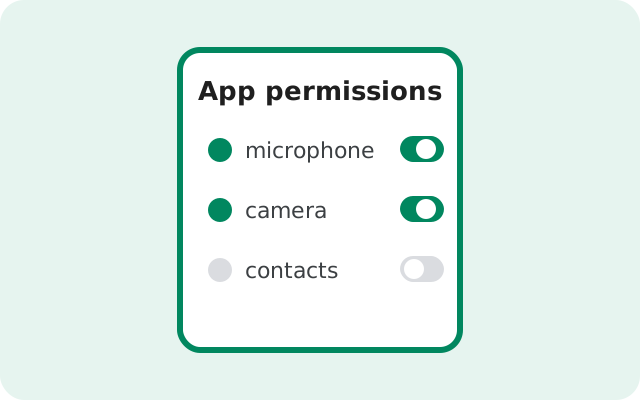
Permissions at install and first run
Installing the APK grants Signal no dangerous permissions up front. Instead, prompts appear as you use the app:
- Install and open Signal. No permission prompts yet. Registration needs only your phone number.
- Use a feature. Start a call, tap the camera in a chat, or attach a photo. Signal explains why it needs the permission, then Android shows the system prompt.
- Choose: Allow, Don't allow, or (on Android 11 and newer) Only this time. "Only this time" is the cautious choice: the permission works once and is revoked when you leave the app.
- On Android 13+, expect the notification prompt early. Signal asks to send notifications during first run, because without it you will miss messages and calls.
The right default is to allow each permission at the moment you want its feature, and deny (or "only this time") everything else. There is no penalty for denying. The feature simply waits until you allow it. Our permissions-explained guide details what each permission actually does, so you can decide with full information.
Fix a denied permission later
Denied the microphone during a rushed setup and now calls are silent? Fix it in under a minute. Two routes, same destination:
Route A (from the home screen):
- Long-press the Signal app icon.
- Tap App info (the little "i" icon).
- Tap Permissions.
- You will see every permission grouped as Allowed and Not allowed.
- Tap the permission you want to fix (for example, Microphone).
- Choose Allow (or "Allow only while using the app").
Route B (from Settings): open Android Settings > Apps > Signal > Permissions and do the same. Some phone brands (Samsung, Xiaomi, Huawei) rename the menus slightly, but the path is always Settings > Apps > Signal > Permissions.
Changes take effect immediately. No restart needed. If a call is already in progress, you may need to rejoin it, but that is the only exception.
Android 13+: the notification permission
Android 13 made notifications a runtime permission, which changed the game for every messenger. Signal now has to ask before it can alert you, and if you denied it, or never saw the prompt, you will get no message alerts and incoming calls will not ring. The app still works; it is just silent.
How to check and fix:
- Go to App info > Notifications (this is a separate entry from Permissions on most phones).
- Make sure the main notifications toggle is on.
- Inside, check the notification categories: messages, calls, and miscellaneous. A phone that shows "some categories off" can still miss calls while showing messages.
- Also confirm Permissions > Notifications shows Allowed, if your phone lists it there too.
If notifications worked and then stopped after weeks of silence, skip to auto-reset below. That is the likely culprit. For the full diagnostic chain (battery optimization, notification channels, per-brand quirks), see notification troubleshooting.
Android 13/14: partial media access
You do not have to hand Signal your entire photo library to send one picture. On Android 13 and newer, when Signal asks for media access you get a choice:
- Allow all: Signal can read every photo and video. Convenient, broadest access.
- Select photos and videos: you pick exactly which items Signal may see. This is the privacy sweet spot: attach what you want, expose nothing else.
- Don't allow: no attachments at all.
With partial access, the flow is: you tap attach, Android shows your picker (not Signal's), you choose photos, Signal receives only those. To change the selection later, go to App info > Permissions > Photos and videos and update the selected items. If you chose "Select photos" months ago and now cannot find a new photo in Signal's picker, this screen is why. Add the new photos to the selection.
Note the split on Android 13+: photos and videos and music and audio are separate permissions. If you can send pictures but not voice-note audio files (or vice versa), check the other half.
Android 11+: permission auto-reset
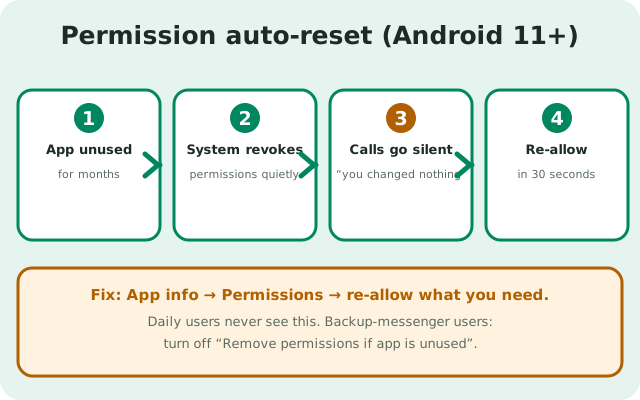
Android 11 introduced a feature that quietly revokes permissions from apps you have not opened in a few months. It is meant as a privacy win: a forgotten app should not keep its access forever. But it surprises people: "Signal worked fine, I didn't change anything, now calls have no sound." You did not change anything. The system did.
How to check it:
- Go to App info > Permissions.
- Look for "Remove permissions if app is unused" (wording varies: "Pause app activity if unused" on some phones).
- If it is on and Signal sat unused for months, your permissions were likely reset. Just re-allow the ones you need; it takes 30 seconds, as described above.
- If you use Signal daily, this will never trigger. If you keep Signal as a rarely-used backup messenger, consider turning the toggle off so your permissions survive long idle stretches.
This is the single most common cause of "it worked yesterday" permission mysteries on modern Android. When something permission-shaped breaks out of nowhere, check auto-reset before anything else.
Symptom to permission: quick troubleshooting table
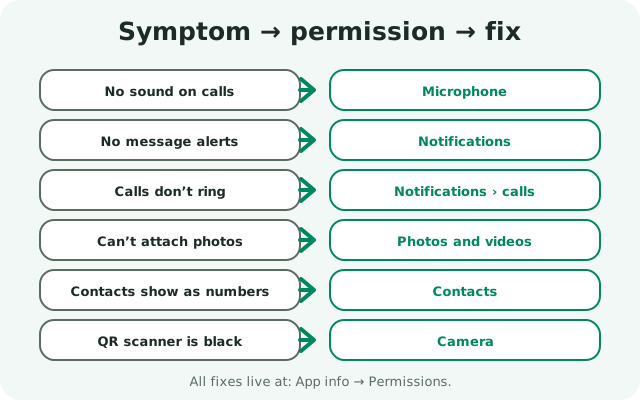
Match your symptom to the permission and the fix location:
| Symptom | Check this permission → where |
|---|---|
| No sound on calls, mic icon crossed out | Microphone → App info > Permissions > Microphone > Allow. Full walkthrough: call-mic fixes. |
| No message alerts at all | Notifications → App info > Notifications > toggle on, then check categories. Full walkthrough: notification fixes. |
| Calls do not ring, but messages arrive | Notifications → check the calls notification category specifically. It can be off while messages are on. |
| Cannot attach photos | Photos and videos → App info > Permissions > Photos and videos > Allow (or update your selected photos). |
| Contacts show as numbers, not names | Contacts → App info > Permissions > Contacts > Allow. Related: contacts not showing. |
| QR scanner shows black / cannot scan | Camera → App info > Permissions > Camera > Allow. |
| Everything worked, then stopped after months idle | Auto-reset → App info > Permissions > re-allow, and consider disabling "Remove permissions if app is unused". |
One last habit worth building: after any major Android update, glance at Signal's permission screen once. OS upgrades occasionally reshuffle permissions, and a 20-second check beats a week of wondering why calls are silent.
from Signal's official site — file hosted by Signal, not by us
Frequently asked questions
How do I give Signal permission to use my microphone?
Long-press the Signal icon, tap App info, tap Permissions, tap Microphone, and choose Allow. It takes effect immediately, no restart needed.
I denied a permission by accident. How do I undo it?
Go to App info, Permissions, tap the denied permission, and set it to Allow. Android lets you change any permission at any time; nothing is permanent.
Why did Signal's permissions stop working on their own?
Android 11 and newer auto-reset permissions on apps you have not opened for months. Re-allow them in App info, Permissions, and turn off 'Remove permissions if app is unused' if Signal is a rarely-used backup app.
Should I choose 'Only this time' for Signal permissions?
It is a fine cautious choice for one-off needs like scanning a single QR code. For permissions you use daily (notifications, microphone), choose Allow so you are not re-prompted constantly.
Where is the notification permission on Android 13?
App info, Notifications: a separate entry from Permissions on most phones. Make sure the main toggle and the calls category are both on, or incoming calls will not ring.
Keep reading
- the install hub: every install route for the Signal APK in one place
- permissions explained: what each permission actually does
- fix notification problems: the full alert diagnostic chain
- fix call microphone issues: when calls have no sound