
Link a second Android phone to your Signal account
Published: October 7, 2026 · Updated: October 8, 2026
To link a second Android phone to Signal: on your primary phone open Settings, then Linked devices, and show the QR code; on the second phone install Signal fresh, choose to link the device instead of registering, and scan the code. Both phones need Signal 8.20 or newer. You will get the choice to transfer your chat history during linking, and new messages sync to both phones afterward. The whole flow takes about five minutes, and the one rule is on the second phone: link, do not register. Registering your number there moves the account and deactivates your first phone.
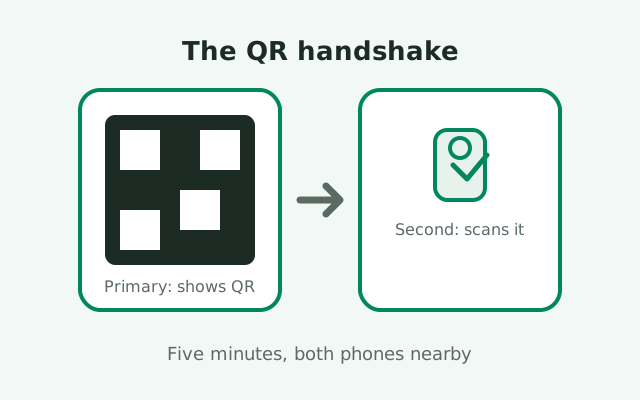
Before you start: the requirements
Three things have to be true before the flow works. First, both phones need Signal 8.20 or newer. Second-phone linking shipped in 8.20, and the link option does not exist on older builds. Update both phones before you begin: on the website build that means letting the app's self-update run (the current release is 8.29.3), and on the Play build it means checking the Play Store for updates. If the link option is missing on the second phone's first-run screen, an outdated build is the cause nine times out of ten. Our latest version guide tells you what is current and how to check.
Second, the primary phone must be the phone where your number is registered, with Signal working normally: sending, receiving, connected. You cannot link from a phone that is itself a linked device, and you cannot link from a phone where Signal is broken. Fix the primary first. Third, both phones need to be online and within arm's reach of each other. The QR code is only the introduction. The handshake and the history transfer travel over the network, and holding one phone while the other sits in another room is how scans fail.
One more preparation step that pays for itself: make a fresh backup on the primary before you link. Linking is safe and routine, but the history transfer is a big operation, and the backup is your insurance if anything goes sideways. Settings, then Chats, then Chat backups, run it now, and confirm your 64-character recovery key is saved somewhere safe. The backup guide covers the whole ritual. Two minutes now beats a bad afternoon later.
On the primary phone: show the QR code
On the phone where your Signal account already lives, open Signal and tap your profile or the menu, then go to Settings, then Linked devices. You will see a list of devices already linked to your account, if any. Tap the add button (the plus sign). The app displays a QR code on screen. That is your half of the handshake. Keep this screen open and the phone awake while you set up the second phone; if the screen sleeps and the code expires, you just generate a fresh one. Nothing breaks.
While you are here, glance at the existing device list. If you see devices you do not recognize, or old phones you no longer own, remove them before adding a new one. Every linked device holds a copy of your message keys, so a clean list is basic hygiene. Also check that you are under the five-device cap: one primary plus five linked devices is the limit, and if you are already at the cap, the new link will not complete until you remove something. Our two-phones model guide explains the limits in full.
Brightness matters more than you would think. Turn the primary's screen brightness up before the second phone tries to scan. A dim screen in a bright room is the most common reason scans fail, and it is fixed with one slider. Cracked screens and heavy screen protectors can also interfere; if the camera will not lock onto the code, angle the phones slightly and move them a little farther apart instead of closer.
On the second phone: scan and link
On the second phone, install Signal fresh if it is not already there, from the Play Store or from Signal's APK page, matching whichever build family you use. Open the app. On the very first screen, look for the option to link this device to an existing account instead of continuing with registration. The exact wording varies slightly by version, but it is always the smaller, secondary option next to the big "continue" path. Choose it.
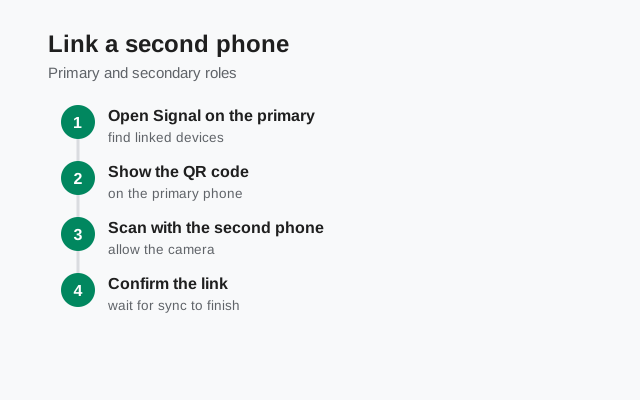
The app opens the camera. Point it at the QR code on the primary phone. When the scan succeeds, the second phone connects to the primary over an encrypted channel and the two perform the link-and-sync handshake. Give this a moment; it is doing real cryptographic work, not just loading a spinner. When the handshake completes, the second phone asks whether you want to transfer your chat history (covered in the next section) and then finishes setup. You may be asked to give the device a name. Name it something useful like "Work Pixel" rather than accepting the default, because this name is how you will identify it later in the device list.
The critical warning, one more time: if the second phone's screen is asking for your phone number, you are on the registration path, not the linking path. Registering the number tells Signal's servers this phone is now the primary device for the number, and your first phone gets deactivated on the spot. Back out, find the link option, and start this section over. This is the single most common way people break a two-phone setup, and it is entirely avoidable if you read the screen before tapping.
The history transfer choice
After the handshake, the second phone offers to transfer your chat history from the primary. If you accept, the primary sends your full message history plus media from roughly the last 45 days over the encrypted link between the phones. Text goes back as far as your history goes; attachments are limited to the recent window so the transfer stays practical. On a big history this takes a while. Keep both phones awake, charged, and on a decent connection, and let it finish. Interrupting a history transfer is the main way people end up with a half-populated second phone.
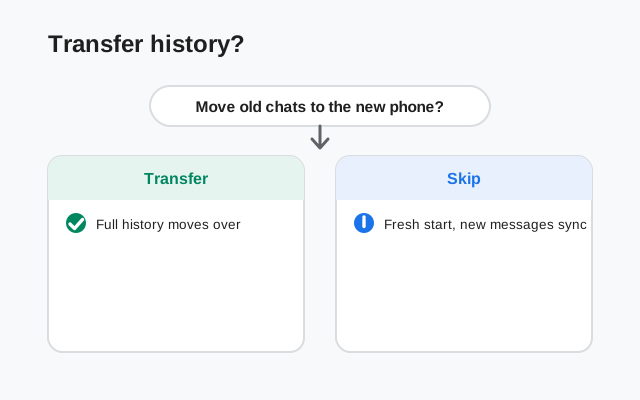
You can also decline and start fresh. The second phone then begins with empty chats and receives all new messages going forward. There are good reasons to choose this: the second phone is shared with someone, it has limited storage, or you simply want a clean work device without years of personal history on it. Skipping is not a lesser option; it is a privacy decision, and it is reversible only by unlinking and re-linking, so choose deliberately.
One thing to internalize: the history transfer happens once, at link time. There is no "sync old messages later" button. If you skip the transfer and change your mind next week, the path is to unlink the second phone and link it again, choosing the transfer the second time around. That is a five-minute do-over, not a disaster, but it is worth knowing before you tap.
Verify the link actually works
Do not declare victory at the success screen. Run this sixty-second check before you put the second phone in your pocket.
- Send a test message from the second phone to a trusted contact or to your own Note to Self. Confirm it sends and that it appears on the primary phone too.
- Send a message from the primary and confirm it arrives on the second phone promptly, with a notification. This tests the second phone's push path, which is the part most likely to be misconfigured.
- Spot-check the history. Open a few old conversations on the second phone and confirm the messages and recent media are there. If you transferred history and a chat is empty, note which one before you troubleshoot.
- Check the device list. On the primary, go back to Settings, then Linked devices, and confirm the second phone appears with the name you gave it. This is also where you will come to remove it someday.
If all four pass, the link is healthy. If the test message arrives on one phone but not the other, the usual suspect is the second phone's network or battery optimization strangling its background connection. The same gremlins that haunt every messaging app. Exempt Signal from battery optimization on the second phone and test again before assuming the link itself failed.
Troubleshooting the common failures
| Symptom | Usual cause | Fix |
|---|---|---|
| No link option on the second phone's setup screen | Signal older than 8.20 on the second phone | Update Signal on the second phone, then start over |
| QR code will not scan | Dim screen, glare, cracked screen, too close | Max brightness on the primary, scan from slightly farther away, clean both cameras |
| QR code expires before scanning | Took too long; codes are time-limited | Generate a fresh code on the primary and scan promptly |
| Handshake starts then fails | One phone lost connectivity mid-handshake | Both phones on stable Wi-Fi, retry the whole link |
| History transfer stalls halfway | Huge media history, phone slept, connection dropped | Keep both phones awake and charging; retry on Wi-Fi; consider skipping media-heavy history |
| Second phone gets messages late or never | Battery optimization killing the app's background connection | Exempt Signal from battery optimization on the second phone |
| Link worked, then the device vanished weeks later | 45 days of inactivity auto-unlinked it | Re-link; open the second phone's Signal at least occasionally |
Two of these deserve emphasis. The version problem is silent: nothing tells you "this build is too old to link," the option just is not there or the handshake dies. When linking fails for no visible reason, check versions first on both phones. And the battery problem is chronic: some manufacturers are aggressive about killing background apps, and a linked second phone that never receives anything is almost always a battery-optimization victim, not a linking failure. The two-phone sync troubleshooting guide and the linked-device sync guide go deeper on both.
A note on safety numbers: after linking, your contacts may see safety-number-changed notices for you. That is expected. The second phone is a new device identity with new keys, and Signal is telling your contacts about it honestly. If a contact asks, that is the explanation. Verify with them through the usual safety-number comparison if either of you is cautious; it is the same process as after any new device setup.
Unlinking when you're done
Unlinking is the reverse of linking and it is just as simple. On the primary phone, go to Settings, then Linked devices, tap the second phone's entry, and remove it. The second phone stops receiving new messages immediately. Its local copy of the chats stays on that phone until you wipe it. Unlinking cuts the connection; it does not remotely wipe the device. If the second phone is lost, stolen, or being handed to someone else, unlink it first, then wipe or factory-reset the phone itself.
After unlinking, the second phone's Signal is a dead endpoint: it cannot send or receive, and opening it will tell you as much. If you want to use that phone as a linked device again later, you re-link it from scratch with a fresh QR scan, including a fresh history-transfer choice. There is no "reconnect" shortcut, and that is fine; the full flow takes five minutes.
Final hygiene note: treat the linked-devices list like a list of house keys. Review it every few months, remove devices you no longer use, and name devices clearly at link time so future-you can tell them apart. A tidy device list is a small habit that prevents the "which one is the lost phone" panic.
from Signal's official site — file hosted by Signal, not by us
Frequently asked questions
How do I link a second Android phone to Signal?
On your primary phone, go to Settings, then Linked devices, and display the QR code. On the second phone, install Signal, choose to link the device instead of registering on the first screen, and scan the code. Both phones need Signal 8.20 or newer.
Why is there no link option on my second phone?
The phone is almost certainly running a Signal build older than 8.20, which is when second-phone linking shipped. Update Signal on the second phone and try again. Also update the primary phone so both are current.
Can I transfer my chat history to the second phone?
Yes, during linking you are offered a history transfer: full message history plus media from roughly the last 45 days, sent over an encrypted link between the phones. You can also skip it and start fresh. The transfer is only offered at link time.
What happens if I register my number on the second phone instead?
Registering tells Signal's servers the second phone is now the primary device for your number, which deactivates the first phone. To link properly, use the link option on the setup screen, not the registration path.
The QR code won't scan. What should I try?
Turn the primary phone's brightness to maximum, clean both cameras, hold the phones slightly farther apart rather than closer, and avoid glare. If the code expired, generate a fresh one on the primary and scan promptly.
Keep reading
- the install guides hub: every install path in one map
- the two-phone linking model: how the one-primary system works
- two-phone sync troubleshooting: when the linked phone misbehaves
- linked device sync fixes: the deeper diagnostic
- linking Signal Desktop: the same QR flow on a computer