
Install Signal on Android 7 the right way
Published: October 7, 2026
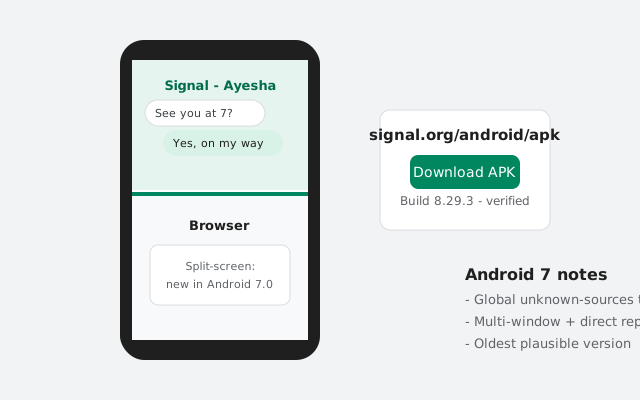
Android 7 (Nougat) is old enough that installing Signal on it works a little differently than on modern phones. The permission model predates per-app install approvals, and the battery system has its own quirks. The good news: the process is actually simpler on Android 7, with one global toggle instead of per-app permissions. This guide covers the install steps plus the Nougat-specific settings that affect how Signal behaves afterward.
Install steps on Android 7
Download the APK
On the phone's browser, open signal.org/android/apk and download the current website build (8.29.3 at the time of writing). Keep the phone on Wi-Fi. Nougat-era phones often have small data plans and slow radios.
Enable the global Unknown sources toggle
Settings → Security → Unknown sources → allow. This is the old system-wide switch (details in the next section).
Open the downloaded file
Pull down the notification shade and tap the completed download, or find it in Downloads with your file manager.
Install and open
Review the permissions screen, tap Install, then Open.
Register your number
Enter your phone number and the SMS code. Then work through the battery and notification notes below. They matter more on Android 7 than the install itself.
If the stock browser on your Nougat phone struggles with the download page (old browsers do), don't fight it. Download the APK on a computer from signal.org/android/apk and transfer it over USB, or install via ADB. The file doesn't care how it reaches the phone.
The global Unknown sources toggle
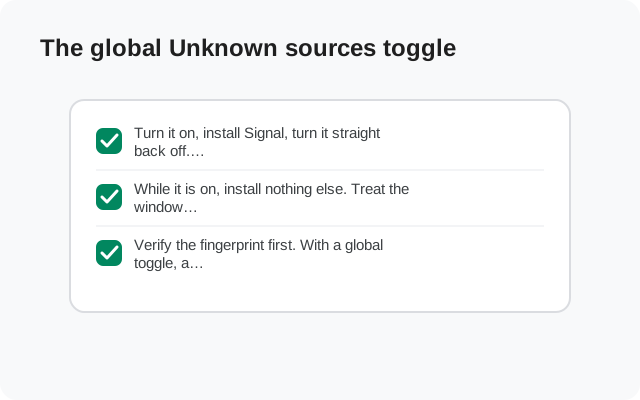
Android 7 uses the old permission model: one switch in Settings → Security called "Unknown sources", sometimes with the subtitle "allow installation of apps from unknown sources". Flip it once and any app can hand APKs to the installer.
This is less safe than the modern per-app system, so treat it accordingly: turn it on, install Signal, turn it back off immediately. Don't leave a 2016-era phone with a global sideload switch enabled. Older phones also miss years of security patches, so every layer of caution counts double.
Expect a warning dialog when you flip the toggle. Android 7 shows an "Unknown sources" alert warning that installing from unknown sources can harm your phone, and asks you to confirm with OK. That's the OS covering itself, not a comment on Signal's file. Tap OK, install, then come straight back and turn the toggle off. The whole window where the phone is "open" should last about two minutes.
If your Android 7 phone was updated by its maker to a newer settings layout and you can't find the toggle, use Settings search for "unknown". Or see our general unknown-sources guide, which covers both the old and new models.
Multi-window and Signal
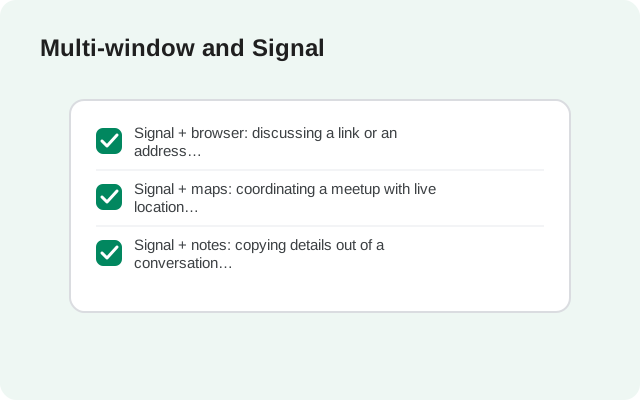
Android 7 introduced split-screen multi-window, and Signal supports it. You can run Signal alongside a browser or notes app. Long-press the recent-apps button (or use the split-screen icon in the recents view, depending on your brand's skin) and pick Signal for one half.
Practical note: on the 2–3 GB RAM phones typical of the Nougat era, split-screen with Signal plus anything heavy gets laggy fast. It works, but don't expect buttery performance. If Signal gets killed in the background while split, that's the RAM limit, not a Signal bug.
Direct reply and bundled notifications
Nougat brought direct reply (answering messages from the notification shade) and bundled notifications (stacked per conversation). Signal uses both: you can reply to a message without opening the app, and multiple chats stack neatly instead of flooding the shade.
If direct reply isn't working, check that Signal's notifications are fully enabled in Settings → Apps → Signal → Notifications. On some Nougat skins the reply action silently disappears when notifications are set to anything less than full priority.
Doze on the go and Data Saver
Android 7 extended Doze to work while the phone is moving ("Doze on the go") and added a system-wide Data Saver. Both can delay Signal messages:
- Doze: when the phone sits untouched, the system batches network access. Signal's push connection usually survives this, but on some Nougat phones messages arrive in clumps after you pick the phone up. Exempting Signal from battery optimization (next section) is the fix. The exemption lives behind an unintuitive path (Settings → Battery → ⋮ → Battery optimization → (change the dropdown to) All apps → Signal → Don't optimize), because the default view only shows "not optimized" apps, hiding the very list you need.
- Data Saver: if enabled (Settings → Data usage → Data Saver), it restricts background data per app. Either turn it off or add Signal to the unrestricted list. Otherwise incoming messages may wait until you open the app.
Battery settings on 7-era phones
This is the section that actually determines whether Signal works well on your old phone. Nougat-era batteries are degraded by now, and manufacturers of that era were aggressive about killing background apps:
- Exempt Signal from battery optimization: Settings → Battery → ⋮ → Battery optimization → All apps → Signal → Don't optimize. This is the single most important setting for reliable message delivery.
- Check the maker's "app freezer": Huawei's EMUI, Xiaomi's MIUI, and Oppo's ColorOS of that era all had proprietary background-app killers on top of stock Doze. Look for "Protected apps" (Huawei), "Autostart" permissions (Xiaomi), or similar, and whitelist Signal.
- Lock Signal in recents: on many skins you can tap a lock icon on Signal's recent-apps card to keep the system from swiping it away.
- System Battery saver: Android 7's own Battery saver (Settings → Battery → Battery saver) throttles background data when enabled. Fine to use when the phone is dying, but don't leave it on permanently with Signal installed, or messages will lag whenever it kicks in.
If messages only arrive when you open the app, work through this list top to bottom. It's a battery-killer problem roughly nine times out of ten on Android 7.
Updates and the signing-key warning
The website build updates itself, including on Android 7. When Signal ships a new version, the app downloads it and prompts you to install. Two things to know:
- Updates install over the existing website build with no conflict, because the signing key matches. The Play-vs-website conflict only happens between the two different builds.
- If you ever see an update prompt from a build you don't recognize, don't accept it. Updates should only ever come from inside the Signal app itself.
Honest limits on Android 7
Straight talk about running Signal on Nougat in 2026:
- Support is on borrowed time. Signal raises its minimum Android version periodically as old OS versions become unsecurable. If the current website build installs and runs, you're fine today. But keep an eye on new versions, because the floor will eventually rise past Android 7.
- Security patches stopped years ago. No Nougat phone has received a security update in years. Signal's own encryption is unaffected by that, but the OS underneath it is not. Treat the phone accordingly (no banking on it, keep sensitive use minimal).
- Performance is what it is. Signal will run, but on 2016 hardware with a worn battery, expect slower launches and the occasional stutter. That's the phone, not the app.
If the phone feels sluggish overall, the highest-value cleanup is storage: Nougat phones shipped with 16–32 GB, and a nearly-full phone slows everything down. Offload photos and clear other apps' caches before judging Signal's performance. The app gets blamed for what is usually a full disk.
Also check running services (Developer options → Running services) if the phone crawls: Nougat-era phones often accumulate forgotten apps running background services (old games, abandoned utilities), each sipping RAM. Disabling or uninstalling the ones you don't use frees more memory than any Signal-side tweak ever will.
For perceived speed, one more legitimate tweak: in Developer options, set the three animation scales (Window, Transition, Animator) to 0.5x. This doesn't make the phone faster, but it makes everything feel twice as responsive. Including Signal's launch. It's a cosmetic change, fully reversible, and safe.
None of this means you shouldn't install it. Signal on an old phone beats no Signal at all. It just means going in with open eyes.
from Signal's official site — file hosted by Signal, not by us.