
Installing the Signal APK on LineageOS and Other Custom ROMs
Published: October 7, 2026 · Updated: October 8, 2026
Signal Foundationfrom Signal's official site — file hosted by Signal, not by us. signal.org/android/apk
Running LineageOS, /e/OS, CalyxOS, or another custom ROM usually means one thing: you are trying to live without Google, partially or fully. Signal fits that life well. The website build (version 8.29.3, package org.thoughtcrime.securesms) is distributed as a direct APK from signal.org/android/apk, updates itself without any store, and does not require Play Services to work.
This guide is written around the decision every custom-ROM user faces first (GApps or no GApps), because it determines how your notifications arrive. Then the install itself, fingerprint verification (which matters more on ROMs, where the supply chain is yours to guard), and the quirks that actually bite on de-Googled setups.
This guide assumes an unlocked bootloader and a working custom ROM already installed. Flashing the ROM itself is out of scope. Your ROM's own documentation (LineageOS wiki, etc.) covers that.
With GApps or without? Decide first
Before installing anything, know which of these describes your setup. Everything downstream depends on it:
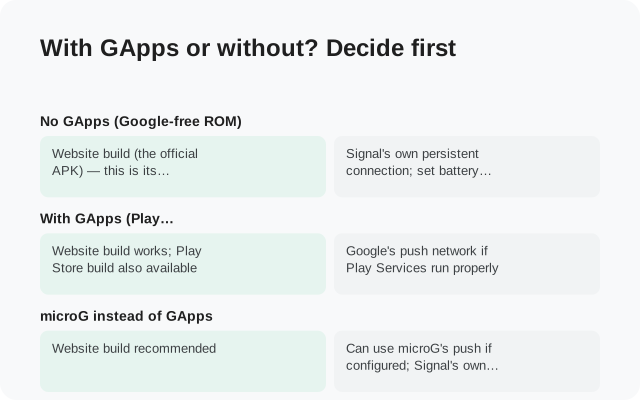
| With GApps (MindTheGapps, NikGApps, etc.) | Play Services is present. Signal can use Firebase Cloud Messaging for push. Notifications arrive instantly and reliably, exactly like stock. Install the APK normally and you are done. The only cost is the Google presence you may have been trying to avoid. |
|---|---|
| Without GApps, no microG | No push infrastructure at all. Signal falls back to its own persistent websocket connection for notifications ("fallback notifications"). This works. Messages arrive in real time, but it keeps a constant connection open, which costs some battery, and aggressive ROM power settings can still kill it. |
| Without GApps, with microG | microG re-implements the Play Services APIs including cloud messaging. Signal registers for push through microG's GCM and notifications arrive like stock, without full Google services. See our microG guide for the setup. |
The website build is the right APK for all three cases. It never depended on the Play Store in the first place. If you currently run the Play build of Signal on a GApps ROM and want to switch to the website build, remember the signing keys differ: back up and migrate rather than installing over.
Which should you choose? If notifications must be bulletproof and you tolerate microG, the microG route is the sweet spot. If you want zero Google code on the device, the websocket fallback is honest and workable. Just configure the battery exemption carefully (below).
Step-by-step install
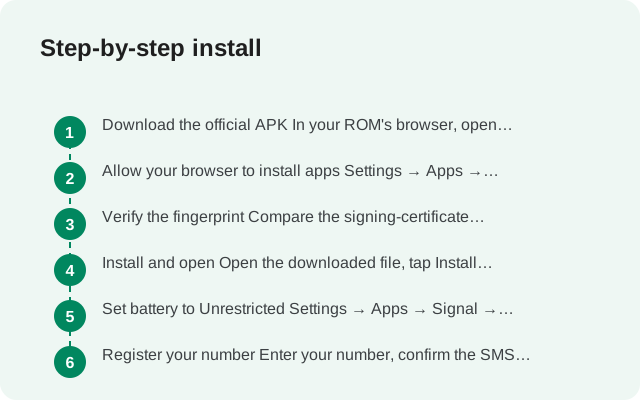
Download the APK
In your ROM's browser, open signal.org/android/apk and download. On a de-Googled ROM, prefer a privacy-respecting browser, but any browser downloads the same file. Keep a copy of the APK somewhere safe. Without a store, re-downloading later depends on the network cooperating.
Verify the fingerprint
On a custom ROM, you are the supply chain. There is no Play Protect scanning your downloads. Compare the SHA-256 fingerprint on Signal's page with your file before installing. Section 4 below covers how.
Allow the install
Open the APK; your ROM will ask for the install-unknown-apps permission (Settings → Apps → Special app access → Install unknown apps, same AOSP path as stock). Allow it for your browser or file manager only.
Install and register
Tap Install, open Signal, enter your number and the SMS code. If SMS codes are a problem on your setup, the voice-call code option usually works.
Configure notifications for your setup
GApps: nothing needed. microG: confirm cloud messaging is registered in microG settings. No-GApps: switch on Signal's fallback notifications (next section) and exempt Signal from battery optimization.
Allow the install on your ROM
The path is the standard AOSP one, since most custom ROMs (LineageOS especially) stay close to stock Android here: Settings → Apps → Special app access → Install unknown apps → choose your browser or file manager → allow.
ROM-specific notes:
- LineageOS: the path above is exact. Lineage's Privacy Guard (on older versions) or the permission manager does not interfere with sideloading.
- /e/OS: same path; /e/OS's Advanced Privacy feature can block trackers per app. Signal has no trackers to block, but if you enable its fake-location or IP-hiding features globally, test that Signal's connection still works afterward.
- CalyxOS: same path. Calyx's firewall (Datura) can block an app's network access entirely. If Signal installs but never connects, check that you have not firewalled it.
- GrapheneOS: same path, plus per-app network and sensors toggles. We have a dedicated GrapheneOS guide.
After installing, switch the unknown-apps permission back off for the browser. You will re-allow it briefly each time the in-app updater ships a new version. A small ritual that keeps the attack surface minimal.
Verify the APK fingerprint
On a custom ROM you should verify every APK you sideload. There is no store signature check standing behind you. Signal prints the SHA-256 fingerprint of its signing certificate on signal.org/android/apk; your job is to confirm your file's certificate matches, character by character.
The reliable way needs a computer:
- Install Android's build tools (or just
apksigner) on the computer. - Run:
apksigner verify --print-certs Signal-Android-website-prod-universal-release-8.29.3.apk - Compare the SHA-256 digest it prints with the fingerprint on Signal's download page. Every character must match.
Our full verification guide and apksigner walkthrough cover this in detail, including what to do if they do not match (answer: delete the file, re-download from Signal's page on a clean connection).
Why this matters more on ROMs: custom-ROM users download more APKs from more places (F-Droid, GitHub releases, vendor sites), which normalizes sideloading. Normalization is exactly what a supply-chain attacker counts on. Make the fingerprint check a habit for Signal at least.
Notifications: your three options
How Signal wakes up for incoming messages depends on your GApps decision:
| GApps present | Firebase Cloud Messaging. Nothing to configure. Push arrives like stock Android. Keep battery optimization off for Signal anyway (ROM power managers can still interfere). |
|---|---|
| microG | microG cloud messaging. In microG settings, confirm Google Cloud Messaging is enabled and Signal appears as a registered app. Signal then receives push through microG. See the microG guide. |
| No GApps, no microG | Signal's websocket fallback. Signal keeps its own persistent connection. Enable it in Signal: Settings → Notifications → look for the fallback/background-connection option and switch it on. Then exempt Signal from every battery optimization layer your ROM has: the system one (Settings → Apps → Signal → Battery → Unrestricted) plus any ROM-specific power manager. |
The websocket fallback's honest trade-offs: it uses more battery than push (a constant connection versus wake-on-message), and it is more vulnerable to aggressive doze. On LineageOS with the battery exemption set, it is reliable. Messages arrive in seconds. On ROMs with extra app-killing (some MIUI-based custom ROMs), you may need to also allow autostart and lock Signal in the recents screen (the "lock" icon keeps it out of the swipe-away killer).
Test it properly: reboot the phone, do not open Signal, and have someone message you. If it arrives within seconds, the chain works end to end.
Custom-ROM quirks that actually matter
The quirks that actually come up on custom ROMs, collected from real reports:
- Contact sync looks different. Without Google contacts sync, Signal reads the local contacts database, which may be empty if your contacts lived in Google. Export contacts to a local/phone account or a VCF file before wiping for the ROM, or they will seem to vanish (they are in Google's cloud, not on the phone).
- SMS code autofill may not work. On de-Googled ROMs the SMS-retriever API Signal uses for automatic code detection may be absent. Just type the code manually. It is one screen.
- Backup restore needs the file in place first. Copy your Signal backup file to the new ROM's
Signal/Backupsfolder before registering, or the restore option will not appear. Our transfer guide covers it. - Some ROMs break SafetyNet/Play Integrity. Signal does not require either. Registration works fine without them. (Anyone telling you Signal needs Play Integrity is confusing it with a banking app.)
- Seedvault backups are not Signal backups. ROM-level backup tools (Seedvault on LineageOS/CalyxOS) do not capture Signal's encrypted database. Use Signal's own backup (Settings → Chats → Chat backups) before wiping.
What about microG?
microG is a free re-implementation of Google Play Services' core APIs. For Signal, the relevant piece is Google Cloud Messaging: with microG installed and GCM enabled, Signal registers for push notifications through microG and gets stock-like instant delivery without full Play Services.
The setup, briefly: install microG (your ROM may ship it: /e/OS and CalyxOS include it, and on LineageOS you add it via the appropriate installer for your ROM), enable GCM in microG settings, confirm the device registers (microG shows a registration status), then install Signal. Signal detects the GCM provider automatically. There is no toggle inside Signal to flip.
Caveats: microG's GCM is a reverse-engineered compatibility layer, so occasional hiccups happen after microG updates. If notifications suddenly lag, check microG's status screen before blaming Signal. And microG still talks to Google's push servers by design (that is how GCM works); if your threat model excludes any Google connection, use the websocket fallback instead. Full walkthrough: Signal with microG.
Alternative: install over ADB
If you prefer the terminal (or the on-device installer is being difficult), ADB sideloads the APK cleanly:
- Enable USB debugging on the phone: Settings → About phone → tap Build number 7 times, then Settings → System → Developer options → USB debugging.
- Connect to a computer with ADB installed; accept the RSA prompt on the phone.
- Run:
adb install Signal-Android-website-prod-universal-release-8.29.3.apk - Done. The app installs with no on-device permission prompts.
ADB is also the rescue tool: if a broken update leaves Signal misbehaving, adb install -r reinstalls cleanly over the existing app (same signature, data preserved). Our ADB install guide covers drivers, Linux udev rules, and the common errors.
One ADB-specific note for custom ROMs: some ROMs ship with ADB over network enabled or root ADB. Convenient, but switch those off when you are done. An open ADB port on an untrusted network is a much bigger risk than any sideloading question.
Frequently asked questions
Does Signal work on LineageOS without Google apps?
Yes. Install the website APK from signal.org/android/apk and use Signal's websocket fallback notifications (plus a battery exemption) or microG's cloud messaging. No Play Services required.
Should I install GApps just for Signal notifications?
Not necessarily. microG gives you push without full GApps, and Signal's own fallback connection works with neither. Only add GApps if you want Google's full stack anyway.
How do I verify the Signal APK on a custom ROM?
Compare the SHA-256 certificate fingerprint printed on signal.org/android/apk with your file using apksigner verify --print-certs on a computer. See our verification guide.
Can I install the website APK over the Play Store Signal on my ROM?
No. Different signing keys block it on every ROM. Back up, uninstall, then install the APK. Our migration guide walks through it.