
Play Protect noticed your sideloaded Signal. Don't panic: check whether it's a false alarm.
Published: October 7, 2026 · Updated: October 8, 2026
Most of the time, a Play Protect notice on the Signal APK is not a threat. It is Play Protect doing its job. Google's scanner checks every app on your phone, including ones you installed from outside the Play Store. The website build of Signal is signed with a different key than the Play Store build (a verified fact). So Play Protect sees a signing certificate it doesn't recognize from Play, and on some phones that produces an "unknown app" style notice. That notice is about the install path, not about the file being malicious. What matters is which kind of message you got, where your APK came from, and whether its signature checks out. This guide shows you how to read the warning, how to tell a false alarm from a real threat, and exactly what to do in each case.
What Play Protect actually does
Play Protect is the malware scanner built into Google Play services. It does three things that matter here. First, it scans apps when they are installed, including apps sideloaded from outside the Play Store. It does not only protect Play downloads. Second, it runs periodic scans of the apps already on your phone. Third, it keeps a database of known-bad apps and known-good ones, and it flags anything that matches the bad list or looks suspicious on behavior.
For an app installed from the Play Store, Play Protect mostly stays quiet: Google already scanned it before publishing, and the signature matches the store listing. For a sideloaded app, Play Protect has less to go on. It can still scan the file and compare it against its malware database, but it cannot vouch for the publisher the way it can for a Play listing. That gap is where the warnings come from.
Why the website APK draws attention
There are two honest reasons a perfectly legitimate Signal APK can catch Play Protect's eye, and neither means the file is bad.
Reason one: the install path. Any app installed outside the Play Store is, by definition, an app Play Protect did not see published. Sideloading is normal, Android supports it by design, but it is also the route most malware takes, so the scanner is deliberately more talkative about sideloaded installs. The warning is the scanner saying "I didn't see this one come through the store," not "this file is infected."
Reason two: the signing key differs from the Play build. This is the Signal-specific part. The website build uses a different signing key than the Play Store build: a verified fact, and the reason you can't install the website APK over a Play-installed Signal without backing up first. Because the signature is "unknown" to Play's database, Play Protect can't do the shortcut of recognizing it as the same app it already knows. An unrecognized certificate is not evidence of malware; it is simply absence of recognition.
Put together: a sideloaded app with a certificate Play has never seen is exactly the profile that produces the cautious, informational kind of warning. Which brings us to the important part: there are two kinds of messages, and they mean very different things.
Two kinds of messages — know which one you got
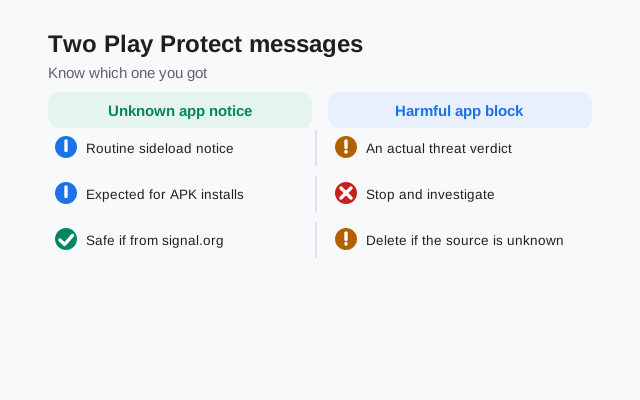
Read the exact wording on your screen. Play Protect's messages fall into two categories:
| What you see | What it means | What to do |
|---|---|---|
| An informational notice that the app is unrecognized or from an unknown source, with an option to install anyway or send the app for review | Play Protect scanned it, found no known malware, but can't vouch for the publisher. This is routine for sideloaded apps. | Pause and verify. Confirm you downloaded it from signal.org/android/apk and verify the signature. If both check out, installing is reasonable. |
| A block or "harmful app" warning: Play Protect refuses the install or urges you to uninstall, citing malware, spyware, or deceptive behavior | Play Protect believes this specific file is dangerous, based on its malware database or behavioral analysis. | Take it seriously. Do not install it. Delete the file. If it came from anywhere other than signal.org, that source is burned. Never use it again. Run the checklist below. |
The first kind is a shrug with a question mark. The second is an alarm. Most people asking about this page saw the first kind. But you should not decide based on vibes: the checklist below is how you turn "probably fine" into "verified."
False alarm or real threat? The checklist
Work through these in order. They go from easiest to strongest.
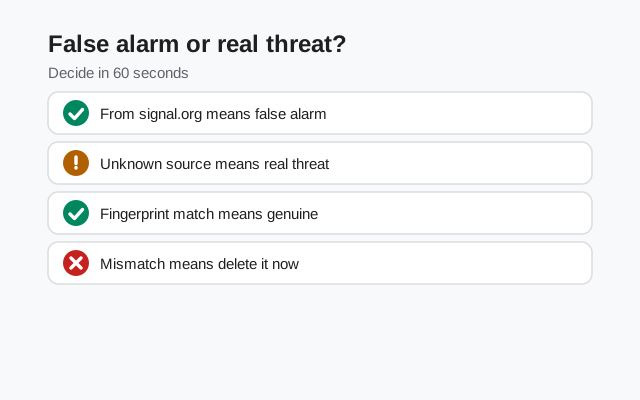
- Where did the file come from? If you downloaded it from Signal's official APK page, you are starting from the one safe source. If it came from a mirror site, a Telegram channel, a "free APK" site, or a friend forwarded it, stop. Delete it and get the real one. No scanner result can make an untrusted source safe.
- What is the package name? The real Signal app is
org.thoughtcrime.securesms. If the file you have claims a different package (anything with "pro," "plus," "mod," or a different publisher name), it is not Signal. It is something else wearing the name. Uninstall and delete. - Does the signature match? This is the decisive test. Run the apksigner verification and compare the SHA-256 certificate fingerprint against the one published on Signal's download page. A match means the file was signed by Signal's private key, and no repackaged fake with malware inside can fake that. A mismatch means the file is not what it claims to be. Delete it.
- Did you install the right build over the right build? Remember the two signing keys: the website build cannot update a Play-installed Signal (Android will refuse, because the signatures differ). If your install failed with a signature error, that is Android's own protection working, not malware. Back up your chats and do a clean install.
- How is the phone behaving? Real malware announces itself through behavior: battery draining fast for no reason, data usage spiking, pop-up ads outside apps, settings you didn't change, apps you didn't install. If the phone is calm and the signature verified, the Play Protect notice was almost certainly the routine kind.
If all five check out, you have verified the file three independent ways, source, package, signature, which is far stronger evidence than any scanner's opinion. Our broader guide on whether the official APK can contain malware covers the supply-chain picture in more depth.
from Signal's official site — file hosted by Signal, not by us
If Play Protect blocked the install
First, don't fight the scanner blindly. A block is Play Protect's strongest statement, and overriding it without verification is exactly how people install actual malware. Do this instead:
- Verify before you override. Run the signature check on the file before you decide the block was wrong. If the fingerprint matches Signal's published value, the file itself is genuine. The block was likely the scanner being cautious about an unrecognized sideloaded certificate.
- Re-download from the real source if anything is uncertain. If you can't verify, or the file came from anywhere sketchy, delete it and download fresh from signal.org/android/apk. Then verify the fresh file.
- Only then consider proceeding. Play Protect lets you request a re-scan, and on some versions you can choose to install anyway after acknowledging the risk. Only take that path with a verified file in hand. If the file won't verify, the block did its job. Thank it and move on.
- Keep Play Protect on. Disabling the scanner to make a warning go away is the worst possible response. It is a useful second opinion for everything else on your phone. Fix the file, not the scanner.
If you already installed something shady
Maybe you're reading this because the APK didn't come from signal.org, the signature didn't match, or the phone is acting strange. Don't panic, but act quickly:
- Uninstall the suspicious app now. Long-press it in the app drawer or remove it from Settings > Apps. This cuts off whatever it was doing.
- Run a Play Protect scan. Open the Play Store, tap your profile, go to Play Protect, and run a scan to catch anything else the app may have dropped.
- Check for device-admin apps. In Settings, search "device admin" and look at which apps have admin rights. Malware sometimes grants itself admin to resist uninstallation. Revoke anything you don't recognize, then uninstall it.
- Review permissions. Check Settings > Apps > Special app access for anything odd: especially "install unknown apps" permissions granted to apps you don't trust.
- Change important passwords from a clean device. If the app had broad permissions, assume credentials typed on the phone could be exposed. Email, banking, and your Signal PIN are the priorities.
- When in doubt, factory reset. If the phone keeps misbehaving after cleanup, a factory reset is the only way to be sure. Back up your photos and files first, then reset and reinstall only from trusted sources. This is the nuclear option, but for genuine malware it is the correct one.
And for next time: the five-minute signature check in our SHA-256 verification guide exists precisely so you never have to do incident response. Verify first, install second, every time.
Frequently asked questions
Why does Play Protect warn about the Signal APK?
Play Protect scans sideloaded apps more cautiously than Play Store apps, and Signal's website build uses a different signing key than the Play build, so Play Protect sees an install path and a certificate it doesn't recognize. An informational 'unknown app' notice in this situation is routine, not evidence of malware.
Should I ignore a Play Protect warning on Signal?
Don't ignore it. Verify instead. Confirm the file came from signal.org/android/apk, check the package name is org.thoughtcrime.securesms, and verify the signing fingerprint with apksigner. A 'harmful app' block should be taken seriously: delete the file and re-download from the real source.
Can Play Protect tell a fake Signal APK from the real one?
It can catch known malware, but the decisive test is the signature: run apksigner verify with --print-certs and compare the SHA-256 fingerprint to Signal's published value. Only the holder of Signal's private key can produce a matching signature.
Is it safe to turn off Play Protect to install Signal?
No. Disabling the scanner to silence a warning is the worst response. Keep Play Protect on, verify the APK's signature yourself, and only then proceed with a verified file.
I installed a Signal APK from a random site. What now?
Uninstall it immediately, run a Play Protect scan, check device-admin apps and permissions for anything odd, and change important passwords from a clean device. If the phone keeps misbehaving, do a factory reset. Then install only from signal.org/android/apk.
- Signal APK safety hub: all safety guides in one place
- Verify Signal APK with apksigner: the command-line signature check
- Verify the SHA-256 fingerprint: the five-minute check
- Can the official APK contain malware?: the supply-chain reality
- Is sideloading APKs safe?: the general rules, applied to Signal
- antivirus flagged the Signal APK: false positives vs real detections