
Signal on Tablets and Foldables: What's Actually Better
Published: October 7, 2026 · Updated: October 8, 2026
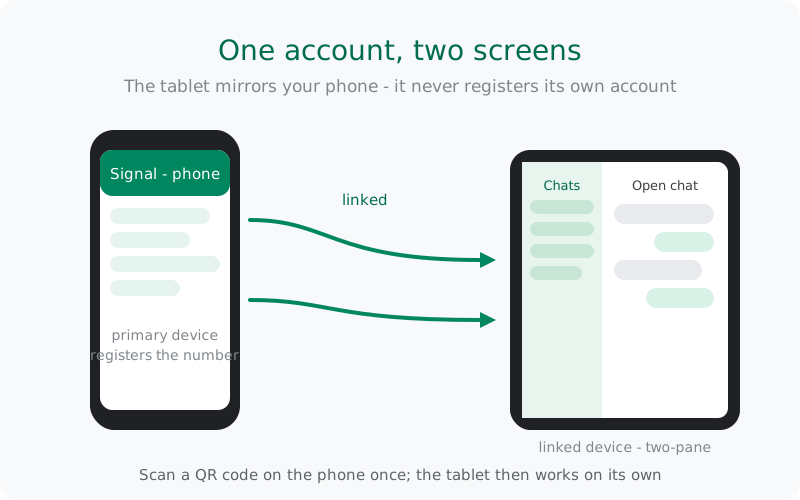
Tablets are linked devices, not primary ones
This is the single most misunderstood fact about Signal on tablets, so let us get it out of the way first. A tablet cannot register its own Signal account. Registration is tied to a phone number on an actual phone, and the tablet then links to that phone, exactly the way linking the desktop app works. There is no independent "tablet version" of Signal with its own identity.
What that means in practice:
- Your phone comes first. Signal must be working on your phone before the tablet can join. If you lose the phone and have no backup, the tablet does not rescue the account.
- One account, one thread per contact. There is no second number and no split conversation history. A message sent from the tablet appears in the same thread on the phone.
- The phone does not need to stay nearby. Once linked, the tablet syncs through Signal's servers on its own. Your phone can be off, dead, or in another country, and the tablet keeps working.
- You manage it from the phone. The linked-device list lives in the phone's settings. Review it now and then and remove anything you no longer recognize: tablets, desktops, all of it.
If you expected a standalone tablet app, this will feel like a limitation. It is actually the privacy model working as designed: one identity, many screens, and the phone remains the root of trust. Our guide to how linked devices work goes deeper on the mechanics.
The two-pane layout: what actually got better
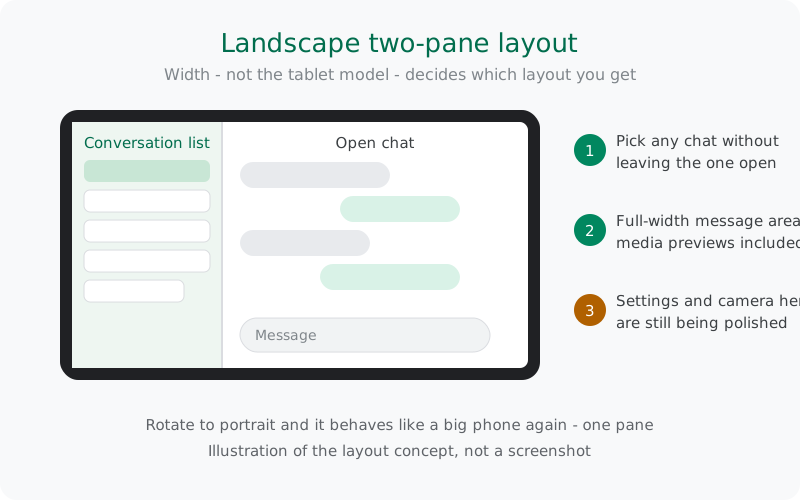
On a phone, Signal shows one thing at a time: either the conversation list or the open chat, never both. For years, tablets got a stretched version of that same single-column view, which looked lost on a wide screen. That is what changed: recent releases added a proper two-pane layout for wide screens, so in landscape a tablet shows the conversation list on the left and the open chat filling the rest.
Why does a second column matter so much? Because messaging on a tablet is mostly triage. You skim the list, dip into a group chat, jump to another conversation, come back. Doing that with a "back" button on every hop is friction; doing it with the list always visible is flow. It is a small design change with an outsized effect on a 10 or 11 inch screen.
Two things to know about when it appears:
- Width is the trigger, not the model. Rotate to portrait and the tablet behaves like a big phone again (one pane). Turn it back to landscape and the two panes return. No setting to toggle, no specific tablet required.
- Media gets room to breathe. Photos, voice notes, and link previews finally have space instead of being squeezed into a phone-width column stretched sideways.
There is also quiet work behind the scenes on the first sync. When you link a fresh tablet, it has to pull down your recent messages and media rather than starting from a blank slate, and Signal has previewed improvements to that transfer on its blog. The result you feel: a new tablet stops looking empty much sooner than it used to.
Foldables: one device, two Signal modes
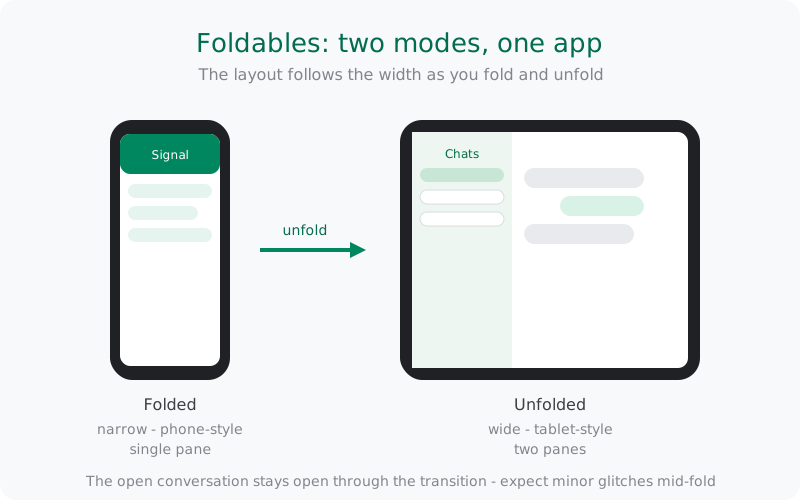
Foldables are where this gets interesting, because one device lives in both worlds. Folded shut, you get a narrow cover screen and Signal behaves like it does on any phone: single pane, one thing at a time. Unfold it, and the wide canvas switches to the tablet-style two-pane layout.
The transition is handled live. The open conversation stays open while you fold or unfold; the app re-lays itself out around the new width rather than restarting. In practice it feels like the layout is following the hardware, which is exactly what good large-screen support should do.
But foldables are still the edge case, and edge cases have quirks. Expect these:
- Mid-transition glitches. Folding while the keyboard is open, or while media is loading, can produce a half-drawn frame for a beat. It settles, but it is not yet seamless.
- Keyboard vs. canvas fights. An unfolded screen plus a software keyboard can leave the chat squeezed into a strange strip. Rotating or dismissing the keyboard usually fixes it.
- Phone-shaped dialogs. Some sheets and dialogs were designed for phone widths and look odd floating on a wide unfolded canvas.
- App continuity hiccups. A few apps (not just Signal) lose scroll position across the fold. If a chat jumps when you unfold, that is the category of bug you are seeing.
None of these are deal-breakers for most people, and the trajectory is clearly toward polish. But if you are buying a foldable for Signal, know that the common tablet shape gets polished first and the folding edge second.
What is still being polished
Honesty requires the other half of the story. When tablet linking broadened (around the Android 8.20 release), Signal itself flagged the areas still being improved on larger Android screens: the settings interface, the in-app camera, and full keyboard shortcut support. That was the state of play at the time, and large-screen polish lands gradually rather than in one big release.
What that means for you today:
- Do not expect desktop-class keyboard shortcuts on an Android tablet yet. The basics work; the full shortcut map is still catching up.
- The in-app camera on tablets can feel like a phone camera bolted onto a big screen, because that is roughly what it is for now.
- Some settings screens still carry phone-era layouts. They work; they are just not beautiful.
Chromebooks sit in the same family. Signal runs on Chromebooks through the standard Android build, with more Chromebook-specific optimization still on the to-do list. Same quirks, larger screen.
A word on how we describe all of this: qualitatively. Signal does not publish a per-screen changelog, so any site that pins "the tablet UI overhaul" to a specific version number with pixel-level claims is inventing journalism. "Improved landscape and two-pane layouts in recent releases" is what can actually be verified, and that is what we say.
Setting up a tablet as a linked device
Five minutes, once. Here is the whole process:
- Get Signal working on your phone first, and update it. The tablet links to the current state of the phone's app.
- Install Signal on the tablet. Most tablets use the Play Store. Wi-Fi-only tablets are completely fine: a tablet needs internet, not a SIM card. If your tablet has no Play Store, the website APK is the same Android app (package org.thoughtcrime.securesms) and installs the same way.
- Open the app and choose the link option instead of registering. You are telling it "I already have Signal, this is a second screen."
- On your phone, go to Settings, then Linked devices, tap the plus, and scan the QR code the tablet shows.
- Wait for the first sync. Recent messages and media transfer over; give it a few minutes on Wi-Fi rather than mobile data.
After that, the tablet is independent day to day. Messages arrive on both screens, you can reply from either, and calls ring on linked devices too, so answer from whichever screen is in front of you. Our step-by-step tablet linking walkthrough covers the screens in detail, including what to do if the QR scan fails.
Phone vs tablet vs desktop, compared
The information-gain table: where each screen fits.
| Phone | Tablet (linked) | Desktop (linked) | |
|---|---|---|---|
| Registers its own account | Yes, the primary device | No, mirrors the phone | No, mirrors the phone |
| Needs a SIM or phone number | Yes | No, Wi-Fi is enough | No |
| Wide two-pane layout | No, single column | Yes, in landscape | Yes |
| In-app camera | Full | Still being polished | Uses the OS camera |
| Keyboard shortcuts | Basic | Improving | Full set |
| Works while the phone is off | n/a | Yes, syncs via server | Yes, syncs via server |
| History on first link | Full: it is the source | Recent messages and media sync over | Recent messages and media sync over |
| Best for | Always-with-you messaging | Couch, travel, and long threads | Typing-heavy workdays |
The pattern: the phone is the identity, everything else is a window onto it. Pick the window that matches where you sit.
from Signal's official site, file hosted by Signal, not by us
Frequently asked questions
Can I register Signal on a tablet without a phone?
No. Registration requires a phone number on an actual phone. A tablet can only join as a linked device that mirrors the phone's account.
Is the tablet app a separate download?
No, it is the same Android app (package org.thoughtcrime.securesms). Install it on the tablet and choose the link-a-device option instead of registering a new number.
Does the tablet keep working when my phone is off or has no signal?
Yes. Once linked, the tablet syncs through Signal's servers independently. The phone only needs to exist at setup time and to manage the linked-device list.
Which Android version does my tablet need?
The same floor as the phone app: it is one app, one requirement. Check our minimum-version tracker for the current number rather than memorizing one.
Do voice and video calls work on the tablet?
Yes. Calls ring on linked devices, so you can answer from the tablet when it is the screen in front of you, exactly as with the desktop app.
Can I link two tablets and a desktop to one phone?
Yes, multiple linked devices are allowed. Keep the list tidy in the phone's Settings under Linked devices, and remove anything you no longer use or recognize.
Related guides: all version guides · tablet linking walkthrough · how linked devices work · the support timeline · features Signal has announced