
Can't find your Signal backup file? Where it actually lives
Published: October 7, 2026
Before you search any further: there may be no file to find. Signal has two current backup systems, and neither one is a single file you hunt for in a file manager. Secure Backups stores your backup on Signal's servers. No local file exists by design. Current on-device backups save a folder (a message archive plus a separate media folder) in the location you chose: phone storage, a NAS, a USB drive. The single .backup file in a Signal/Backups folder belongs to the legacy era: older Signal versions wrote those, and they open only with the old 30-digit passphrase. So "missing backup file" almost always means you are looking for the wrong kind of backup. This guide shows you which system you are on, exactly where each one lives, and what to do when a restore cannot see a file you know exists.
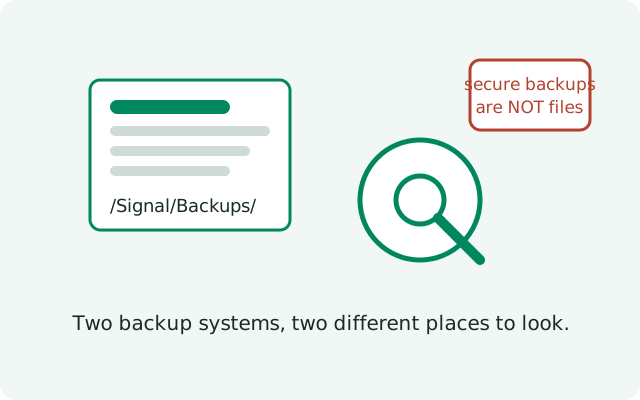
Which backup system are you on?
This is the question that decides everything. Answer it first:
| What you remember setting up | Your system | Where it lives |
|---|---|---|
| A 64-character recovery key you were told to save | Current backups (both systems) | Secure Backups: hosted on Signal's servers, no local file. On-device: a folder in the location you chose. The same key unlocks both |
| A 30-digit passphrase | Legacy on-device backup | A single .backup file in Signal/Backups on internal storage. It needs the 30-digit passphrase |
| You just turned on "Chat backups" in Settings | Secure Backups (current) | Hosted. Nothing to browse with a file manager |
| You copied a .backup file yourself | Legacy on-device backup | Wherever you copied it. It needs the 30-digit passphrase |
The eras are not interchangeable. The 64-character recovery key cannot open a legacy .backup file, and the 30-digit passphrase cannot open a Secure Backup or a current on-device backup folder. Keep this split in mind for everything below.
The legacy .backup file location
If your backup dates from the legacy on-device system, the file lives in Signal/Backups on your phone's internal storage: for example, a file named like signal-2024-05-01-12-00-00.backup inside that folder. To find it:
- On the phone: open your file manager, browse internal storage (not the SD card), and look for a folder named Signal, then Backups inside it. If you do not see internal storage at all, open the file manager's settings and enable "Show internal storage" or "Show hidden files". Some managers hide it by default.
- On a PC over USB: connect the phone, set the USB mode to File transfer, and search the phone's storage for signal-*.backup. This catches files even when the phone's own file manager is being unhelpful.
- Check old copies: if you ever copied the file to a PC, an SD card, or cloud storage yourself, search those for .backup. Legacy files were often moved by hand, so your copy may not be where Signal originally wrote it.
Finding the file is only half the story. You also need the legacy 30-digit passphrase from when you created it. Without it, the file cannot be opened by anything, including Signal.
Why Secure Backups are not files
With Secure Backups, your backup is an encrypted archive on Signal's servers, tied to your account and phone number. There is no file path, no folder to open, and nothing a file manager can show you. This is deliberate: the same encryption that keeps Signal itself from reading your backup also means there is no local copy lying around to be found, or stolen.
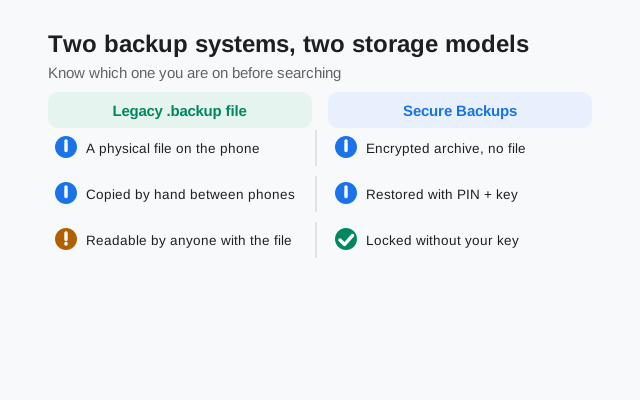
So if you opened Settings → Chats → Chat backups, saw a recent backup date, and then went hunting for a file. Stop. The recent date is the proof the backup exists. What you need for the restore is not a file but the 64-character recovery key you were shown when you set it up.
Searching the phone and PC
For legacy .backup files only. This whole section is irrelevant if you use a current backup system:
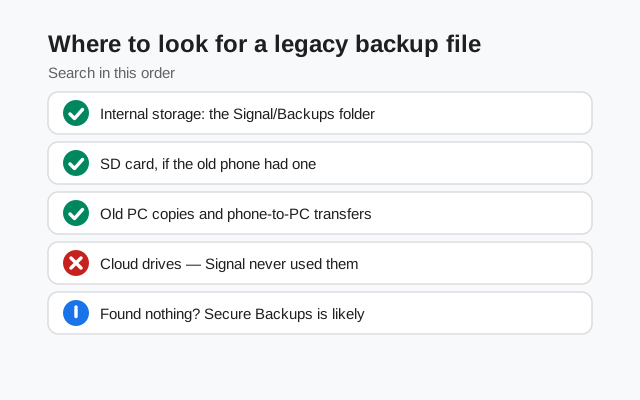
- Search by extension: use your file manager's search for .backup across all storage. Legacy Signal backups always used that extension.
- Check the SD card: if your phone ever used adoptable storage or you moved the Signal folder, the file may be on the card instead of internal storage.
- Check your own old habits: the legacy on-device system encouraged users to copy the file somewhere safe. Search your PC, your old phones, and any cloud drives you used back then.
- Do not trust "recent files": file managers sort by modification date, and a two-year-old backup sits far down the list. Search by name instead of scrolling.
Restore can't see the file that exists
You have the file. The restore screen says there is nothing. This happens for specific reasons:
- You skipped the first-launch prompt. The restore offer appears exactly once, right after you enter your number on a fresh install. If you tapped past it, the app will not ask again. The fix: clear Signal's app data (or reinstall), re-register the same number, and accept the restore when it appears.
- Version mismatch. A .backup file restored into a much newer app version can be refused. If possible, the backup file and the app should be from roughly the same era.
- Wrong number. Backups are tied to the account. Restoring with a different phone number than the backup was made under will not show it.
- Wrong system. A .backup file will never appear in a Secure Backups restore flow, and vice versa. Match the file to the system that created it.
And one honest warning: if the file is a .backup and the 30-digit passphrase is gone, the file is effectively dead. There is no reset and no way around it.
Moving a legacy backup file between phones
Found your .backup file on a PC and want it on the new phone? The on-device restore expects the file in the right place at first launch:
- Copy the .backup file into the Signal/Backups folder on the new phone's internal storage. Create the folder if it does not exist.
- Install Signal fresh, or clear its data if it is already installed, so you get the first-launch flow.
- Register the same phone number the backup was made under.
- Accept the restore at the prompt and enter the 30-digit passphrase when asked.
Two failure points to watch: the passphrase must be the one from when the file was created (a later-changed PIN or a new recovery key will not work), and the app version should not be wildly newer than the era of the backup. If the restore refuses the file, those are the first two things to check.
Proving a Secure Backup exists without a file
Since there is no file to point at, people want proof their hosted backup is real. You have two:
- The last-backup date in Settings. Signal → Settings → Chats → Chat backups shows when the last backup completed. A recent date is the confirmation.
- The recovery key itself. If you have the 64-character key saved, the backup is restorable. The key is the proof, in the same way a safe-deposit key proves the box exists.
If the date is old or missing, run a manual backup now rather than theorizing about files. And if the key is lost too, read the lost-passphrase guide. The hosted backup without its key is in the same unrecoverable position as a legacy file without its passphrase.
Frequently asked questions
I enabled backups but there is no file in the Signal folder. Is it broken?
No. If you use Secure Backups, there is deliberately no local file. Your backup is hosted on Signal's servers and tied to your account. A local .backup file exists only if you use the legacy on-device backup system, the one protected by the 30-digit passphrase. Current on-device backups save a folder, not a single file.
Where is the legacy Signal backup file on the phone?
Legacy local backups were stored in the Signal/Backups folder on internal storage as .backup files, protected by the old 30-digit passphrase. If that folder is empty and you used a current backup system, nothing is wrong. There is no file to find.
The restore screen does not see my old .backup file. Why?
The restore prompt appears only at first launch after you enter your number. If you skipped it, you must start over: clear the app's data or reinstall, re-register the same number, and accept the restore at the prompt. An app version much newer than the backup can also refuse it.
Can I browse my Secure Backups to download individual chats?
No. Secure Backups are encrypted archives for full restore only. The encryption means even Signal cannot open them, and there is no file browser or per-chat download. You restore the whole backup onto a phone.
I lost my phone and never wrote down the recovery key. Is my backup gone?
Yes, effectively. The 64-character recovery key is generated on your device and Signal never holds a copy, so support cannot recover it. This is the core trade-off of end-to-end encryption: nobody, not even Signal, can get into your backup.
Related: where Signal keeps backup files, how Secure Backups and the recovery key work, the 30-digit passphrase and the recovery key, explained, restoring a backup step by step, the master backup troubleshooting hub, moving your chats to a new phone.
from Signal's official site — file hosted by Signal, not by us