
Can You Back Up Signal to a NAS or External Drive?
Published: October 7, 2026 · Updated: October 8, 2026
If you run a NAS at home, you already think in copies, and you are right to ask where Signal fits. The honest answer is less satisfying than a one-click NAS tutorial, but it will save you hours of chasing the wrong half of the picture: "backing up Signal to a NAS" is impossible for the hosted archive and completely possible for the on-device backup folder. This page explains exactly what each of those means, how the two backup systems differ, and how to apply classic 3-2-1 backup wisdom to your Signal data without inventing workarounds.
from Signal's official site — file hosted by Signal, not by us
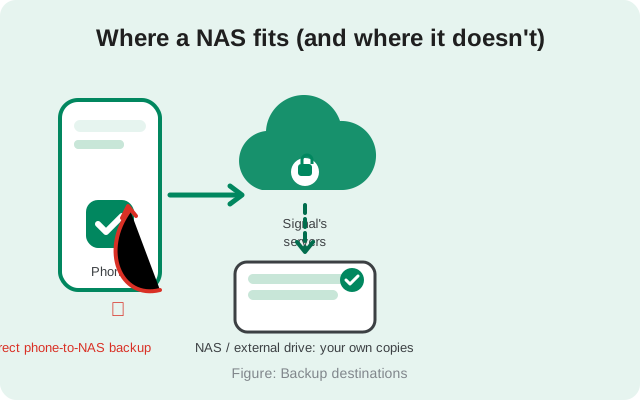
One framing note before we go further: this site is an independent verification guide, not Signal, and we will not invent NAS-app instructions. Several guides on the internet describe copying Signal backup files to a NAS as if it were a Secure Backups feature. That part is stale, because the hosted archive has no file to copy. Copying the on-device backup folder to a NAS is a current, legitimate workflow. Signal's own backup blog names NAS mirroring as a use case. Everything below keeps the two systems strictly separate.
The honest one-paragraph version
Signal runs two backup systems, and they have opposite answers to the NAS question. Secure Backups are hosted archives: your phone encrypts your data with your 64-character recovery key and uploads it to Signal's servers, refreshed daily. There is no file on your phone that is the Secure Backup, no folder you can sync to a NAS, and no setting that redirects the archive anywhere else. On-device backups are the other system: an encrypted backup folder on your own phone (a message archive plus a separate media folder, with no size limit), unlocked with the same 64-character recovery key, that you move yourself. You choose where it lives: phone storage, NAS, USB drive. And that folder you can copy to a NAS or external drive like any other folder. A NAS can also hold the things that make either backup useful and the things no backup covers: a safe copy of your 64-character recovery key (without which the hosted archive is permanently unreadable), and any photos, videos, or documents you export from Signal yourself. That is the whole story. The rest of this page is about doing all three things well.
Two backup systems: why they answer differently
Understanding the NAS question means understanding the two systems. They share a name ("backup") and almost nothing else.
| On-device backups (current) | Signal creates an actual backup folder on your phone's own storage: a message archive plus a separate media folder, with no size limit. Because it is a real folder, you can copy it wherever files go: a NAS share, an external drive, a computer. It is unlocked with the same 64-character recovery key as Secure Backups. Manual, folder-based, copyable. |
|---|---|
| Secure Backups (current) | Your phone builds an encrypted archive and uploads it to Signal's servers. You never touch a file. It is unlocked with a 64-character alphanumeric recovery key that Signal never sees. Automatic, hosted, not file-copyable. |
| What this means for your NAS | Two different jobs. For the on-device backup, the NAS holds the backup itself: copy the folder after each manual backup. For the hosted archive, there is nothing to copy, but the offsite leg already exists on Signal's servers. And the NAS also holds a copy of your recovery key and the media exports that keep the archives useful. |
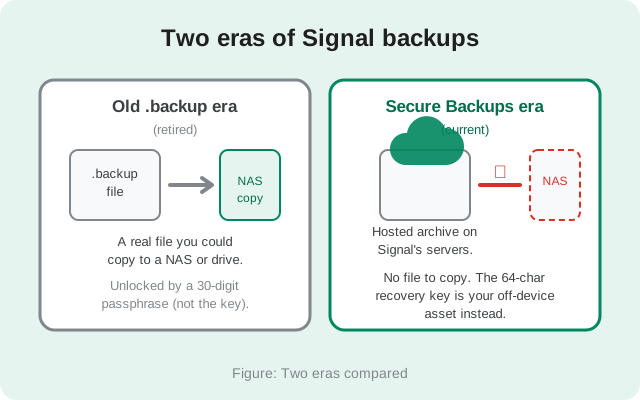
The old-key versus new-key distinction matters here because old tutorials conflate them. If a guide tells you to copy a backup and unlock it with a 30-digit passphrase, it is mixing eras: the 30-digit passphrase only opens legacy .backup files from older Signal versions, while current on-device backups use the same 64-character recovery key as Secure Backups. If a guide mentions a 64-character recovery key, it is describing the current system, where the key opens both the hosted archive and the on-device backup folder. Our Secure Backups explainer covers the hosted system in full.
What you can actually copy today
Since the archive itself is not copyable, the useful question is: what is accessible, and worth keeping a second copy of? Ranked by importance:
- Your on-device backup folder: the backup itself. This is the one thing you can actually hold. After you run an on-device backup, copy the resulting folder to your NAS share or external drive like any other folder. Keep a copy of your 64-character recovery key with the copy. A folder without its key is unreadable.
- Your 64-character recovery key: non-negotiable. This is the single most valuable thing you can store off-device for the hosted system. Without it, the Secure Backups archive cannot be decrypted by anyone, including you. A copy of the key in your password manager's encrypted vault, with that vault backed up to your NAS, is the highest-value key-safety workflow that exists. Our recovery key guide covers storage and rotation.
- Media and documents you export yourself. Photos, videos, and files you save out of Signal chats are ordinary files. Copy them to your NAS like anything else. This matters most for media outside your backup window: on the free tier, only the last 45 days of media travel with the archive, so older media you care about should be exported and stored yourself.
- Your Signal PIN (indirectly). The PIN restores your profile, contacts, and groups during setup. It is not part of the message archive. Keep it in the same password manager as the key; it is small, and losing it complicates restores.
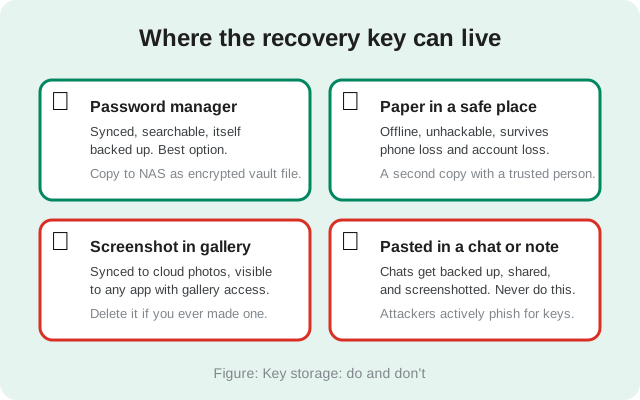
Notice what is not on the list as a separate item: the hosted message archive itself. You cannot download it, you cannot sync it, and you cannot mirror it to a NAS. Its offsite copy already exists on Signal's servers, encrypted, refreshed daily. The on-device folder, though, is right there at the top of the list: that one you can and should copy. Anyone telling you the hosted archive is downloadable is inventing a feature.
3-2-1 backup wisdom, applied to Signal
The classic 3-2-1 rule (three copies of your data, on two different media, with one copy offsite) was written for files. Applied honestly to Signal, it looks like this:
- Three copies: (1) the live data on your phone, (2) the on-device backup folder copied to your NAS or external drive, (3) the hosted Secure Backups archive on Signal's servers, refreshed daily, plus your own copy of the recovery key. Three genuinely independent copies, each protecting against a different failure.
- Two media: Signal's servers are one medium; your own storage (NAS, external drive, or even a second encrypted copy on paper) is the other. The point of two media is that one provider's bad day does not take everything.
- One offsite: this one you get for free. The hosted archive already lives offsite, which is more than most people's NAS setups achieve on their own. Your NAS copy of the key is the local leg; the archive is the offsite leg.
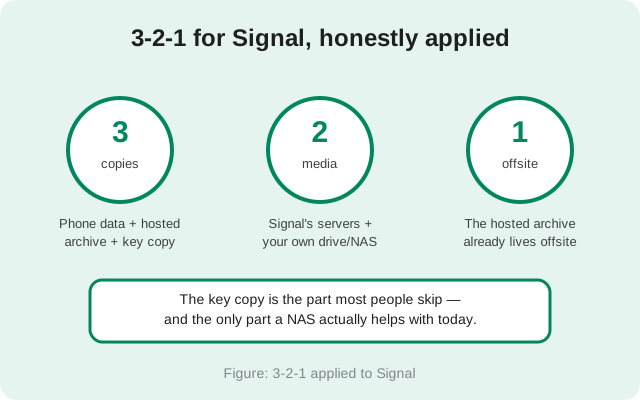
The insight most people miss: with Secure Backups, the "offsite" requirement is already satisfied by design. The copy people actually skip, the one that causes real data loss, is the key. Every "I lost my Signal history" story that involves a working backup system is, underneath, a lost-key story. A NAS holding an encrypted copy of your key closes that exact hole.
Practical off-device steps
No NAS-app wizardry required. These are ordinary file habits, and they are the complete honest workflow:
Copy the on-device backup folder to your NAS
Run an on-device backup, then copy the resulting folder to your NAS share or external drive like any other folder. Check the copy's size against the original before you treat the phone copy as disposable.
Store the 64-character recovery key in a password manager
Save the full 64-character key as a secure note the day you enable backups. It unlocks both Secure Backups and on-device backups. Keep a copy with your backup folder copies. A folder without its key is unreadable.
Back up the password vault to your NAS or external drive
Most password managers can export an encrypted vault file. Copy that file to your NAS or an external drive. Now your key survives phone loss, manager outage, and house fire (if the drive lives elsewhere), and it never exists as plain text.
Export media the archive won't carry
On the free tier, media older than 45 days stops travelling with new archives. Periodically save the photos, videos, and documents you would miss, and file them on your NAS like any other media library.
Keep a paper copy of your recovery key somewhere safe
Paper is offline, unhackable, and immune to every digital failure mode at once. A second copy with a trusted person covers the "my house" failure mode. Low-tech is a feature here.
Verify once a year
Open Settings → Backups and confirm a recent backup exists, then confirm you can still open your key copy and that the NAS copy of the backup folder is intact. A backup you never check is a backup you are only hoping works. See our automatic backups guide for the health check.
If you are switching between Signal app builds (Play Store vs the website APK), do the key check before you switch. The two builds use different signing keys and cannot install over each other, so a restore is part of the move.
Things that don't work
| Claim | Reality |
|---|---|
| "Point Signal's backup folder at my NAS" | There is no setting that redirects either backup system to a NAS. The hosted archive uploads to Signal's servers only; the on-device folder is created in your phone's storage, and you copy it yourself afterward. |
| "Sync the backup folder with my NAS app" | For the on-device backup folder, this works. It is a real, user-accessible folder, and Signal's own backup blog explicitly blesses NAS mirroring. What does not work is syncing the Secure Backups hosted archive: there is no file to sync. |
| "Download the archive from Signal's servers to my NAS" | The archive is only downloadable by the Signal app during restore, using your recovery key. There is no export button. |
| "My NAS copy replaces the recovery key" | Nothing replaces the key. A NAS copy of the key is excellent; a NAS copy instead of the key is impossible. The key is what unlocks everything. |
| "Root the phone to grab the backup files" | Do not. Rooting breaks the security model that makes Signal trustworthy, and raw database files are not a supported restore path. The supported path is the recovery key plus the hosted archive. |
The pattern in the real myths is the same: treating the hosted archive like a folder of files. Once you accept the boundary (the hosted archive lives on Signal's servers, period), the real work becomes obvious: copy the on-device folder, guard your recovery key, export the media you care about, and let the NAS do what it does best.
FAQ
Can Signal back up directly to a NAS?
Half yes, half no. The Secure Backups hosted archive cannot be redirected to a NAS. It lives on Signal's servers. But the on-device backup is a real folder on your phone, and you can copy it to a NAS or external drive yourself. A NAS can also hold your recovery key copy and exported media.
Can I copy the on-device backup to a NAS?
Yes. The on-device backup is an ordinary folder (a message archive plus a media folder) that you can copy anywhere: NAS share, external drive, computer. It is unlocked with the same 64-character recovery key as Secure Backups, so keep a copy of the key with the copy.
What's the most useful thing to store on my NAS for Signal?
Your on-device backup folder, and an encrypted copy of your 64-character recovery key (via your password manager's vault export). The folder is the backup you can actually hold; the key is the one thing that unlocks both it and the hosted archive.
Does the free tier change anything about NAS copies?
Only for media: the free tier carries just the last 45 days of media in the archive, so exporting older photos and videos to your NAS matters more on free than on the $1.99/month paid tier, which carries your full media history up to 100 GB.
Is the recovery key the same as the 30-digit passphrase?
They belong to different eras. The 64-character recovery key unlocks both current backup types: on-device backups and Secure Backups. The 30-digit passphrase only opens legacy .backup files saved by older Signal versions. The two keys are not interchangeable. Neither opens the other's backup.
Do I still need a NAS if Signal already backs up offsite?
Strictly, no. The hosted archive already satisfies the offsite requirement. A NAS earns its place by holding the second copy of your recovery key and the media exports the archive does not carry, which together close the two real gaps.
Keep reading
- Secure Backups, explained in full: the hosted system this page builds on
- Your 64-character recovery key: the thing worth copying off-device
- Lost your key or passphrase?: what recovery is actually possible
- Restoring a Signal backup: the full restore walkthrough