
Signal Automatic Backups: How the Daily Backup Really Works
Published: October 7, 2026 · Updated: October 8, 2026
Most people set up Signal backups once and then forget about them. That is the point of an automatic backup, but "automatic" does not mean "magic". This page explains what Signal's daily backup actually does on its own, what triggers each run, how to check that it is healthy, and what to do when the automation quietly stalls.
from Signal's official site — file hosted by Signal, not by us
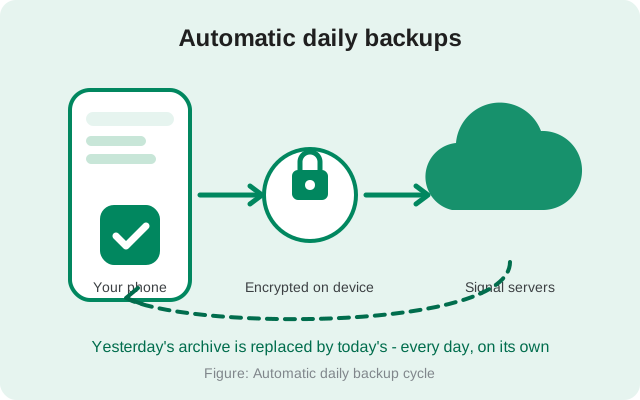
Before this page makes sense, one framing note: when Signal users say "automatic backup", they mean the Secure Backups system: the hosted, end-to-end encrypted archives unlocked by a 64-character recovery key. The old local .backup file era needed you to do something yourself. Secure Backups are the opposite: opt in once, and the daily cycle takes over.
What "automatic" actually means
"Automatic" means three specific things, and understanding the boundaries of each one saves you from false confidence.
First, the schedule is automatic. After the first full backup completes, your phone keeps the archive fresh on its own. A new encrypted archive replaces the previous one each day. You do not open the app and press a button. You do not get a reminder. There is no weekly chore. The cadence is daily, and it stays daily as long as backups are enabled.
Second, the trigger is automatic. The phone starts a backup run when the conditions are right: there has been new or changed data worth archiving, the phone is on a decent connection, and it has power. This is why the first backup asks you to be on Wi-Fi and charging: the first archive uploads your entire history, which is the heaviest run you will ever do. Later daily runs rebuild the archive with everything current, and they are much lighter.
Third, the encryption is automatic. Every archive is encrypted on your device with your recovery key before anything leaves the phone. You never encrypt anything yourself, you never pick files, you never choose what goes in. Signal includes all your text messages and your media window (last 45 days free, full history on the $1.99/month paid tier), and it excludes what it always excludes. Disappearing messages on timers of 24 hours or less never enter an archive on either tier.
What "automatic" does not mean: it does not mean backups run when the phone is dead, in airplane mode for a week, or out of storage. The automation needs the same three things any upload needs: power, network, and room to work. And it does not mean you can lose the recovery key and still get your messages back. The daily cycle protects your data from device loss. Only the key protects the archive from being permanently unreadable.
What triggers a backup
People often imagine a backup app as a clock: something that fires at a fixed time. Signal's design is better understood as a set of conditions. A backup run happens when all of these are true:
- Backups are enabled. Sounds obvious, but this is the number-one cause of "my automatic backups never ran". If Settings → Backups says anything other than on, there is no schedule at all. Verify this first before debugging anything else.
- There is something new to archive. A backup rebuilds the archive with your current data. If nothing has changed since the last archive, there is little to refresh. In practice, on an actively used phone, there is always something new: messages, reactions, new chats.
- The phone has power and connectivity. Archives upload to Signal's servers, so the phone needs a network and enough battery that the OS does not kill the job halfway. The first backup is explicit about this (Wi-Fi plus charging); daily refreshes strongly prefer it.
- The app can run in the background. Android manufacturers love aggressive battery savers that freeze apps. If your phone's battery optimization is set to strangle Signal, the daily run may never get its window. This is the most common reason backups silently go stale.
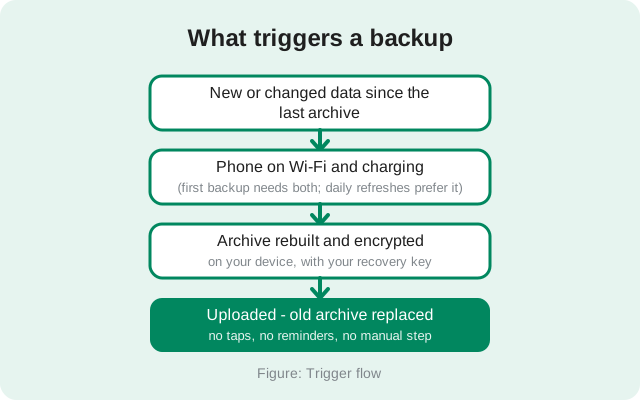
One thing worth knowing: because backups replace the previous archive rather than stacking up, "missed" days are not catastrophic. If your phone is off for two days, the next successful run archives everything current. You do not lose coverage for the gap; you just get a slightly older "last backup" date in between. The archive is always a snapshot of now, not a history of snapshots.
Free and paid run the same way
The automation does not care which plan you are on. Free and paid both refresh daily, both encrypt on-device with your recovery key, and both replace the previous archive. The tiers differ only in what the archive carries:
| Free tier | All text messages plus the last 45 days of media, within a 100 MiB message cap. Daily refresh, automatic. |
|---|---|
| Paid tier ($1.99/month) | All text messages plus your full media history, up to 100 GB. Daily refresh, automatic. |
| Never backed up (both tiers) | Disappearing messages set to vanish within 24 hours are excluded by design. Read our disappearing messages and backups guide for the full list. |
Practical takeaway: if you switch plans, the automation does not restart or change rhythm. The next daily archive simply carries the new tier's media window. Cancelling the paid plan is equally smooth: future archives keep all your texts but only the last 45 days of media. The daily cycle itself is untouched by billing changes.
How to check backup health
Automatic systems fail silently. The entire value of the feature depends on one habit: checking the Backups screen occasionally. Here is what a healthy state looks like:
Open Settings → Backups
Tap your profile picture, open Settings, and choose Backups. This single screen is your backup dashboard.
Confirm Secure Backups says On
If it is off, nothing on this page applies. Enable it and complete setup first. Everything downstream depends on this switch.
Read the "last backup" date
Healthy means today or yesterday. A date weeks old means the trigger conditions have not been met for weeks. Work through the failure section below.
Confirm the recovery key status
The screen should show that your key is saved or confirmed. A backup whose key you cannot produce is an encrypted file you will never open. Our recovery key guide covers safe storage.
Check your plan and storage
Make sure the plan shown matches what you expect (free vs paid) and that you are nowhere near the storage cap. A full cap silently stops growth of the archive.
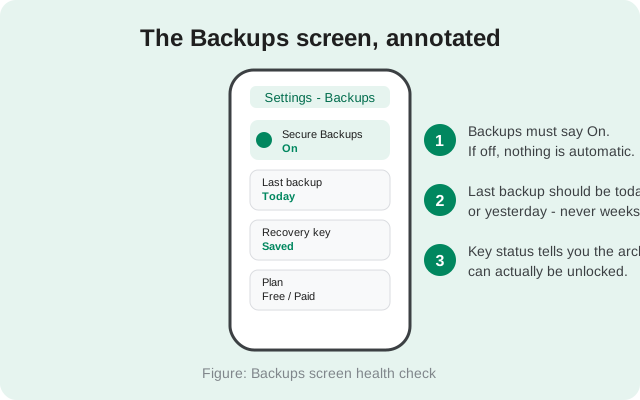
How often should you check? Once a month is plenty for a phone you use daily, and always check right before any phone switch, factory reset, or trip. The backup hub collects every backup guide on this site if you want the full picture.
When backups fail: symptom and fix
When the "last backup" date goes stale, match your symptom to the fix. These cover the overwhelming majority of cases:
| Symptom | Likely cause | Fix |
|---|---|---|
| Backup stuck at 0% for hours | Not enough free storage on the phone, or a weak connection | Free up device storage, connect to stable Wi-Fi, and let the first backup run while charging. Large first archives can take a long time. That is normal. |
| No backup for several days | The OS is killing Signal in the background (battery optimization) | Go to your phone's battery settings and exempt Signal from optimization/restrictions. Open Signal at least once a day until the cycle resumes. |
| Upload starts but keeps failing | Metered, throttled, or unstable connection; VPN interference | Switch to an unmetered Wi-Fi network, keep the phone charging, and temporarily disable any VPN to test. |
| Backups menu missing or errors on old app | App build too old for the current backup system | Update to the latest build, from the Play Store or the official APK on Signal's own site. Backup features ship newest-first. |
| Restore asks for a key you don't have | Key lost or never saved (different problem, same screen) | Nothing in the app can recover it. See the backup troubleshooting guide, and generate a new key while logged in so future archives are protected. |
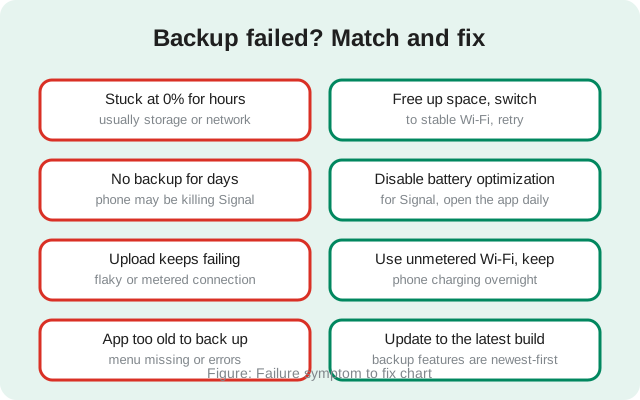
A note on the battery-optimization problem, because it is the sneakiest: some phone brands relabel it ("app battery saver", "background freeze", "auto-start manager"). Whatever your brand calls it, the effect is the same. Signal never gets the background window it needs for the daily run. Exempting Signal once fixes it permanently, and it is the single highest-value fix on this page.
The one thing automation can't do for you
Here is the asymmetry at the heart of the whole system. Everything about making the backup is automatic. Nothing about unlocking it is. The 64-character recovery key is generated on your device, Signal never sees it, and nobody, not support, not an email reset, not a phone-number verification, can reproduce it.
This creates a strange failure mode: the automation can run perfectly for a year, every archive uploading daily, and all of it can be worthless if the key is gone. A backup you cannot decrypt is not a backup; it is a very well-encrypted souvenir.
So treat the key as the other half of the automatic system. The phone handles the daily grind; you handle the key, once:
- Save it in a password manager: searchable, backed up, synced across your devices.
- Or write it on paper and keep the paper somewhere a fire or a move will not take it.
- Never keep it as a screenshot in your gallery or pasted into a synced notes app. Both are exactly where attackers look.
- Never share it with anyone, including anyone claiming to be Signal support. Real support will never ask. Ever.
One more distinction that confuses people: the 64-character recovery key is the current system. The old 30-digit numeric passphrase belonged to the retired legacy .backup file era. It unlocked local files, not Secure Backups. They are not interchangeable, and entering one where the other is expected will fail. If you are restoring and the app wants a long alphanumeric key, that is the 64-character one.
FAQ
Do Signal backups run automatically?
Yes, once Secure Backups are enabled. Your phone builds a fresh encrypted archive every day and replaces the previous one, with no manual step. You only need to enable it once and keep your recovery key safe.
What time of day does the automatic backup run?
Signal does not publish a fixed clock time, and you should not expect one. The backup runs when the conditions are right: new data to archive, network available, and power. Keeping the phone on Wi-Fi and charging overnight gives it the best window.
Why hasn't my Signal backed up in days?
The most common cause is battery optimization: your phone's OS is freezing Signal in the background so the daily run never gets its window. Exempt Signal from battery optimization, open the app daily, and check the Backups screen for a fresh "last backup" date.
Do automatic backups include disappearing messages?
Only ones with timers longer than 24 hours. Disappearing messages set to vanish within 24 hours are never included in any backup, on either tier, by design.
Is the automatic backup different on the free and paid plans?
The automation is identical: daily refresh, same encryption, same recovery key. Only the archive contents differ: free carries all texts plus 45 days of media (100 MiB cap); the $1.99/month paid tier carries your full media history up to 100 GB.
Can I lose my backup even if it runs every day?
Yes, if you lose the 64-character recovery key. The daily cycle protects against device loss; only the key lets anyone decrypt the archive. Save it in a password manager or on paper, and never share it with anyone.
Keep reading
- Secure Backups, explained in full: the system behind the automation
- Your 64-character recovery key: storage, rotation, and loss
- Backup troubleshooting: the complete failure guide
- Moving Signal to a new phone: where automatic backups pay off
- Back up to a NAS or external drive: off-device destinations for your archives