
Delete Old Signal Backups Safely
Published: October 7, 2026 · Updated: October 8, 2026
.backup files from your file manager like any other file. Deletion is permanent. Verify you do not need the archive before you confirm.Deleting a Signal backup is simple, but doing it safely means deleting the right copy and understanding what deletion does and does not remove. Signal keeps several kinds of backup copies: a hosted archive on its servers, current on-device backup folders in the location you chose, and possibly old .backup files from the legacy era. Each one has its own deletion path. This guide walks through all three, the irreversible warning you must take seriously, and the things deletion will never do for you.
from Signal's official site — file hosted by Signal, not by us
When deleting a backup makes sense
Most people should keep backups. Deletion is for specific situations:
- Storage pressure. Backup files, especially old media-heavy archives, can be large. If you are out of space and the archive is redundant (say you already restored it on a new phone), deletion is reasonable.
- Selling or giving away a phone. A wiped phone should not carry an old backup file on its storage. (Deleting the file is part of the wipe, not a substitute for a factory reset.)
- You no longer trust a copy. If your recovery key or passphrase was exposed, old archives are a liability. Delete the archive, then rotate the key. Our recovery key guide explains the rotation step.
- You switched strategies. Maybe you moved from manual on-device files to hosted Secure Backups and the old
.backupfiles are just sitting there, forgotten. Deliberate cleanup beats accidental loss.
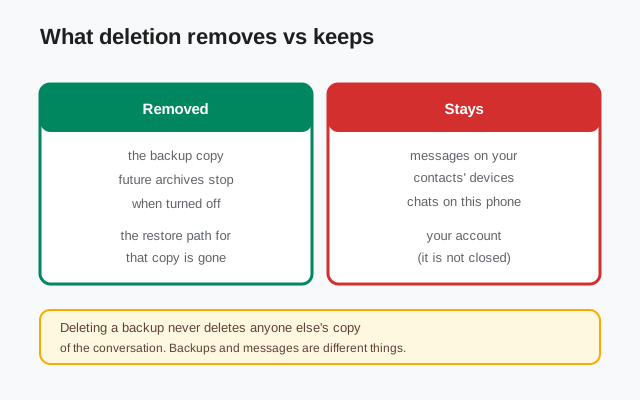
Deletion is not a privacy magic trick. It removes your copy of an archive. It does not unsend messages, erase your contacts' copies, or make your account disappear. Read the "what deletion does NOT do" section before you expect more from it.
The three copies you might have
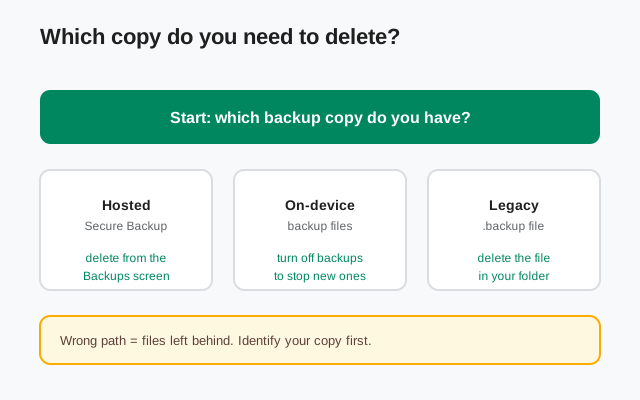
Signal's backup system changed over the years, so check what you actually hold before deleting anything:
| Hosted archive | End-to-end encrypted archive on Signal's servers, refreshed daily, unlocked by your 64-character recovery key. Delete it from the Backups screen inside the app. |
|---|---|
| Current on-device backups | A backup folder (message archive plus a separate media folder) saved in the location you chose (phone storage, NAS, or USB drive), unlocked by your 64-character recovery key. Delete the folder from your storage; there is no app-level control for it. |
| Legacy .backup files | Single encrypted files from older Signal versions, unlocked only by the 30-digit passphrase. Delete the file with your file manager. There is no app-level control for old files. |
Deleting the hosted archive does not delete your current on-device backup folder, and neither touches legacy .backup files. Each copy is independent, so deleting one does not delete the others. If your goal is "no backup copies anywhere," work through all three rows.
Delete the hosted archive
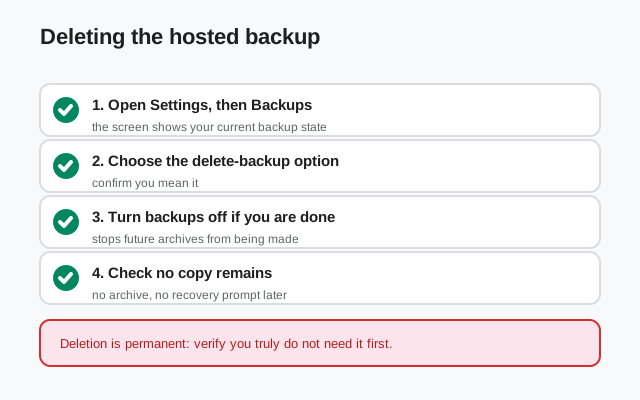
The hosted archive lives on Signal's servers, so it is deleted from inside the app. The Backups screen, the same place you view your recovery key and trigger manual backups, has a delete-backup option. The honest, verifiable path:
Open Settings, then Backups
Tap your profile, open Settings, and choose Backups. You will see your current backup state, recovery key access, and backup controls.
Choose the delete-backup option
The Backups screen includes an option to delete the backup archive. Select it and read what it tells you. Signal is explicit that this removes the hosted archive.
Confirm
Deletion prompts always confirm, because they are permanent. Confirm only after you have read the warning section below.
If you also have the paid plan, remember it is a subscription: cancel it separately if you are done with hosted backups entirely, or the billing continues even with no archive to protect. And note: deleting the hosted archive does not touch your current on-device backup folder. That is a separate copy in your own chosen storage.
Delete old .backup files
Old .backup files are the simplest kind of copy: legacy encrypted files on your own storage, locked with the old 30-digit passphrase. The app does not manage deletion of old files. There is no in-app button. They are files, so you delete them like files.
Find the backup folder
Check the backup location the app reports in Settings → Backups, or look in the folder where you historically saved them.
Confirm what the file is
Old backup files carry
.backupin the name. Before deleting, make sure you are not deleting a file you still need.Delete the file
Long-press and delete in your file manager, or move it to trash. Empty the trash if your file manager keeps one. A "deleted" file sitting in trash is not deleted.
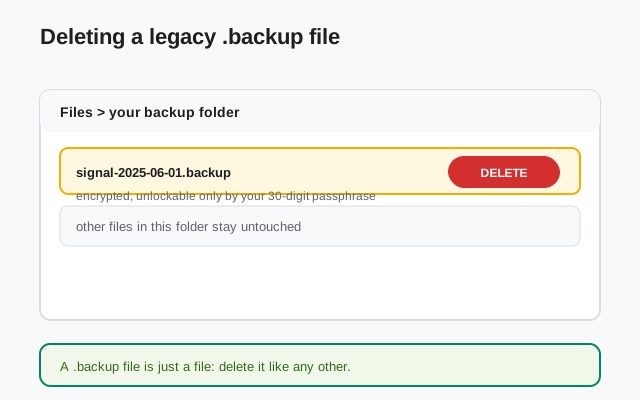
.backup file is unlockable only by its 30-digit passphrase. If there is any chance you still need the file, save the passphrase with it before deleting anything. A deleted file plus a forgotten passphrase is the same as a deleted file.Stop new backups from being created
Deleting an archive removes the past. To stop the future, turn backups off. In the app's backup settings you can turn the backup feature off, which stops your phone from creating new archives. Note the distinction carefully: turning off stops new copies; it does not necessarily delete copies already made. Delete existing archives through the Backups screen, and delete old .backup files from your storage, as described above.
One more check after turning off: open Settings → Backups and confirm the backup state shows what you expect: no pending archive, no scheduled refresh. A feature you assume is off but never verified is a rumor, not a fact.
The irreversible warning
This is the part to read twice. Backup deletion is permanent. There is no trash to recover from, no support ticket that brings an archive back, and, the part people miss, deleting the archive is only half of it:
- No key, no restore. Without the 64-character recovery key (or the 30-digit passphrase for legacy .backup files), a backup is already unusable to you. Deleting it just makes that official.
- Verify before you confirm. Ask yourself three questions: Is my chat history safe somewhere else? Am I sure I will never need this archive? Have I checked what copy I am actually deleting? If any answer is uncertain, stop.
- Restores only happen during setup. The restore prompt appears when you first set up Signal on a new or reinstalled app. If you deleted the archive, that prompt has nothing to offer. The full restore walkthrough is on our restore guide.
- Key exposure is a separate decision. If you are deleting because your key leaked, also generate a new key in Settings → Backups. The old key decrypts old archives; the new key protects future ones. Deleting the old archive without rotating the key leaves the exposed-key problem half-solved.
What deletion does NOT do
This is where expectations go wrong, so be explicit:
- It does not delete messages from your contacts' phones. Your backup is your copy of the archive. Every person you ever chatted with holds their own copy of those conversations. Deleting your backup touches none of them.
- It does not unsend or erase messages. Sent messages stay sent. If you need a message gone from a conversation, use the delete-for-everyone option inside the chat, and know its limits.
- It does not close your Signal account. Your number registration, profile, and current chats are unaffected. Account deletion is a separate action entirely.
- It does not clear the chats on this phone. Your current conversations live in the app, not in the backup. Deleting the backup leaves them exactly where they are.
- It does not delete media others saved. Photos or files your contacts saved to their own devices are theirs now. Your backup never controlled them.
If your actual goal is "leave no trace of a conversation," deleting a backup is the wrong tool. What you want is disappearing messages (set before the conversation happens) and delete-for-everyone for individual mistakes, with the honest caveat that screenshots and saved media are outside anyone's control.
After you delete: a quick checklist
- Confirm the archive is gone. Reopen Settings → Backups and verify no backup state or archive remains.
- Check the other copies. Deleted the hosted archive? Look for on-device files and old
.backupfiles too. Each copy deletes separately. - Rotate the key if it leaked. Generate a new recovery key in Settings → Backups so any exposed old key protects nothing going forward.
- Cancel the subscription if you are done. A paid plan without an archive is just a bill.
- Move on. Your current chats are unaffected. If you later want backups again, you can re-enable them. The new archive starts from your current chats.
FAQ
How do I delete my Signal backup?
Open Settings, then Backups. The Backups screen has an option to delete the hosted backup. Confirm it, then turn backups off if you want no new archives. Old .backup files are deleted like any file, from your file manager.
Does deleting my backup delete my chats?
No. Deleting a backup removes the backup copy. Your current chats on the phone, and copies on your contacts' devices, are untouched.
Can I get a backup back after deleting it?
No. Deletion is permanent. That is why the guide says to verify you truly do not need the archive before you confirm.
Does deleting a backup close my Signal account?
No. Your account, number registration, and current chats are unaffected. Backups and accounts are separate things.
If I delete my backup, can my contacts still read our old messages?
Yes. Deleting your backup removes your copy of the archive. It does nothing to messages already on your contacts' devices.
Does turning off backups delete the ones already made?
Turning off stops new archives. Delete the existing archive through the Backups screen as well. And for old legacy .backup files, delete the file itself.
Keep reading
- How encrypted are Signal backups?: what the encryption actually protects
- Secure Backups explained: the hosted backup system, free vs paid
- Local backups on Android: the on-device alternative
- Restore a Signal backup: when you decide you need the archive after all
- Backup troubleshooting: when backups fail instead of deleting cleanly
- deleting your Signal account: what gets wiped and what survives