
Your Signal backup failed or got stuck? Fix it in this order
Published: October 7, 2026
If your Signal backup failed, do not delete anything yet. Most failures are caused by three things: your phone ran out of storage mid-backup, the battery saver killed Signal halfway through, or one corrupt media file aborted the whole archive. This page walks you through the fixes in the exact order that resolves most cases, from the five-minute checks to the deeper ones, plus how to tell when you should simply retry and when it is smarter to start fresh.
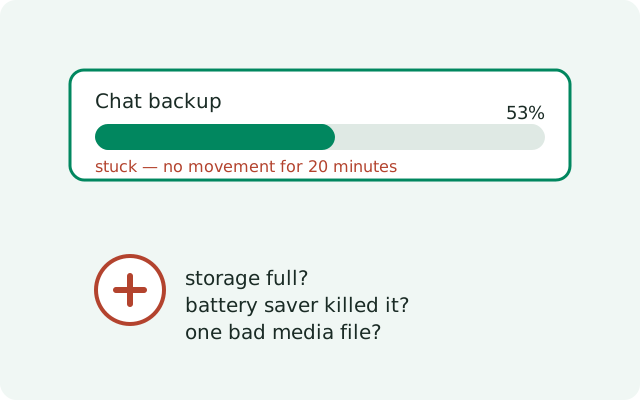
Symptom to cause to fix: the table
Find what you are seeing on the left, note the likely cause in the middle, and do the fix on the right before anything drastic:
| What you see | Likely cause | Fix first |
|---|---|---|
| Backup starts, then errors out partway | Storage ran out mid-run | Free up at least 1–2 GB, then retry on Wi-Fi with the phone charging |
| Progress bar frozen for a long time | Battery saver killed the background process | Set Signal's battery use to Unrestricted; keep the app open and the screen on |
| Backup fails at the same percentage every time | One corrupt media file | Run a messages-only backup; if it works, hunt the broken file (large video is the usual suspect) |
| Backup never starts at all | Toggle off, permission denied, or work profile | Settings → Chats → Chat backups on; grant Files and media permission; check for a work profile |
| Hosted backup uploads stall or fail on mobile data | Metered connection dropping large uploads | Switch to Wi-Fi, plug in, and run it manually instead of on schedule |
| Backup completes but restore finds nothing | Wrong number on restore, or tier limits trimming media | Restore with the same phone number; remember the free tier keeps 45 days of media |
The fix flow, in order
Do these top to bottom. Most people are fixed by step 3.
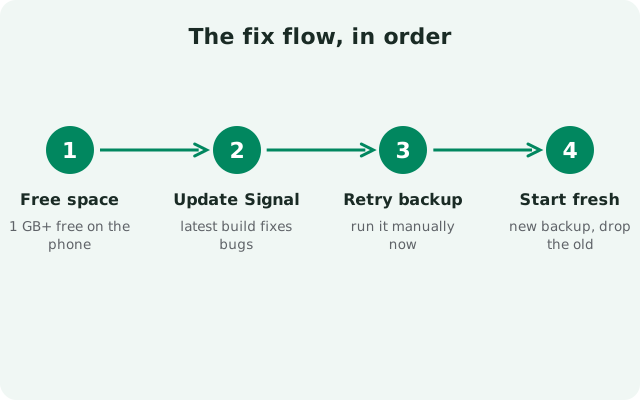
- Free up storage. A backup writes an archive, and archives grow as your media grows. If your phone is nearly full, the backup dies partway. Delete downloaded videos, clear other apps' caches, and aim for at least 1–2 GB free before a manual backup. Do not skip this step. It is the single most common cause.
- Tame the battery saver. On many phones, aggressive battery optimization kills background work, and a scheduled backup is background work. Go to Settings → Apps → Signal → Battery and set it to Unrestricted (the wording varies by brand). For a manual backup, open Signal, start it by hand, and leave the phone alone with the screen on until it finishes.
- Check the toggle and the permission. Open Signal → Settings → Chats → Chat backups and confirm it is on. On Android 11 and newer, Signal also needs the "Files and media" permission to write its archive: Settings → Apps → Signal → Permissions → Files and media → Allow. A denied permission makes scheduled backups silently do nothing.
- Run a messages-only test. If the backup still fails, run one backup with media excluded. If that finishes, you have proven the problem is a media file, not your account or settings. Large videos and half-downloaded attachments received around the time the failures began are the usual suspects. Delete or re-download the broken one, then retry with media on.
- Fix the connection for hosted backups. Secure Backups upload to Signal's servers, so a shaky connection matters. Run the backup on stable Wi-Fi, not mobile data, with the phone plugged in. If it stalls, wait a few hours and retry. Server-side hiccups clear on their own.
- Restart once, then retry. A reboot clears stuck system services that silently block storage writes and background jobs. One restart fixes more "mystery" failures than anything else on this list.
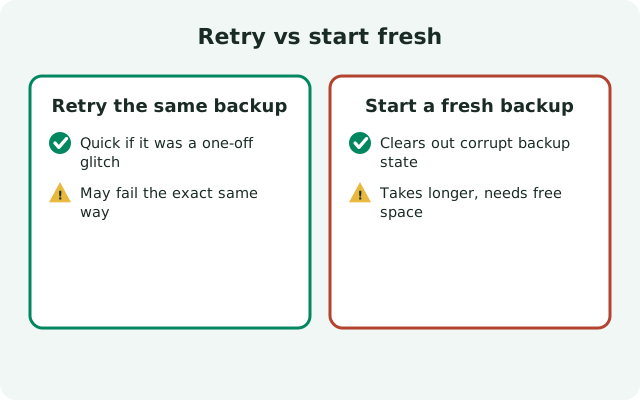
When to retry, when to start fresh
Not every failure needs a fresh start. Use this:
| Situation | Do this |
|---|---|
| Backup failed once, nothing changed on the phone | Retry on Wi-Fi, plugged in, app open. One-off failures are usually the battery saver or a brief connection drop. |
| Backup fails the same way every time | Run the fix flow above. The pattern means something specific is wrong, and a fresh start will hit the same wall. |
| Messages-only backup works, full backup fails | The corrupt file is still in your media. Find and remove it (see step 4). Do not start fresh. The new archive will include the same broken file. |
| You have a confirmed working backup somewhere else | Now a fresh start is safe: remove the old copy, run the fix flow, and take one clean backup. |
| Nothing works and the phone is running out of life anyway | Manually save what matters most, export key photos outside Signal, then set up Secure Backups with a fresh 64-character recovery key and start a new backup history. |
Diagnosing without any logs
Signal does not give you a backup log to read, so you diagnose by experiments:
- Does it fail at the same spot? Same percentage every time means a corrupt file at that point in the archive. Failing at different points means storage or the battery saver.
- Does a messages-only backup finish? Yes means media is the problem. No means the issue is storage, permissions, or the account.
- Does a manual backup work when the scheduled one does not? Yes means the battery saver is killing background work. Schedule vs manual is the whole story.
- Does it fail only on mobile data? Yes means the connection, not the phone. Large uploads and metered networks do not mix.
Each of these takes minutes and tells you exactly where the fault lives. No log files needed.
Scheduled backups vs manual backups
One pattern worth calling out separately: the scheduled backup fails, but a manual one works fine. This is not a coincidence. It is a diagnosis. Scheduled backups run in the background, which means the battery saver, Doze mode, and aggressive phone-brand "optimizers" get a vote. Manual backups run in the foreground with the app open, which bypasses most of that.
- If manual works and scheduled fails: the fault is background execution, full stop. Exempt Signal from battery optimization, and on brands with extra "app managers" (some Chinese-brand phones are notorious), also whitelist Signal there. Then watch one scheduled run to confirm.
- If both fail the same way: the fault is storage, permissions, or a corrupt file. Background vs foreground is irrelevant. Run the ordered fix flow.
- If scheduled backups stopped after a phone update: system updates sometimes reset battery and permission settings silently. Re-check the toggle, the permission, and the battery exemption after every major update.
And a related trap: some people "fix" a failing schedule by only ever running manual backups. That works until they forget for three months and lose the phone. Fix the schedule; do not just route around it.
What not to do while it is failing
Panicked moves cause more data loss than the failures themselves. While a backup is misbehaving:
- Do not uninstall Signal. Uninstalling wipes the local data, including the messages the backup was supposed to protect. Reinstalling does not recover anything the backup never captured.
- Do not clear Signal's data or storage. Same reason. "Clear data" is a factory reset for the app. The backup troubleshooting you actually need is in the fix flow above, not in the app-info screen.
- Do not revoke and re-grant permissions mid-backup. Changing the storage permission while a backup is running can corrupt the archive being written. Change settings between runs, never during.
- Do not trust third-party "backup fixer" apps. No outside app can repair a Signal backup. The archive is encrypted and only Signal can write or read it. Tools that claim otherwise are scams or, at best, useless.
The safe posture is simple: leave your data where it is, work the fix flow top to bottom, and only touch old copies once a new working backup exists.
Frequently asked questions
Why does my Signal backup fail at the same percentage every time?
That pattern points at one corrupt media file aborting the archive at the same point. Run a messages-only backup as a test: if it finishes, media is the culprit. Look for a large or half-downloaded video received around the time the failures started, delete or re-download it, then retry with media included.
The backup says it completed, but my history is missing on the new phone. What happened?
Two common causes. First, the free tier trims media older than 45 days by design, so an old history can look thin after a restore. Second, the restore may have run against a different number or account. Confirm you restored with the same phone number on the same account.
Should I delete the old backup and start fresh?
Only after a working backup exists elsewhere. Deleting your only copy to fix a failing one is how chats get lost permanently. Retry the ordered fixes first; start fresh only when a healthy backup is already stored on another device or the hosted copy is confirmed current.
Do disappearing messages break backups?
No. Disappearing messages with timers of 24 hours or less are simply not backed up at all. Longer-timer messages are backed up normally. A failure is never caused by the disappearing-message setting itself.
The backup worked yesterday and fails today with no changes. Why?
The usual trigger is storage crossing the line: a new video, an app update, or cached data filled the last free space overnight. Free up room and retry before assuming anything deeper is wrong.
Related: the master backup troubleshooting hub, the Android backup guide, how Secure Backups and the recovery key work, the 30-digit passphrase and the recovery key, explained, moving your chats to a new phone, fixing a crashing Signal app.
from Signal's official site — file hosted by Signal, not by us