
What your computer needs to run Signal Desktop
Published: October 7, 2026 · Updated: October 8, 2026
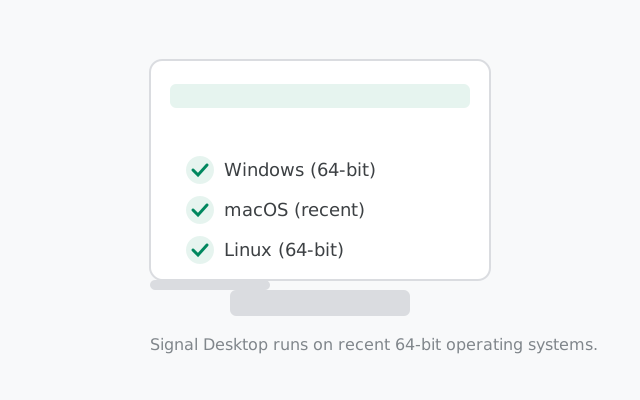
Signal Desktop runs on recent Windows 10/11, recent macOS, and 64-bit Linux distributions, and you download it only from signal.org/download. Signal does not publish a strict minimum-spec sheet, so there are no magic version numbers to chase: what matters is a reasonably modern 64-bit operating system, a couple of gigabytes of free RAM and disk space, and a working internet connection. You also need the Signal app set up on your phone first, because Desktop never works on its own. The phone stays the primary device, and the computer becomes one of up to 5 linked devices on your account.
If your computer is from roughly the last decade and runs a supported OS, it will almost certainly run Signal Desktop. The real blockers are rarely the hardware. They are things like 32-bit Windows, an ancient OS that no longer gets updates, or a missing phone setup. This guide walks through each platform honestly: what works, what does not, and how to check your machine before you download anything.
The short answer, per operating system
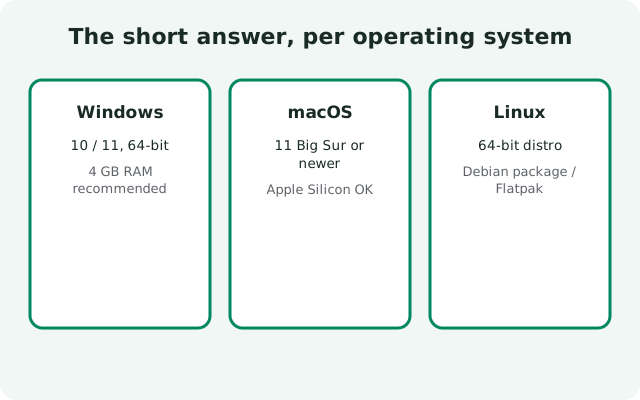
If you just want the yes-or-no answer, here it is in one table. Signal builds Desktop for three platforms; everything else is either unsupported or needs the phone app alone.
| Platform | What works | Notes |
|---|---|---|
| Windows | Recent Windows 10 or Windows 11, 64-bit | Admin rights needed for the standard installer; SmartScreen warning on first run is normal |
| macOS | Recent macOS releases | Both Apple Silicon and Intel Macs are covered by the official download page |
| Linux | 64-bit distributions | Signal's download page points Linux users to the right install method; see our Linux setup guide |
| ChromeOS | Only via Linux support on the Chromebook | There is no ChromeOS-native app. Details in our Chromebook guide |
Signal keeps its builds current with each platform's supported releases, so "recent" means exactly what it sounds like: keep your OS updated and you will be fine. Old operating systems that have stopped receiving security updates from their vendor are where installs start failing.
Windows: what actually matters
On Windows the install is the smoothest of the three platforms, and the requirements are the most forgiving. The official installer targets modern 64-bit Windows: recent Windows 10 and Windows 11. If your PC runs either of those and was made in the last several years, the installer will run without complaint.
The one thing that trips people up is 32-bit Windows. There is no 32-bit build of Signal Desktop. If you are on very old hardware running a 32-bit edition, the installer will not work, and there is no official workaround. No compatibility mode, no older version worth installing. (Running an old, unpatched Signal build to dodge a hardware limit is a bad trade: you would keep an insecure messenger just to avoid a hardware fact.)
Two more practical points. First, the installer needs administrator rights because it installs for all users into Program Files. On your own PC that just means clicking "Yes" on the permission prompt; on a locked-down work computer you may need your IT department. Second, expect Windows SmartScreen to flag the installer the first time you run it. That blue warning is Windows doing its job for any newly downloaded executable. Click "More info" then "Run anyway" only if you personally downloaded it from signal.org/download.
macOS: what actually matters
On the Mac side the rule is the same in spirit: a recent macOS release on either Apple Silicon or Intel hardware. Signal's download page offers the right build automatically, and there is no separate download for M-series chips. The installer handles it. Our full Mac install walkthrough covers the Gatekeeper step, where macOS asks you to confirm that you want to open an app from an identified developer. That is the macOS equivalent of the SmartScreen prompt on Windows: expected, one-time, and safe only when the file came from Signal's own site.
Very old macOS versions that Apple no longer patches are the realistic cutoff. If your Mac cannot update to a recent release because Apple dropped support for it, Signal Desktop may refuse to install or misbehave after an update. In that situation the honest advice is the same as for old Windows: the phone app stays fully supported, and Desktop becomes optional rather than something to force onto an insecure OS.
Linux: what actually matters
Signal Desktop on Linux is for 64-bit distributions. Signal's download page is the starting point here too. It points Linux users to the right repository or install method for their distro rather than a generic binary. There is no official 32-bit Linux build, and no official Snap/Flatpak maintained by Signal, so stick to the method Signal's own page recommends rather than grabbing a community package of unknown provenance.
If you are on a Chromebook, the answer is "maybe": Chromebooks with Linux (Crostini) support can run the Linux build inside the Linux container, but ChromeOS itself has no native Signal Desktop app and no way to link a browser tab as a device. We walk through the whole thing in our Signal on Chromebook guide.
RAM, disk, and the growing database
Signal Desktop is not a heavy app. It is a native chat client, not a game and not a browser farm, so any machine that comfortably runs a modern OS and a browser will handle it. In practical terms: a few gigabytes of RAM free and a few hundred megabytes of free disk space are enough to install and run it well. Nobody needs a workstation for encrypted messaging.
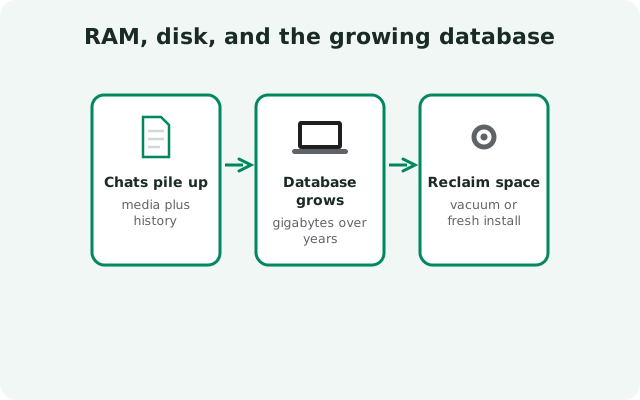
The disk-space number that grows is the local message database. Signal stores your chats on your computer, so the longer you use Desktop (especially if you accept the full history transfer at link time, which moves your complete history plus media from roughly the last 45 days), the more space it uses. If your drive is nearly full, trim that before installing rather than after, because an install that cannot write its database will fail in confusing ways. Our Desktop storage guide explains what the database holds and how to keep it under control.
Internet and the 30-day rule
Signal Desktop needs a working internet connection. It talks directly to Signal's servers, not through your phone. A common misunderstanding is that the phone and the PC must share the same Wi-Fi network. They do not. Your phone can be on mobile data in another country while your PC is on office Wi-Fi; as long as both reach the internet, messages flow. That is also why Desktop keeps working when your phone is off or dead.
There is one long-term rule tied to the phone: your phone needs to come online at least once every 30 days, or linked devices stop working. It is not a daily requirement and not a "same network" requirement: just that the primary device checks in once a month. If a linked computer silently stops receiving messages after weeks of your phone being off, that 30-day rule is the first thing to check. Devices that stay unlinked for longer get removed automatically (around the 45-day mark).
What you do not need
- No separate account. Desktop mirrors the account on your phone. You never create a second Signal account on the PC, and you never enter your phone number into Desktop. Linking happens through a QR code scanned by the phone app.
- No Google Play, no app store account. Desktop is a standalone download from signal.org/download. This is handy on de-Googled machines: the computer side of Signal has never needed Google services.
- No powerhouse PC. If your machine browses the web comfortably, it runs Signal Desktop.
- No always-on phone. After linking, the phone can be off. The 30-day check-in is the only ongoing phone obligation.
Get it from the one official source
Download Signal Desktop only from signal.org/download. We do not host installers, and no third-party download portal should be your source either. Repackaged "Signal installers" from random download sites are a classic malware vector, and search results are full of them. If a site offers you a "Signal Desktop Pro," a portable bundle, or an installer with a version number Signal never announced, close the tab.
The page detects your operating system and offers the right file automatically, so there is nothing to choose beyond clicking the download button for your platform. Then follow our QR linking walkthrough to connect it to your phone, and accept the history transfer during linking if you want your old chats on the PC.
from Signal's official site — file hosted by Signal, not by us
Frequently asked questions
Is Signal Desktop free?
Yes. Free and open source, with no account, subscription, or payment beyond the phone app you already have.
Does Signal Desktop work on 32-bit Windows?
No. There is no 32-bit build, and no official workaround. If your machine is 32-bit, use Signal on your phone instead.
Does it work on Apple Silicon Macs?
Yes. Signal's download page serves the correct build for both Apple Silicon and Intel Macs automatically.
How much disk space does it need?
A few hundred megabytes to install. The message database grows over time, especially after a full history transfer. Keep some headroom on the drive.
Can I install it without my phone?
No. Desktop always links to the Signal app on your phone; the phone stays the primary device and up to 5 devices can be linked to one account.
Keep reading
- Link your phone to Desktop: the full QR linking walkthrough in detail
- Signal Desktop for Windows: install steps and day-to-day on Windows
- Signal Desktop for Mac: install steps and Gatekeeper on macOS
- Desktop guides hub: every Windows, Mac, and Linux guide in one place