
Signal Dark Mode: How to Turn It On, Follow Your Phone, and Schedule It
Published: October 7, 2026 · Updated: October 8, 2026
Signal's dark mode turns the app's bright white background into a dark, easy-on-the-eyes theme. It takes about ten seconds to switch on, and there are exactly three options to choose from. This guide shows each one, explains the honest way to schedule dark mode (there is no timer inside Signal), covers what happens to your chat wallpapers, and clears up the AMOLED battery claims you will see online.
from Signal's official site — file hosted by Signal, not by us
How to enable dark mode
Open Settings
In Signal, tap your profile picture in the top corner of the chat list.
Go to Appearance
Tap Appearance. This is where theme and language live.
Tap Theme
Tap Theme to open the theme picker.
Choose Dark
Select Dark. The app switches immediately: no restart, no save button.
To go back, retrace the same steps and choose Light. That is the entire procedure on Android. It is one of the simplest settings in the app.
The three theme options, explained
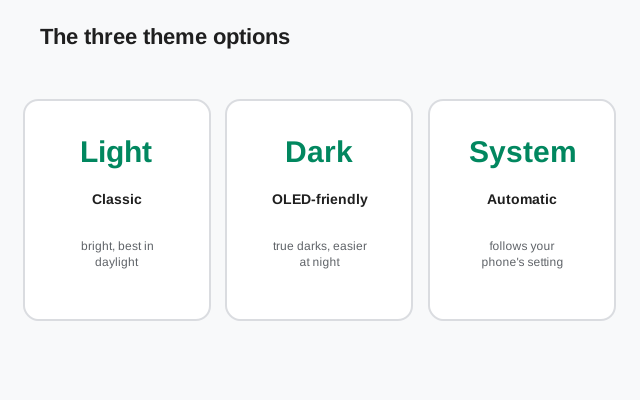
| Option | What it does |
|---|---|
| Light | Signal always uses the light theme, no matter what your phone is doing. |
| Dark | Signal always uses the dark theme, no matter what your phone is doing. |
| System default | Signal follows your phone's system theme. Phone in dark mode → Signal dark. Phone in light mode → Signal light. This is the default, and it is what most people should use. |
System default is the smart choice for most people. Your phone already knows when it is day and night, and most Android phones can schedule their own dark mode (more on that below). With System default, Signal just rides along. One schedule on the phone covers every app that follows the system, not just Signal.
How to schedule dark mode (the honest way)
Let us be upfront: Signal has no built-in schedule for dark mode. There is no "dark at 9 p.m., light at 7 a.m." timer inside the app, and no sunset-to-sunrise option in Signal's settings. If a website tells you otherwise, it is describing a different app.
The real way to schedule it is a two-step combination:
Set Signal to System default
In Signal, go to Appearance > Theme and choose System default.
Schedule dark mode on your phone
On Android, open your phone's Settings > Display > Dark theme (the exact path varies by brand) and turn on the schedule. Most phones offer "turns on at custom time" or "turns on from sunset to sunrise".
That is it. Your phone flips to dark on schedule, and Signal (on System default) flips with it. This also keeps every other system-following app in sync, which is better than scheduling each app individually anyway.
Chat wallpapers in dark mode
If you use chat wallpapers (see our chat wallpaper guide), here is what changes when you go dark:
- Wallpapers dim under the dark theme. Signal tones the wallpaper down so text stays readable against it. Bright wallpapers that look great in light mode can look muddy in dark mode.
- Pick wallpapers with dark mode in mind. If you live in dark mode, choose darker, simpler wallpapers. They look better and keep the chat easy to read.
- Wallpapers are per-chat. You can set a different wallpaper per conversation, so there is nothing stopping you from giving your most-read chats dark-friendly backgrounds while leaving others alone.
Dark mode and battery: the honest version
You will read online that dark mode "saves battery on AMOLED screens." Here is the honest version:
- The theory is real but small. On OLED/AMOLED screens, dark pixels use less power than bright ones. So a dark theme can save some battery. The savings are modest, not dramatic.
- Signal's dark theme is very dark, not pure black. Signal does not market its dark mode as a true-black, pixel-off AMOLED theme. Do not expect the maximum theoretical savings; treat any battery gain as a small bonus.
- The real reasons to use dark mode are comfort: less glare at night, easier reading in dark rooms, and a theme that matches the rest of your phone. Those benefits are real and immediate.
If battery life is your actual concern, the bigger wins are elsewhere: our battery drain guide covers the settings that genuinely move the needle.
Dark mode on Signal Desktop
Signal's desktop app (Windows, Mac, Linux) has its own dark mode, separate from the phone. Open the desktop app, open Settings or Preferences from your profile menu, and choose the dark theme there. The phone and desktop themes are independent: your phone can be dark while your desktop stays light, or the other way around.
That is worth knowing because the two do not sync: changing the theme on one device changes nothing on the other. Set each one the way you like it.
Dark mode on phones without a system dark mode
One of Signal's nicer touches: the in-app Dark option does not need your phone to support dark mode at all. On older Android versions that never had a system-wide dark theme, Signal still renders its own dark theme when you pick Dark manually. So even on a phone stuck on an old OS, you get the full dark experience inside Signal. The limitation is only that "System default" has nothing to follow, so it stays light.
This also matters for the APK-install crowd this site serves: phones without Google Play are often older or unusual devices (Huawei phones, de-Googled ROMs, hand-me-downs). Signal's self-contained dark theme means the app looks right on all of them. If you are installing Signal outside the Play Store, our install-without-Play-Store guide walks through the whole process.
Reading comfortably in dark mode
Dark mode is easy to set and forget, but a few small choices make it genuinely comfortable instead of merely dark:
- Turn the brightness down, not just the theme. Dark mode plus full brightness in a dark room still strains your eyes. Drop the brightness to match the room and the theme does its job.
- Watch out for bright daylight. Dark mode looks worse than light mode in direct sun: dark backgrounds wash out and text gets harder to read. If you spend your day outdoors, System default earns its keep: light outside, dark inside.
- Use Signal's text size with the theme. Dark text on dark backgrounds is less forgiving of tiny fonts. If you squint at the dark theme, bump the chat text size up a notch in the Appearance or Chats settings.
- Check link and bubble contrast. Tappable links and quoted replies use accent colors that are tuned for both themes, but if a particular wallpaper washes them out, that is a wallpaper problem. Pick a darker one.
Dark mode setup checklist
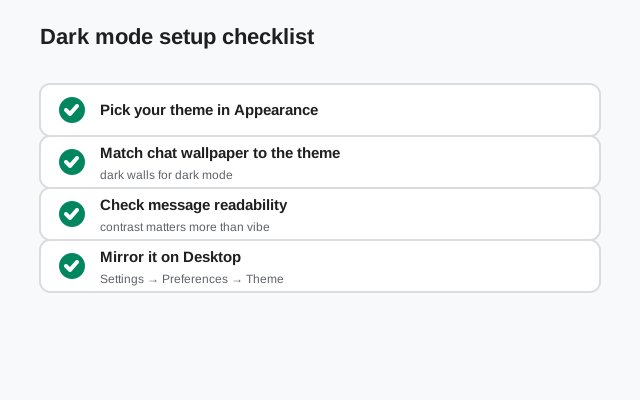
| Step | What to do |
|---|---|
| 1. Pick the theme | Appearance > Theme → Dark (always dark) or System default (follows the phone) |
| 2. Schedule on the phone | Phone Settings > Display → dark theme schedule (custom time or sunset to sunrise) |
| 3. Fix the wallpapers | Swap bright wallpapers for darker ones in your most-read chats |
| 4. Match the desktop | Set the desktop app's theme separately: it does not sync |
| 5. Test both light conditions | Read a chat in a dark room and in daylight; switch to System default if one looks bad |
Five minutes of setup, then you never think about it again, which is exactly how a theme setting should behave.
FAQ
How do I turn on dark mode in Signal?
Tap your profile picture, go to Appearance, tap Theme, and choose Dark. The change applies immediately with no restart.
Can I schedule dark mode in Signal?
Not inside Signal: there is no in-app timer. Set Signal's theme to System default, then schedule dark mode in your phone's Display settings. Signal will follow the phone's schedule.
What does System default mean in Signal?
It means Signal follows your phone's system theme: dark when the phone is dark, light when the phone is light. It is the default and the recommended setting for most people.
Does Signal dark mode save battery?
Only a little, on OLED/AMOLED screens, where dark pixels draw less power. Signal's dark theme is very dark but not marketed as pure black. The main benefits are comfort and less glare, not big battery savings.
Does dark mode sync between my phone and Signal Desktop?
No. The phone app and the desktop app have independent theme settings. Set each one the way you like; changing one does not change the other.
Keep reading
- chat wallpapers: pick backgrounds that look good in dark mode
- custom notifications: another comfort setting worth tuning
- battery drain fixes: the settings that actually save battery
- screen lock: lock Signal behind your device lock