
Signal Custom Notifications: Give Each Chat Its Own Sound, Vibration, and Mute
Published: October 7, 2026 · Updated: October 8, 2026
Some chats deserve your attention. Others do not. Signal lets you tune notifications per chat: a special sound for your family, silence for the noisy group, a gentle vibration for everything else. This guide explains the difference between global and per-chat settings, how to set custom sounds, how muting works, and how to reset everything when you are done.
from Signal's official site — file hosted by Signal, not by us
Global settings vs per-chat settings
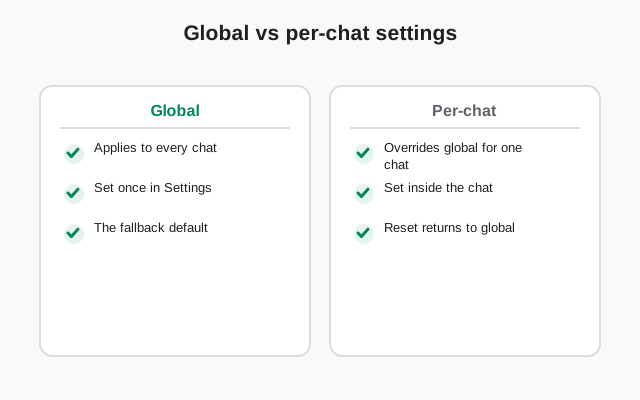
Signal has two layers of notification settings, and understanding them saves you from the classic mistake of muting the whole app when you only meant to mute one group:
- Global settings live under Settings > Notifications. They are the defaults for everything: the default sound, whether messages show on the lock screen, vibration behavior, and whether notifications arrive at all. Change these and every chat follows, unless a chat has its own overrides.
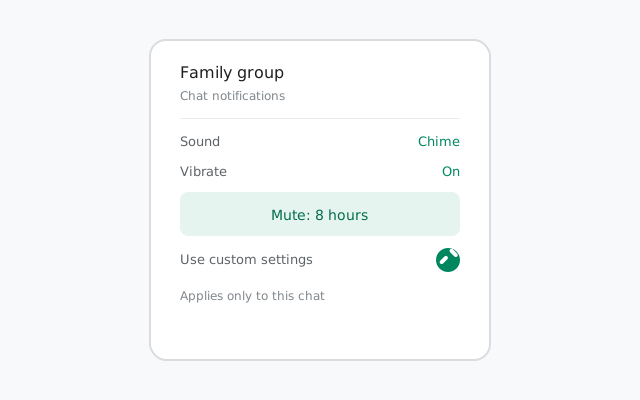
- Per-chat settings live inside each conversation. Open any chat, tap the name at the top, and look for Custom notifications. Turn it on, and that chat stops following the global defaults and uses its own sound, vibration, and mute instead.
Think of it this way: global settings are the house rules; per-chat settings are the exceptions you grant one by one. Exceptions always win for their chat.
How to set custom notifications for a chat
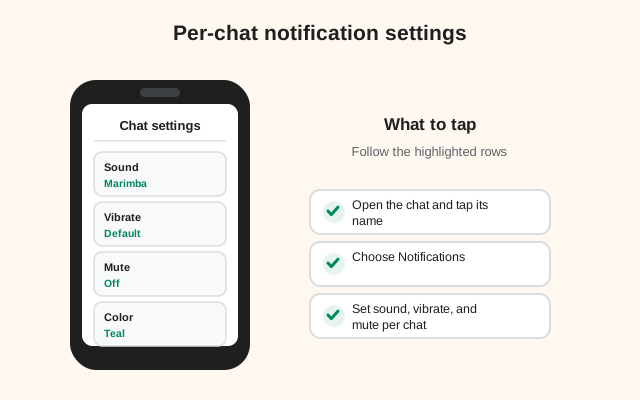
Open the chat
Open the conversation you want to customize: a one-to-one chat or a group.
Open chat details
Tap the contact's name or the group name at the top of the screen.
Turn on Custom notifications
Find Custom notifications and switch it on. This is the master switch: until it is on, the chat keeps following your global defaults.
Pick your options
Choose a sound, set vibration, or apply a mute. Each is explained below.
The settings take effect immediately. There is no save button and nothing to restart. If you ever want the chat to follow the global rules again, just switch Custom notifications back off.
Custom sounds: pick a tone per chat
With Custom notifications on, you can assign a different notification sound to that chat. This is the single most useful per-chat setting:
- Important people get a distinct tone. Give your partner, your kid's school, or your boss a sound you cannot miss. When it plays, you know who it is without looking.
- Noisy chats get a quiet tone. A soft, short blip for the hobby group keeps it from hijacking your attention.
- Calls can differ too. Signal lets the call ringtone be set separately from message sounds, so a call always cuts through even when messages are quiet.
You pick from your phone's available tones. Signal reads the same sound list as the rest of your Android system. If you add a custom tone to your phone's notification sounds, it shows up in Signal too.
Muting a chat: how it works
Muting is different from customizing. A muted chat still receives messages normally. You just do not get poked about them:
- What muting does: no sound, no vibration, no banner for new messages in that chat. The messages sit there waiting for you.
- What muting does NOT do: it does not block the person, it does not mark messages as read, and it does not delete anything. The unread badge still counts up.
- How long it lasts: when you mute, Signal offers several durations: from a short stretch (an hour or so) up through days, and an option to keep the chat muted until you unmute it yourself.
- Unmuting: open the same chat details and turn the mute off. It takes effect immediately.
Good muting habits: mute the fantasy-league group for the season, mute the family group during work hours with a timed mute, and never mute the one chat you would be in trouble for missing. When in doubt, a custom quiet tone beats a full mute. You still hear something.
For the full mute deep-dive (duration presets, muting groups, calls from muted chats, and the mute-plus-archive combo), see our guide to muting chats and groups.
Vibration: what you can control
Vibration settings are simple on purpose. Per chat, with Custom notifications on, you can control whether that chat vibrates when a notification arrives:
- Vibration on: the phone buzzes along with the sound (or alone, if you set the sound to silent).
- Vibration off: the chat stays completely still, useful for the group that messages at 2 a.m.
The actual buzz strength and feel are set by your phone's system, not by Signal. Signal just decides whether a given chat is allowed to buzz. For finer control (like per-contact vibration intensity), you would use Android's own notification-channel settings, which Signal supports: long-press a Signal notification in your shade and Android will show you its channel controls.
How to reset per-chat settings
Over months, custom settings pile up. Maybe the quiet tone you gave a group two years ago no longer makes sense. Resetting is easy because it is just the reverse of setting up:
Open the chat details
Open the chat and tap the name at the top.
Switch Custom notifications off
The chat immediately goes back to following your global defaults. All of its custom choices are discarded.
There is no bulk reset button. You clear custom settings one chat at a time. Honestly, that is fine: most people only ever customize a handful of chats, and the rest were on defaults all along.
When notifications misbehave
Custom sounds and mutes are not the cause of most notification problems. If Signal notifications are late, silent, or missing entirely, the culprit is almost always the phone's battery optimization or the system notification channels, not your per-chat settings. Start with the fixes in our notifications troubleshooting guide, and check the device-specific pages if you use a Samsung, Huawei, or Xiaomi phone.
One quick self-check before you dig deeper: open the quiet chat, tap the name at the top, and confirm whether it is muted or has a silent custom sound. Half of all "Signal notifications stopped working" mysteries turn out to be a mute someone forgot they set.
Notification recipes that actually work
| Chat type | Recommended setup |
|---|---|
| Partner / kids / boss | Custom notifications on; distinct loud tone; vibration on; never muted |
| Noisy group (memes, sports) | Custom notifications on; quiet short tone; timed mute during work hours |
| Work group, off-hours | Muted in the evening with a timed mute; unmuted in the morning |
| Everything else | Leave on global defaults; customize only when a chat annoys you twice |
Set these up once and you will wonder how you lived with one sound for everything. For the bigger privacy picture (who can reach you at all), read our phone number privacy guide.
FAQ
How do I set a different notification sound for one chat on Signal?
Open the chat, tap the name at the top, turn on Custom notifications, and pick a sound. That chat will use the new tone while everything else keeps your global default.
How do I mute a chat on Signal?
Open the chat, tap the name at the top, and apply a mute. You can mute for a short period like an hour, for days, or until you unmute it manually. Muted chats still receive messages silently.
Does muting a chat on Signal block the person?
No. Muting only silences notifications. Messages still arrive normally and the person is not notified. If you want to cut contact, use block instead.
How do I reset custom notification settings on Signal?
Open the chat, tap the name at the top, and switch Custom notifications off. The chat goes back to following your global notification defaults immediately.
Why am I not getting Signal notifications at all?
Check first whether the chat is muted or has a silent custom sound. That is the most common cause. If nothing is muted, the issue is usually battery optimization or Android notification channels; see our notifications troubleshooting guide.
Keep reading
- notifications not working fixes: when Signal alerts are late or silent
- phone number privacy: control who can reach you in the first place
- block and report spam: when silence is not enough
- dark mode guide: another per-device comfort setting worth knowing