
How to Mute Chats and Groups on Signal
Published: October 7, 2026 · Updated: October 8, 2026
Everyone has that one chat: important enough to keep, too loud to live with. Muting is Signal's answer. A muted chat keeps working normally. Messages arrive, the unread badge counts up, you can reply any time, but your phone stops buzzing, dinging, and lighting up for it. It is per-chat, it is temporary or permanent at your choice, and nobody on the other end ever finds out. This guide covers how to mute individuals and groups, what each duration option does, how muting differs from disabling notifications or blocking, and the honest limits of muting.
from Signal's official site — file hosted by Signal, not by us
How to mute a chat on Signal
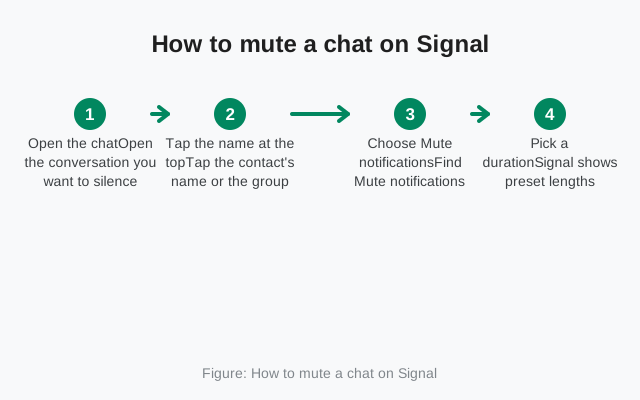
The mute control lives inside each conversation, not in a global settings page. Here is the flow on Android:
Open the chat
Open the conversation you want to silence (a person or a group; it works the same).
Tap the name at the top
Tap the contact's name or the group name at the top of the screen. This opens the conversation's settings.
Choose Mute notifications
Find Mute notifications in the list and tap it.
Pick a duration
Signal shows preset lengths (covered in detail below). Tap the one you want. The mute starts immediately. No confirmation, no restart.
On iPhone the path is nearly identical: open the chat, tap the name at the top, find the mute option, choose a length. On Signal Desktop, right-click the conversation in your list (or open its settings) and choose the mute option there.
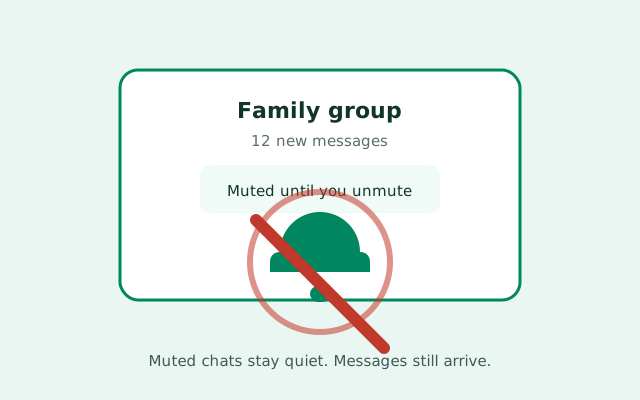
You will know it worked because the conversation shows a small muted bell icon (a bell with a slash through it) next to its name in the chat list and in the conversation header. If you do not see that icon, the mute did not apply, and you should try again.
Muting is per conversation. Muting your family group does nothing to your chat with your partner, and vice versa. There is no "mute everything at once" button. If you want total silence, that is what your phone's Do Not Disturb mode is for (more on that below).
Mute durations: what each option does
When you mute a chat, Signal offers a short menu of preset lengths rather than a custom timer. The exact labels can shift slightly between app versions, but the shape of the list has been stable for a long time. Expect something like this:
- About an hour. The "meeting mute." You are walking into something and want quiet for the duration. When the hour passes, notifications come back on their own. You do not have to remember to unmute.
- Several hours. The "workday mute." Covers a morning or an afternoon of focused work without you having to think about it again.
- About a day. The "travel day" or "busy day" mute. One full cycle of quiet, then back to normal tomorrow.
- About a week. The "vacation mute." Useful for groups that go through intense bursts (wedding planning, event organizing) that you still want to catch up on later.
- Indefinite. The "always mute." The chat stays silent until you manually unmute it. This is the right choice for chats that are permanently loud but permanently worth keeping. It is the option you want for the archive-plus-mute trick in our archive guide.
A word of honesty: the labels above are described qualitatively on purpose, because exact wording can vary by version and platform. The concept is what matters: short presets for temporary quiet, one indefinite option for permanent quiet. When a timed mute expires, notifications return automatically. Nothing tells you the mute ended; you will just notice your phone buzzing again.
How to choose: when in doubt, pick the shortest option that covers your need. A one-hour mute that you extend is better than a week-long mute you forget about. The indefinite option is the only one that needs deliberate intent, because it will never remind you it is on. The little bell icon is your only clue.
Muting group chats
Muting a group works exactly like muting a person: open the group, tap the group name, choose Mute notifications, pick a duration. The muted bell icon appears next to the group in your chat list.
A few group-specific notes:
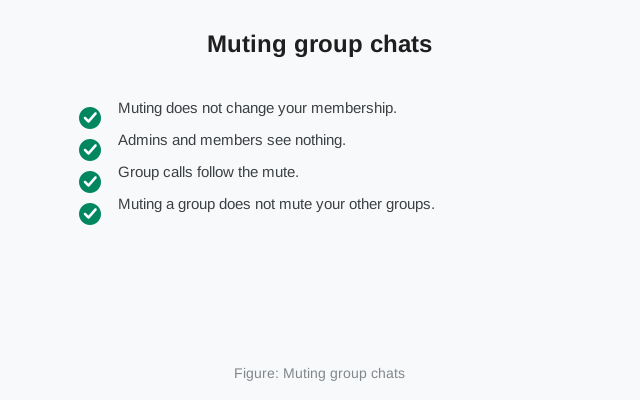
- Muting does not change your membership. You are still in the group. You can still read everything, reply, react, and see who read your messages. Muting only silences notifications.
- Admins and members see nothing. Nobody in the group gets told you muted it. There is no "muted member" indicator anywhere. Our group admins guide confirms what admins can actually see. Muting is not on the list.
- Group calls follow the mute. If the group is muted, call notifications from that group are silenced too, so a surprise group video call does not blast through your quiet evening.
- Muting a group does not mute your other groups. Every conversation's mute is independent.
The classic use case: the family group that sends forty good-morning messages, the work group that pings at 11 PM, the friend group planning a trip with two hundred messages a day. Mute them, check them on your schedule, and nobody is the wiser.
How to unmute
Unmuting mirrors muting exactly. Open the chat, tap the name at the top, tap Mute notifications again. Where the duration menu appeared before, you now get the option to turn the mute off. Tap it. Notifications resume immediately, and the muted bell icon disappears from the chat list.
If you are not sure which chats are muted, scan your chat list for the bell-with-slash icon. That icon is the full inventory. There is no separate "muted chats" settings page to check. This is also why a quick glance through your chat list every few months is worth it: forgotten indefinite mutes are how people "miss" messages for weeks.
Mute vs turning off notifications
These sound like the same thing. They are not, and the difference matters:
- Muting a chat silences notifications for that ONE conversation, inside Signal. Everything else notifies normally. This is surgical.
- Disabling Signal's notifications at the phone level (your phone's Settings → Apps → Signal → Notifications) silences ALL Signal notifications. Nobody gets through. This is the sledgehammer.
- Do Not Disturb mode silences your whole phone (Signal, messages, calls, everything) on a schedule you set. This is for sleep and focus, not for one noisy chat.
- Custom notification settings let you fine-tune one chat's sound, vibration, and LED color instead of silencing it completely. If a chat is important but its default notification is annoying, customizing may be better than muting. Our custom notifications guide walks through those options.
The decision framework: one chat too loud → mute the chat. Everything too loud → phone-level notification settings or Do Not Disturb. Chat's sound specifically annoying → custom notifications. Most "my phone won't stop buzzing" problems are solved at the per-chat level. Mute the two or three loudest conversations and the rest of your notifications become useful again.
Muted vs blocked
Mute and block are the two most confused features in the app, and the confusion is understandable. Both make someone "go quiet." But they are opposites in intent:
- Muted: they can message you, you receive everything, you just do not get notified. You can reply any time. The relationship continues; only the noise stops. Use when: you like the person, you just do not want your phone buzzing.
- Blocked: they cannot message you or call you at all. Their messages do not arrive. Their calls do not come through. They are removed from your chat list. Use when: you do not want contact from this person, period. Our block and report guide (in the features silo) covers blocking in detail.
A muted person has no idea they are muted. A blocked person may figure it out: their messages never show as delivered, their calls never connect. So muting is the socially safe option: silence without a statement. Blocking is the boundary option: silence as a statement.
If you are ever unsure which one you need, mute first. Muting is instantly reversible and invisible. You can always escalate to blocking later.
What about calls from muted chats?
Muting a conversation silences its message notifications, and it also silences call notifications from that conversation. If you mute a person, their voice and video calls will not ring your phone. They go to missed calls silently, and you see them in the chat afterward.
This catches people off guard in both directions. Good surprise: muting the loud group also kills surprise group calls. Bad surprise: muting your partner for an hour of quiet means their "call me, it is urgent" call also goes silent. If you are expecting an important call from someone, do not mute them. Use your phone's Do Not Disturb with an exceptions list instead, or just lower your volume.
Note that this is about per-chat muting. System-level call behavior (your phone's ringer, Do Not Disturb rules) always sits above app settings. If your phone is on silent, no chat can ring you regardless of mute status.
Mute + archive: the stay-hidden combo
As covered in our archive guide: archiving hides a chat, but a new message automatically unarchives it, unless the chat is also muted. A muted chat stays in the archive when new messages arrive.
This is the complete "quiet corner" setup for a chat you want to check on your own terms:
Mute it indefinitely
Open the chat, tap the name, Mute notifications, choose the indefinite option. The bell icon appears.
Archive it
Long-press the chat in your list, tap the archive icon. It slides into the Archived section.
Check it on your schedule
Open the Archived section whenever you feel like it: once a day, once a week. New messages wait patiently. Nothing buzzes, nothing jumps to your main list.
The only maintenance: if you used a timed mute instead of the indefinite one, the combo breaks when the timer expires. For set-and-forget hiding, the indefinite mute is the load-bearing piece.
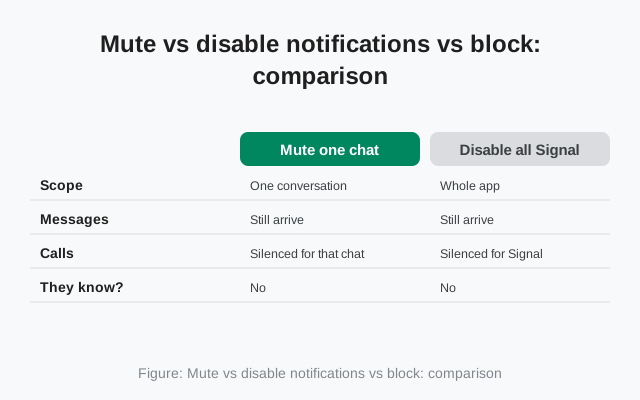
Mute vs disable notifications vs block: comparison
| Mute one chat | Disable all Signal notifications | Block a person | |
|---|---|---|---|
| Scope | One conversation | Whole app | One person, completely |
| Messages | Still arrive, badge counts up | Still arrive, no alerts at all | Never arrive |
| Calls | Silenced for that chat | Silenced for Signal | Cannot reach you |
| They know? | No | No | They can figure it out |
| Reversible? | Yes, instantly | Yes, instantly | Yes, by unblocking |
| Best for | Loud-but-loved chats | Full digital detox periods | Unwanted contact |
Common mute mistakes
- Forgetting an indefinite mute. The number one mute mistake. You muted a chat six months ago, forgot, and now wonder why you "never hear" from someone. Scan for the bell icon when something feels off.
- Muting instead of customizing. If a chat is important but its notification sound grates on you, custom notifications fix the annoyance without the silence.
- Muting the person who is about to call. Remember: per-chat mute silences their calls too. Do not mute someone you are waiting to hear from.
- Using mute as a read-receipt shield. Muting stops notifications, not read receipts. If you open the chat, the sender still sees their message as read. Muting changes nothing about that. For receipt control, see our read receipts guide.
- Muting on only one device. Mute state travels with your account now, not just the device: a chat muted on your phone arrives muted on Signal Desktop too, and unmuting on either side clears it everywhere. If a chat still pings on one device right after you muted it elsewhere, give the sync a moment; if it persists, our linked-device troubleshooting covers it.
- Muting when you should block. If someone's messages upset you rather than just interrupt you, muting is a bandage. Block them.
Mute is the most-used "peace" feature in any messenger for a reason: it solves the loud-chat problem with zero social cost. Mute the loud ones, pin the important ones, and your phone starts working for you again instead of the other way around.
FAQ
How do I mute someone on Signal without blocking them?
Open the chat, tap the name at the top, choose Mute notifications, and pick a duration. They can still message you and you still receive everything. Your phone just stays quiet. They are never told.
Can I mute a Signal group?
Yes, exactly like a person: open the group, tap the group name, choose Mute notifications, pick a duration. You stay in the group and can read and reply; only notifications stop. Nobody in the group knows.
What mute durations does Signal offer?
Signal offers preset lengths (roughly from an hour up to a week) plus an indefinite option that lasts until you unmute manually. Exact labels can vary slightly by app version.
Does muting stop calls too?
Yes. Muting a conversation also silences voice and video call notifications from that chat. If you are waiting for an important call from someone, do not mute them.
Does the other person know I muted them?
No. Muting is completely invisible to the other person. That is the main difference from blocking, which they can usually figure out.
How do I unmute a chat on Signal?
Open the chat, tap the name at the top, tap Mute notifications again, and turn the mute off. Notifications resume immediately.
Keep reading
- archiving chats: mute + archive keeps a chat hidden for good
- pinning chats: pin keeps it visible, mute keeps it quiet. Use both
- custom notifications: when you want a different sound, not silence
- read receipts and typing indicators: muting stops alerts, not read receipts