
How to Pin Chats on Signal and Keep Them on Top
Published: October 7, 2026 · Updated: October 8, 2026
If you use Signal for more than a few conversations, you know the problem: the chat that matters most right now keeps sinking every time some group chat gets a new message. Pinning fixes that. A pinned chat jumps to the top of your chat list and stays there, no matter how much new activity happens below it. It takes five seconds, it works for people and groups, and it is one of those small features that makes the app feel completely different once you start using it.
from Signal's official site — file hosted by Signal, not by us
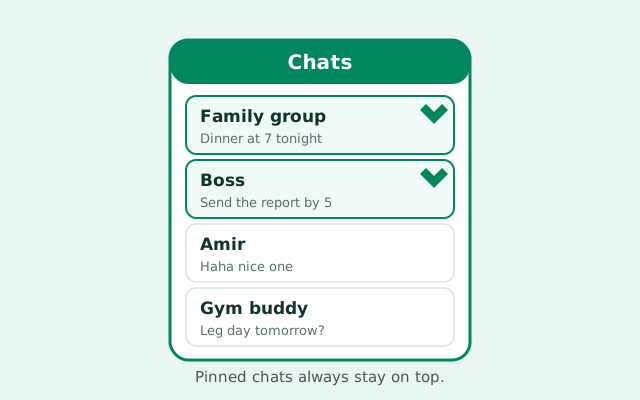
How to pin a chat on Signal
The gesture is the same one you use for everything in a chat list: long-press the conversation you want to pin. A small toolbar appears at the top of the screen (on Android) or next to the chat (on iPhone). Tap the pin icon (it looks like a little pushpin), and the chat immediately moves to the top of your list.
That is the whole procedure. There is no confirmation dialog, no settings page to visit, and no restart needed. The pin takes effect the instant you tap it. You can test it in seconds: pick any chat, pin it, then have someone (or your own Note to Self) send messages to other chats. The pinned chat stays exactly where you left it.
Pinning works the same way for:
- One-on-one conversations: the person you talk to every day, your partner, your best friend.
- Group chats: family groups, work groups, any group you check constantly.
- Note to Self: if you use your personal chat as a clipboard, pinning it keeps your notes one tap away. Our Note to Self guide covers what to store there.
Pinned chats sit in their own little zone at the top of the list, in the order you pinned them (the most recently pinned goes first). Below that zone, everything else keeps sorting by most recent message, exactly as before. Your pinning does not change the other person's experience at all. Pinning is 100 percent local to your phone. Nobody gets a notification, nobody sees a pin on their end, and it has nothing to do with how your messages are encrypted.
How to unpin a chat
Unpinning is the mirror of pinning. Long-press the pinned conversation again and tap the pin icon once more. It now shows the pin as "active," so tapping it removes the pin. The chat drops back into the normal list and starts sorting by latest message again.
A few practical notes about unpinning:
- There is no "unpin all" button. If you went overboard and pinned twelve chats, you remove them one at a time. It takes a few seconds per chat, so most people learn to pin sparingly.
- Unpinning never deletes anything. The chat, its messages, its media: all of it stays exactly where it was. The only thing that changes is its position in the list.
- You cannot pin a single message to the top of a chat. Signal pins conversations, not messages. If you want to mark a specific message for later, forward it to Note to Self instead.
How many chats can you pin?
Here is the honest answer: Signal does not advertise a hard number, and it does not need to. Pinning is a convenience feature, not a capacity feature. In practice, the sensible limit is much smaller than any technical one.
Think about what pinning is for. Pinned chats exist so you can reach the conversations that matter in one glance. Once you pin six or eight chats, you are back to scrolling, just through a pinned section instead of the full list. The feature stops doing its job.
Most people get the most value from two to four pinned chats: the person they talk to most, one work or school group, maybe family, maybe Note to Self. If your pinned section needs scrolling, you have pinned too many. Treat pinning like the favorites list in your phone app: a handful of essentials, not a second inbox.
There is one more practical wrinkle: on a small phone screen, every pinned chat takes up one row of visible space. Three pinned chats mean three fewer recent chats visible when you open the app. That is the real cost of pinning too much: not a system limit, but screen real estate.
Pinned chats vs archived chats
Pinning and archiving are opposites, and people mix them up because both are about organizing the chat list. They do completely different jobs:
- Pinning makes a chat MORE visible. It sits at the top permanently. Use it for chats you want instantly.
- Archiving makes a chat LESS visible. It moves into a collapsed section and hides until a new message arrives. Use it for chats you want out of the way. Our archive guide covers the full behavior, including what happens when an archived chat gets a new message.
Can you pin an archived chat? Practically, no: the two states conflict. An archived chat lives in the archive section, and pinning means "show me this first." If you find yourself wanting both, what you probably actually want is pin + mute, which brings us to the next section.
Pin + mute: the power combo
Here is the trick experienced Signal users swear by. You have a group you must not miss messages from, but it also messages too much. The classic noisy-but-important group. Pinning alone means it stays at the top and buzzes you every five minutes. Muting alone means it stays quiet but sinks into the list.
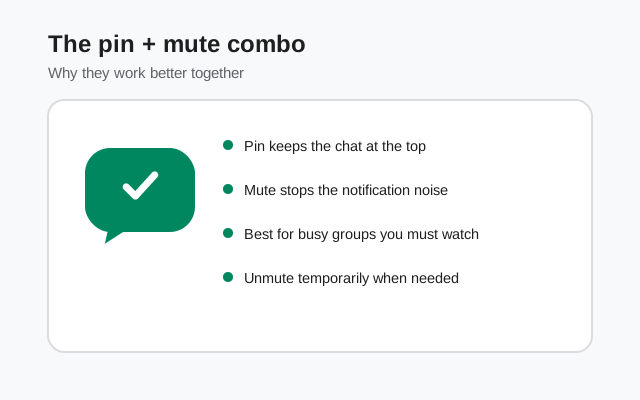
Pin it AND mute it. The chat stays fixed at the top of your list where you will notice the unread badge whenever you open the app. Your phone stays silent. You check it on your schedule, not its schedule. To do this, pin the chat as described above, then open it, tap the group name at the top, and choose Mute notifications with a duration that fits (our mute guide walks through the options).
This combo is the answer to a question people ask a lot: "How do I watch this group without it owning my attention?" Pin for visibility, mute for peace. Together they give you both.
Do pinned chats sync across devices?
Be careful with this one. Signal stores your pinning on the device where you did it. Your account does sync many settings through Signal's encrypted storage service, but pinning behaves like a per-device preference in practice. If you pin three chats on your phone and then open Signal Desktop, do not assume the same three are pinned there.
The safe approach: pin on each device you use. It takes ten seconds per device, and then every screen shows the layout you expect. If you ever notice your desktop's pinned chats differ from your phone's, just re-pin them on that device instead of troubleshooting. This is a five-second fix, not a bug worth a support thread.
One related warning: pins, like everything else, vanish if you wipe the app or set up Signal fresh without restoring from a backup. Pins are not backed up separately. After a phone change or reinstall, expect to re-pin. Make your backup work first (our Android backup guide explains how), and re-pin as part of your "new phone setup" routine.
Pinning group chats
Group pinning works exactly like pinning a person, with one extra consideration: groups are where most people get the most value from pinning, and also where they pin too many. A good rule of thumb:
- Pin the groups you read on purpose. The family group, the team group, the group that coordinates something you care about.
- Do not pin the groups you only check out of habit. Pinning a group you never need will train you to ignore the pinned section. Once you ignore it, the whole point of pinning dies.
- Combine with muting for loud groups. As covered above: pin keeps it visible, mute keeps it silent.
- Remember group admins see nothing. Pinning a group changes nothing on the server and nobody in the group knows you pinned it. Our group admins guide explains what admins can and cannot see.
Pin vs archive vs mute vs block: the full comparison
These four features all touch "who shows up and how," but they solve different problems. Here is the quick reference:
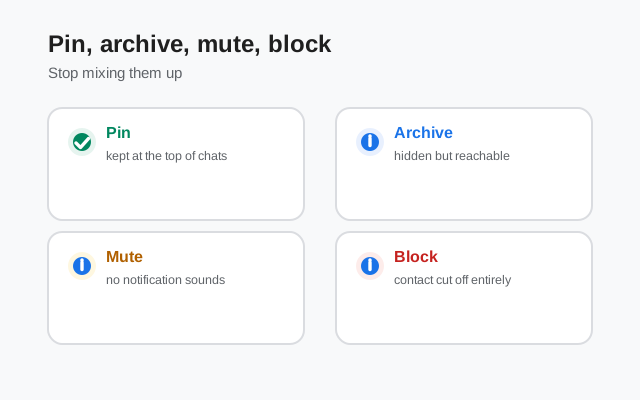
| Feature | Visibility | Notifications | Other person knows? | Reversible? |
|---|---|---|---|---|
| Pin | Chat stays at top | Unchanged | No | Yes, one tap |
| Archive | Chat hides in a collapsed section | Still arrive (chat may reappear) | No | Yes, unarchive |
| Mute | Unchanged | Silenced for chosen duration | No | Yes, unmute |
| Block | Chat disappears from list | Stopped entirely | Not directly, but they can tell | Yes, unblock |
The summary: pin when you want instant access, archive when you want it out of sight, mute when you want silence, block when you want it gone. And pin + mute together when you want instant access AND silence.
Common mistakes with pinning
- Pinning everything. Four pins max in practice. If you need more, your real problem is too many active chats. Archive or mute the rest.
- Confusing pin with archive. They are opposites. Pin = more visible, archive = less visible.
- Expecting pins to sync. Treat pinning as per-device and re-pin on each device.
- Expecting pins to survive a reinstall. They do not. Re-pin after setting up a new phone.
- Pinning instead of searching. If you are digging for a message inside a chat, pinning will not help. Use Signal's search instead.
- Forgetting Note to Self. Half of "I keep losing important stuff" problems are solved by forwarding messages to Note to Self and pinning that chat.
Pinning is a five-second habit with an outsized payoff. Pin your two or three most important chats today, mute the ones that are loud but important, and your Signal chat list goes from a river you fight against to a shelf you reach for. Small change, big difference.
FAQ
How do I pin a chat on Signal?
Long-press the conversation in your chat list, then tap the pin icon in the toolbar that appears. The chat jumps to the top of the list and stays there even when other chats get new messages.
How do I unpin a chat on Signal?
Long-press the pinned chat and tap the pin icon again. The pin is removed and the chat returns to normal sorting by latest message. Nothing is deleted.
Does the other person know I pinned their chat?
No. Pinning is completely local to your device. Nobody is notified and nothing changes on their end.
How many chats can I pin on Signal?
Signal does not publish a hard limit, but the practical limit is small: pin two to four chats. Pin more and you are scrolling through the pinned section, which defeats the purpose.
Do pinned chats stay archived or muted?
Pinning and archiving conflict, so use pin for visibility. Pinning combines well with muting: pin keeps a loud group at the top where you will see it, mute keeps your phone silent.
Do pinned chats sync to my other devices?
Treat pinning as per-device. If you use Signal on your phone and desktop, pin your important chats on each device separately instead of assuming they sync.
Keep reading
- archiving chats: the opposite of pinning. Hide chats instead.
- muting chats: pin + mute is the power combo for loud-but-important groups
- Note to Self: pin your personal clipboard chat for one-tap access
- searching Signal: when you need a message, not a chat, search beats scrolling