
How to Set Up Your Signal Profile: Name, Photo, and About
Published: October 7, 2026 · Updated: October 8, 2026
Your Signal profile is your face in the app. It is made of three things: a display name, a photo, and a short About line. Everyone you chat with or share a group with sees these three things, so it is worth setting them up with care. This guide walks through each part, explains exactly who can see what, and shows how to change or remove your photo later.
from Signal's official site — file hosted by Signal, not by us
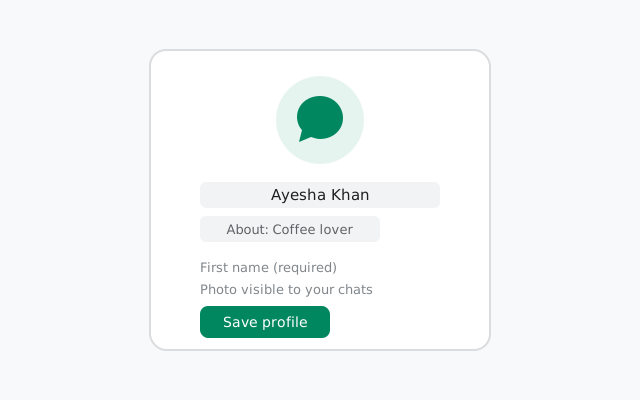
What makes up your Signal profile
Your Signal profile has exactly three parts, and nothing else. There is no status, no bio page, no timeline:
- Display name. Your first name is required; a last name is optional. This is what people see next to your messages.
- Profile photo. Optional. Pick a photo from your gallery or take a new one. You can change or remove it any time.
- About. Optional. One short line of text: a greeting, a quote, your work role, whatever you like.
That is the whole thing. Signal keeps the profile deliberately small because it is a messenger, not a social network. Anything you put here is meant to help people recognize you, not to impress strangers.
How to set your display name
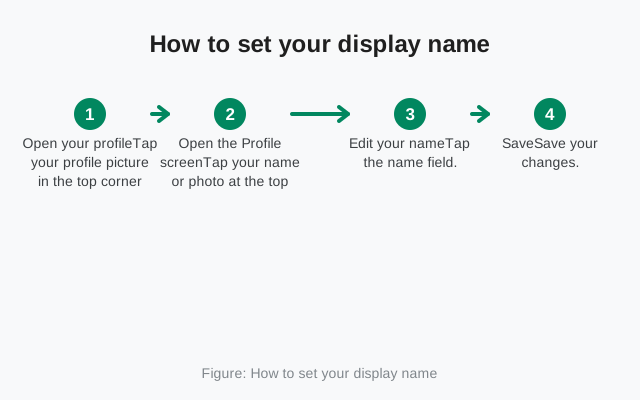
You pick your name during the first setup, right after you verify your number. If you rushed through it, like most people do, changing it later takes less than a minute:
Open your profile
Tap your profile picture in the top corner of the chat list to open Settings.
Open the Profile screen to edit your name
Tap your name or photo at the top of Settings to open the Profile screen.
Edit your name
Tap the name field. Your first name is required; the last name is optional and you can leave it blank.
Save the new name
Save your changes. The new name shows up for everyone you chat with, right away.
A practical tip: use a name people actually know you by. In big groups, members often see only the display name, so "Ali" is more useful than "xX_shadow_Xx" when the group is your office or your family. Nicknames are fine. Just make them recognizable.
One more honest note: your display name is not verified by Signal. Anyone can use any name, which is exactly why verifying safety numbers matters when identity really counts.
How to add, change, or remove your photo
A profile photo is optional, but it makes a real difference in groups. When ten people share a first name, the photo is how others tell them apart.
To add or change your photo:
Open the Profile screen to change your photo
Go to Settings and tap your name or current photo at the top.
Tap the photo
Tapping the photo circle opens the photo options.
Pick a source
Choose Take photo to snap a new one, or Choose from gallery to use an existing picture.
Save the new photo
Confirm, and your new photo replaces the old one everywhere: chats, groups, and the chat list.
To remove your photo: on the same photo options screen, choose Remove photo. Your profile goes back to showing your initials. There is no "private photo for contacts only" option. The photo is the same for everyone who can see your profile.
Privacy reminder: whatever photo you use is visible to everyone you chat with, including people who message you from a username without knowing your number. If you want the profile without the exposure, the initials-only look is a perfectly good choice.
How to write your About line
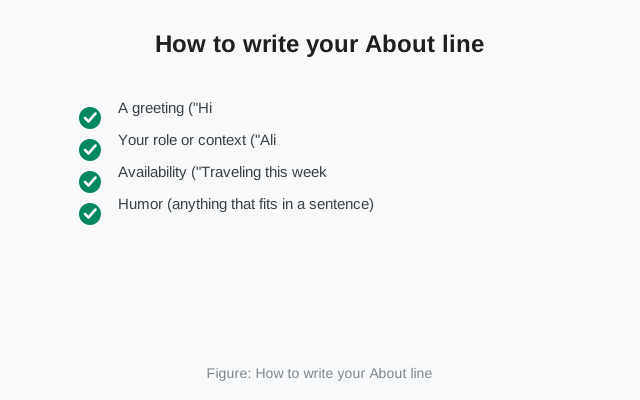
The About line is one short text field under your name on the Profile screen. It is meant for a line or two. Think of it like a status line, not a biography. Common uses:
- A greeting ("Hi, I am using Signal")
- Your role or context ("Ali: XYZ Corp support")
- Availability ("Traveling this week, slow replies")
- Humor (anything that fits in a sentence)
Keep it to what you would say when introducing yourself in one breath. You can edit it as often as you like from the Profile screen, so treat it as a living line rather than a permanent label.
Who sees your profile (and who does not)
This is the part people misunderstand most. Your profile (name, photo, About) is visible to the people you chat with. Your phone number follows different, stricter rules. The two are separate systems:
- Profile name, photo, and About: visible to anyone you have a conversation with, and to members of groups you share.
- Phone number: controlled by the two privacy settings under Settings > Privacy ("Who can see my number" and "Who can find me by my number"). Your number can be fully hidden even while your profile is fully visible.
That separation is the whole point of our phone number privacy guide: you can keep your number private from everyone while still showing a friendly profile to the people you talk to. Pair it with a username and people can reach you without ever learning your number at all.
One caveat: there is no per-contact profile privacy in Signal. You cannot show one photo to friends and a different photo to a work group. If a photo or name is on your profile, everyone who sees your profile sees the same one. Choose accordingly.
Your profile in group chats
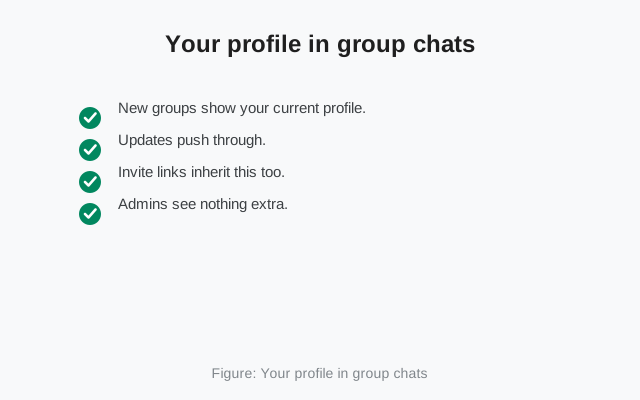
Groups are where your profile works hardest. When you join a group, every member sees your display name and photo, even members you have never spoken to. A few things worth knowing:
- New groups show your current profile. Whatever name and photo are set when you join is what members see.
- Updates push through. If you change your name or photo later, group members see the update. You do not need to leave and rejoin.
- Invite links inherit this too. Someone who joins through a group invite link sees member profiles the same way, so do not treat big public groups as private just because you were "invited".
- Admins see nothing extra. Group admins manage members and settings; they get no special view of your profile or number beyond what any member sees.
If you are joining groups with strangers (hobby groups, crypto chats, marketplace groups), consider a nickname and an initials-only photo before you join. You can read more about group behavior in our groups guide.
Your shareable profile link
Signal lets you share a link that opens a chat with you, without handing over your phone number. On the Profile screen you can find the option to share your profile link. Copy it and send it anywhere: email, a forum, a business card.
People who open the link land on a page where they can start a Signal chat with you. What they see first is your profile: name, photo, About. That is one more reason to keep the profile clean and recognizable. And as always, they learn your number only if your number-privacy settings allow it.
This is the number-free way to say "message me on Signal": link first, number never.
Profile fields at a glance
| Field | Required? |
|---|---|
| Display name | First name required, last name optional; editable any time from the Profile screen |
| Profile photo | Optional; take a new photo or pick from the gallery; removable any time |
| About | Optional; one short line; editable any time |
| Who sees it | Everyone you chat with and everyone in your groups: the same profile for all of them |
| Phone number | Separate from the profile; controlled by the Privacy settings, can be fully hidden |
Once your profile is set, the next privacy wins are quick: hide your number with the number privacy settings, pick a username, and lock the app itself with screen lock.
FAQ
How do I change my name on Signal?
Tap your profile picture, open the Profile screen, and tap the name field. Your first name is required and the last name is optional. Save, and the new name shows up for everyone right away.
How do I remove my profile photo on Signal?
Open Settings, tap your name or photo to open the Profile screen, tap the photo, and choose Remove photo. Your profile will show your initials instead.
What is the About line on Signal?
A short, optional line of text under your name on your profile. Use it for a greeting, your role, or availability. Avoid putting private details in it, since everyone who sees your profile can read it.
Who can see my Signal profile?
Everyone you chat with and everyone in your groups sees the same profile: name, photo, and About. There is no per-contact profile privacy. Your phone number is controlled separately by the Privacy settings.
Can I hide my profile photo from some people?
No. Signal does not offer per-contact profile privacy. If a photo is on your profile, everyone who sees your profile sees the same photo. If that worries you, use the initials-only look instead.
Keep reading
- the phone number privacy settings: hide your number while keeping a friendly profile
- Signal usernames: let people reach you without your number
- the groups guide: how profiles behave in group chats
- screen lock: keep your profile and chats behind your lock screen