
Signal Groups: Create, Manage & Secure Yours
Published: October 7, 2026 · Updated: October 8, 2026
Groups are where Signal stops being a phone replacement and starts being a community tool. This guide walks through creating a group, managing members, locking down the admin settings, and using links, timers, and mentions like someone who has run groups before.
from Signal's official site — file hosted by Signal, not by us
What a Signal group actually gives you
A Signal group is a chat room for people you pick, with the same end-to-end encryption as a one-to-one chat. Everything sent in the group stays readable only by the members. That covers messages, photos, files, and calls started from the group. According to Signal’s own support documentation, the Signal service keeps no record of your group memberships, group titles, group avatars, or group attributes.
Practical highlights worth knowing before you create one:
- Up to 1,000 members in a single group. Far more than a family chat will ever need, and enough for a community or an organization.
- Group links and QR codes let people join without you adding each contact by hand.
- Mentions let you tag a specific member with @ in a busy group.
- Admin controls decide who can edit the group’s info, who can send messages, who can start calls, and who approves new joiners.
- Disappearing-message timers can be set per group, independent of your other chats.
Create a group in under a minute
You do not need anything special prepared: just the people you want to include.
Open a new conversation
In Signal, tap the compose button (the pencil icon), then choose New Group.
Pick the members
Select contacts from your list, or type phone numbers. Everyone you add gets an invitation and joins when they accept it. A member may need to accept the message request first.
Name the group
Enter a group name. You can also add an avatar photo and a short group description so newcomers know what the group is for.
Set the disappearing timer (optional)
Choose a disappearing-message time right at creation, or leave it off and set it later. The timer is per group and can be changed any time by someone allowed to edit group info.
Tap Create
The group appears in your chat list immediately, and in the chat list of every member who accepts the invitation.
Add and remove members
Groups change over time. To manage the member list, open the group, tap the group name at the top to open group settings, then open the members section.
- Adding: any member can add new people by selecting contacts, or by sharing the group link. New members only see messages sent after they join. They cannot read the group’s past.
- Removing: this is an admin job. Only an admin can remove a member. Tap the member’s name in the member list and choose to remove them. The person can be re-added later if needed.
- Making someone an admin: an existing admin can promote another member to admin, and can demote them back again.
- Leaving: anyone can leave a group from the group settings. Your departure is visible to the remaining members. There is no silent exit.
Admin controls: the checklist that keeps groups safe
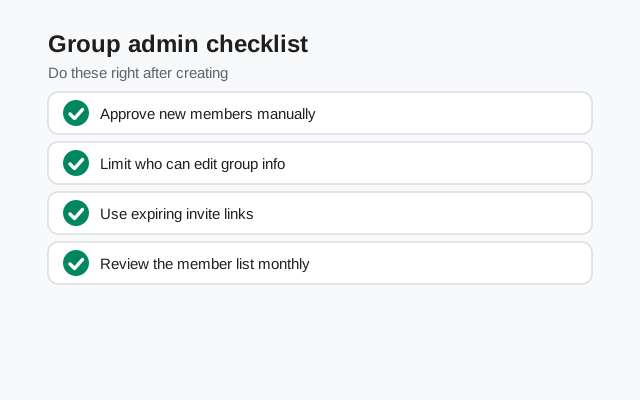
Most group problems are settings problems. The four settings that separate a well-run group from a spam magnet are who can edit the group's info, who can send messages, who can start calls, and whether the group link is on with member approval. The full checklist (promoting and demoting admins, what each permission setting really controls, removing members, and the last-admin handoff rule) lives in our group admins guide.
Group links and QR codes: inviting without the contact list
For a class, a team, or a community, the group link beats adding members one by one. Share it in an email, on a flyer, or as a QR code people scan in person. Anyone with the link can request to join, so pair it with admin approval and reset it if it spreads further than you intended. Our group invite link guide covers the full workflow: creating the link, the QR code version, the approval gatekeeper, and resetting or deleting a link that leaked.
Disappearing messages, per group
Each group has its own disappearing-message timer, independent of your one-to-one chats and your default timer for new chats. Set it in the group settings, or choose it at group creation. From then on, new messages in that group vanish after the chosen time.
Two things to understand clearly:
- The timer is not retroactive. Messages sent before you turned it on keep living. It only applies to new messages.
- It is not screenshot-proof. Disappearing messages stop old messages piling up on people’s phones; they do not stop someone photographing their screen. Treat the timer as hygiene, not as a guarantee.
Mentions and staying in the loop in big groups
In a busy group, typing @ followed by a name mentions a specific member. Mentions are the difference between a group that gets muted and forgotten and a group where people actually respond when needed.
If a group is noisy, you do not have to leave it. Mute the group for a set time or until you unmute it, and choose to be notified only when someone mentions you. You stay reachable for the things that matter and skip the hundred-message breakfast debates.
Message requests: what new members actually see
Adding someone to a group does not drop them straight into the conversation. The new member gets an invitation, effectively a message request for the group, and only becomes an active member when they accept it. Until then, they cannot read or send anything in the group.
This design has a practical side effect worth knowing: your member count and your real audience are two different numbers. A group with 40 members might have 25 who accepted and 15 who never responded. If you are organizing something important, do not trust the member list alone. Post a message asking people to react or reply, and treat silence as “probably did not see this.”
For groups joined through a link with approval turned on, the flow is: request → admin approves → invitation → member accepts. Each step is a chance for someone to drop out, which is normal. If a specific person never appears in the group, the most common cause is simply that they ignored the invitation. Send them a direct message and ask.
Group privacy: what the servers actually know
This is where Signal groups differ most from most chat apps. Per Signal’s support documentation, the service keeps no record of your group memberships, group titles, group avatars, or group attributes. The group’s name, photo, and member list are known to the members’ devices, not kept as a readable roster on a server.
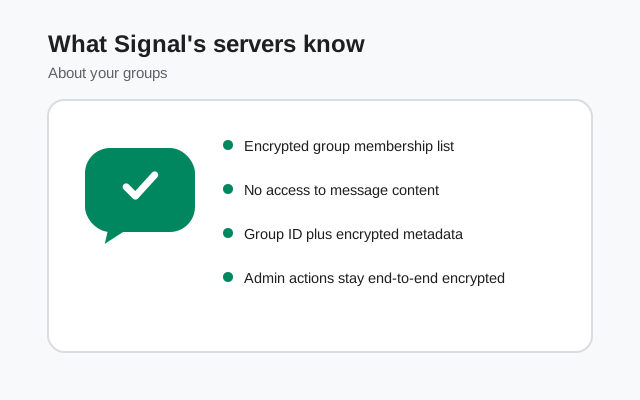
Practically, that means:
- Group messages are end-to-end encrypted, like all Signal chats.
- Anyone in the group can read everything sent while they are a member. Encryption keeps outsiders out, not insiders. Do not share in a group what you would not trust the least-trusted member with.
- Your profile name and photo are visible to fellow members, so use a profile you are comfortable showing to everyone in the room.
If you want the deeper privacy picture (what fellow members and admins can see, how number visibility works in groups, and invite-link risks), read who can see what inside your Signal groups.
FAQ
What is the maximum number of members in a Signal group?
Signal groups support up to 1,000 members, according to Signal's support documentation. That covers everything from a family chat to a full community group.
Can someone rejoin a group after being removed?
Yes. A removed member can be added back by anyone, or can rejoin through the group link if it is active. Removing someone is a membership change, not a ban list.
Do new members see old group messages?
No. New members only see messages sent after they join. Group history does not travel backward to newcomers.
Can I make a group where only admins can post?
Yes. In the group settings, the 'who can send messages' control can be set to admins only, which turns the group into an announcement-style channel.
If I turn on the group link, can strangers find my group?
The link is not searchable or listed anywhere public. But anyone who receives the link can request to join, so treat it like a key: share it deliberately, keep member approval on, and turn the link off if it spreads too far.
Keep reading
- the group admins guide: roles, permissions, removing members, and the last-admin rule
- group invite links and QR codes: create, approve joiners, reset or delete a leaked link
- group polls: run votes and decisions without chat chaos
- group privacy: who sees what: member visibility, number exposure, and link risks
- start a group video call: limits, layout and controls
- make a call without a group chat first: shareable call links
- voice calls, explained: the encrypted calling guide
- video call controls: camera, quality and fixes