
Signal Group Invite Links and QR Codes: The Complete Guide
Published: October 7, 2026 · Updated: October 8, 2026
A group invite link is the fastest way to fill a Signal group. Instead of adding every person one by one, you create a link, or a QR code of it, and share it wherever your people already are. But a link that works too well is also a risk: anyone who gets it can join. This guide shows how to create the link, how to share it as a QR code, how to make admins approve every new member, and how to reset or kill the link when it leaks.
from Signal's official site — file hosted by Signal, not by us
How to create a group invite link
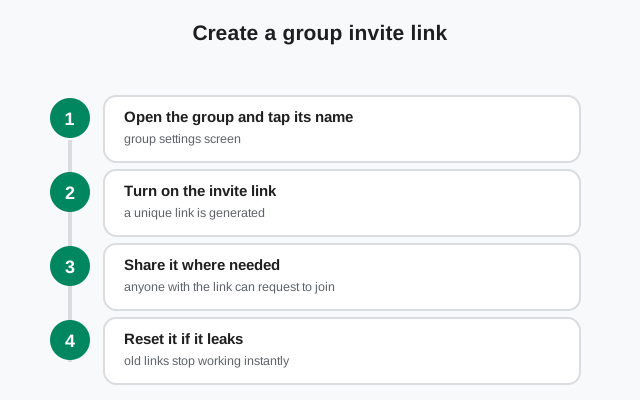
Signal's support documentation describes the group link flow in a few short steps, and they really are short. Here is the version for your phone:
Open the group
Open the group chat and tap the group's name at the top of the screen to open its settings.
Find Group Link
Look for the Group Link option in the group's settings. (If you do not see it, you are probably not an admin; see the section on who can create links.)
Turn the link on
Switch the Group Link on. Signal generates a link for the group.
Share it
Tap Share to copy the link, send it through your phone's share menu, or show it as a QR code.
That is the whole creation flow. The link does not expire on its own. Once it is on, it keeps working until you reset it or turn it off. That permanence is exactly why the next sections (approval and resetting) matter more than the creation step.
Sharing the link: where it works
The link is an ordinary web link. When someone taps it, they land on a page that points them at the group. If they do not have Signal installed yet, they are asked to install it first. That makes the link useful far beyond Signal itself:
- In other chat apps. Post it in a WhatsApp or Telegram group when you are migrating a community to Signal. People tap and join.
- In email. Send it to a team or a club mailing list. One link in the announcement email beats twenty "please add me" replies.
- On a website or forum. A link on a contact page or a pinned forum post keeps recruitment passive. People join when they are ready.
- In person. This is where the QR code version wins (next section).
One thing the link does not do: it does not let you pre-screen people unless you pair it with admin approval. Share accordingly. A link on a public website is effectively an open door; a link sent to five friends is a private hallway.
QR codes: the offline-friendly option
The QR code is just your group link in scannable form. In the Group Link screen, choose Share and then QR code. Your phone shows the code full-screen, and a contact scans it with any QR-scanning app to get the same link.
Where QR codes beat plain links:
- Meetings and events. Hold your phone up at the start of a meeting and everyone joins the group before you sit down. No typing phone numbers on a projector.
- Printed material. A QR code on a flyer, a notice board, or a shop counter works for months without you being there.
- When you cannot copy-paste. Passing your phone to a friend for two seconds is faster than spelling out a link.
The honest downside: a QR code is the link in another shape, with the same risk profile. A photo of your QR code on the event screen is a photo of your group link. Anyone who snaps it can join later. If you display the code publicly, reset the link after the event (see below) so old photos stop working, or use Approve New Members so late arrivals still need a human yes.
Approving new members (the gatekeeper setting)
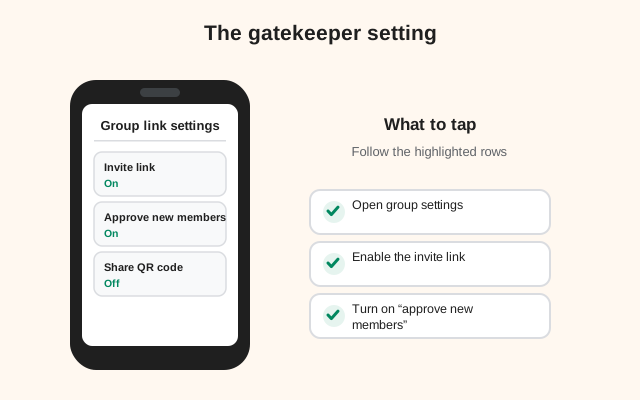
This is the single most important control for any group with an active link. Turn on Approve New Members in the Group Link settings, and nobody who uses the link joins automatically. Instead, the request goes to the group's admins:
Turn approval on
In the Group Link screen, switch on Approve New Members.
Someone uses the link
They tap the link or scan the QR code and ask to join.
Admins get notified
An admin sees the pending request in the app and taps to view it.
Accept or reject
The admin accepts or rejects the request and confirms the choice. Accepted people join; rejected people simply do not.
Approval is the middle ground between "closed group" and "open door." The link can be public (on a website, on a flyer) while the membership stays curated. For most community groups, this is the right setup: maximum discoverability, minimum spam.
The trade-off is speed. Approval adds a human delay, so do not use it for time-critical groups (a group coordinating something happening in an hour should let people join instantly). And make sure at least two admins exist. If the only approver is asleep, nobody gets in. Our group admins guide covers that handoff.
Who can create and share links
Not everyone in a group has the same powers over the link:
- Admins can turn the Group Link on and off, turn Approve New Members on and off, reset the link, and approve pending requests. The full toolbox.
- Regular members cannot enable or reset the link. If you do not see the Group Link option at all, that is why. Ask one of the group's admins to set it up.
- Sharing an existing link is different from creating one. Once the link is on, any member can copy it from the group settings and pass it along. So the control point is not who holds the link text. It is the approval setting and the admin's ability to reset it.
Separately, the group's Permissions settings let admins decide who can add members directly: everyone, or admins only. That is a different control from the link: it governs manual adds, not link joins. For a tight group, set both sensibly (link joins behind approval, manual adds admin-only), and you have covered both doors.
How to reset a leaked link
Links leak. Someone forwards it to a friend, the friend forwards it further, and one day strangers are joining your family group. Signal's answer is Reset Link: it deletes the old link and generates a brand-new one. Anyone holding the old link gets nothing.
Open Group Link
Go to the group's settings and open Group Link.
Reset
Choose Reset Link and confirm.
Share the new one
Copy the new link and send it to the people who should have it. The old link is dead.
Resetting is safe for the group itself: nobody gets kicked out, no messages are lost, and nobody is notified. Only the door changes. Do this any time a link has been somewhere it should not have been: a public channel, a screenshot, a forwarded message to the wrong person. It costs you thirty seconds and it is the cleanest security move in the app.
One nuance: resetting changes the link everywhere, including places where the right people use it. If the group link is on your website's contact page, update that page with the new link. Keep a short note of where you have published it.
How to delete the link entirely
When recruitment is over (the team is formed, the trip is planned, everyone is in), turn the link off. In the Group Link settings, switch the Group Link off. The link stops working everywhere, immediately.
Turning it off does not remove anyone or change anything else about the group. It simply closes the door. You can turn a fresh link back on later if you need more members. This is the right end-state for most groups: link on during growth, link off during the group's steady life, reset in between if anything looks off.
Three ways to add people, compared
| Method | How it works | Needs admin? | Can require approval? | Best for |
|---|---|---|---|---|
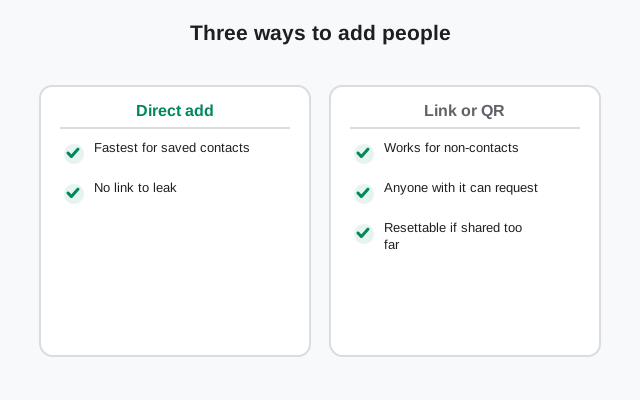
| Add manually | An admin (or any member, depending on Permissions) adds a contact directly | Depends on the group's Permissions setting | No. The person is added immediately | Small, trusted groups where you know every member |
| Invite link | An admin creates a link; anyone with it can request to join | To create the link, yes | Yes: Approve New Members | Online communities, mailing lists, public recruitment |
| QR code | The same link shown as a scannable code | To create the link, yes | Yes: same approval setting | Events, meetings, printed flyers, in-person onboarding |
The pattern: manual adds for trust, links for scale, QR for the physical world, approval for safety. Mix them however your group needs.
Common mistakes to avoid
- Leaving the link on forever, publicly, without approval. This is how spam accounts find their way in. Pick at least one of: keep it private, use approval, or reset it regularly.
- One admin only. If the sole admin loses their phone or goes on holiday, approval requests pile up and the link cannot be reset. Keep two admins minimum. See our group admins guide.
- Treating the QR code as safer than the link. It is the same link in pixels. A photographed QR code joins just like a forwarded link.
- Posting the link and forgetting where. Six months later you cannot remember whether it is on a forum post or a flyer. Note the places when you publish; check them when you reset.
- Inviting without thinking about profiles. Everyone who joins sees members' names, photos, and About lines. That is the same profile visibility our profile setup guide warns about. For public-ish groups, suggest a nickname and no photo before inviting.
- Skipping number privacy. People joining from a public link may not know you. Our number privacy guide shows how to keep your number hidden from them while still chatting.
Done right, a group invite link is the most civilized way to grow a Signal group: shareable, resettable, and (with approval on) still firmly under human control.
FAQ
How do I create a group invite link on Signal?
Open the group chat, tap the group name at the top to open settings, and find Group Link. Switch it on, then tap Share to copy the link or show a QR code. Only group admins can turn the link on.
How do I share a Signal group as a QR code?
In the group's settings, open Group Link, tap Share, and choose QR code. Your phone displays the code, which anyone can scan with any QR-scanning app to get the invite link.
How do I require admin approval for new members?
In the Group Link settings, turn on Approve New Members. People who use the link then ask to join, and an admin accepts or rejects each request in the app.
How do I reset a Signal group invite link?
Open the group's settings, go to Group Link, and choose Reset Link. The old link stops working everywhere immediately, and a new link is generated. Nobody is removed from the group.
How do I delete a Signal group invite link?
Open the group's settings, go to Group Link, and switch it off. The link stops working everywhere. You can turn a fresh link back on any time.
I don't see the Group Link option. Why?
Only group admins can create and manage the link. If you don't see the option, you are a regular member. Ask one of the group's admins to set it up.
Keep reading
- the group admins guide: who manages links, approvals, and permissions
- the Signal groups guide: group basics from creation to 1,000 members
- Signal usernames: another number-free way to let people reach you
- number privacy settings: keep your number hidden from link joiners
- Invite friends to Signal: every method that works, beyond groups