
Signal Group Video Calls: Limits, Layout & Controls
Published: October 7, 2026 · Updated: October 8, 2026
Group video calls are the fastest way to get a whole Signal group talking face to face. This guide covers starting one, the real participant limits, who gets rung, the control bar, and when a call link is the better tool than a group call.
from Signal's official site — file hosted by Signal, not by us
Start a group call in three taps
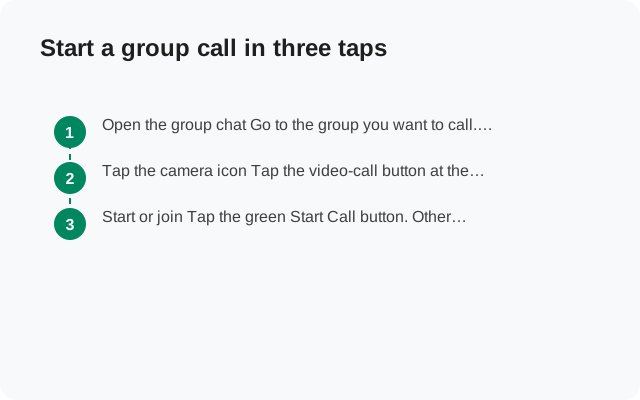
Signal group calls start from inside a group chat. Every participant must be a member of the same group, and everyone needs the latest version of Signal installed. When those two conditions hold, this is the whole process:
Open the group chat
Go to the group you want to call. The call starts from the chat, not from the calls list.
Tap the camera icon
Tap the video-call button at the top of the group chat. Grant camera and microphone permission the first time. You will be prompted once.
Start or join
Tap the green Start Call button. Other members see a notification and can tap Join Call to come in. An alert is also posted in the group chat history so latecomers can still join.
To see who is currently on the call, tap the group icon during the call and the participant list opens.
How many people can join, and who gets rung
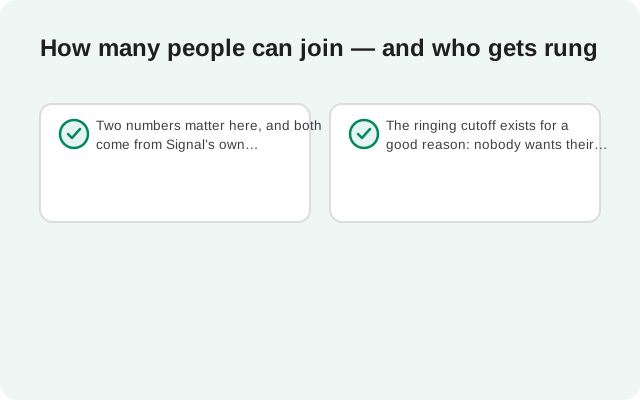
Two numbers matter here, and both come from Signal’s own support documentation:
- The group call size limit is 75. Up to 75 participants can be on the same encrypted group call.
- Ringing notifications go to groups of up to 16 people. In small groups, starting a call can ring everyone’s phone like a normal incoming call. In bigger groups there is no ring. Members get a notification and join when they see it.
The ringing cutoff exists for a good reason: nobody wants their phone blaring because 60 people decided to have a call. If someone cannot join, the first check is always the same: are they on the latest Signal, and are they actually a member of the group? Those are the two requirements, and nearly every “can’t join” case is one of them.
The controls you will actually use
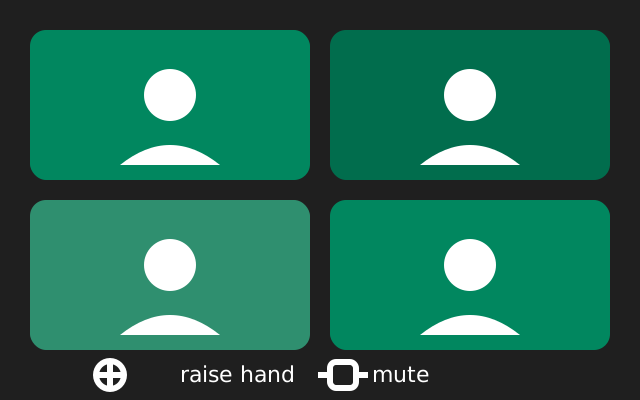
Once you are in a group call, the control bar covers the essentials. Here is what each one does and when to reach for it:
- Mute / unmute: kills your microphone. Mute yourself the moment you stop talking in a large call. Background noise is the number-one quality killer in group calls, and it is almost always one unmuted phone in a pocket.
- Camera on / off: toggles your video. Turning the camera off is also the fastest way to cut your data use mid-call.
- Switch camera: flips between front and back lenses. Handy for showing the room, a document, or something happening around you.
- Raise hand: signals that you want to speak without interrupting. In a call with dozens of people, this is the polite way in.
- Emoji reactions: react without unmuting. A thumbs-up during a presentation beats twenty people saying “yes” over each other.
- Participant list: tap the group icon during the call to see who is in.
Layout options: seeing everyone the way you want
Signal offers several ways to view a group call, with the richest options on Signal Desktop:
- Grid view: everyone’s video in a tiled grid. Best for discussions where you want to see reactions.
- Speaker view: the person currently talking takes the big window. Best for presentations and meetings.
- Sidebar view (desktop): one large video with the rest stacked along the side. A middle ground between the two.
On Android, the layout is a simpler grid that follows the active speaker. If you are running the meeting from a phone, grid view plus the participant list is enough to keep track of a large call. Note that you control your own layout. Changing views only changes what you see, not what everyone else sees.
Group call vs call link: which one to start
Signal has two ways to get a group onto a call, and picking the wrong one wastes time. This is the information-gain table for this page. Bookmark it.
| Situation | Start a group call | Use a call link |
|---|---|---|
| The people already chat in a Signal group | Yes: one tap from the chat, everyone is already a member. | Works, but unnecessary setup. |
| People from different groups, or no group exists | Awkward: you would have to create a group first. | Yes: share the link, no group chat needed. |
| A recurring weekly meeting | Fine, if the same group meets. | Yes: call links are reusable, so one link serves every week. |
| You want to control who joins | Membership is the control. Only group members can join. | Approval gate: you can require approval for each joiner. |
| An event with people outside your contacts | Does not fit: they would all need group membership. | Yes: anyone on Signal with the link can request to join. |
| Participant cap | Both support up to 75 participants. | |
The short version: if a group chat already exists for exactly these people, start the call from the chat. If the people are scattered across chats, or there is no chat at all, a call link is the faster path.
Who is allowed to start a group call
Group admins can decide whether any member or only admins may start calls from the group. This lives in the group’s admin controls, next to the “who can send messages” setting. For family and friend groups, leaving it open to everyone is normal. For large community groups, restricting call-starting to admins prevents a random member from ringing 16 people at midnight.
There is no “host” concept beyond that: once a call is running, everyone has the same controls. You can mute yourself and turn off your own camera, but you cannot mute someone else’s microphone. If someone’s line is noisy, ask them to mute, or ask a group admin to handle it in the group settings.
Running a big call without chaos
A call with five people runs itself. A call with forty does not. If you are the one who started a large group call, these habits separate a smooth session from a shouting match:
- Open muted, stay muted. Ask everyone to join with their microphone off and unmute only to speak. One open mic in a large call creates echo for everyone.
- Use raise hand for questions. In a call past a dozen people, unmuting to say “quick question” collides with whoever is mid-sentence. The raise-hand button exists for exactly this.
- Keep video on only if the connection allows. Forty video streams are heavy. If the call stutters, ask the listeners (anyone not presenting) to turn cameras off.
- Narrate the join flow. Tell people in the group chat before you start: “call starting in 2 minutes, join from the chat alert.” Late joiners then know where to tap instead of messaging “how do I join?” during the call.
After the call: alerts, missed calls, and rejoining
When the last person leaves, the call ends. There is nothing to “close” or archive. What remains in the group chat is the alert entry marking that a call happened, which doubles as a rejoin button while anyone is still on. Members who missed the call see it the same way they see any missed call: an entry in the chat, no voicemail, no callback number.
Two consequences follow. First, there is no recording. Signal has no built-in call recording, so anything said on the call exists only in participants’ memories. If decisions were made, write them into the group chat afterward. Second, a new call is a new call: starting another session later posts a fresh alert. For recurring meetings, this is exactly the friction call links remove: one link, reused every time, instead of a new alert per meeting.
Encrypted like everything else in Signal
Group video calls carry the same end-to-end encryption as Signal messages. The call audio and video are scrambled so that only the participants can hear and see them. Joining requires being a member of the group. There is no public lobby and no way to drop into a group call uninvited.
When people cannot hear or see you
Three checks fix the vast majority of group-call problems:
- Permissions: Signal needs camera and microphone access. If you denied them once, the call will look connected but silent. Re-enable them in your phone’s app settings.
- App version: everyone on the call must be on the latest Signal. An outdated app is the most common reason one person cannot join.
- Connection: switch between Wi-Fi and mobile data to see which side is struggling, and ask others to mute when not speaking.
For the deeper fixes (relay mode, persistent echo, calls that connect then drop), see our call quality troubleshooting guide.
FAQ
How many people can be on a Signal group video call?
Up to 75 participants, per Signal's support documentation. Every participant must be a member of the same Signal group and run the latest Signal version.
Why didn't my phone ring when a group call started?
Ringing notifications are only sent for groups of up to 16 people. In larger groups, members get a regular notification and join from the group chat instead.
Can someone join a group call after it started?
Yes. An alert is posted in the group chat history, and anyone in the group can tap Join Call at any time while the call is running.
Can the person who started the call mute other people?
No. Each participant controls only their own microphone and camera. Group admins can limit who is allowed to start calls, but there is no remote-mute for other participants.
Do group calls work on Signal Desktop too?
Yes. Desktop adds extra layout options (grid, sidebar, speaker views), and desktop users join the same calls as mobile users.
Keep reading
- make a call without a group chat first: shareable call links
- how group admin settings work: groups, explained
- call quality fixes: troubleshooting poor calls
- relay calls, explained: hide your IP on calls