
Install an APK using a file manager
Published: October 7, 2026 · Updated: October 8, 2026
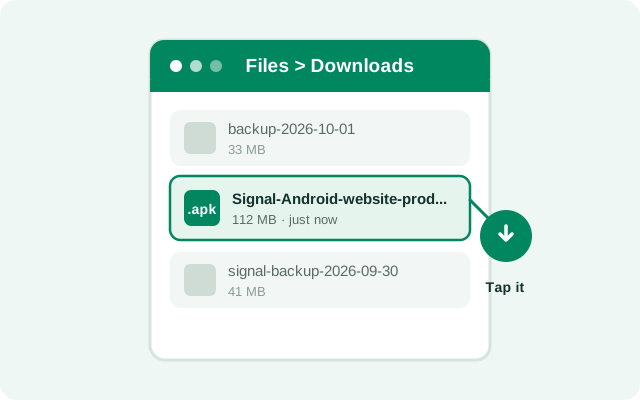
Sometimes the browser's download notification vanishes, or the "open" button does nothing. But the file is sitting on your phone, waiting. A file manager lets you go find it and tap it directly. Every Android phone ships with one (Samsung's "My Files", Xiaomi's "File Manager", Pixel's "Files by Google"), and the process takes about a minute once you know where to look.
Why use a file manager at all
- The download notification is gone. Swiped it away, rebooted the phone, downloaded hours ago. The file is still in storage.
- The browser won't open the file. Some browsers hand off APK opening unreliably; the file manager goes straight to the installer.
- You moved or renamed the file. Maybe you organized it into a folder. The file manager sees the whole filesystem.
- You transferred the APK from a computer. Files arriving over USB land wherever you put them. See our USB transfer guide.
- You want to sanity-check the download. The file manager shows size and date at a glance. A 40 MB file dated today is a healthy download; a 12 KB file is a failed one. Thirty seconds here saves a confusing install failure later.
In short: the browser is a downloader that can open files; the file manager is the tool for finding files that are already there.
Install step by step
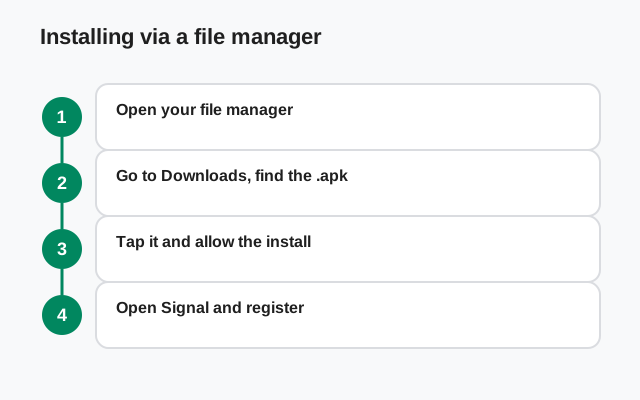
Open your file manager
Look for Files, My Files, or File Manager in your app drawer. Any of them works, including third-party ones if you prefer.
Go to Downloads
Almost every file manager shows a Downloads shortcut on its home screen or under "Categories". Your Signal APK is almost certainly there, with a name like
Signal-Android-website-prod-universal-release-8.29.3.apk.Tap the APK file
A single tap hands it to Android's package installer. If this is the first APK you've opened from this app, Android asks you to allow "Install unknown apps" for the file manager. Allow it just for this app.
Confirm on the installer screen
Check the name and icon say Signal, review the permissions list, and tap Install.
Open and register
Tap Open, then register your phone number on first launch.
In Files by Google, downloaded APKs also appear under Browse → Downloads, and tapping one there goes through the same installer. The location doesn't matter. A Downloads shortcut, search results, or a folder you made yourself all lead to the same system install screen.
Finding the file if it's not in Downloads
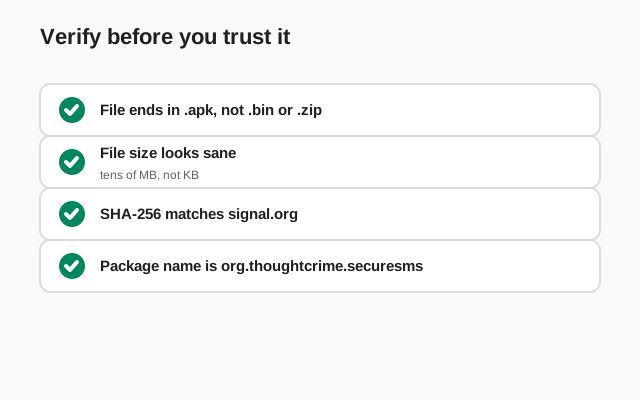
First, check the file actually finished downloading. Look for the file size. A complete Signal APK is in the tens of megabytes; a file of a few kilobytes is a failed download, not an installer.
- Use the file manager's search. Search for "signal" or "apk" across all storage. This catches files saved to odd folders.
- Check the browser's download location setting. Some browsers (notably Samsung Internet and Firefox) let you change the download folder. Check the browser's Settings → Downloads to see where it puts files.
- Look in internal storage root folders like
Download(note: no "s"). Some apps save there instead of the media-scanned Downloads view. - Check SD card storage if your phone has one and the browser is set to save there.
Also check for duplicates: browsers often save a second copy as ...apk (1) when you download twice. If you find two, install the one with the latest date and delete the other. Installing a stale copy just means updating immediately afterward.
If the file truly isn't anywhere, re-download from signal.org/android/apk. This time watch where the browser says it's saving.
The ".bin" problem: renaming the file back to .apk
Occasionally a download arrives named something like download.bin instead of ....apk. This happens when the server or an intermediary doesn't declare the file type properly and the browser guesses wrong. The file itself is fine. Only the name is wrong, and Android decides how to handle a file by its extension.
The fix: in your file manager, long-press the file, choose Rename, and change the extension to .apk (keep the rest of the name as-is). Then tap it. The installer will now recognize it.
.bin file from anywhere else should be deleted, not renamed and installed. And after renaming, still verify the SHA-256 fingerprint before installing.The permissions involved (and which to grant)
Two permissions come up during a file-manager install, and they do different things:
| Permission | Asked by | What it does | Grant it? |
|---|---|---|---|
| Install unknown apps (for the file manager) | Android system | Lets the file manager hand APKs to the installer | Yes, only for the file manager, and turn it off afterward |
| Storage / "All files access" | The file manager app itself | Lets the file manager browse your storage to find the file | Yes if it can't see Downloads without it; it's the app's normal function |
Be wary of a file manager that demands unrelated permissions (contacts, location, phone) just to open a file. That's a red flag for an adware-laden third-party manager. Your phone's built-in manager is the safest choice.
On Android 13 and newer, file managers may ask for photo/video-only access instead of full storage access. That's fine for finding your APK, since Downloads is covered. If the manager genuinely can't see the file, grant the broader "all files" access from the system prompt; a built-in manager asking for this is normal, a random third-party one demanding it alongside contacts and location is not.
Verify the file before you trust it
The file manager shows you the file's name, size, and date. Use them. The name should match Signal's website-build pattern (Signal-Android-website-prod-universal-release-8.29.3.apk, version number aside), the size should be tens of megabytes, and the date should be when you downloaded it. Anything else (a tiny file, a strange name, a date from months ago that you don't recognize) deserves suspicion, not a tap.
For real certainty, compare the file's SHA-256 fingerprint against the one printed on signal.org/android/apk using our verification guide. It takes a couple of minutes on a computer and is the strongest check available.
Troubleshooting table
| Symptom | Likely cause | Fix |
|---|---|---|
| Tapping the file does nothing | The file manager isn't allowed to install apps | Allow "Install unknown apps" for the file manager in Settings |
| "Can't open file" | Wrong extension (.bin) or incomplete download | Rename to .apk; if tiny, re-download |
| "App not installed" | Signature conflict with existing Signal install | Why the APK won't install over the Play version |
| "There was a problem parsing the package" | Corrupted or truncated download | Delete and re-download over a stable connection |
| File manager can't see the file at all | Saved to an odd location or SD card | Use in-app search; check the browser's download folder setting |
Frequently asked questions
Which file manager should I use?
Your phone's built-in one: Samsung My Files, Files by Google, Xiaomi File Manager, whatever shipped with the phone. Avoid ad-heavy third-party managers that demand unrelated permissions.
The file downloaded as .bin. Is it broken?
Usually not. The browser just saved it with the wrong extension. Rename it to end in .apk and verify the SHA-256 fingerprint before installing.
Do I need 'Install unknown apps' for the file manager too?
Yes. The permission is per app, so the file manager needs its own approval even if your browser already has it. Turn it off for both when you're done.
Can I delete the APK after installing?
Yes, once Signal is installed, open, and registered. Keep it until you've confirmed the install works, in case you need to retry.
The installer asks for permissions: is that normal?
Completely. Android always shows an app's requested permissions at install time. Review that it says Signal, then install. You can adjust individual permissions later in Settings.
from Signal's official site — file hosted by Signal, not by us.