
Install Signal on Android 15 the right way
Published: October 7, 2026 · Updated: October 8, 2026
Signal Foundationfrom Signal's official site — file hosted by Signal, not by us. signal.org/android/apk
Android 15 is the newest ground Signal runs on, and the website build (version 8.29.3, package org.thoughtcrime.securesms) is fully at home there. The install flow is the same sideload you know (download from signal.org/android/apk, allow it, register), but Android 15 adds two things that directly affect a messenger: Private Space, which can swallow your notifications if you install Signal in the wrong place, and notification cooldown, which changes how group chats buzz.
This guide covers the install plus every Android 15-specific setting that matters for Signal. One standing rule first: the website build and the Play Store build carry different signing keys, so one cannot be installed over the other. If you are switching builds, migrate with a backup instead of fighting the signature error.
Install steps on Android 15
Download from Signal's own page
Open signal.org/android/apk in your browser and download the APK. Confirm the file name ends in
.apk, and verify the SHA-256 fingerprint against the one printed on that page if you want certainty. Our verification guide shows how.Allow the install
Open the file; Android 15 sends you to Settings → Apps → Special app access → Install unknown apps. Allow it for your browser only. Keep it scoped. There is never a reason to allow installs from every app.
Install and read the prompts
Tap Install, then Open. The notification permission prompt appears on first launch. Allow it (details two sections down).
Register and restore
Enter your number, enter the SMS code, and restore your backup when offered. Step-by-step: first-run setup.
Private Space: keep Signal out of it
Android 15's headline feature is Private Space: a locked, hidden profile on your phone where you can install a second copy of apps, separated from your main profile. It is designed for banking apps, work apps, and anything you want behind an extra lock. Here is the blunt advice: do not put Signal in Private Space.
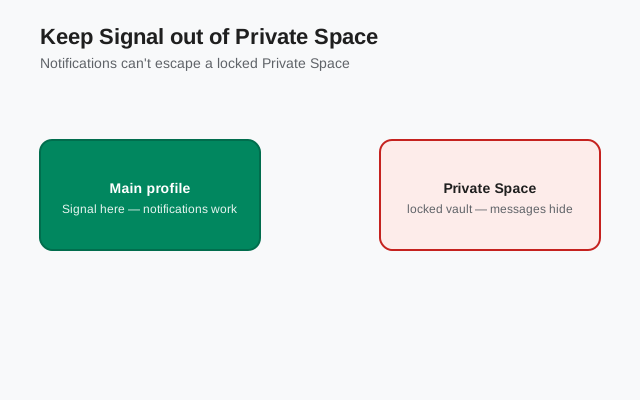
Why: when Private Space is locked, every app inside it is paused. Stopped, no background work, no notifications. Your messages pile up silently until you unlock the space and open Signal. For a messenger whose entire job is real-time delivery, that is the opposite of what you want. Missed calls, delayed messages, confused contacts. All from one well-meaning organizational choice.
Install Signal in your main profile, the normal app drawer. Private Space is for apps you open deliberately, not for apps that need to reach you. If you already installed it there, the fix is simple: back up your chats inside Signal (Settings → Chats → Chat backups), uninstall from Private Space, install fresh in the main profile, and restore.
The one exception: if you run two Signal accounts (personal and work) and your second number lives entirely in Private Space by design, accept the trade-off consciously. Unlock the space regularly, and do not rely on it for urgent messages.
Screen sharing and call notes on 15
Signal's Android app supports screen sharing during calls on recent versions. Useful for remote tech support with family ("show me what you see") without installing a separate app. On Android 15 it works, with one OS-level behavior to know: Android 15 restricts screen sharing to a single app by default in many flows, rather than the whole screen, and shows a persistent indicator while sharing.
That single-app default is actually good for privacy. You share the app you meant to share, not your notifications or open banking tab. If you need the full screen, the system share dialog offers that choice explicitly; read it before tapping.
Call basics on 15 are otherwise unchanged from 14: the mic/camera indicator dot, per-app notification permission, and full-screen incoming-call screens all behave the same. If calls are not ringing, the checklist is the notification permission plus battery exemption (covered below), not the call system.
Both sides need a reasonably current Signal build for screen sharing to appear. If the button is missing on your end, check for an update first: how to check your version.
Notifications on Android 15
Two Android 15 notification behaviors affect Signal directly. First, the runtime notification permission from 13/14 is still here. Signal asks on first launch, and you must tap Allow. Deny it and Signal goes completely silent: no message buzzes, no call ringing. Fix a past denial at Settings → Apps → Signal → Notifications.
Second, Android 15 introduced notification cooldown: when a single conversation fires many notifications in quick succession, the system gradually lowers their volume. In practice, this hits loud group chats. The first few messages buzz normally, then the buzzing quiets down automatically. Calls are exempt; an incoming call always rings at full volume.
Cooldown is a system behavior, not a Signal setting, and for most people it is an improvement. Fewer buzz-storms from active groups. If you want every single message to buzz at full volume regardless, check your phone's notification settings for the cooldown toggle (path varies by skin; on Pixel it is under Settings → Notifications). But honestly, try the default for a week first.
As on every recent Android version, the notification permission is only half the equation. Battery optimization is the other half. Both must be right.
Battery: keep Signal unrestricted
Android 15 did not get kinder to background apps, so this setting is mandatory: Settings → Apps → Signal → Battery → Unrestricted.
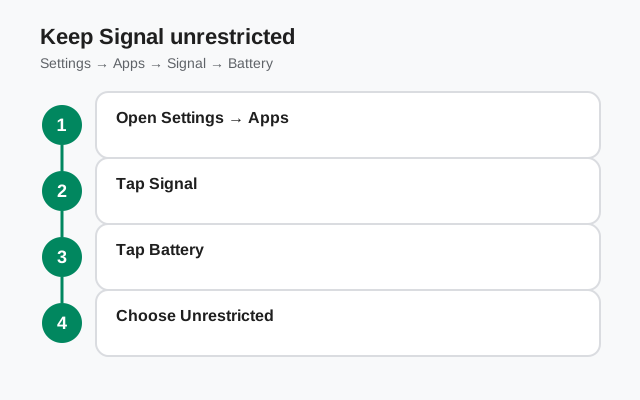
The symptom of skipping it is the classic one: messages arrive the moment you open Signal, never before. The OS is dozing Signal's background connection to save power. Twenty seconds in settings, fixed permanently.
Skin-specific notes on Android 15:
- Samsung (One UI 7): also check Battery → Background usage limits; keep Signal out of sleeping/deep-sleeping lists.
- Xiaomi (HyperOS 2): Autostart on for Signal; battery saver "No restrictions."
- Pixel: the stock Unrestricted setting is all you need.
- OnePlus/Oppo: App info → Battery usage → allow background activity.
Test it: lock the phone, send yourself a message from another device, confirm it lands within seconds. If not, our battery troubleshooting guide goes deeper.
Per-app language
Per-app language (Settings → System → Languages → App languages → Signal) continues on Android 15 exactly as on 13 and 14. Set your phone to one language and run Signal's menus in another: Urdu, Spanish, Arabic, whatever you prefer.
Two reminders: translation coverage varies by language (untranslated strings fall back to English; that is normal, not a bug), and the setting lives in the OS, not inside Signal's own settings. If your skin hides it, look under Additional settings → Languages.
Right-to-left languages (Urdu, Arabic, Hebrew) mirror the interface correctly. Signal has handled RTL layouts for years.
Updates and the signing-key warning
The website build keeps itself updated without the Play Store. It checks Signal's servers and prompts you to install new releases. Current build: 8.29.3. Approve the unknown-source confirmation during updates; that is normal.
The signing-key warning bears repeating on every version page because it is the most misunderstood error in sideloading: if an update fails with "App not installed" or a signature conflict, a differently-signed build tried to replace yours. Do not force it and do not grab a mirror APK. Uninstall, re-download from signal.org/android/apk, restore from backup. Our auto-update guide has the full flow; check your version any time.
Heads up. On Android 15, sideloaded updates may also trigger the "restricted settings" notice for accessibility access. Signal does not need accessibility permissions, so this never applies to a genuine Signal install. If something calling itself Signal asks for accessibility access, delete it.
Is Android 15 still supported?
Yes. Android 15 is fully supported by the website build. It is the current Android release, and Signal builds and tests against it. Registration, calls, screen sharing, stories, usernames, per-app language, the photo picker. Everything works.
The honest 15-specific advice is short: keep Signal out of Private Space, allow the notification permission at first launch, exempt it from battery optimization, and you are done. Compare notes with our Android 14 guide if you are deciding whether to upgrade. For Signal specifically, 14 and 15 are near-identical in daily use.
Frequently asked questions
Should I install Signal in Android 15's Private Space?
No. When Private Space is locked, apps inside it are paused. No background work, no notifications. Install Signal in your main profile so messages and calls arrive in real time.
What is notification cooldown on Android 15?
A system feature that gradually quiets rapid-fire notifications from one conversation (like a busy group chat). Calls are exempt and always ring normally. It's usually an improvement; you can toggle it in notification settings if you prefer.
Does the Signal APK work on Android 15?
Yes, fully. Download the website build (8.29.3) from signal.org/android/apk, allow your browser the install-unknown-apps permission, and install.
Why do messages only arrive when I open Signal on Android 15?
Battery optimization is dozing the app. Go to Settings → Apps → Signal → Battery and set it to Unrestricted.