
Installing the Signal APK on HarmonyOS phones
Published: October 7, 2026 · Updated: October 8, 2026
Signal installs on HarmonyOS phones, with one big exception. Standard HarmonyOS (versions 2, 3, and 4 on phones) runs Android APKs, so the official Signal APK from signal.org/android/apk (current website build 8.29.3) installs the normal way. But Huawei's newer HarmonyOS NEXT is a different operating system that does not run Android apps at all. This guide helps you figure out which one you have, then walks you through the right route.
from Signal's official site — file hosted by Signal, not by us. signal.org/android/apk
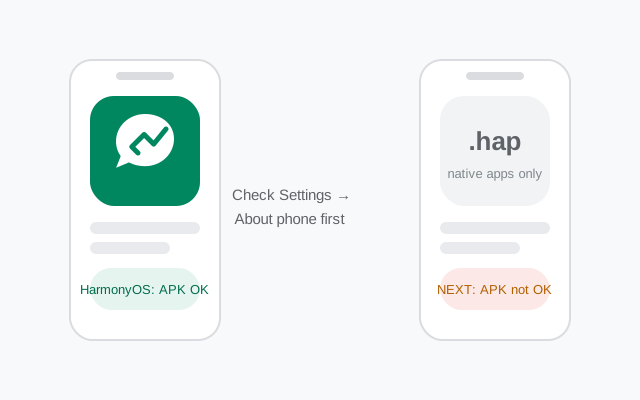
Step zero: which HarmonyOS do you have?
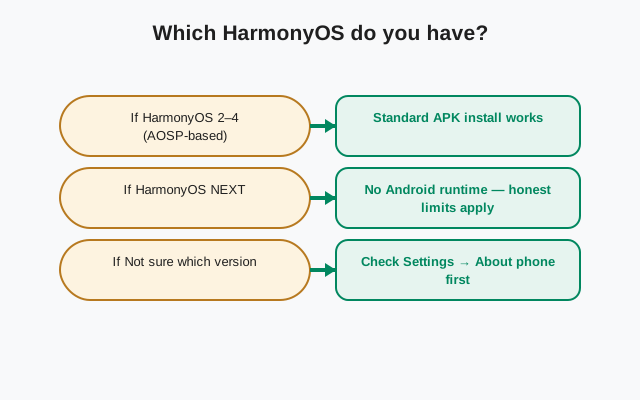
Everything on this page depends on this one check, so do it first. Open Settings → About phone and read the software version line carefully:
- HarmonyOS 2, 3, or 4: these phone builds are based on Android's app framework. They install and run Android APK files. You are in the clear: follow the install steps below.
- HarmonyOS NEXT: this is Huawei's newer, separate operating system. It runs only native HarmonyOS apps and does not run Android APKs. If you see "NEXT" in the version name, skip to the HarmonyOS NEXT section before doing anything else.
A second clue: standard HarmonyOS phones usually still show some Android-era app compatibility in settings, while NEXT devices have a purely Huawei app ecosystem: AppGallery, Petal apps, and no trace of Android. If you bought the phone outside China in the last few years, it is almost certainly standard HarmonyOS, not NEXT.
A few more ways to confirm what you are running, since the About-phone screen can be terse. Standard HarmonyOS phones still show an Android app compatibility layer in developer options, and the version string usually reads like "HarmonyOS 4.0.0" with a build number. HarmonyOS NEXT devices show "HarmonyOS NEXT" explicitly (Huawei does not hide it), and their app store is AppGallery only, with no Android apps anywhere. Another tell: if your phone can still run Petal Search results that open Android APK downloads, it is standard HarmonyOS. When in doubt, search your exact model name plus "HarmonyOS NEXT". NEXT launched on a limited set of flagship models first, so most phones in circulation are still standard.
Decision guide: your version → your route
| Your version | Your route |
|---|---|
| HarmonyOS 2 / 3 / 4 (standard) | Download the official Signal APK from signal.org/android/apk and install it: steps below. |
| HarmonyOS NEXT | The Android APK will not install. There is no native HarmonyOS Signal app from Signal. See the honest situation. |
| Not sure | Check Settings → About phone first. If the version string mentions neither NEXT nor a plain number, search the exact model + "HarmonyOS version" and confirm before downloading anything. |
Install steps for standard HarmonyOS
On standard HarmonyOS the process is ordinary sideloading. No computer needed, about five minutes:
-
Download the official APK
In Huawei Browser (or any browser on the phone), open signal.org/android/apk and download the APK. Current website build: 8.29.3, package
org.thoughtcrime.securesms. -
Allow external installation for your browser
When you open the downloaded file, HarmonyOS will ask for permission to install apps from that browser. Allow it. The exact path is below.
-
Verify the fingerprint
Signal prints its SHA-256 signing-certificate fingerprint on the download page. Compare it against your file before installing.
-
Install and open Signal
Tap Install on the system prompt, then Open. If the install fails, make sure you are not on HarmonyOS NEXT and that the file finished downloading.
-
Register your number
Enter your phone number, wait for the SMS code, type it in. SMS verification works normally on HarmonyOS. It needs no Google services.
Allow external app installs
HarmonyOS asks per app which sources may install other apps. The path is:
Settings → Security → More settings → Installation of apps from external sources → select your browser → allow.
This is a one-time grant. After Signal is installed you can go back and turn it off again. Installed apps keep working. Only grant it to apps you trust (your browser, your file manager), never to random apps that ask.
After the install, revisit the permission: go back to Settings → Security → More settings → Installation of apps from external sources and turn your browser's grant off. Installed apps are unaffected. The permission only controls new installs. This is good hygiene on any phone, but especially on one without a Play Store watching over app installs. One more HarmonyOS note: if your phone uses a work or private space feature, install Signal in the space where you will actually use it. Apps do not cross spaces, and a messenger installed in the wrong space will sit silent.
APK vs .hap: why the file type matters
You may see two file extensions discussed around HarmonyOS, and mixing them up is the most common avoidable mistake:
- .apk: the Android application package. This is what Signal ships on signal.org/android/apk, and it is what standard HarmonyOS installs.
- .hap: the HarmonyOS Ability Package, the native format for HarmonyOS NEXT apps. Signal does not publish a .hap file.
Two rules follow from this. First, never rename a file to change its extension. Renaming Signal.apk to Signal.hap does not convert anything; it just breaks the file. Second, if any website offers you a "Signal.hap" download, it is fake. Signal has no native HarmonyOS build, so that file cannot have come from Signal. Delete it and use the APK route. Our fake Signal APK guide lists the other red flags to watch for.
HarmonyOS NEXT: the honest situation
So what are your options on HarmonyOS NEXT? Honestly, none of them are great:
- There is no native Signal app for NEXT. Signal has not shipped a HarmonyOS-native build, and there is no official announcement of one.
- Third-party "Signal for HarmonyOS" listings are unsafe. AppGallery or random sites may list something with Signal's name and icon. It is not from Signal Foundation. Treat it as untrusted and do not log your number into it.
- Keep using Signal on another device. If your daily driver moved to NEXT, the practical answer is to keep Signal on an older Android phone or a linked tablet until the situation changes.
We will update this page if Signal ever ships a native HarmonyOS build. Until then, anyone telling you they have a working Signal APK for HarmonyOS NEXT is either mistaken or selling you something.
Verify the APK fingerprint
Because HarmonyOS phones have no Play Store checking apps for you, the fingerprint check matters more here than on a typical Android phone. Signal publishes the SHA-256 fingerprint of its signing certificate on the download page itself. After downloading:
- Open signal.org/android/apk on any device and note the fingerprint printed on the page.
- Check the signing certificate of the APK file on your phone or a computer. Our full verification guide shows the exact steps.
- Compare the two character by character. Every character must match. One difference means a different signer, and you should delete the file and re-download from the official page.
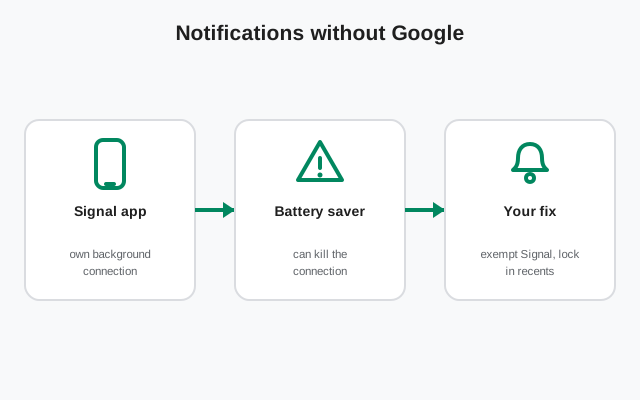
Notifications without Google services
HarmonyOS phones have no Google push network, so Signal keeps its own background connection for notifications. That works, but HarmonyOS is aggressive about killing background apps to save battery. Two settings fix nearly all missed notifications:
- Battery: set Signal to Unrestricted. Go to Settings → Apps → Signal → Battery usage and choose the unrestricted option. This is the single most important setting.
- App launch: manage manually. Go to Settings → Battery → App launch, find Signal, turn off "Manage automatically", and enable all three manual toggles (auto-launch, secondary launch, run in background).
After changing these, send yourself a test message from another device with the screen off for five minutes. If it arrives promptly, you are set. If not, check Settings → Notifications → Signal to confirm notifications are allowed. Huawei owners should also read our Huawei-specific guide, which covers the same settings on EMUI, and the Huawei notification troubleshooting page for the full checklist.
Two more settings worth a look while you are in there. First, Do Not Disturb schedules: HarmonyOS lets you silence notifications on a schedule, and a forgotten DND rule looks exactly like broken Signal notifications. Check Settings → Sounds & vibration → Do Not Disturb if messages vanish at night. Second, calls: Signal calls need the microphone and phone permissions plus an unrestricted background connection, the same as messages. If calls ring but messages are late (or vice versa), the cause is almost always one of the two battery settings above, not the network. Fix those first before blaming your carrier.
Next steps: grab the file from the official Signal APK download page, or read our safety assessment if you want the full picture before installing.