
Install the Signal APK on Huawei phones
Published: October 7, 2026 · Updated: October 8, 2026
Yes, Signal runs on Huawei phones without Google services. Since Huawei devices ship without the Play Store, the supported route is Signal's official APK from signal.org/android/apk (current website build 8.29.3): the same file Signal publishes for all no-Google phones. This guide covers the EMUI and HarmonyOS install paths, what to do about AppGallery, how to keep notifications working without Google push, and how to back up your chats before switching phones. (Honor phones, Huawei's former sub-brand and now independent, run MagicOS and have their own install guide.)
from Signal's official site — file hosted by Signal, not by us. signal.org/android/apk
Install on EMUI (Huawei's Android skin)
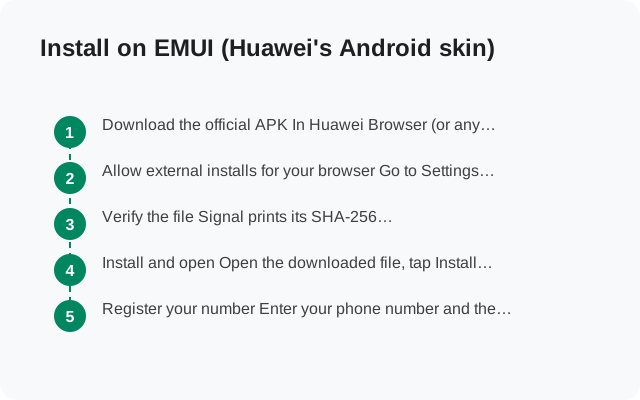
Most Huawei phones in circulation run EMUI (Huawei's skin over Android). The process is standard sideloading: five steps, no computer needed:
-
Download the official APK
In Huawei Browser (or any browser), open signal.org/android/apk and download the APK. Current website build: 8.29.3, package
org.thoughtcrime.securesms. -
Allow external installs for your browser
Go to Settings → Security → More settings → Install apps from external sources, pick your browser, and allow it. This is EMUI's version of Android's per-app "Install unknown apps" permission. See our master install guide for how other brands label it.
-
Verify the file
Signal prints its SHA-256 signing-certificate fingerprint on the download page. Compare it against the certificate of the file you downloaded before installing. The verification guide shows how. Two minutes that prove the file is genuine.
-
Install and open
Open the downloaded file, tap Install, then Open. If you get "App not installed", you likely have a different-signed Signal build already. Here's why that happens.
-
Register your number
Enter your phone number and the SMS code. Huawei phones receive Signal's SMS codes normally. Google is not involved.
Install on HarmonyOS
See our dedicated HarmonyOS install guide for the full breakdown: the version check, the HarmonyOS NEXT exception, and notifications without Google.
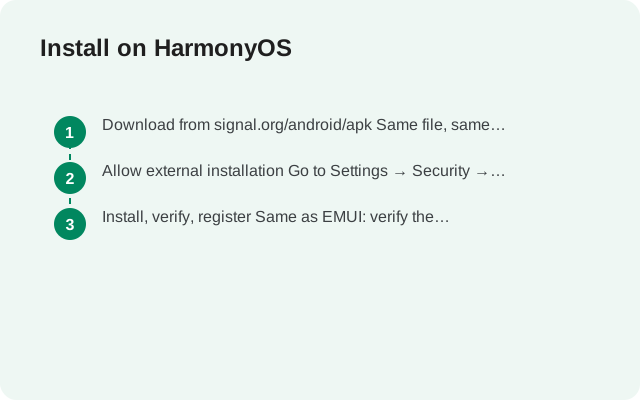
Newer Huawei phones run HarmonyOS. The good news: HarmonyOS (the phone versions based on Android's app framework) runs Android APKs, so the same official Signal APK installs the same way:
-
Download from signal.org/android/apk
Same file, same page: signal.org/android/apk. Don't use a mirror.
-
Allow external installation
Go to Settings → Security → More settings → Installation of apps from external sources, select your browser, and allow it.
-
Install, verify, register
Same as EMUI: verify the SHA-256 fingerprint, install, register with your number.
What about Huawei AppGallery?
Huawei's AppGallery is the default store on these phones. If you find Signal listed there, that's convenient, but check carefully what you're installing:
- The guaranteed-genuine route is always signal.org/android/apk. Signal publishes the APK itself; nobody can tamper with that page's file.
- If AppGallery lists Signal, check the developer name before installing. The genuine app is by Signal Foundation. Stores occasionally carry lookalikes. Our fake-app guide explains the red flags.
- If AppGallery doesn't list Signal (common outside certain regions), you lose nothing: the direct APK is the first-class route, updates itself, and needs no store at all.
Our recommendation for Huawei owners: skip the store question entirely and use the official APK. It's one less party between you and the developer.
Notifications without Google services
This is the part Huawei owners ask about most. On phones with Google services, Signal uses Google's push network for instant notifications. Without it, Signal keeps its own background connection. It works, but EMUI and HarmonyOS are aggressive about killing background apps to save battery. Two settings fix nearly all missed notifications:
- Battery: set Signal to Unrestricted. Go to Settings → Apps → Signal → Battery usage and choose the unrestricted / "allow background activity" option. This is the single most important setting.
- App launch: manage manually. Go to Settings → Battery → App launch, find Signal, turn off "Manage automatically", and enable all three manual toggles (auto-launch, secondary launch, run in background).
After changing these, send yourself a test message from another device with the screen off for five minutes. If messages arrive promptly, you're set. If they're still delayed, also check Settings → Notifications → Signal to confirm notifications are allowed, and see our Huawei notification troubleshooting page for the full checklist. Calls and messages themselves work identically with or without Google. Encryption never depended on Google's servers.
| Setting | EMUI path | HarmonyOS path |
|---|---|---|
| Allow external installs | Settings → Security → More settings → Install apps from external sources | Settings → Security → More settings → Installation of apps from external sources |
| Unrestricted battery | Settings → Apps → Signal → Battery usage | Settings → Apps → Signal → Battery usage |
| Manual app launch | Settings → Battery → App launch → Signal | Settings → Battery → App launch → Signal |
| Notification access | Settings → Notifications → Signal | Settings → Notifications → Signal |
Registering and first-run setup
Registration on Huawei works exactly like any Android phone: Google plays no role in it.
- Open Signal and enter your phone number with the correct country code.
- Wait for the SMS verification code. It usually arrives within a minute. If it doesn't, use the "call me" option for a voice call with the code. See SMS code troubleshooting.
- Create your profile (name and optional photo), set a PIN for registration lock, and review privacy settings (who can see your number, read receipts).
- Restore a backup if you're moving from another phone. Don't skip this before the old device is wiped (next section).
One Huawei-specific tip: when the SMS code arrives, EMUI may offer to auto-fill it. That's a system feature, not Signal reading your messages, and it's safe to accept. After setup, run through our post-install security checklist (PIN, registration lock, screen lock) once.
Back up and move to a new Huawei phone
Huawei owners switch phones often (and sometimes switch between EMUI and HarmonyOS). Before you wipe the old phone, use Signal's two backup systems:
- Secure Backups (hosted). Signal's end-to-end encrypted cloud backup. Enable it in Signal → Settings → Chats → Backups, and write down your backup key. On the new phone, sign in with the same number and restore during setup. Full guide: Secure Backups explained.
- On-device backup file. Signal can also write an encrypted backup file to your phone's storage, which you copy to the new phone manually (via USB, Huawei Share, or a computer). Full guide: Android on-device backup.
The golden rule for build-switchers: if your old phone ran the Play Store build and the new Huawei runs the website APK build (or vice versa), the backup is what carries your chats across. The apps can't install over each other because their signing keys differ. Back up, then install, then restore. Our full transfer walkthrough covers the whole move end to end.
Frequently asked questions
Does Signal officially support Huawei phones?
Signal's website APK build is the officially supported route for all phones without Google Play Services, and Huawei phones are the largest such group. The file comes from signal.org, updates itself, and works fully: messaging, calls, and media.
Will I get notifications without Google Mobile Services?
Yes, once you set Signal's battery usage to Unrestricted and manage its app launch manually (Settings → Battery → App launch). Signal maintains its own connection instead of using Google's push network. Most "no notifications on Huawei" complaints trace back to these two settings.
Can I install the APK on HarmonyOS NEXT?
No. HarmonyOS NEXT does not run Android APKs, only native HarmonyOS apps. Check Settings → About phone first. Standard HarmonyOS 2/3/4 installs the APK normally.
Is sideloading safe on Huawei phones?
Sideloading the official APK from signal.org is as safe as any install, because you verify the SHA-256 fingerprint Signal publishes. What's unsafe is downloading Signal from random APK mirror sites. Our safety assessment explains the difference.
What if I previously used Signal from the Play Store on another phone?
Just register the same number on the Huawei phone and restore from a backup. The website build and Play build can't install over each other, but your account and chats transfer via backup without any issue.
Next steps: grab the file from the official Signal APK download page, or read the master no-Play-Store install guide for the brand-by-brand details.