
Post-Install Signal Security Checklist
Published: October 7, 2026 · Updated: October 8, 2026
You installed Signal. Good. But a fresh install is not a finished install. Out of the box, your chats are end-to-end encrypted, yet a few settings still sit at their weakest defaults: anyone holding your unlocked phone can open the app, your lock screen can broadcast message previews to the whole room, and your backup passphrase exists only in your head (or nowhere at all). This Signal setup checklist walks you through the ten steps that actually matter after install, with the real settings path for each one. Do all ten and it takes about ten minutes. Skip them and the strongest encryption in the world will not save you from a borrowed phone.
Why ten minutes now beats a bad day later
Signal’s encryption is genuinely excellent: your messages are scrambled from your phone to your contact’s phone, and nobody in the middle can read them. But encryption only protects messages in transit. Everything this checklist covers is the part encryption does not reach: the phone in your hand, the lock screen in a crowded room, the backup you will need when this phone dies.
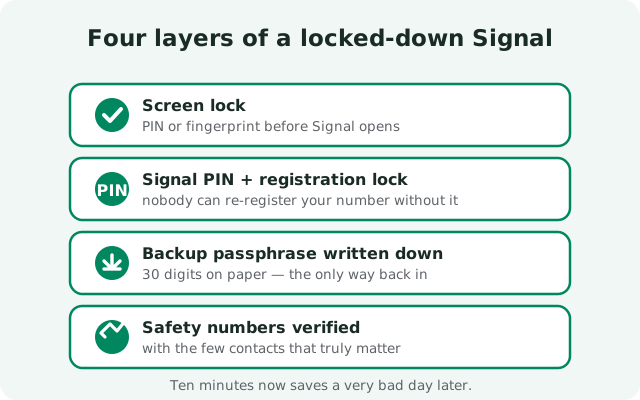
Think of it as four layers. Layer one stops other people from opening your Signal: screen lock. Layer two stops other people from stealing your number: the Signal PIN and registration lock. Layer three stops you from losing everything: backups and the passphrase. Layer four stops silent tampering: safety numbers and linked-device checks. Each layer takes a minute or two. None of them require technical skill: just the willingness to open Settings.
Every path below was checked against the current Android app. If a toggle has moved in a future update, search Settings for the same words. The names rarely change.
1. Turn on screen lock
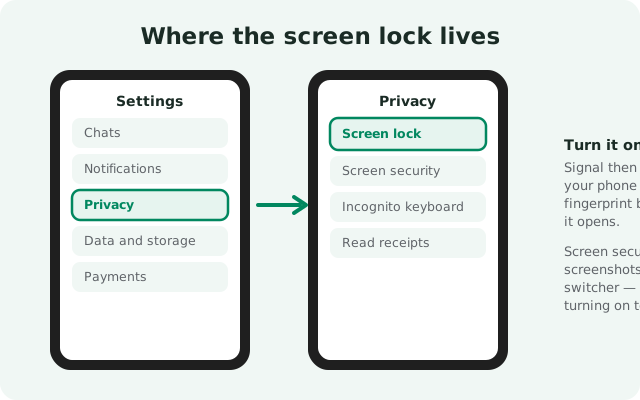
This is the single highest-value setting on the list. Screen lock makes Signal ask for your phone’s PIN, pattern, or fingerprint every time the app opens, or after a period you choose. Hand your unlocked phone to a friend to show them a photo, and your chats stay shut.
Path: open Signal, tap your profile picture, go to Settings → Privacy → Screen lock, and turn it on. You can also set how quickly it locks after you leave the app; the shortest timeout is the safest.
A common objection: “my phone already has a lock screen.” True, but phones get handed over unlocked constantly: to kids, to friends, to a repair shop. Screen lock is the second door behind the first one. There is no downside except one extra fingerprint tap, which takes less than a second.
2. Set your Signal PIN (registration lock)
Your Signal PIN is not your phone’s PIN. It is a separate code that protects your Signal account itself. Its main job is registration lock: it stops someone else from registering your phone number on their own device and hijacking your account. Without registration lock, anyone who can intercept your SMS codes (a SIM-swap attack, for example) can take over your Signal.
Signal asks you to create a PIN during setup. If you skipped it then, set one now from your profile settings: look for the PIN option under your account settings. Pick something you will remember but nobody could guess; a password manager is the right home for it.
One honest detail worth knowing: registration lock is tied to account activity. If your account sits unused for a long stretch (about seven days), the lock expires. That is by design, so a lost PIN cannot lock you out forever while the number itself is what verifies you. The practical lesson: keep using your account normally, keep the PIN written down somewhere safe, and never share it with anyone. No legitimate person, not “Signal support,” not a friend, will ever ask for it.
3. Write down your backup passphrase
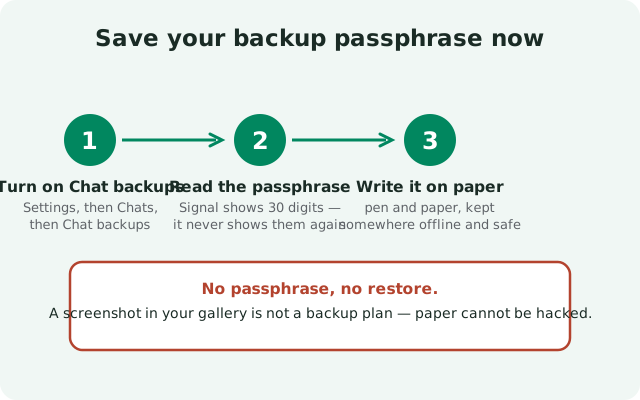
When you turn on Signal’s local chat backups, the app shows you a 30-digit numeric passphrase. That string of digits is the only key that can decrypt your backup file. Signal does not keep a copy. There is no “forgot passphrase” button that actually works. If the digits are gone, the backup is a locked box with no key.
So the checklist item is not “turn on backups”: it is write the digits on paper, with a pen, right now. Paper cannot be hacked, phished, or wiped in a factory reset. Keep it where you keep other important papers: a drawer, a safe, a sealed envelope. Not in your phone’s notes app (which dies with the phone), not as a screenshot in your gallery (which gets backed up to the cloud you are trying to avoid), and definitely not in a chat with yourself.
If you already turned on backups months ago and never wrote the passphrase down, you can view it again in the backup settings and write it down today. Better late than after the phone is already dead. Our backup passphrase guide covers the details, and the backup hub covers everything that can go wrong.
4. Turn on chat backups
The passphrase is useless without a backup file to unlock. Path: Settings → Chats → Chat backups: turn it on and let Signal create the first backup. The file lands in a folder on your phone’s storage.
Two things people get wrong here. First, the backup includes your messages but it is encrypted with that 30-digit passphrase, which is why step 3 comes before step 4 in importance, not after. Second, the backup lives on your phone, not in Signal’s cloud. That is good for privacy and bad for convenience: if you lose the phone and never copied the backup file anywhere, there is nothing to restore from. Copy the backup file to a computer or an external drive every few months. It takes a minute, and future-you will be grateful.
Note for disappearing messages: they are excluded from backups by design. A message set to vanish does not get a second life in your backup file. That is covered properly in step 8.
5. Verify safety numbers with key contacts
Every Signal conversation has a safety number: a long string of digits that represents the encryption keys for you and that contact. As long as the safety number stays the same, nobody is sitting in the middle of your conversation. If it changes unexpectedly, it can mean your contact reinstalled the app (harmless) or that something is intercepting the connection (not harmless).
You do not need to verify this with all 200 contacts. Verify it with the few people whose conversations actually matter: a partner, a lawyer, a source, a business partner. How: open the chat, tap the contact’s name at the top, and look for the safety number verification option. The easiest method is in person: one of you shows a QR code, the other scans it. Done in ten seconds, and both phones mark the contact verified.
After that, turn on safety number change alerts if they are not already on. Signal will then warn you inside the chat if a contact’s keys ever change, so you can ask them “did you get a new phone?” before continuing anything sensitive.
6. Lock down lock-screen notifications
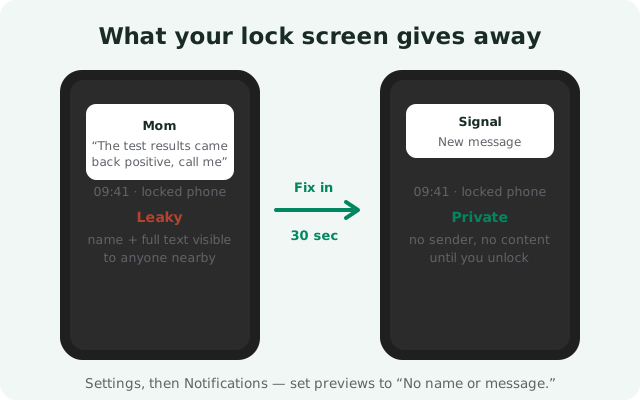
Your lock screen is a public billboard. By default, many phones show the sender’s name and the message text right on it: visible to anyone glancing at your desk, and readable in photos taken over your shoulder. Fixing it takes thirty seconds.
Path: Settings → Notifications: set the notification preview to hide both the sender name and the message content (the “no name or message” option). Your lock screen will then show a plain “New message”: enough to know something arrived, nothing more.
This is the setting people notice most in daily life, because the payoff is immediate: meetings, family dinners, and commutes all get safer at once. Pair it with your phone’s own lock-screen notification settings (Android lets you hide sensitive content per app too) for a proper seal. There is genuinely no reason to leave full previews on.
7. Turn on screen security
Right below the screen lock toggle sits Screen security, and most people walk past it. Turn it on. It does two things: it blocks screenshots inside Signal, and it blanks Signal’s preview in the recent-apps switcher so your chats are not visible as a thumbnail when you flip between apps.
Path: Settings → Privacy → Screen security.
Is it perfect? No. Someone determined can photograph your screen with another phone, and no software toggle stops that. But it kills the casual leak: the accidental screenshot saved to a shared gallery, the app-switcher thumbnail visible during a screen share, the “let me show you something on my phone” moment. Cheap protection, zero daily friction.
While you are on the Privacy screen, consider Incognito keyboard too. It asks your keyboard app not to learn or remember what you type in Signal. One toggle, and your keyboard’s autocomplete stops building a dictionary of your private conversations.
8. Set a disappearing-message default
Disappearing messages are Signal’s way of making conversations leave no trace: each message deletes itself from both phones after a timer you choose. Most people only discover the per-chat timer. Fewer know you can set a default timer for all new chats.
Path: look in Settings → Privacy for the default disappearing-message timer, and set it to something sane like one week. You can still override it per chat: a day for casual talk, a month for things you might need to re-read.
Be honest with yourself about what this does and does not do. It deletes messages from the devices. It does not stop the other person from screenshotting (see step 7 for the partial fix) or photographing the screen. Treat it as hygiene, not magic: less old data lying around means less to leak if a phone is ever compromised. And remember from step 4: messages that disappeared are gone from backups too. That is the point.
9. Check linked devices
Signal lets you link other devices, most commonly Signal Desktop, to your account. Every linked device can read your messages. That is convenient right up until a device you forgot about, sold, or lost is still linked.
Path: open your profile menu and look for Linked devices. The list should contain only devices you recognize and still use. Anything unfamiliar, an old laptop, a work computer from two jobs ago, unlink it now. It takes one tap, and the device immediately loses access.
Make this a twice-a-year habit. It is the digital equivalent of changing the locks after a roommate moves out: quick, boring, and exactly the kind of thing you regret skipping.
10. Memorize the one scam rule
The last step is not a toggle. It is a sentence to burn into memory: nobody from Signal will ever contact you. Not to verify your account, not to ask for a code, not to help with a problem. Signal has no support team that messages users, and any message claiming to be one is a scam. Full stop.
The classic version: you get a text or a Signal message saying “your account will be locked, send us the verification code.” That code is the key to your account. Handing it over is handing over your number. The correct response is delete and block, every time. The same goes for anyone asking for your PIN or your 30-digit backup passphrase. Real support articles live on support.signal.org; real people never slide into your DMs.
Teach this rule to the non-technical people you invited, parents especially. They are the ones scammers target, and one forwarded warning from you is worth more than any toggle on this list. Our Signal safety guide covers the fake-app side of the same threat.
The full checklist in one table
Everything above, condensed. Work top to bottom. The order is deliberate, most protective first:
| # | Step | Where to find it | Why it matters | Priority |
|---|---|---|---|---|
| 1 | Screen lock on | Settings → Privacy → Screen lock | Stops anyone with your phone opening Signal | Do first |
| 2 | Signal PIN set | Profile settings → PIN | Registration lock blocks number hijacking | Do first |
| 3 | Passphrase on paper | Shown when backups are created | No digits, no restore. Ever. | Do first |
| 4 | Chat backups on | Settings → Chats → Chat backups | Your safety net for a dead or lost phone | Do today |
| 5 | Safety numbers verified | Chat → contact name → safety number | Confirms nobody sits in the middle | Do today |
| 6 | Notifications hidden | Settings → Notifications | Lock screen stops broadcasting your chats | Do today |
| 7 | Screen security on | Settings → Privacy → Screen security | No screenshots, no app-switcher thumbnails | Do today |
| 8 | Disappearing default set | Settings → Privacy | Less old data lying around to leak | Do this week |
| 9 | Linked devices checked | Profile menu → Linked devices | Old devices lose access immediately | Do this week |
| 10 | Scam rule memorized | None | “Signal support” never messages you | Tell your family |
Finished all ten? Your install is now harder to break into than the vast majority of Signal installs out there. It cost you ten minutes and a piece of paper. If you set Signal up a while ago and skipped the early steps, run the table now; it is never too late, except for the passphrase after the phone is already dead.
from Signal's official site — file hosted by Signal, not by us
Frequently asked questions
What happens if I forget my Signal PIN?
Keep it somewhere safe (a password manager or written down), because you can't count on recovering it later. Registration lock is tied to account activity and expires after a stretch of inactivity (about seven days), so a lost PIN won't lock you out forever, but don't rely on that: store the PIN properly from day one.
Does screen lock encrypt my messages?
Your messages are already encrypted on the device; screen lock doesn't add encryption. It adds access control. It stops someone holding your unlocked phone from opening Signal and reading everything. Both matter, for different reasons.
Can I skip some checklist steps?
You can, but don't skip the first three: screen lock, the Signal PIN, and the backup passphrase on paper. Those three decide whether a lost phone becomes a bad day or a catastrophe. The rest you can finish over the week.
Do these settings slow down Signal or drain battery?
No. Screen lock adds one fingerprint tap when you open the app; everything else here is a one-time setting with zero ongoing cost. There is no performance reason to leave any of them off.
Keep reading
- the backup hub: restores, passphrase problems, and troubleshooting
- the backup passphrase guide: everything about those 30 digits
- the first-run setup walkthrough: if you skipped anything during install
- the Signal safety guide: fake apps, scams, and verification