
How to install the Signal APK on Honor phones
Published: October 7, 2026 · Updated: October 8, 2026
Signal installs on Honor phones the same way it installs on any modern Android phone. Honor split from Huawei in 2020 and its current phones run MagicOS with full Google services on most models. You can grab the official Signal APK from signal.org/android/apk (current website build 8.29.3) and sideload it in a few minutes. This guide covers which Honor you have, the MagicOS permission path, and the battery settings that keep notifications reliable.
from Signal's official site — file hosted by Signal, not by us. signal.org/android/apk
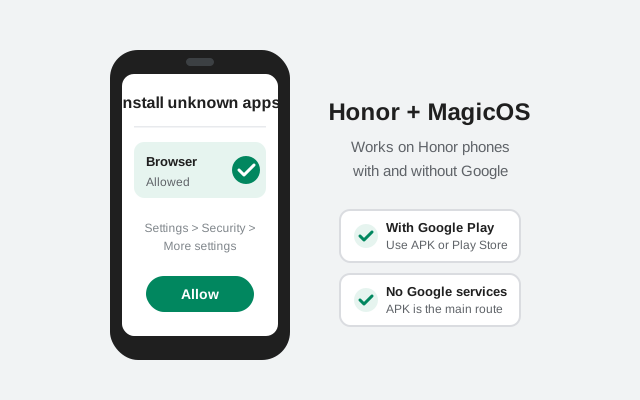
Which Honor do you have? (it matters)
Honor's history splits its phones into two groups, and the install advice differs slightly:
- Newer Honor phones (Honor 50 series and later, Magic series). These shipped after the Huawei split and include Google Mobile Services and the Play Store in most regions. On these, the simplest route is installing Signal from the Play Store. Sideloading the website APK still works fine and is the right choice if you prefer the build that updates itself without Google.
- Older Honor phones (pre-split, EMUI-based). These behave like Huawei phones of the same era: no Google services, no Play Store. The official APK is the primary route, and the notification settings below matter more.
Quick check: open your app drawer. If you see the Play Store, you have Google services. If not, treat your phone like a Huawei for install purposes. Our Huawei guide covers the no-Google specifics, and the battery section below still applies.
MagicOS version numbers track Android underneath: MagicOS 7 runs on Android 13, MagicOS 8 on Android 14, and MagicOS 9 on Android 15. The install steps do not change between them, but knowing your version helps when a menu name differs by a word. Newer MagicOS sometimes files security settings under "Privacy" instead of "Security." Check at Settings → About phone → MagicOS version. One more Honor-specific note: the My Honor app (which hosts the App Market) occasionally pushes its own "security tips" warning against installing apps from browsers. That is generic advice aimed at careless downloading, not a comment on the Signal APK. A verified file from signal.org is exactly the kind of install those warnings do not apply to.
Install steps on MagicOS
On MagicOS (Honor's current software), sideloading takes about five minutes:
-
Download the official APK
Open signal.org/android/apk in your browser and download the file. Current website build: 8.29.3, package
org.thoughtcrime.securesms. Save it somewhere you can find, like Downloads. -
Allow the install
Open the downloaded file. MagicOS will ask you to allow installs from your browser. The exact path is in the next section.
-
Verify before you tap Install
Signal prints its SHA-256 signing-certificate fingerprint on the download page. Compare it against your downloaded file (how to verify) before installing. Two minutes that prove the file is genuine.
-
Install and open
Tap Install, then Open. If you get "App not installed", you probably have a different-signed Signal build already. See what "App not installed" means.
-
Register
Enter your phone number and the SMS code as described in the registration section.
The unknown-app permission on MagicOS
MagicOS inherited its settings layout from Huawei's EMUI, so the path looks familiar if you have used a Huawei phone:
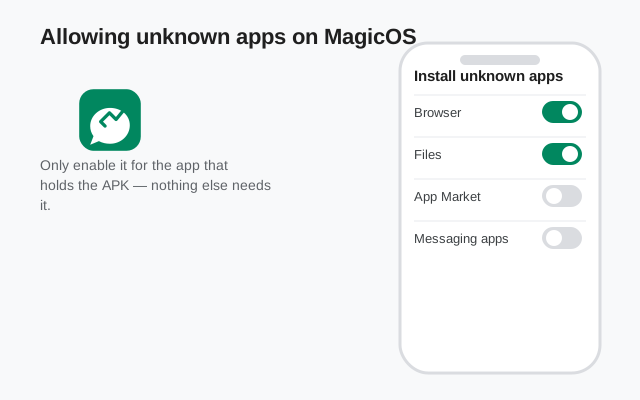
Settings → Security → More settings → Install apps from external sources → select your browser → allow.
Android calls this "Install unknown apps"; MagicOS phrases it as external sources. It is a per-app grant. Allowing your browser does not allow every app on the phone to install things. After Signal is installed, you can revoke it; the installed app keeps working normally.
What about Honor's own app store?
Honor phones ship with the Honor App Market (inside the My Honor app). A few honest notes:
- If it lists Signal, check the developer name. The genuine app is by Signal Foundation. App stores occasionally carry lookalikes. Our fake-app guide explains the red flags.
- The official APK is still the cleanest route. It comes straight from Signal, updates itself, and removes the store as a middleman. On phones with the Play Store, that store is equally fine.
- Never install "Signal Pro" or "Signal Plus". There is no such app from Signal. Anything with that name is either a scam or a modded build you should not trust with your messages.
Notifications and battery settings
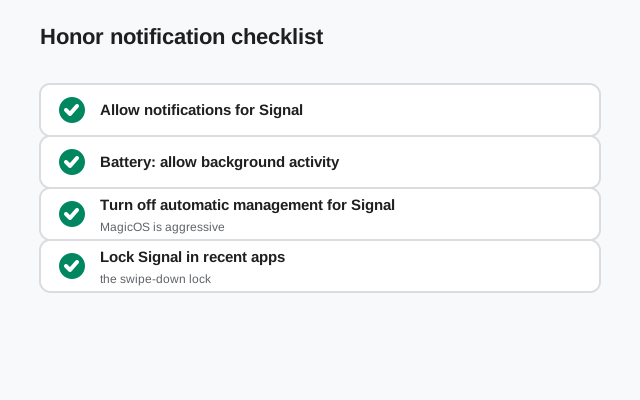
MagicOS manages background apps aggressively, and Signal is a frequent casualty. Most "I don't get message notifications on my Honor" complaints trace back to these two settings:
- App launch: manage manually. Go to Settings → Battery → App launch, find Signal, turn off "Manage automatically", and enable all three manual toggles: auto-launch, secondary launch, and run in background.
- Battery usage: unrestricted. Go to Settings → Apps → Signal → Battery usage and pick the unrestricted / allow-background-activity option.
On Honor phones with Google services, Signal can also use Google's push network, which is less affected by battery killing, but the settings above still help. After changing them, test with a message from another device while your screen is off. If notifications are still late, work through our notification troubleshooting guide.
One more MagicOS setting that trips people up: lock-screen notifications. MagicOS can hide notification content on the lock screen by default. If Signal messages arrive but show only "new message" with no preview, go to Settings → Notifications & status bar → Lock screen notifications and set Signal to show content. This is a display preference, not a delivery problem, but it is the most common reason Honor owners think notifications are "broken" when they are actually working.
Register and first-run setup
Registration is identical on every Android phone: MagicOS changes nothing here.
- Open Signal, enter your phone number with the country code.
- Wait for the SMS code (usually under a minute). If it never arrives, request a voice call with the code instead. See SMS code troubleshooting.
- Set your profile name, create a PIN for registration lock, and review privacy settings.
- Restore from a backup if you are moving from another phone. Do this before wiping the old device.
Run through our post-install security checklist once (PIN, registration lock, screen lock). It takes two minutes and it is the highest-value setup step most people skip.
Moving from another phone
If your old phone ran the Play Store build of Signal and your Honor will run the website APK build (or the reverse), plan the move around one fact: the two builds are signed with different keys and cannot install over each other. Your chats move via backup, not via the app installer:
- On the old phone, turn on Secure Backups and save your recovery key somewhere safe.
- Install the APK on the Honor, register the same number, and restore during setup.
- Only wipe the old phone after you have confirmed chats and media arrived.
Our full transfer walkthrough covers the whole move, and the build-switching checklist is worth reading if you are changing builds at the same time as changing phones.
Frequently asked questions
Does Signal officially support Honor phones?
Yes. Signal's Android app runs on any compatible Android phone, and Honor phones run standard Android under MagicOS. The website APK build from signal.org is the officially supported route for installing without the Play Store.
My Honor has the Play Store. Should I still sideload the APK?
Not necessarily. If the Play Store works for you, installing from there is simpler and updates are handled by Play. Sideload the website APK if you prefer a build that updates itself without Google, or if the Play Store is unavailable. Pick one build and stick with it. They cannot mix.
Why do I need to allow ‘external sources’ on MagicOS?
Android blocks app installs from outside approved stores by default. The permission tells MagicOS that your browser is allowed to install apps. It is a normal, reversible setting: not a hack and not a security hole by itself.
Will sideloaded Signal update itself on my Honor?
Yes. The website build checks for updates on its own and prompts you to install them. You never need the Play Store or the App Market again for Signal updates. See our update guide for details.
I get no notifications on my Honor. What is the fix?
Almost always the battery settings: set Signal's app launch to manual with all three toggles on, and set battery usage to unrestricted (Settings → Apps → Signal → Battery usage). Then test with the screen off. The notification troubleshooting guide covers the rest.
Next steps: grab the file from the official Signal APK download page, or compare the two builds in our build flavors guide before you decide.