
No Signal notifications on Huawei? Fix it without Google services
Published: October 7, 2026 · Updated: October 8, 2026
Signal works fully on Huawei phones without Google (including notifications), but you must use the website build and set three battery settings. Huawei devices have no Google push network, so Signal's official APK from signal.org/android/apk (current website build 8.29.3) delivers notifications through its own always-on connection. That connection is exactly what Huawei's battery saver loves to kill. Fix the battery settings below and notifications become reliable.
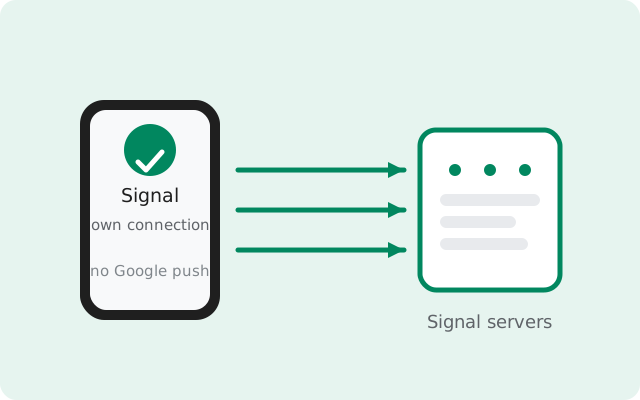
How Signal notifies without Google
On a normal Android phone, the Play Store build of Signal uses Google's push network (FCM): Google's always-on connection wakes Signal when a message arrives. Huawei phones sold since 2019 don't have that network. So the website build does the job itself. It keeps its own persistent connection to Signal's servers running in the background and listens for incoming messages directly.
| Play Store build (with Google) | Website build (no Google, e.g. Huawei) | |
|---|---|---|
| How messages arrive | Google's push network wakes the app | Signal's own always-on connection |
| Battery sensitivity | Low: the system keeps Google's connection alive anyway | Higher: battery savers target the app's own connection |
| After correct settings | Instant | Instant |
| Encryption | End-to-end, unchanged | End-to-end, unchanged |
| Updates | Via Play Store | Self-updating, no store needed |
The key insight: there is nothing inferior about the no-Google path once the battery settings are right. Every "no notifications on Huawei" complaint we've seen traced back to EMUI or HarmonyOS killing that background connection. Never to the missing Google services themselves.
First: make sure you're on the right build
The website build and the Play Store build are signed with different keys and cannot install over each other. On a Huawei phone without Google services, you want the website build:
-
Download from signal.org/android/apk
Open signal.org/android/apk in Huawei Browser and download the APK. Current website build: 8.29.3, package
org.thoughtcrime.securesms. -
Verify the SHA-256 fingerprint
Signal publishes its signing-certificate SHA-256 fingerprint on the download page. Compare it before installing. Our safety guide explains the check. This proves the file is genuinely from Signal.
-
Back up before switching builds
If you're moving from a Play-installed Signal (on an older Huawei with Google, or a transferred backup), enable Chat backups first. The two builds can't replace each other in place, but your chats transfer via backup.
The three EMUI / HarmonyOS settings
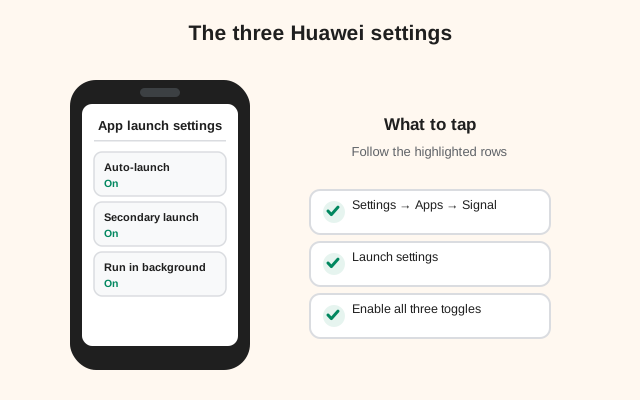
These three settings are the entire fix for most Huawei phones. Do all three. They control independent systems:
-
App launch: manage manually
Go to Settings → Battery → App launch. Find Signal, turn off Manage automatically, and enable all three manual toggles: Auto-launch, Secondary launch, and Run in background. This is the single most important setting. "Manage automatically" is what kills Signal overnight.
-
Battery usage: allow background activity
Go to Settings → Apps → Signal → Battery usage and choose the unrestricted / allow-background-activity option. This stops the system from suspending Signal's connection when the screen is off.
-
Notifications: allowed, on lock screen
Go to Settings → Notifications → Signal (or Apps → Signal → Notifications) and confirm notifications are allowed, with lock-screen display on. Also check Settings → Notifications → Lock screen notifications → Show globally.
On HarmonyOS the paths are the same: Settings → Battery → App launch exists on HarmonyOS 2/3/4 just like EMUI. (HarmonyOS NEXT is a different OS that doesn't run Android APKs at all. Check Settings → About phone if you're unsure which you have.)
Lock Signal in recent apps
Huawei's task manager closes background apps when you swipe them away, unless you "lock" the app in the recents screen:
-
Open the recent-apps screen
Tap the square navigation button or swipe up and hold, with Signal running.
-
Lock Signal
Swipe down on Signal's card (or tap the lock icon on the card, depending on EMUI version). A small lock icon appears. Huawei will no longer close it when you clear recents.
-
Never force-stop Signal
Settings → Apps → Signal → Force stop kills the background connection until you reopen the app. Clearing it from recents (unlocked) has a similar effect. If notifications mysteriously die, the first question is always: did something close Signal?
The 10-minute screen-off test
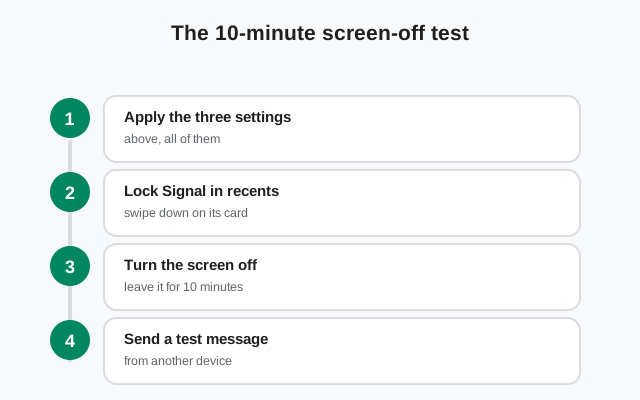
Verify the fix with a real test. Huawei's killers are sneaky and settings sometimes don't stick:
-
Reboot the phone
Restart, then open Signal once so its connection starts. (This also confirms auto-launch works after a reboot.)
-
Lock it and wait 10 minutes
Screen off, not plugged in. Charging changes Huawei's power behavior and can fake a pass.
-
Send a test message from another device
It should arrive within seconds. If it's late, re-check all three settings. One of them reverted, which happens after EMUI updates.
-
Test overnight too
Huawei's deepest sleep states kick in after hours of inactivity. Leave the phone untouched overnight with a message scheduled (or ask a friend in another timezone). Morning delivery without opening the app means you're fully fixed.
Do you need HMS Core or AppGallery for notifications?
No. Signal does not use Huawei Mobile Services push, so HMS Core is irrelevant to Signal notifications. The website build's own connection replaces it entirely. You don't need AppGallery, HMS Core updates, or a Huawei ID for Signal to notify you. Keep HMS Core updated for your other apps if you use them, but Signal doesn't depend on it.
One related trap: don't install "Push" or "GMS installer" hacks hoping they'll fix notifications. Sideloaded Google frameworks on Huawei are a malware vector, they break with updates, and Signal doesn't need them. The three battery settings above are the supported fix.
Battery myths that waste your time on Huawei
A lot of "advice" for Huawei notification problems is either useless or harmful. Skip these:
- RAM booster / cleaner apps: they kill background apps aggressively. That's the exact opposite of what you want. Uninstall them; EMUI manages memory on its own.
- Clearing Signal's cache to "fix" notifications: cache has nothing to do with the background connection. It won't help and you'll just re-download media thumbnails.
- Closing all apps "to save battery": swiping Signal away from recents (unless it's locked) stops its connection. Leave it alone.
- Ultra / Super power saving mode: this mode disables background data for everything by design. Notifications will stop while it's on. That's expected behavior, not a bug. Turn it off for normal use.
- Disabling PowerGenie via ADB: advanced users sometimes remove Huawei's PowerGenie service with ADB commands. It can help, but it needs a computer, varies by EMUI version, and isn't required. The three settings above fix notifications on their own. We don't recommend system surgery when a settings fix exists.
from Signal's official site — file hosted by Signal, not by us
Frequently asked questions
Can I get Signal notifications on Huawei without Google at all?
Yes. The website build from signal.org/android/apk keeps its own background connection and notifies without any Google services. Set App launch to manual (all three toggles), battery usage to unrestricted, and lock Signal in recents. Then verify with the 10-minute screen-off test.
Why do notifications work for a day and then stop?
Huawei's "Manage automatically" app-launch setting learns your usage and eventually restricts Signal again, or an EMUI update resets your exemptions. Re-do the three settings and check them after every system update.
Does keeping Signal's connection alive drain the battery?
Very little. It's a lightweight persistent connection with occasional keep-alive packets. Signal stays near the bottom of battery stats. The cost of instant messages is negligible next to the screen and mobile radio.
Will this work on Honor phones too?
Newer Honor phones (separated from Huawei) ship with Google services, so they can use the Play Store build normally. Older Honor phones on EMUI without Google follow the exact same steps as Huawei above.
What about HarmonyOS NEXT?
HarmonyOS NEXT doesn't run Android APKs (only native HarmonyOS apps), so the Signal APK can't install there at all. Check Settings → About phone: standard HarmonyOS 2/3/4 installs the APK fine; NEXT does not.
Should I disable PowerGenie with ADB for better notifications?
It's not necessary. PowerGenie is Huawei's background-app enforcer, and the App launch + Battery usage settings above already exempt Signal from it through supported menus. ADB removal is advanced, varies by model, and can have side effects. Try the settings fix first; it works on its own.
Do linked devices (Signal Desktop) affect phone notifications?
No. Each device keeps its own connection. If your phone's notifications are fixed, Desktop receiving messages too doesn't take anything away from the phone. They notify independently.
Related: master notification diagnosis, delayed notifications on any brand, Huawei install guide, and the troubleshooting hub.