
Molly backup and restore, step by step
Published: October 7, 2026 · Updated: October 8, 2026
Molly backs up the same way Signal does: an encrypted Secure Backup file unlocked by your recovery key. The current key format is 64 characters; an old 30-digit key is a retired legacy format, so check which one you have before you need it. Creating a backup takes a few taps in Settings. Restoring means re-registering your number and entering that key. And because Molly and Signal share the same backup format family, your chats can move between the two apps. This page covers the whole loop: backup, restore, and migration.
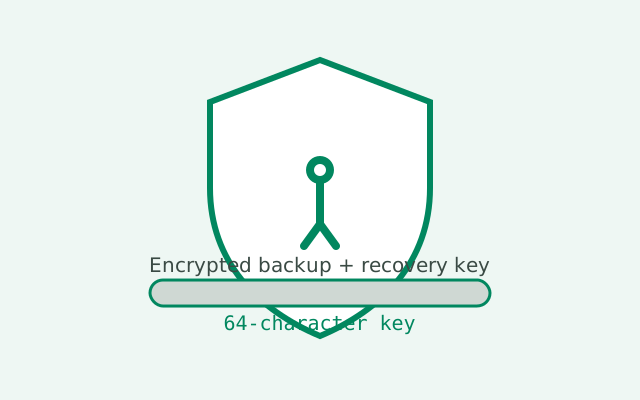
How Molly backups actually work
Forget the word "cloud" for a moment. Molly's backup is a local encrypted file. The app bundles your messages, media, and settings into one file and encrypts it with a key derived from your recovery key. Signal and Molly both do it the same way because Molly is built from Signal's code. If you understand Signal's backup, you understand Molly's; the screens have the same names and the same flow.
Two things are true at once. Your backup file is useless without the key, and your key is useless without the file. Lose the key and the file is a locked box with the key thrown away. Lose the file and the key is a key to a house that burned down. The whole job of this page is to make sure you never test which loss is worse. Keep the key and a fresh copy of the file in two different places.
The recovery key is the long-term credential. You set it once (or inherit it from Signal when you migrated) and it stays valid across backups. New backups do not change the key. That is convenient, and it is also why the key deserves the safest storage spot you have: a password manager, or written down and kept somewhere physical. Never keep the only copy of the key on the phone the backup is supposed to protect.
Find (and save) your recovery key
Open Molly, go to Settings, then Chats, then Chat backups. The screen shows whether backups are enabled and lets you view your recovery key. Write it down exactly, all 64 characters, and store it somewhere safe. If you see a 30-digit key instead, you are on the retired format: the app will guide you to rotate to the current format. Do the rotation now, before the next backup, because legacy formats are the kind of thing that stops working one day.
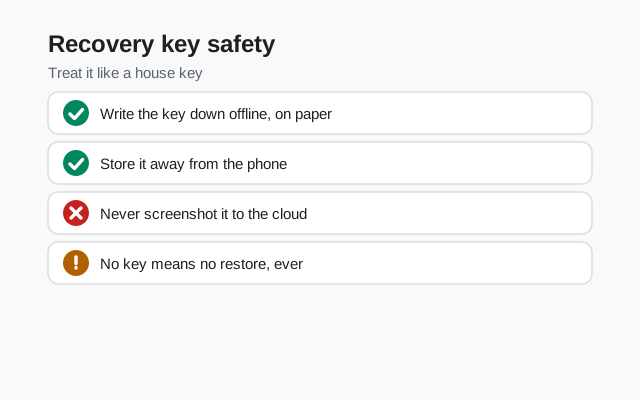
Test the key the way a locksmith tests a key: by using it before the emergency. The cheapest test is to write it down, close the app, and compare what you wrote against the screen. The expensive test, discovering it is wrong during a restore, is not a test you want. If your handwriting is ambiguous, copy-paste into a password manager instead of transcribing by hand.
One more thing people get wrong: the recovery key is not your Signal PIN, and it is not a password you can reset by email. There is no "forgot key" flow. There is no support desk that can issue you a new one. If you lose it, the chats are gone. This sounds dramatic because it is dramatic, and the entire backup system is built around you being the only person who can unlock your history.
Create a backup
With the key safe, create the backup itself. In Settings, then Chats, then Chat backups, turn backups on if they are not already, and run one manually now. Give it time. A backup with years of media can take a long while, and it needs storage space on the phone to hold the file. Do not start this five minutes before a flight.
Let it finish completely. An interrupted backup is not a backup; it is a half-written file the app may or may not be able to read. Keep the phone awake and charging if the backup is large. When it finishes, check the timestamp: it should say now, not last month. If your phone is set to back up on a schedule, the manual run still matters before any risky operation, because scheduled backups cover the past, not the present.
Where does the file live? On the phone's storage, in the location the app designates. You can move a copy to a computer or external storage for safekeeping. Treat the file like the key's partner: encrypted, valuable, and worth a second copy. And remember that the backup encrypts message content, but the usual caveats about who has physical access to your phone still apply; the passphrase lock in Molly adds at-rest protection, which is one of the fork's selling points.
Restore on the same phone
Restoring on the same phone usually follows an update gone wrong or a deliberate reinstall. Install the fresh copy of Molly from your usual source (molly.im or the F-Droid repo), open it, and register with your phone number. When the app detects a backup, it will ask for the recovery key. Enter all 64 characters carefully. The restore then runs through the backup file and rebuilds your chats.
Registration means the usual SMS or call verification to your number, so do this somewhere you can receive the code. Keep the phone connected and patient during the restore; large backups take time, and the progress bar is not a decoration. When it finishes, spot-check a few conversations, especially ones with media, before you relax.
If the restore does not find your backup file, check that the file is where the app expects it. This is the classic failure: the backup exists but the app cannot see it. Do not re-register repeatedly hoping it will appear; each failed attempt burns time and patience. Find the file first, then restore once.
Restore on a new phone
A new phone adds one step: the backup file has to travel. Make a fresh backup on the old phone first, copy the file to the new phone (USB cable is the simplest and most reliable), and also bring the recovery key. Install Molly on the new phone, register the same number, enter the key, and restore.
The number is your identity on the Signal network, so the new phone must be able to receive the verification code for that number. Plan around that: if the old SIM is dead, get it working first. If you use a linked desktop client, it will need re-linking after the move; linked devices do not follow you automatically, and the desktop app will want a fresh QR scan.
Do not wipe the old phone until the new one is fully working. The old phone is your fallback copy of everything. The sequence is: backup, transfer, restore, verify, and only then wipe. Anyone who wipes first is volunteering for the worst day of their digital life.
Moving chats between Molly and Signal
Here is the question people actually ask: can I back up in Molly and restore in Signal, or the other way around? The honest answer: both apps use the same Secure Backups format family, so cross-restore is the designed path for migrating between them. You back up in one app, install the other, register your number, and restore with the key.
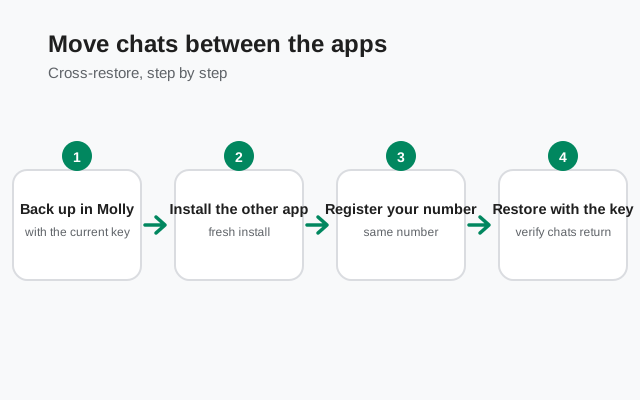
The caveats are real but generic. Keep the two app versions reasonably close in age: a backup made on a much newer build may not restore cleanly on a much older one, because the format evolves over time. Use the current 64-character key, not a legacy one. And plan for the same friction any move has: number verification, media taking time, linked devices needing re-linking.
Direction does not matter much. Signal to Molly and Molly to Signal both work the same way, because the format is the format. What matters is discipline: fresh backup, verified key, clean install of the target app, restore, verify. Our Signal to Molly migration guide and Molly to Signal guide each walk one direction with the practical details.
One thing cross-restore does not do: it does not keep both apps running with the same chats. Your number can only be the primary device on one app at a time. Registering in the other app moves your identity. This is a move, not a copy.
The pre-migration checklist
| Check | Why it matters | Done? |
|---|---|---|
| Recovery key written down and stored off-phone | No key, no restore, no exceptions | |
| Key format is the current 64-character one | Legacy 30-digit keys are retired | |
| Fresh backup made today, fully finished | Old backups do not cover new messages | |
| Backup file copied to a second location | One copy is no copy | |
| Target app downloaded from its true source | Molly from molly.im; Signal from signal.org | |
| Number can receive the verification code | Registration needs it | |
| Old phone kept until new setup is verified | Your fallback copy |
Print this mentally before every migration. The checklist looks paranoid until the one time it saves you, and then it looks like the smartest thing you ever did. Migrations fail when people skip rows, never when they follow them.
When backups fail
Backups fail for boring reasons. The most common is storage: the backup file needs room, and a nearly full phone cannot make one. Free up space and try again. The second most common is interruption: the phone slept, the app was killed, the process died halfway. Run it manually, keep the phone awake, and let it finish.
If a backup keeps failing at the same point, large media is the usual suspect. The app has to pack every attachment into the file, and one corrupt video can stall the whole thing. Clearing out old, huge attachments from chats you do not need is a legitimate fix, not a defeat. The Signal backup failure guide covers the shared failure modes in more depth, since Molly inherits the same backup engine.
If a restore fails, the checklist is short: is the key correct, all 64 characters? Is the backup file actually where the app looks? Is the key the current one? Nine times out of ten, one of those three is the answer. The tenth time, re-download the app from the true source and try a clean install; a damaged app install can fail restores that a fresh copy handles fine.
from the fork's own site — file hosted there, not by us
Frequently asked questions
Does Molly use the same backup as Signal?
Yes. Molly is built from Signal's code and uses the same Secure Backups system: a local encrypted file unlocked by your recovery key. The format family is shared, which is why chats can move between the two apps.
What is the Molly recovery key format?
The current format is 64 characters. An old 30-digit key is a retired legacy format; rotate to the current one in the app's backup settings before your next backup.
Can I restore a Molly backup in official Signal?
Yes, that is the designed migration path: back up in Molly, install Signal, register your number, and restore with your key. Keep the app versions reasonably close in age for the smoothest result.
I lost my recovery key. Can I still restore?
No. There is no reset flow and no support desk that can issue a new one. Without the key the backup cannot be decrypted. This is why the key must be stored somewhere safe before you need it.
How often should I back up?
Turn on the schedule and run a manual backup before anything risky: updates, migrations, new phones. A backup is insurance; make it fresh right before the risky event.
Keep reading
- the Molly hub: every fork guide in one map
- updating Molly safely: the backup-first update ritual
- moving from Signal to Molly: the full migration walkthrough
- moving from Molly to Signal: the reverse migration walkthrough
- Signal's Secure Backups explained: the shared backup engine, deep-dived
- Molly's database encryption: what your passphrase really protects